
Importing users from a CSV file
A CSV import is the way to create or update many employees at once from a single file, without connecting a directory or any external system. It is also the quickest route to a working employee list at the start: export the list from your HR system, fix up the columns, upload.
It is a one-off upload, not synchronization: afterwards the file and UnSpot live apart. Below is what the file must contain, what happens to each row, and where to look for errors afterwards. If you are still choosing how to fill the directory, start with How to choose a user synchronization method.
When a CSV import is the right tool
| A good fit | A poor fit |
|---|---|
| Filling the directory for the first time, before the rollout | Keeping the directory current from then on |
| A one-off addition: a department, a branch office, a new intake of employees | Deactivating leavers automatically — an import archives nobody |
| A bulk edit of records that already exist: positions, phones, managers | Transferring groups and the org structure wholesale — groups have to exist beforehand |
| A company with no corporate directory that could be connected | A regular exchange: the file has to be prepared and uploaded by hand every time |
What you need before you start
- The Users Administrator or Super Administrator role: nobody else can upload.
- A file in UTF-8 — no other encoding is supported.
- A file under 5 MB, and in CSV format specifically: a file of another type is rejected by the dialog. The check uses the file type reported by the browser, so a genuine CSV saved by Excel is sometimes rejected — re-save it as CSV UTF-8.
- There is no ready-made export in the template format: download the template from the import dialog, and if employees already exist in UnSpot, export their list from the user management section and rename the column headers to match the template. The display name is part of that export too: in the “Download employee data” dialog it is the “Display Name” checkbox in the “User Information” block, ticked by default. In the file the column is called
Display name— export headers are always English, whatever the interface language. - If the file has a Groups column, every group listed must already exist in UnSpot. The import does not create groups.
- If it has a Manager column, the manager must already exist and be active. The simplest approach is two passes: create everyone first, then fill in the managers. In that second file, do not leave the Groups column empty — an empty cell wipes the groups, see the traps section.
The template columns
The template downloads straight from the upload window — the Download the csv file template link. It has thirteen columns, a semicolon separator and one sample row you are meant to replace with your own data. The System group in the sample row is not an invention of the template — it is the default group: UnSpot assigns it to new employees who arrive with no groups listed.
| Column | What goes in it | Required |
|---|---|---|
| First name | The employee first name | yes |
| Last name | The last name | yes |
| Display name | The display name — the name the employee is shown under across the product instead of the “First Last” pairing. No column in the file leaves the field alone; an empty cell clears the previous display name | no |
| Employee Id | The staff number in your own records | no |
| The work email. It identifies the employee: an address already in UnSpot updates that record, a new one creates a record | yes | |
| Position | The job title. Longer than 128 characters and the row fails with an error on the Position field | no |
| Department | The path of the unit in the org structure. An unfamiliar value creates a new unit | no |
| Manager | The manager email — not their name, not their staff number | no |
| Number Pass | The badge number for the access control system | no |
| Phone | The phone number. The format is not validated — any text up to 50 characters | no |
| Groups | Groups separated by commas inside one cell: Sales,London | no |
| Office | The name of the office the employee belongs to — exactly as it reads in UnSpot | no |
| Office attendance rate, % | The office attendance target, a number from 0 to 100. A per cent sign is allowed; a fractional value with a dot (50.5) is rounded, while a value with a comma (50,5) counts as non-numeric and silently wipes the previous target | no |
Other field limits also fail a row: first and last name — up to 128 characters, email — up to 240, phone — up to 50, badge number — up to 30, employee ID — up to 100 and strictly without spaces. Errors on these fields land in the same error table.
Column order does not matter — the mapping is done by the header row. Extra columns are simply ignored, and a renamed optional column is lost silently: a header that is not on this list never reaches UnSpot and raises no error. The required ones are stricter: rename First name, Last name or Email and the whole file is rejected with a message about its structure. Best not to touch the header row at all.
There is no role column in the template. Everyone uploaded gets the Member role; administrator rights cannot be handed out through the file, only by hand in the record.
How to upload the file
The path in the console: People management > Users, the Upload from CSV button. The Import users window opens. The same screen is reached from the CSV card under Manage > Integrations > Synchronisations (the card is visible while no directory synchronization is connected) — its Go to settings link opens the Users page, where you click the CSV upload button.
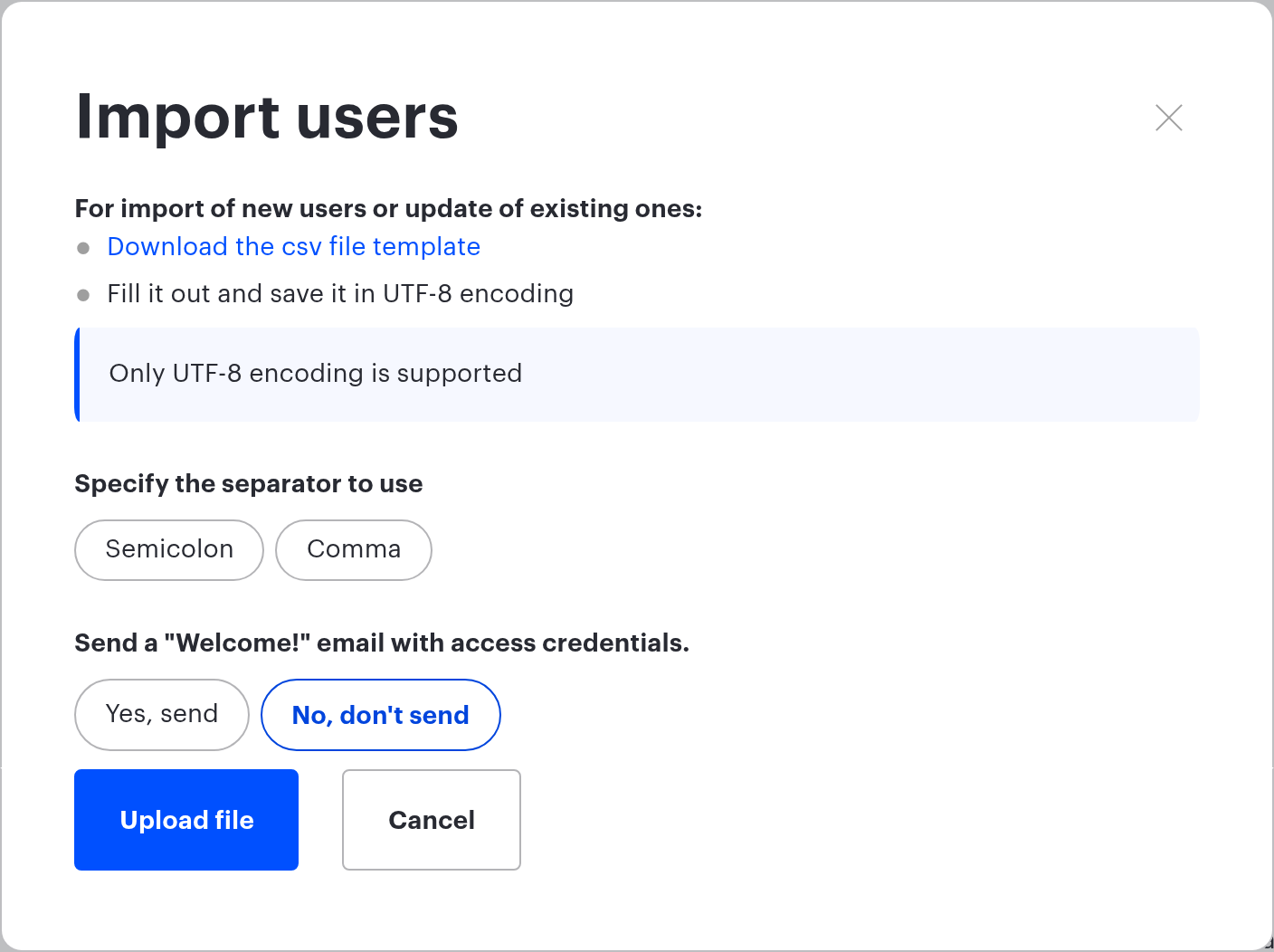
- Download the template and fill it in. Save it as UTF-8.
- Choose the separator — Semicolon or Comma. There is no auto-detection: until a separator is chosen the Upload file button will not open the file picker, and the choice is highlighted as a required field.
- Decide whether to send the Welcome! email with credentials. Read this one carefully: the choice affects more than the new employees — see the traps section.
- Click Upload file and pick your CSV.
- Wait for the result. Rows go to the server in batches of ten, so with a large file the counter moves in visible steps.
At the end UnSpot reports how many employees were uploaded out of how many, and on failures a table breaking the errors down by row. Successful rows are saved regardless: a file with errors is uploaded partially rather than rejected whole.
What happens to each row
| State of the email in that row | What the import does |
|---|---|
| The email is not in UnSpot | A record is created with the Member role. A password is generated automatically |
| The record exists and is active | Only the fields whose columns are present in the file are updated. A missing column erases nothing |
| The record exists but is archived | The employee returns from the archive with the data from the file — in the totals they count as created. The password is always regenerated on the way back from the archive, even with No, don’t send — in that case share access by hand from the record |
| The record exists and is deactivated | The data is updated but the deactivation stands: the import does not switch the employee back on |
Some context on those two states: archiving removes the record from the lists, deactivating keeps it visible but blocks sign-in. Both are managed by hand on the employee record in the user management section — the same place where roles are granted; the import itself never archives, deactivates or promotes anyone.
On an update, groups are replaced, not added to: whatever the cell lists is what the employee ends up with. An empty Groups cell wipes every group the employee had. Once the column is in the file it applies to every row, including the ones where the cell is blank. To leave groups alone, drop the column from the file entirely rather than leaving it unfilled.
Errors: where to look and what they mean
Failed rows are collected into a table of four columns: Line, Field, Value, Errors. Such a row is not uploaded at all — fix it and upload the file again.
| Field in the error table | What is being checked |
|---|---|
| The address does not look like an email — or it already appeared earlier within the same batch of ten rows. A duplicate more than ten rows apart is not caught: the second row runs as an update of the first | |
| First Name, Last Name | An empty value: both the first and the last name are required |
| Position | Longer than 128 characters |
| Groups | At least one group from the cell was not found in UnSpot. The whole row is skipped, even if the other groups do exist |
| Manager | A manager with that email was found but is deactivated or archived. If the email is not there at all, there is no error — see the traps |
| Department | A unit with that path could not be created |
The line number is counted inside a batch of ten, not from the start of the file. In a 30-row file an error on row eleven is shown as line 1. Go by the Field and Value columns instead — they let you find the row by searching the file.
The numbering also ignores the header row: line 1 is the first row of data, that is, the second line of the file.
If there is a single error for the whole file and the text talks about its structure, the most common causes are the ones the window itself lists: the file is not saved in UTF-8; the chosen separator is not the one used in the file; the set of columns does not match the template.
Traps worth knowing about in advance
- Yes, send changes the passwords of employees who already exist. The welcome email carries credentials, so a new password is generated — including for people the file merely updates. Updating existing records means choosing No, don’t send. The email itself carries the address and the new automatically generated password, with a note to change it after the first sign-in.
- An empty Office cell unbinds the employee from their office. A name that is not in UnSpot, or a disabled office, has the same effect: the office is cleared and no error is raised.
- An empty Department cell unbinds the employee from their unit. If you do not plan to change departments, remove the column entirely.
- The import will not move an employee into a unit managed by synchronization. A value pointing at a synchronized unit, or inside a synchronized branch, is skipped silently — the employee stays in their previous unit. An unfamiliar top-level value, however, creates a new, non-synchronized unit and moves the employee there — even if their current unit came from a directory.
- An unknown manager email silently clears the manager. If the Manager column holds an address that is not in UnSpot — or the cell is blank while the column is in the file — the row uploads without an error and the employee previous manager is gone.
- A typo in a department creates a new unit. Sales and sales count as the same thing, but Sales and Marketing is already a new branch of the tree.
- An attendance target outside 0 to 100 is silently reset. There is no error, but whatever target the employee had is wiped.
- Fields locked by the SSO data refresh are overwritten by the import, but not for long: at the employee next sign-in they revert to the provider data. Details in OpenID Connect: creating users at first sign-in.
- The import deletes nobody. Anyone missing from the file stays in UnSpot untouched: no archiving, no deactivation.
- An empty Display name cell clears the display name. The employee starts showing up as First Last again. If you do not intend to change display names, remove the column entirely.
How an import differs from synchronization
| CSV import | Directory synchronization | |
|---|---|---|
| Who starts the exchange | the administrator, by hand | the platform, once a day |
| What happens to leavers | nothing: the record stays active | dropping out of the result archives the record and cancels the bookings |
| Groups | assigned, but they have to exist beforehand | transferred from the directory (except Google Workspace) |
| Org structure | created from the Department column | transferred as a tree |
| Avatars | not transferred | transferred by a separate job |
| Compatibility | works with any synchronization connected | only one direct synchronization can be connected at a time |
An import and a synchronization do not conflict, but if a directory is connected, the fields it owns revert to its values at the next exchange. Using a file makes sense for what the directory does not hold — badge numbers or office attendance targets, for example.
