
Booking control scenarios: four ready-made setups
These are ready-made booking control setups for four typical goals: from a soft clean-up of stale bookings to strict presence verification. Each scenario is a combination of stages, time windows and confirmation methods. What every field does on its own is covered in the settings reference; the mechanics of windows and auto-cancellation — in How booking control works.
How to pick a scenario
Start from the problem you want to solve. Each scenario comes with two frames: the settings window with the right values, and how the same settings look on the Check-in policies page once saved.
| Problem | Scenario | Stages |
|---|---|---|
| People book ahead “just in case” and never cancel — desks are wasted | Scenario 1: freeing up desks early | First step only |
| Attendance reports do not match reality: bookings exist, people do not show up | Scenario 2: accurate attendance analytics | Second step only |
| You need proof that the employee physically came to the office | Scenario 3: strict in-office confirmation | Second step only, no remote methods |
| You need both: an advance clean-up plus arrival control | Scenario 4: full control | Both steps |
All values are entered in the Booking confirmation window: Manage → Company settings → Check-in policies → Edit settings in the desk and parking space block. A scenario can also be applied to a single space through local settings — for example, strict control only in the office where desks are scarce. Meeting rooms have a different method set (QR code and display only); each section notes how the scenario applies to them.
Scenario 1: advance confirmation to free up desks early
The goal: bookings are created ahead of time, and by the day of the visit some are no longer needed. The scenario cancels stale bookings early enough for other employees to grab the freed desks.
A day before the start the system sends the employee a confirmation request — by email, push notification and in a connected corporate messenger. One click from anywhere confirms it: the first step checks whether the booking is still needed, not whether anybody arrived. If there is no answer by the time the window closes, the booking is cancelled automatically and the desk returns to the shared pool — with the whole morning left for someone else to book it.
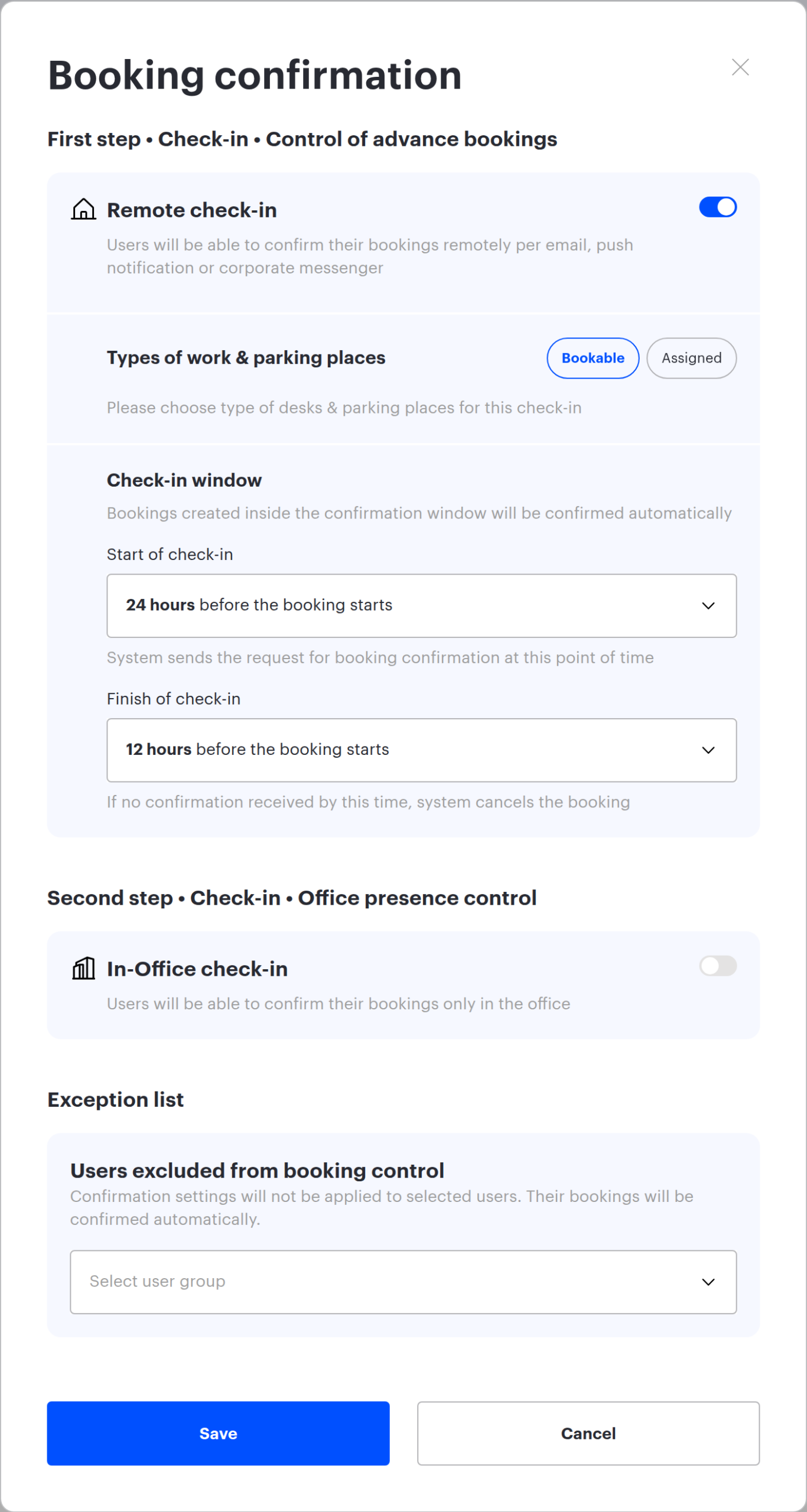
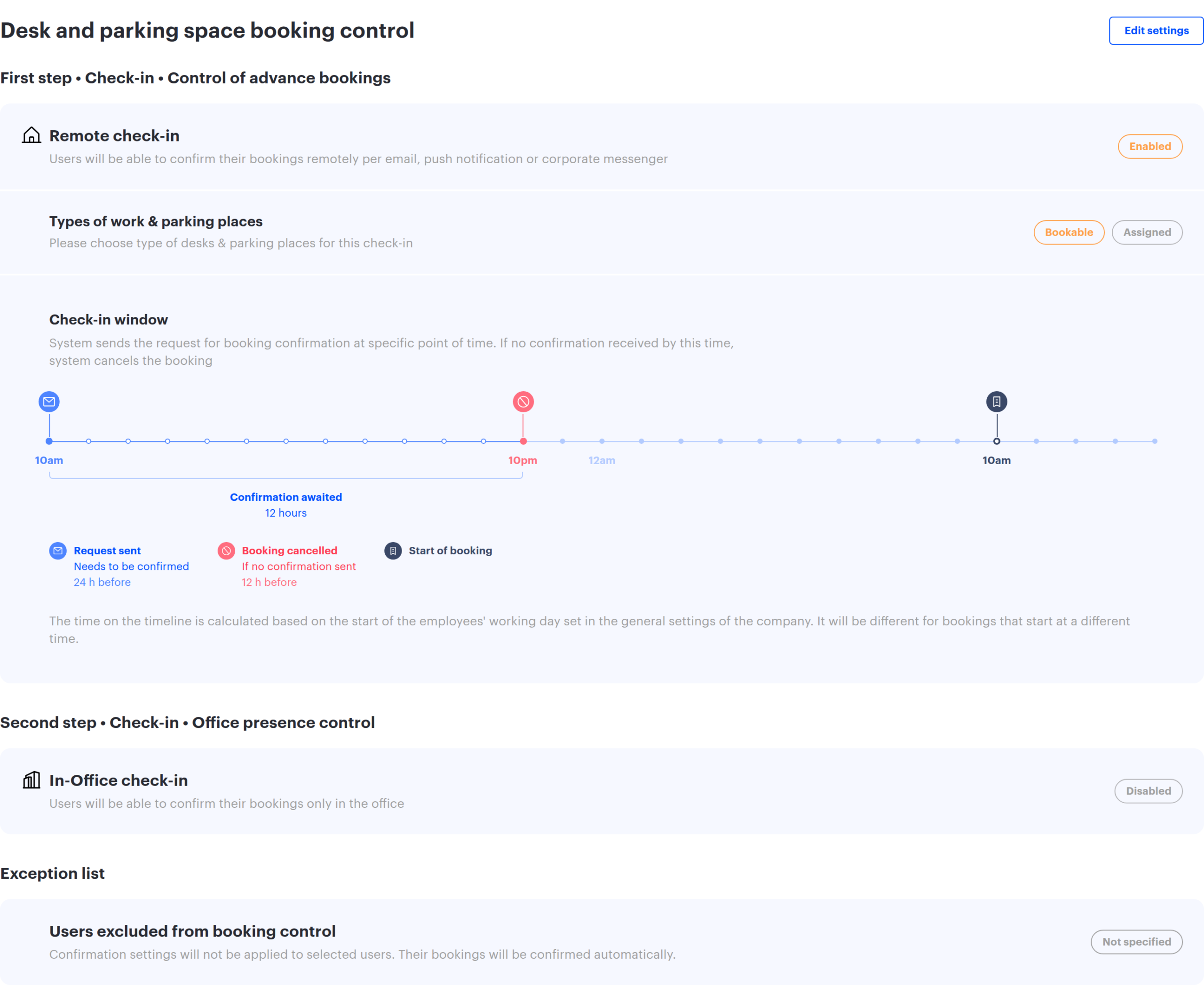
| Setting | Value | Why |
|---|---|---|
| “Remote check-in” (first step) | On | Enables advance confirmation |
| “Types of work & parking places” | “Bookable” | The point is returning the desk to the pool; an assigned desk would not become available to others anyway |
| “Start of check-in” | “24 hours before the booking starts” | The request goes out a day ahead — the employee has time to answer |
| “Finish of check-in” | “12 hours before the booking starts” | Unconfirmed bookings are cancelled overnight, leaving the whole morning for rebooking |
| “In-Office check-in” (second step) | Off | Arrival control is not part of this scenario |
- Bookings created inside the window — including same-day ones — are confirmed automatically, so the scenario does not get in the way of spontaneous booking.
- The booking is cancelled when the window closes, not when the booking starts: with the values above — 12 hours before the start.
- The window must close later than it opens: the form will not save a combination like opening “10 minutes before” with closing “1 hour before”.
- Meeting rooms have the first step too, but their default windows are shorter — meetings are planned less in advance: opening 2 hours and closing 1 hour before the start. See meeting room check-in.
Scenario 2: accurate attendance analytics
The goal: know who actually showed up. Bookings of no-shows are cancelled at the booking start or an hour or two later — so the reports show real occupancy instead of the paper one.
The first step is not used here: employees are not disturbed in advance. Only the second step runs, with a short window around the booking start. If no confirmation arrives, the system cancels the booking: bookings cancelled by control are excluded from occupancy reports, and the journal keeps a record of the cancellation.
With PACS: fully automatic
If a PACS is connected, presence is confirmed by the very fact of entering the office — the employee does nothing. It is worth enabling “Automatic Check-in via Mobile Device (IP, WiFi, GPS)” as well: it covers the cases where the person is in the office but did not badge in themselves.
“Remote confirmation” is switched off in this variant: a button that can be pressed from home distorts exactly the analytics this scenario is built for.
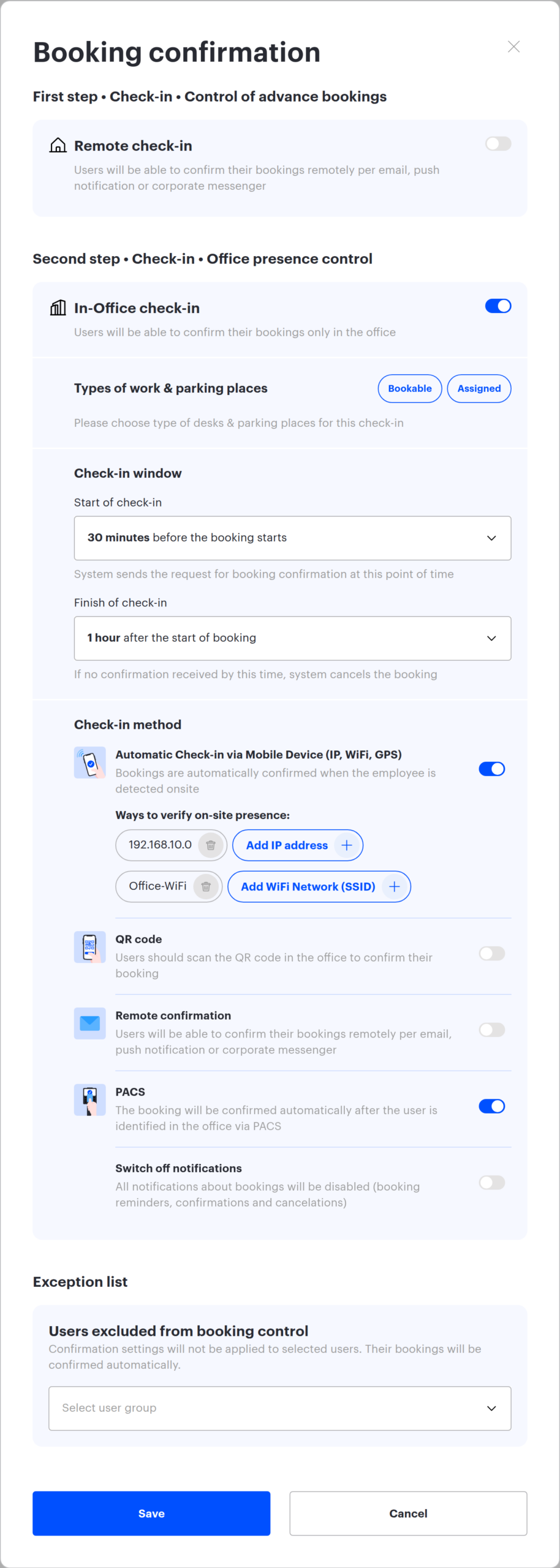
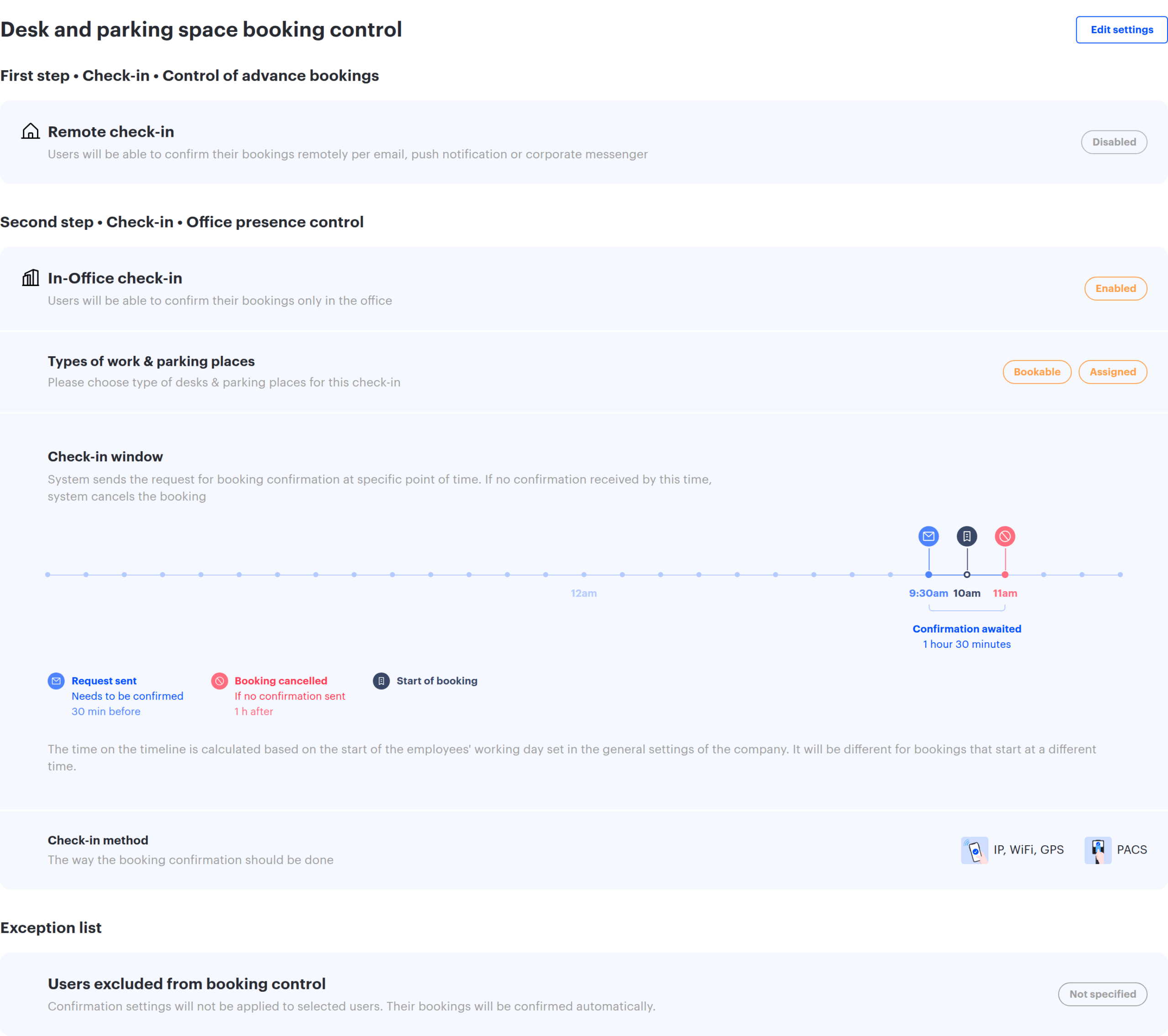
Without PACS: automatic check-in plus the button
Without a PACS, the heavy lifting is done by “Automatic Check-in via Mobile Device (IP, WiFi, GPS)” — office Wi-Fi networks, IP addresses and geolocation. “Remote confirmation” stays on as a fallback, for two reasons. First, network and geolocation do not count as a standalone method: the form will not save without QR code, the button or PACS enabled. Second, the button helps employees who do not use the mobile app. The trade-off: the button can be pressed without coming to the office, so the control is softer.
| Setting | Value | Why |
|---|---|---|
| “Remote check-in” (first step) | Off | Nobody is disturbed in advance |
| “In-Office check-in” (second step) | On | Enables arrival control |
| “Types of work & parking places” | “Bookable” and “Assigned” | Attendance analytics needs all desks |
| “Start of check-in” | “30 minutes before the booking starts” | Those who arrive get confirmed even before the booking formally starts |
| “Finish of check-in” | “At the time of starting the booking” — strict; “1 hour” or “2 hours after the start of booking” — with an allowance for late arrivals | Sets the moment when a no-show booking is cancelled |
| “Check-in method” | With PACS: “PACS” and “Automatic Check-in via Mobile Device (IP, WiFi, GPS)”. Without PACS: “Automatic Check-in via Mobile Device (IP, WiFi, GPS)” and “Remote confirmation” | What proves presence |
- Automatic check-in needs data: the office network and IP lists are filled in inside the method block (up to 3 addresses and 3 networks), and geolocation needs the office coordinates. Details — in check-in methods.
- “Switch off notifications” (appears under an enabled PACS) silences all second-step notifications — including the silent requests to the app. Automatic mobile check-in stops working with it, and presence is then proved only by passing through the PACS. Enable it only if silence matters more than the mobile backup.
- The share of unconfirmed bookings per employee is shown by the “By employee” report — see By employee analytics: cancelled bookings and attendance check.
- Managers and employees who travel between sites can be taken out of control via the “Exception list” — their bookings are confirmed automatically.
Scenario 3: strict in-office confirmation
The goal: make sure the employee is physically in the office. Remote confirmation is ruled out entirely — only methods that work on-site can confirm the booking.
The second step does the work. The core method is “QR code”: the employee scans the code on-site, and a meeting room booking is confirmed from the room display. Pair it with “Automatic Check-in via Mobile Device (IP, WiFi, GPS)”: the office network and geolocation only trigger when the phone is actually in the office, so people who arrive do not even have to scan. If a PACS is connected, add it too: entering the office confirms the booking with no action from the employee. The key difference from the other scenarios — “Remote confirmation” is off, so the reminder email arrives without a confirmation button: the booking can only be confirmed in the office.
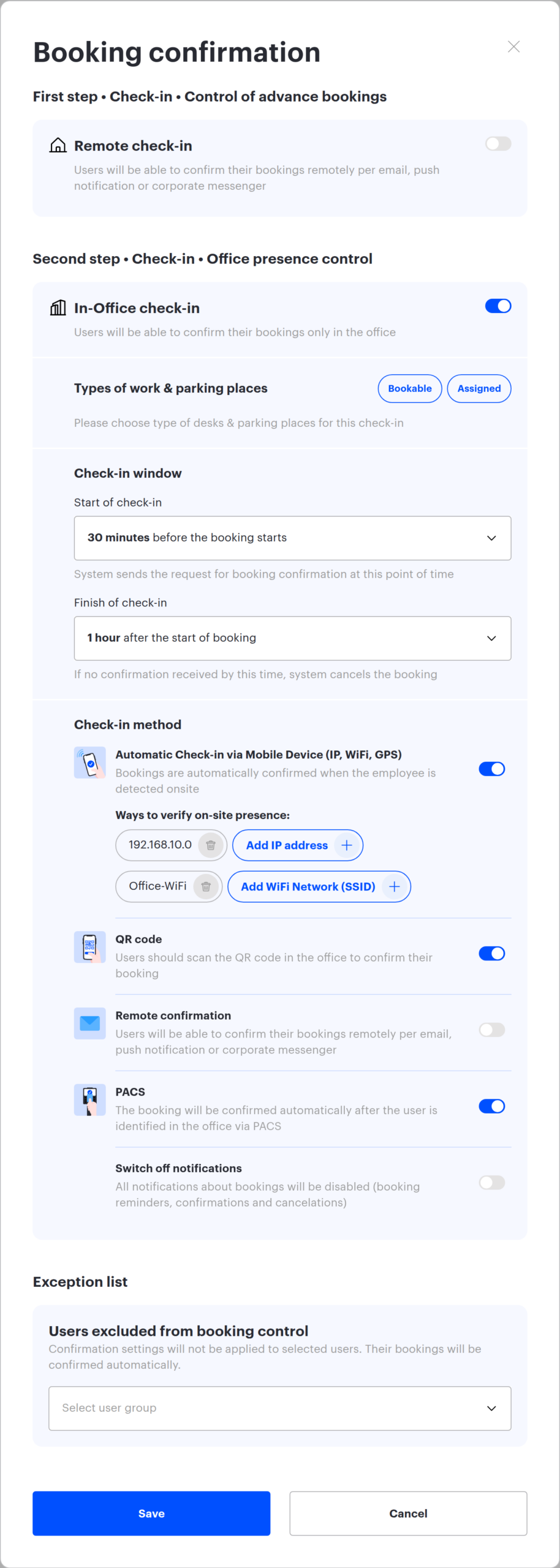
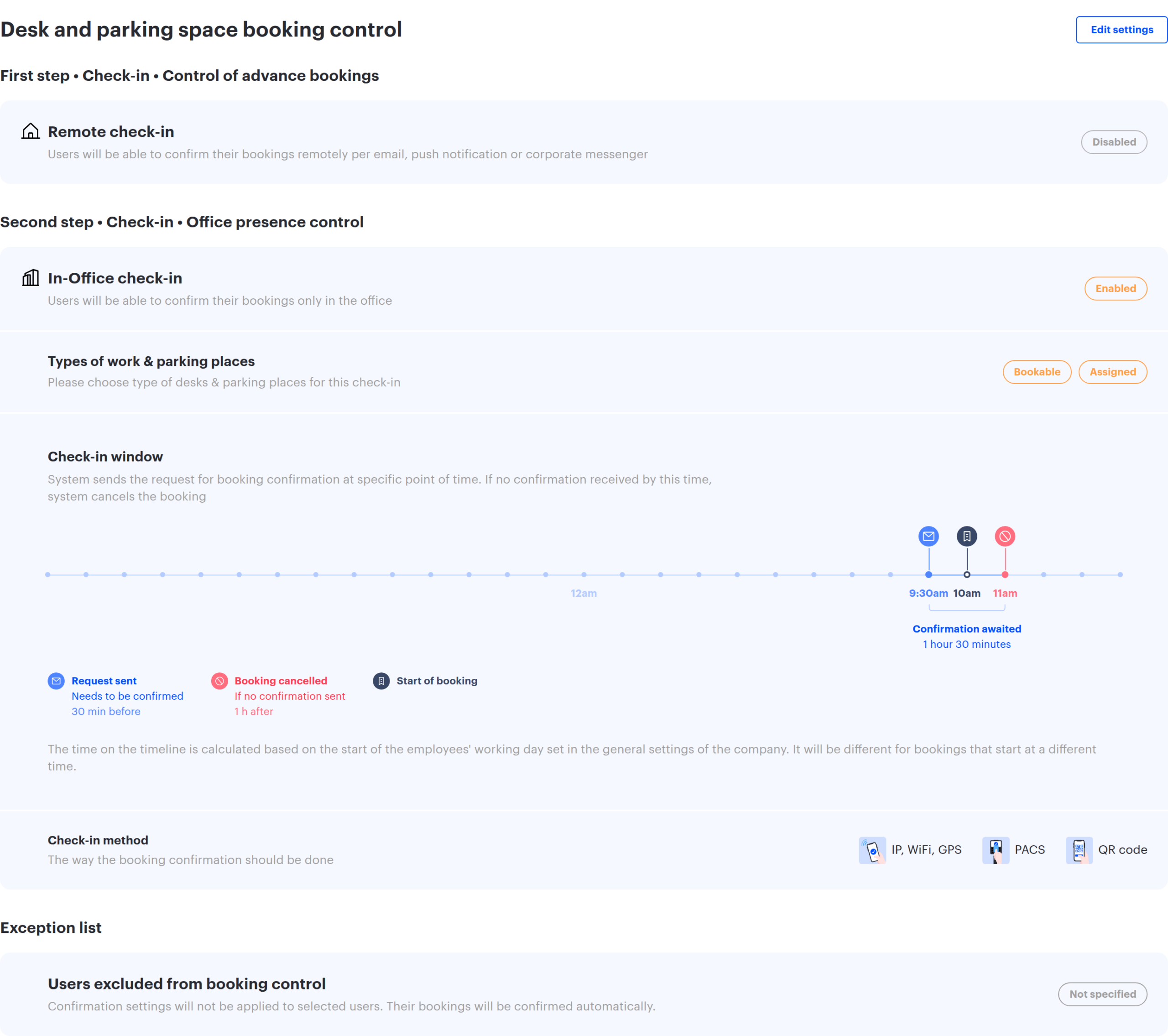
| Setting | Value | Why |
|---|---|---|
| “Remote check-in” (first step) | Off (turning it on makes this scenario 4) | Strict control works on its own |
| “In-Office check-in” (second step) | On | The core of the scenario |
| “Types of work & parking places” | “Bookable” and “Assigned” | Presence control usually covers all desks |
| “Start of check-in” | “30 minutes before the booking starts” | Confirmation is available right on arrival |
| “Finish of check-in” | “1 hour after the start of booking” | An hour for late arrivals; stricter — “At the time of starting the booking” |
| “QR code” | On | The anchor method: the form requires QR code, the button or PACS, and the button is ruled out here |
| “Automatic Check-in via Mobile Device (IP, WiFi, GPS)” | On | Network and geolocation spare those who arrived from scanning manually |
| “PACS” | On, if connected | The most reliable strict method — by the fact of entry |
| “Remote confirmation” | Off | The point of the scenario: no confirming from home |
- QR codes have to be printed and placed in advance — the “Download QR Codes” link sits right in the method block. How the export works is described in check-in methods.
- Geolocation only works when the office coordinates are set — they are shown in the local settings of the space.
- For employees without a smartphone keep PACS (a badge needs no app) or add them to the “Exception list” — otherwise they will have nothing to confirm with.
- Meeting rooms always live by this scenario: their only method is the QR code and the display — rooms have no “Remote confirmation” method. See meeting room check-in.
Scenario 4: full control with both steps
The goal: clean up stale bookings in advance and verify actual arrival. A booking survives only if it is confirmed twice: ahead of time — with one click from anywhere, and in the office — by a second-step method.
The first step is configured as in scenario 1, the second — as in scenario 2 or scenario 3, depending on how strict you need to be. The steps are independent: confirming that the booking is still needed does not replace the arrival check, and failing either of the two cancels the booking.
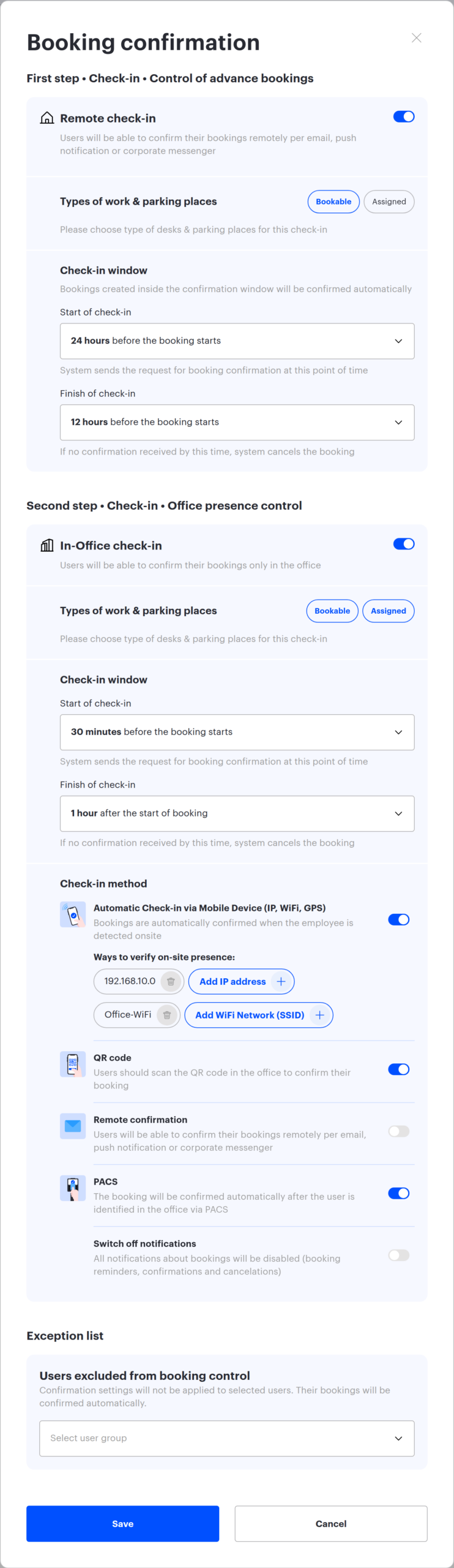
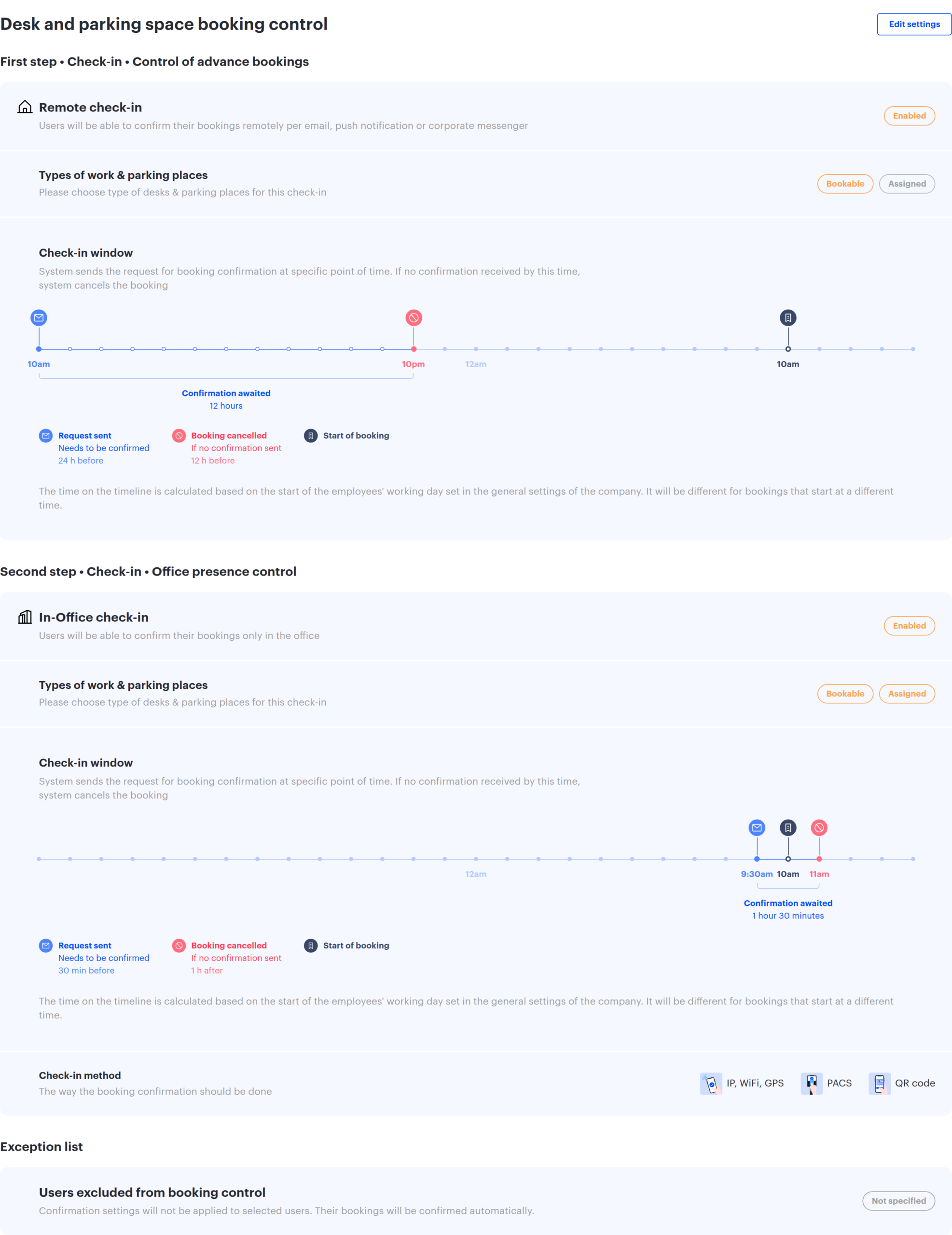
| Setting | Value | Why |
|---|---|---|
| First step | On; window from “24 hours” to “12 hours before the booking starts” | Advance clean-up of stale bookings |
| Second step | On; window from “30 minutes before” to “1 hour after the start of booking” | Control of actual arrival |
| “Check-in method” | The set from scenario 2 (soft) or scenario 3 (strict) | Matches the required strictness |
- The stage windows must not overlap: the first step has to close no later than the second one opens, and with both steps on the first step cannot close after the booking start. The form highlights such combinations and refuses to save.
- The values from the table leave a wide gap: the first step closes 12 hours before the start, the second opens 30 minutes before.
- Employees get the notifications of both steps and confirm twice — warn the team and share the employee guide.
Related articles
- Booking control: overview
- Booking control: settings reference
- How booking control works
- Check-in methods: how to verify office presence
- Check-in settings for a space and a meeting room
- Desk and parking check-in: one shared setting
- Meeting room check-in: how it works and how to set it up
- Confirming your booking (check-in)
- By employee analytics: cancelled bookings and attendance check
