
Service request for a meeting
You can order a service for a booked meeting: a coffee break, room preparation, help with the equipment, cleaning after the session. The request is created straight from the booking card, and UnSpot fills in the meeting room and the start time itself — the provider does not have to ask for anything.
Who can do it
A service for a meeting can be ordered by the organiser of the booking, their manager and an employee with the right to manage all users. An ordinary attendee cannot submit such a request — if a service is needed, ask the organiser.
The services block may be missing from the booking card entirely. One nuance: if this meeting already has requests, the block stays in place with the list of them — only the add button disappears. The reasons can be:
- the requests module is off in the company;
- no service for meeting rooms has been created, or all of them are switched off;
- the provider of the service has been deactivated, deleted or archived — UnSpot removes them from the service, and the service stops being offered even though it is switched on;
- the booking was created from the display panel by the meeting room, that is, its organiser is a device rather than a person;
- the booking came from an external calendar and its organiser could not be matched to an UnSpot employee — then the block is missing too.
Bookings that came from Google Calendar or Outlook do not by themselves prevent ordering services: if the organiser is matched to an UnSpot employee, the block will be there.
How to order a service for a meeting
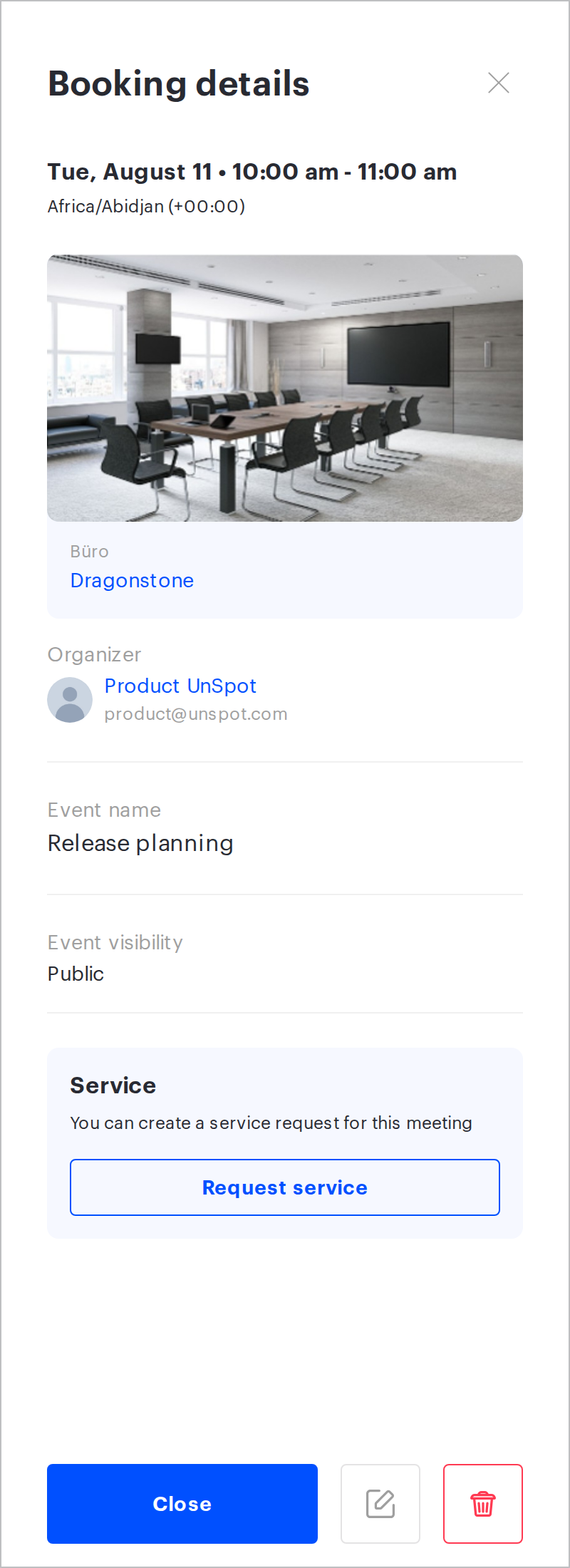
- Open the card of your meeting-room booking.
- Find the “Service” block and click “Request service”. If services have already been ordered for this meeting, the block shows their list instead, and the button is replaced with the “Add a service request” link.
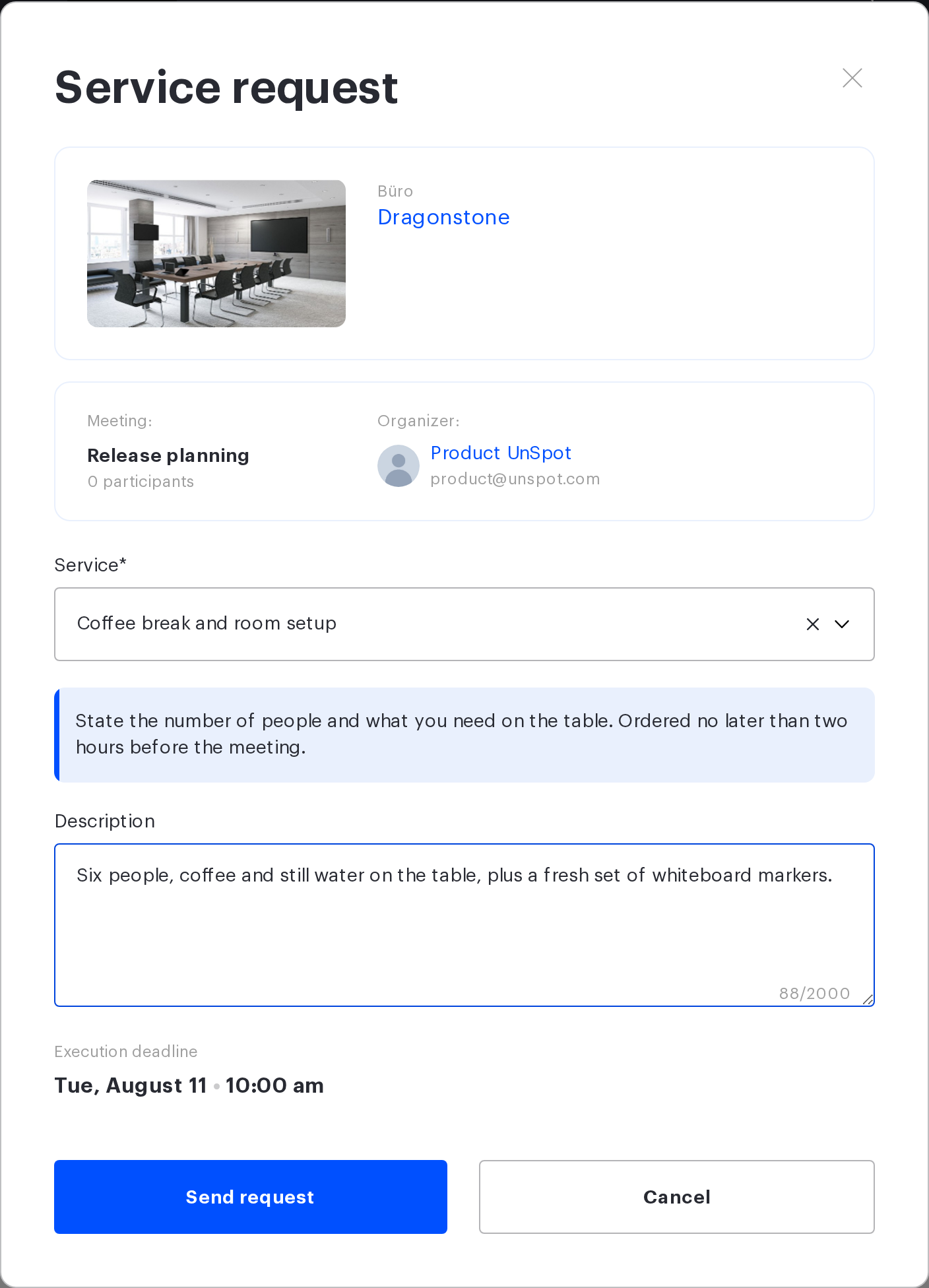
- In the form pick the “Service”. Two cards are shown above it: the object — the office and the meeting room, and the meeting — its name, the number of attendees and the organiser.
- Describe the order in the “Description” field: how many people, what exactly is needed, by when.
- Click “Send request”.
A file cannot be attached to such a request — unlike other kinds of request, this form has no image upload block. Put everything the provider needs into the text: here the description is the only way to explain the task, and it takes up to 2000 characters.
Several services can be ordered for one meeting — submit a separate request for each. All of them will be visible in the same block of the booking card.
The execution deadline
At the bottom of the form there is an “Execution deadline” line. It is not an input field: UnSpot shows the start time of the meeting there and it cannot be changed. The meaning is direct — by the time the attendees walk into the meeting room, the service must be ready.
If the service is needed before the meeting starts — laying the table half an hour earlier, for example — write about it in the description. There is no field for it.
If the meeting is moved or cancelled
| What you did with the meeting | What happened to the request |
|---|---|
| Moved it to another time or changed its duration | The request goes back to the “New” status with the note “Booking was changed”. The provider has to confirm it again, for the new time. There is no need to warn them separately — the email goes out automatically |
| Ended the meeting early with the stop button | The request closes with the “Cancelled” status — UnSpot treats an early finish the same way as cancelling the booking, not as a reschedule. If the service is still needed, submit a new request |
| Cancelled the booking | The request closes with the “Cancelled” status. It cannot be brought back into work — if the meeting happens later, submit a new one. Requests the provider has already closed are left alone |
Requests the provider has already closed — with the “Completed” or “Cancelled” status — are unaffected by moving or cancelling the meeting.
A separate case: if the meeting room is deleted from the office entirely, the request does not close automatically. It keeps its status, and instead of the place the list shows “Booking removed”. Such a request is worth cancelling yourself, or asking the provider to do it.
You can follow the request in the same place as all the others — the “Requests” section → the “Service requests” tab. If the request is not there, check the “Creation date” filter: it starts out showing today only.
Related articles
- How to submit a service request — all three ways to submit a service request
- Service request for an employee — a request not tied to a specific place
- Request for an office object and by QR code — a request for an office object and by QR code
- “In meeting room” requests: setup — how an administrator sets up services for meeting rooms
