
Microsoft 365 cloud: how calendar synchronisation works
This article describes how the synchronisation between UnSpot bookings and calendars in the Microsoft 365 cloud works — what travels to the calendar and back, how quickly changes arrive, what happens when bookings overlap, and how the two connection methods differ: under a Microsoft account and through a Microsoft Entra application. For an on-premise Exchange server the mechanics are different — see On-premise Exchange: how calendar synchronisation works.
Contents
What travels from a booking to an event
What arrives from an event into a booking
What does not travel in either direction
How changes arrive from the calendar
The two connection methods and how they differ
Manual re-sync and signs of breakage
Limitation: the application’s incoming synchronisation has to be restarted manually
The big picture
UnSpot reaches Microsoft 365 calendars through Microsoft Graph. The synchronisation is two-way and event-driven rather than scheduled:
- From UnSpot to the calendar. When an employee books a meeting room, UnSpot immediately creates a meeting in that room’s calendar. Editing and deleting the booking reach the calendar just as immediately.
- From the calendar to UnSpot. When a meeting with that room is created in Outlook or another client, Microsoft sends UnSpot a notification and UnSpot creates the matching booking.
When a calendar is connected for the first time, UnSpot loads events for a window of seven months back to six months ahead. Events outside that window are not part of the first load. After that UnSpot asks Microsoft for changes only, but the full load over the same window is repeated on every re-sync — both when it is started with the Start Sync button and when UnSpot starts it itself after a booking conflict.
Synchronisation has other horizons too — the window of recurring series and the window in which bookings whose calendar event has disappeared are cleaned up. They are the same for every provider and are collected in the Synchronisation horizons table of How calendar synchronisation works.
What travels from a booking to an event
| UnSpot booking field | Where it lands in the event | Caveats |
|---|---|---|
| Start and end | event time | in the office time zone; if it is not set, the company time zone |
| Booking title | event subject | — |
| Meeting link and comment | event body | joined into one text: the link first, then the comment |
| Attendees | event attendees | only email addresses are passed; the split into required and optional is not carried over |
| Private booking flag | event sensitivity | a regular booking becomes Normal, a private one becomes Private |
| Recurrence | event recurrence pattern | carried over on creation |
When a booking is edited, less reaches the calendar than on creation. The subject, time, attendee list and sensitivity are updated. The recurrence pattern and the body are not sent on update — if you changed the comment or the recurrence of an existing booking, the calendar keeps the previous value.
What arrives from an event into a booking
| Event field | What it becomes in UnSpot | Caveats |
|---|---|---|
| Subject | booking title | an empty subject makes the booking Engaged |
| Start and end | booking time | — |
| Organiser | booking organiser | — |
| Sensitivity | private booking flag | anything other than Normal makes the booking private. If the event carries no sensitivity, the privacy setting of the meeting room itself is used |
| Attendees | booking attendees | — |
| Recurrence pattern | recurring booking | the series is processed, not a single occurrence; bookings are created for a limited stretch — roughly a month back and a year ahead — and the chain is extended automatically |
| Meeting cancellation | the booking is deleted | a cancelled meeting and a declined invitation are treated the same way |
Editing a single occurrence of a recurring meeting does not arrive immediately. Notifications about individual occurrences of a series are not processed: if you move or delete one meeting of the chain in Outlook, the chain in UnSpot does not change straight away. The edit is applied at the next sync of the series — for example after Start Sync.
What does not travel in either direction
- The meeting location (the Location field in Outlook) — the meeting room in UnSpot is determined by the calendar the event landed in, not by the text in that field.
- The all-day flag. An all-day event becomes a booking with a specific start and end time.
- The event body. The meeting text from the calendar is not copied into the booking description — neither in full nor as a preview. In the other direction the body does travel: the booking comment and the meeting link land in the event body.
- Categories, the online meeting flag, the free/busy status (Busy, Tentative and the rest).
- Attachments and rich formatting — the body is carried over as plain text.
How changes arrive from the calendar
When a calendar is connected, UnSpot sets up a Microsoft subscription to notifications about created, updated and deleted events in that calendar. After that:
- Microsoft sends a notification that something in the calendar has changed. The contents of the change are not part of the notification.
- UnSpot queues the processing with a small delay — about five seconds. That smooths out bursts of notifications when several meetings are changed at once.
- UnSpot then asks Microsoft only for the changes since the previous sync and applies them to the bookings.
A subscription lives for about 70 hours and has to be renewed after that. For calendars connected under a Microsoft account the renewal is automatic. For calendars connected through an Entra application there is a limitation — see the section below.
The two connection methods and how they differ
Everything above is identical for both cloud options: the fields, the directions, the first-load window, the notification mechanics. The differences are in whose name UnSpot acts under and how the calendar is found.
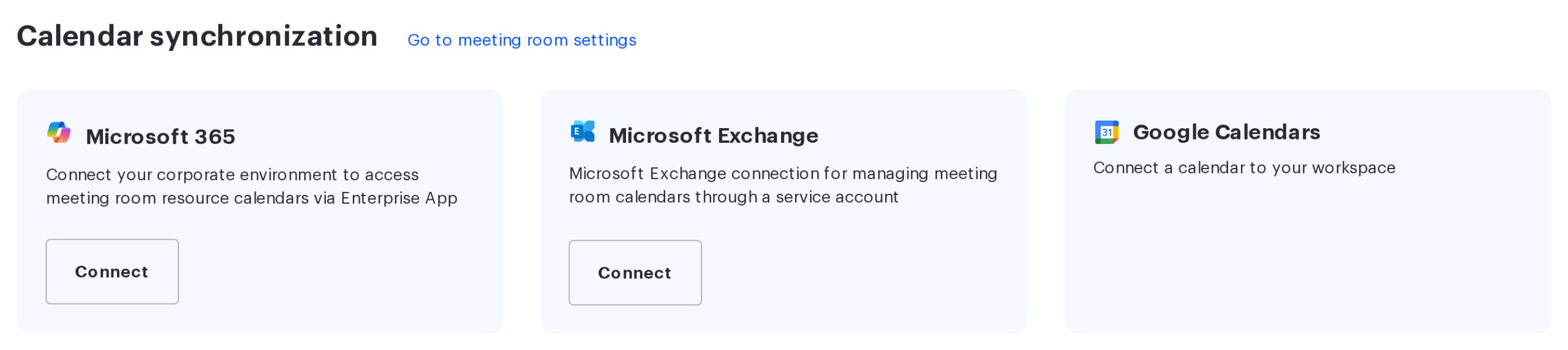
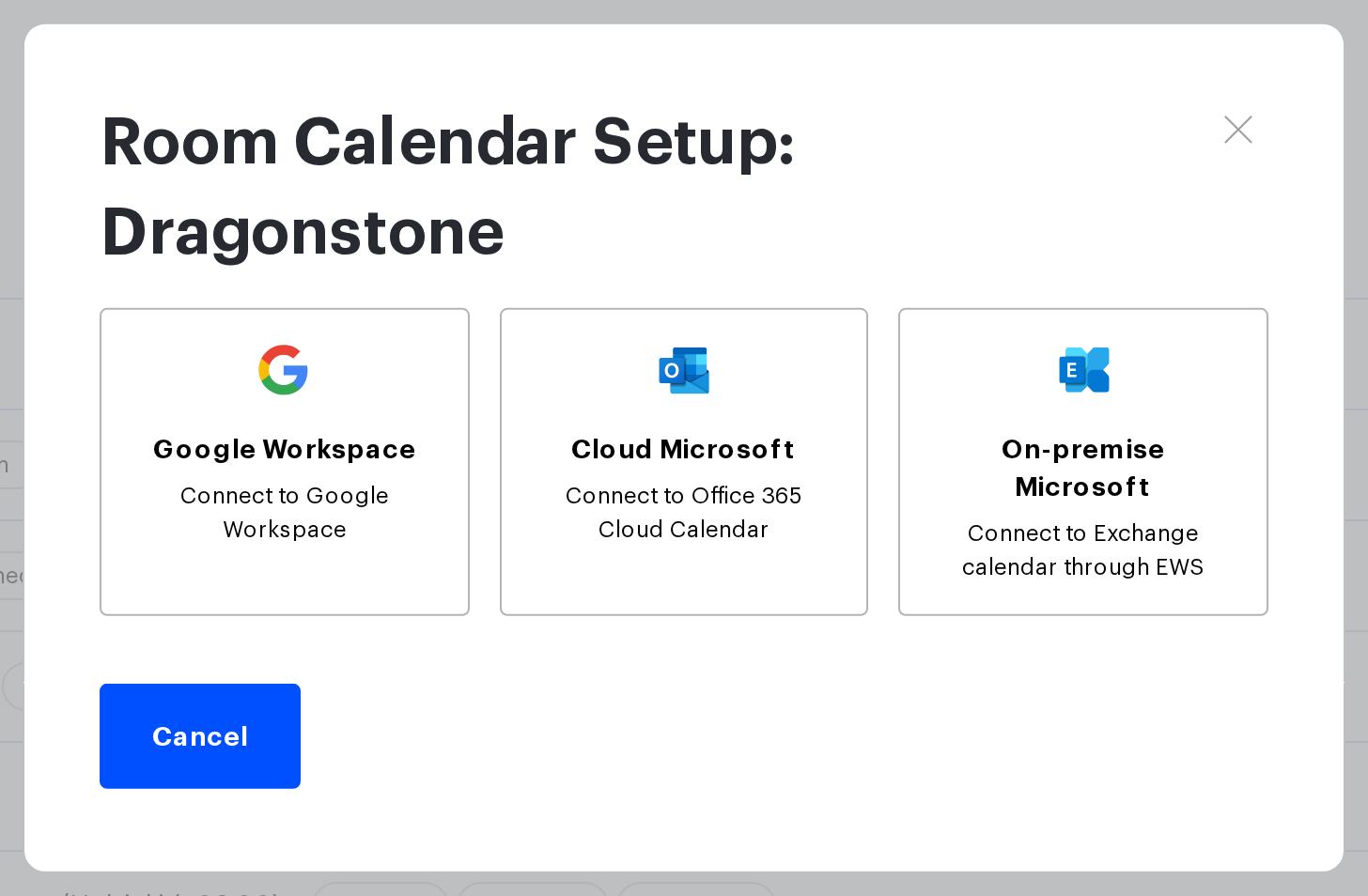
Where each method lives in the interface: the connection through an application is a card in the Calendar synchronization section, while the connection under an account is the Microsoft 365 tile in the room calendar window (once connected, the calendar is labelled Cloud Microsoft on the room card). Do not confuse this tile with the Microsoft 365 card of the same name in the Calendar synchronization section — that is the connection through an application.
| Property | Cloud Microsoft (account) | Microsoft 365 (Entra application) |
|---|---|---|
| How UnSpot authenticates | an administrator signs in to a Microsoft account and UnSpot receives and refreshes its token | UnSpot receives a token from the application identifiers; no interactive sign-in is needed |
| Whose name the calls are made under | the account that signed in | the meeting room resource mailbox itself |
| What permissions are needed | access to each meeting room calendar, granted to that account | application-level permissions consented to by a tenant administrator |
| How the calendar is picked | from the list of the account’s calendars; calendars without edit rights are not listed | from the list of the tenant’s meeting room mailboxes |
| Write access checked when connecting | not checked | checked: a test event is created and immediately deleted |
| What happens when access is lost | every calendar connected under that account stops working | the connection is marked invalid and its calendars stop working |
| Employee personal calendars | supported | not supported |
| Notification subscription renewal | automatic | needs a manual step, see below |
A practical consequence of the second row: with the application option the meeting in the room calendar is created on behalf of the meeting room itself, not on behalf of the administrator. The organiser of such a meeting in Outlook is the room resource mailbox.
One more detail of the application option: when a calendar is connected to a meeting room, UnSpot creates a probe meeting titled [UNSPOT] Permission probe about a month ahead and deletes it right away. If you happened to see it in the calendar, that is the regular write-access check, not a fault.
Overlaps and conflicts
- The calendar is busy at that time. If the room calendar already holds a meeting for that slot when the booking is created, the booking is deleted, the organiser gets a cancellation notice and a re-sync of the calendar starts — whatever is already in the calendar wins.
- The event could not be created in the calendar. The booking is deleted and the organiser gets a cancellation notice.
- An event in the past. A booking is not created from a past event if it overlaps other bookings.
- A finished booking is never updated — a calendar change does not affect it. But if the meeting is cancelled in the calendar, the booking is deleted even if it has already passed. A booking that is currently running is updated like any other.
Manual re-sync and signs of breakage
The room calendar window has a Start Sync button: it reads the calendar again and brings the bookings in line with it. The button is available while the calendar is considered healthy, and after a run it is blocked for an hour — the time of the next possible run is shown next to it. Permissions: the re-sync is performed by the Super Administrator. The button is visible to the Offices Administrator as well, but for them clicking it does nothing: the re-sync does not start, and the window shows no error message.
Signs that access to the calendar has been lost:
- the meeting room in the workspace tree is marked Calendar is not available, with the hint No access to the calendar. Please check the connection and try to re-connect.;
- the connection card in the Calendar synchronization block is marked Connection Error;
- the room calendar window shows a Reconnect button instead of Start Sync. For a calendar on a shared connection it does not reconnect anything but opens Integrations → Synchronisations, where the connection is fixed with the Edit button (Super Administrator or Integrations Administrator).
After a successful synchronisation the invalid flag is cleared automatically — the calendar does not have to be switched back on by hand.
Limitation: the application’s incoming synchronisation has to be restarted manually
For calendars connected through a Microsoft Entra application the notification subscription is created once — when the calendar is connected — and is not renewed automatically. After roughly three days it stops working, and changes made in the room calendar stop reaching UnSpot. The other direction keeps working: UnSpot bookings are still created in the calendar.
What it looks like and what to do:
- Symptom: meetings created in Outlook do not appear in UnSpot, and there is no error and no Calendar is not available mark.
- What helps once: press Start Sync in the room calendar window — the re-sync reads the calendar and picks up the missed meetings. The re-sync does not recreate the subscription, so the next changes will be missed again.
- What restores the subscription: disconnect the calendar from the meeting room and connect it again — the subscription is created exactly at that moment.
- If uninterrupted incoming synchronisation matters to you, choose the Cloud Microsoft option — its subscription renewal is automatic.
Related articles
- Microsoft calendar synchronisation: choosing an option
- On-premise Exchange: how calendar synchronisation works
- Create a resource calendar in Office 365
- Connect a meeting room calendar with a Microsoft 365 service account
- Microsoft Entra application: registration and permissions
- How calendar synchronisation works
- Connect Microsoft 365 via a Microsoft Entra application
