
Seating drafts: overview
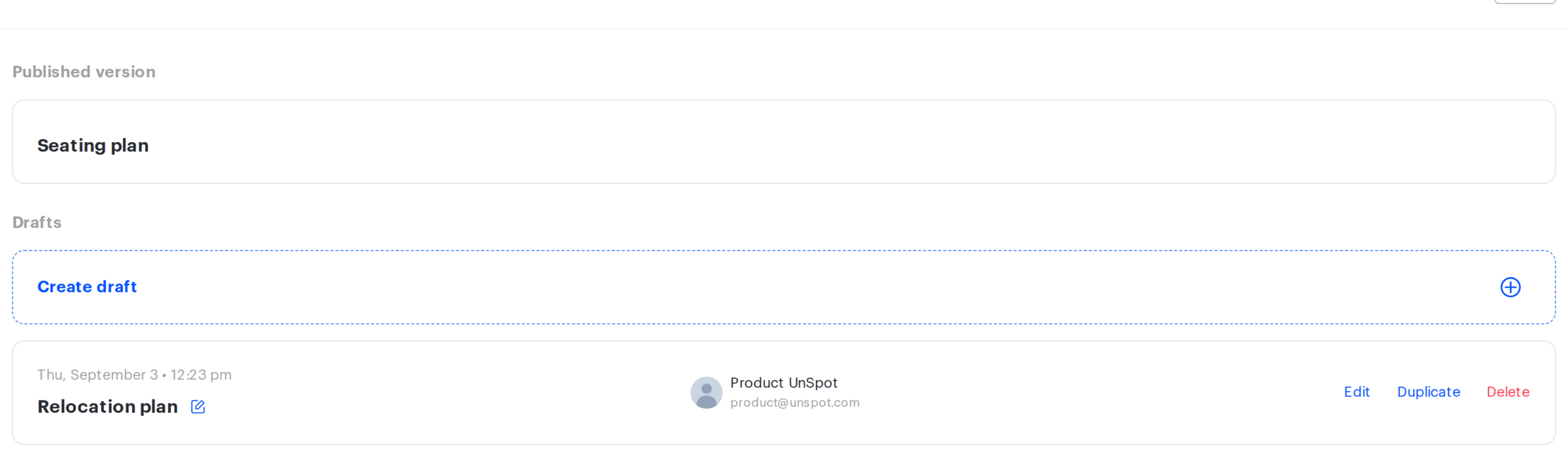
A workspace map now has two states: the published version employees book from, and drafts — working copies invisible to employees until you publish them. This article explains what drafts are for, how to open the Drafts page and what it shows.

Why drafts exist
Previously a workspace had a single map, and every change in the editor became visible to employees at once: a desk you moved immediately changed the booking layout. There was nowhere to prepare a relocation, a department reshuffle or a new seating layout as a rough copy.
With drafts, a workspace map has two states:
- the published version — the map employees book desks from. There is always exactly one, and it is always called “Seating plan”;
- drafts — working versions of the map. There can be several, they are visible to administrators only and they change nothing until you publish them.
Typical reasons to start a draft:
- prepare a relocation or a refurbishment in advance and apply it on the day you need it;
- put together several layout options and compare them;
- make a lot of edits over several sessions without showing employees the intermediate states;
- keep the current seating as a starting point and experiment on a copy.
Opening the Drafts page
The Drafts page opens before the map editor — it has replaced the direct jump into the editor. There are two ways to get there:
- “Manage → Office management → Workspaces” → click Change map next to the workspace you need;
- on the Seating page, click the Change office map icon.
The Exit button on the page takes you back where you came from: to the workspace list or to the office map.
What the page consists of
The page heading shows the path to the workspace as “Parent office / Workspace” — for example, “Frankfurt office / Floor 12”. If the workspace has no parent, only its own name is shown. Below it there are two blocks.
The Published version block
It shows the state of the map employees see right now:

| Shown | What it means |
|---|---|
| Name | Always “Seating plan” — the permanent name of the published version, it cannot be changed |
| Date modified | When the workspace map was changed last |
| Modified by | Who made the last change. If that employee has been deleted or deactivated, the field stays empty |
Available actions:
| Action | What happens |
|---|---|
| Edit | Opens the map editor on the published version straight away. Changes made there are saved into the working map |
| Duplicate | Creates a draft — a copy of the published map with all its objects |
| Delete | Deletes the workspace map together with the objects placed on it |

If the workspace map has not been uploaded yet, these details are replaced by a message: “This space has no published version and is not available to employees.” and “Create a draft and publish it to make the space available.”
The Drafts block
Below it, the drafts of this workspace are listed: name, date and author of the last change. The list is sorted so that recently changed drafts come first. Every draft offers Edit, Duplicate, Delete and renaming. If there are no drafts yet, the block stays in place and shows only the Create draft button.
Who can work with drafts
Creating, editing, publishing and deleting drafts is available to the same roles that manage the workspace map: Super Administrator, Office manager and Offices Administrator. Regular employees do not see the Drafts page and never learn that drafts exist.
Limits worth knowing in advance
- a workspace can hold no more than 10 drafts;
- a draft name is mandatory, up to 60 characters, and unique within the workspace;
- deleting a workspace deletes all of its drafts;
- assigning a desk for a period is not supported in a draft — that assignment type is configured on the published map only;
- a draft keeps its own copy of the floor plan, so replacing the map in the published version does not change the background of a draft that already exists.
Related articles
- Seating drafts: create, duplicate and delete — how to start a draft and keep the list tidy;
- Map editor: placing objects — working with objects inside the editor;
- Publishing a seating draft — what happens to the map and to bookings at the moment of publishing;
- Printing the office map — preparing the plan for print.
- Office map editor: an overview of the actions — all the actions with the map.
