
By office analytics: lockers
The Lockers tile on the By office tab answers a single question: does the company have enough storage cells. It is the most compact tab of the page — a tile and one pie chart, with no attendance, potential or trend.
The Lockers tile
The tile sits fourth in the top row of the page. The unit of counting here is a cell, not a whole locker: a cabinet with twenty cells contributes twenty units.
| On the tile | What it means |
|---|---|
| Total N lockers | How many cells got into the selection made by the By resources filter |
| The large percentage | The share of taken cells over the period |
| N taken | Cells that on average over the period were booked or unavailable |
| N available | The remainder — cells open for booking and taken by nobody |
Clicking the tile opens the single chart of the tab. If the company has no lockers, the tile goes grey and reads This resource is not in use.
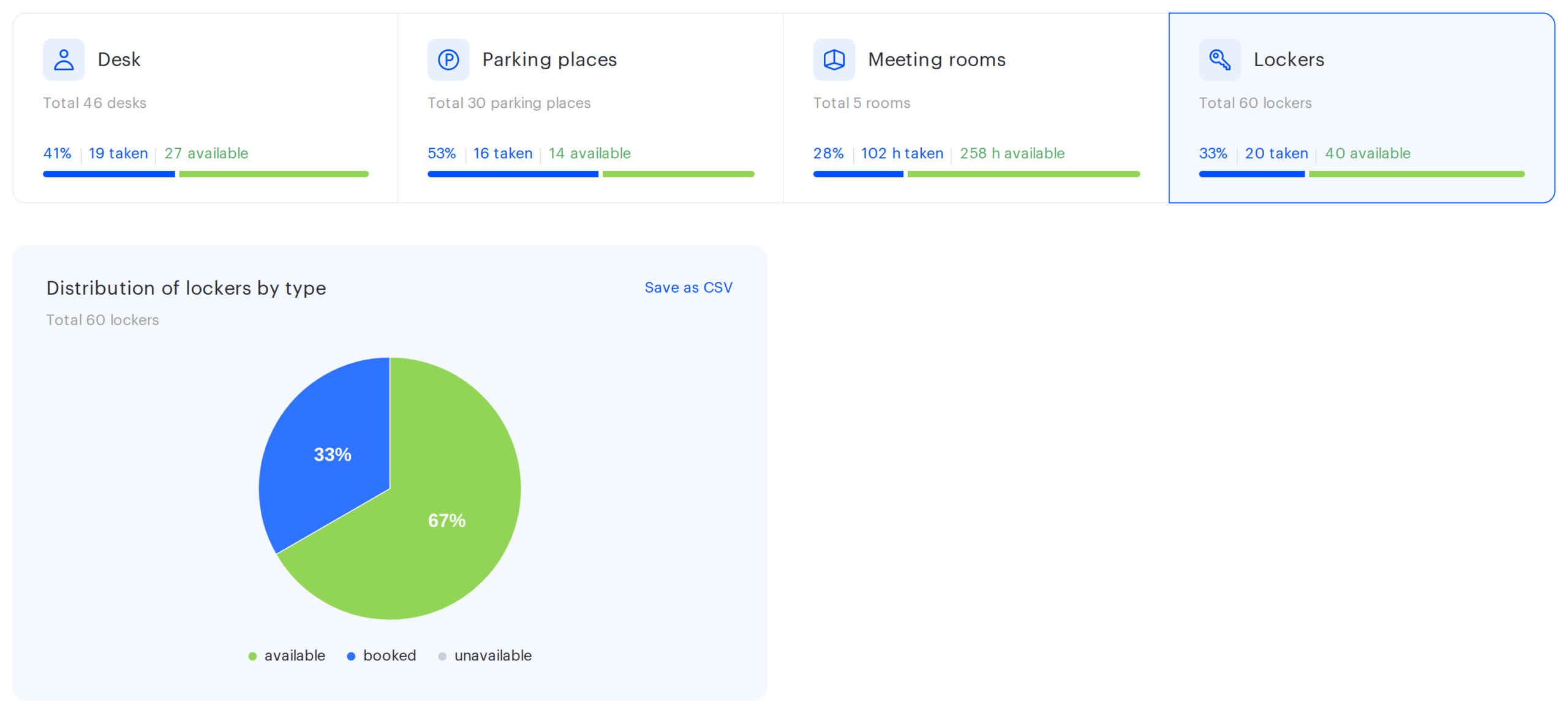
Distribution of lockers by type
The pie chart splits every cell of the selection into three groups. Unlike desks and parking, there is no assigned segment here — permanently assigning a cell to an employee is not represented in locker analytics.
| Segment | What it is |
|---|---|
| available | Cells open for booking and taken by nobody |
| booked | Cells occupied by employees |
| unavailable | Cells switched off from booking by an administrator |
The chart subtitle repeats the total number of cells. The percentage label inside a segment is shown only if it takes up at least a tenth of the circle; for smaller segments the value is visible in the tooltip. If all three values are zero, No data to display appears instead of the chart. The Download CSV button exports a three-row table with the number of cells and the percentages, and the current filters go into the file header.
How it is calculated
The maths runs on cell-days, the same way it does for desks: every cell on every working day of the period gets one of the three statuses. The total number of cell-days equals the number of working days multiplied by the number of cells.
Three consequences are worth keeping in mind when reading the chart:
- The numbers are averages over the period, not a snapshot of today. A cell occupied for half of the period adds half a unit to the booked segment, not a whole one.
- Non-working days are excluded — just as they are for the other resources on the page. Only working days from the company calendar form the denominator.
- A cell counts as unavailable only for the days when it was not occupied. If a switched-off cell stayed with an employee all that time, it is counted as booked. The switched-off flag is taken from the cell current state and applied to the whole period, so a cell switched off recently is shown as unavailable for past days too.
What the figures mean in practice: a consistently high booked share with few available cells means new employees are already short of storage, and it is time either to buy more cabinets or to introduce a rule for releasing cells.
Limitations of the tab
- The By resources filter set to By department disables the tab. The tile goes grey because lockers are not assigned to departments and there is nothing to filter them by. Use All, By group or By office.
- The By data filter set to PACS disables the tab. Access control events say nothing about cells, so the tile reads No data for this resource.
- There is no breakdown by time here. Lockers are not split by day of the week or by date on this page — only the summary picture for the period.
Where to find the details
If the summary is not enough and you need specific cells, employees and dates, the By office tab will not help — those live in other sections:
| What you need | Where to go |
|---|---|
| Who occupied which cells and when | Analytics → Reports, the locker booking history report |
| A full list of cells with their status | Analytics → Reports, the resources report |
| Configuring lockers, cells and access rules | Manage → Office management, see “Locker management” |
| Connecting electronic locks to cells | Manage → Integrations, see “Locker integration setup: Pocket Lock” |
