
How workspace access rights work
Workspace access in UnSpot is made up of several independent settings: Access Groups, the owner department and the assignment of resources to employees. They do not cancel each other out and are not arranged in a priority order — they add up. A resource is available to an employee if at least one of the settings applicable to that resource type has fired. This article explains how they add up, how desks, parking spaces, meeting rooms and lockers differ, and how to pick the right setting for your task.
The main rule: settings add up
When an employee opens the office map, UnSpot collects the list of objects available to them from several independent sources and merges them. This is an “or” merge: one source that fires is enough.
- the employee belongs to an Access Group the resource is linked to, — or
- the resource belongs to the employee’s department or to a department above it, — or
- the resource is assigned to this employee.
Three consequences follow, and they are the ones that surprise people most often.
- Choosing an Access Group is not mandatory. If the resource has an owner or is assigned to an employee, access appears even with an empty list of groups.
- The settings do not override each other. A resource is available at the same time to the members of the selected Access Group, to the employees of the owner department and to the assigned employee.
- The “No one” option is not a ban. It only removes the group setting; the owner and the assignment keep granting access. This holds for desks and parking spaces: offices, floors, meeting rooms and lockers have no other sources, so “No one” there makes the object unavailable to everyone. The only way to take a resource out of booking completely is the type of use “Unavailable”.
One more thing worth remembering: access is not inherited down the space tree. If an Access Group is linked to an office or a floor but not to the resource itself, the employee will have no access to that resource — the link is needed on the object that is being booked. The reverse is also true: if the office is unavailable to the employee, its resources will not appear on the map at all.
The resource card: type of use and booking type
All access settings for a specific resource live in its card: open “Manage → Office management → Workspaces”, click “Change map” on the floor you need and double-click the resource.
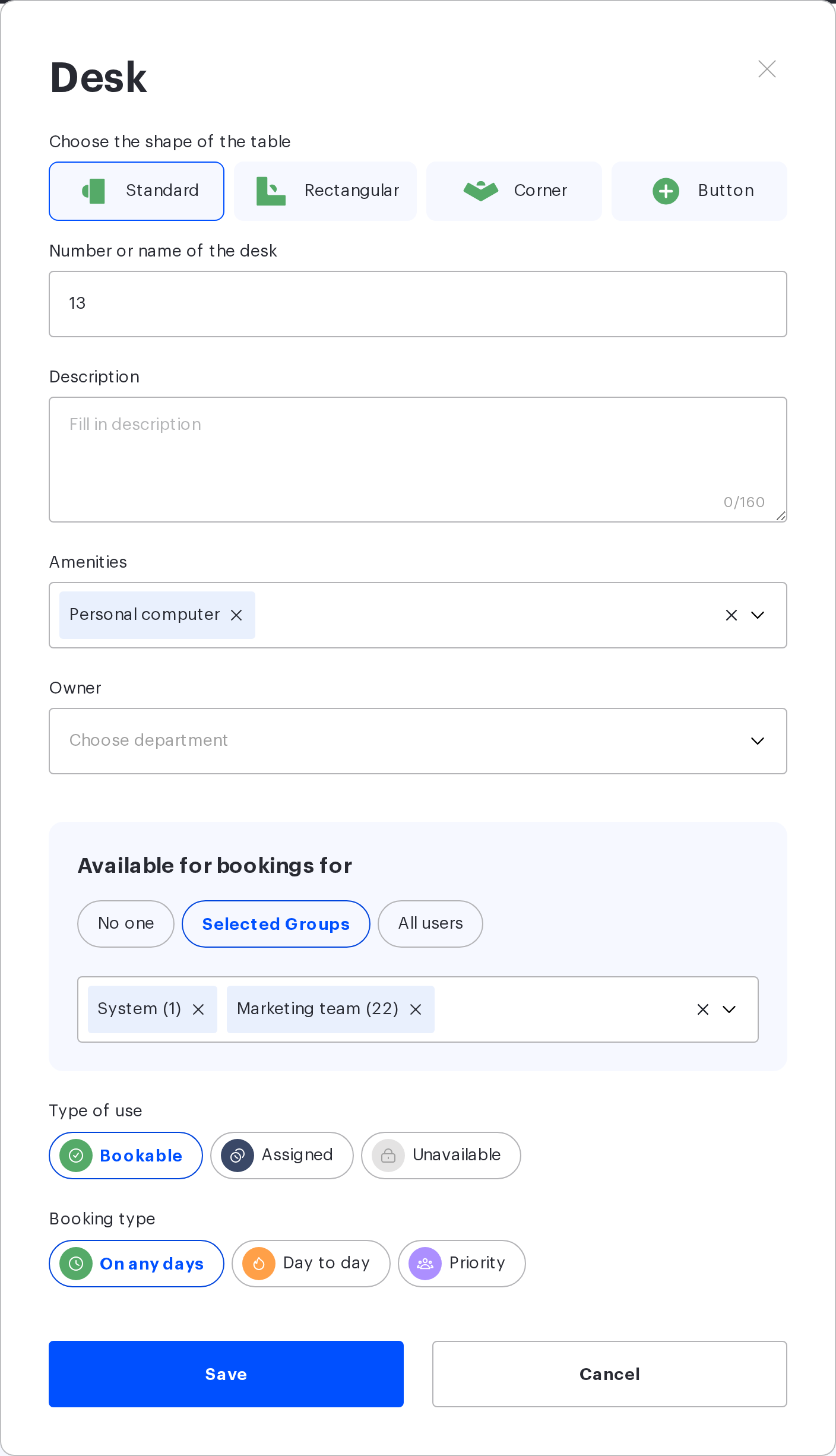
The card holds three groups of settings that are easy to mix up:
- “Owner” — the department from the organisational structure the resource belongs to;
- “Available for bookings for” — the group setting with the options “No one”, “Selected Groups” and “All users”;
- “Type of use” and the “Booking type” that follows it — how exactly the resource is booked.
The list of options under “Booking type” depends on the selected type of use — and this is the main source of confusion, because the “Priority” option exists in both branches and means different things in each.
| Type of use | Booking type | What it means |
|---|---|---|
| Bookable | On any days | A regular resource: booked on any date within the office horizon |
| Bookable | Day to day | The resource is only booked for the current day, never in advance |
| Bookable | Priority | Priority belongs to an Access Group on the selected weekdays: group members book the resource on those days even with no other access sources; everybody else books it day to day on those days, and on the other days the resource behaves as a regular one |
| Assigned | By weekday | The resource is assigned to an employee on the selected days; bookings are created automatically |
| Assigned | Priority | Priority belongs to several employees; no automatic bookings are created, everybody else books day to day |
| Assigned | For period | The resource is assigned to an employee for a date range no longer than three months; bookings are created automatically for the whole period at once |
| Unavailable | — | The resource is booked by nobody, whatever the access settings are |
The “Booking type” options are mutually exclusive: you cannot configure assignment by weekday, for a period and priority on the same resource at once.
Which setting works for which resource
The set of settings depends on the object type. Desks and parking spaces have the widest choice — which is exactly why questions usually arise around them.
| Object | Access Groups | Owner department | Assignment | Booking horizon |
|---|---|---|---|---|
| Office, building, floor | yes | no | no | — |
| Desk | yes | yes | all options | yes |
| Parking space | yes | yes | all but “For period” | yes |
| Meeting room | groups only | no | no | no |
| Locker | groups only | no | no | no |
| Locker cell | yes | no | to an employee, with a caveat | no |
Practical consequences of the table:
- Meeting room access is configured by groups only. A meeting room has no “Owner” field and cannot be assigned to an employee. If you need to restrict who books a meeting room, that is done with an Access Group and nothing else.
- A locker has two levels. The groups of the locker decide whether the employee sees the locker, and the right to take a specific cell is set separately — by the groups of the cell itself. The caveat: assigning a cell to a person only works if the cell has at least one Access Group; with the “No one” option the cell assignment grants no access.
- The booking horizon applies to desks and parking spaces only. It does not extend to meeting rooms and lockers.
Sources of access
Access Groups
An Access Group ties a list of employees to a list of objects. Groups are managed in “Manage → People management → Groups & Teams”, and an object is linked to a group in the card of the object itself — the “Available for bookings for” block.
| Option | What it means | When it fits |
|---|---|---|
| All users | The object is linked to the built-in group that covers every employee in the company | Open desks, shared meeting rooms |
| Selected Groups | The object is available to the members of the listed groups | Department desks, a specific team zone, guest meeting rooms |
| No one | The object has no group links; the owner and the assignment keep working | A resource whose access is set by the owner or the assignment only |
For details, see Access Groups: rules and configuration options.
The owner department
The card of a desk or a parking space has an “Owner” field where you pick a department from the company organisational structure. This is the second way to grant access, independent from groups: the employees of the owner department get the resource even if it has no Access Groups at all.
Access travels down the tree. The resource goes to the employees of the owner department and of every department nested inside it. Employees of the departments above get no access.
For details, with examples on a department tree, see Workspace access through the organisational structure.
Assigning a resource
Assignment is the third source of access. With the “By weekday” assignment the assigned employee books their resource on their days even if the resource has no Access Group and no owner: after deleting the automatically created booking they can book the resource again, while for everyone with access through the other sources it becomes free that day. The “For period” assignment keeps its access only inside the automatically created bookings: once the employee deletes such a booking, they can book the resource again only if it is available to them through groups or the owner.
For details, see Assigned seats, priority and the booking horizon.
The booking horizon
Even when access to a resource exists, it cannot be booked for any date whatsoever: the office card holds the booking horizon settings — how far ahead employees may book resources and how many advance bookings they may hold at once.
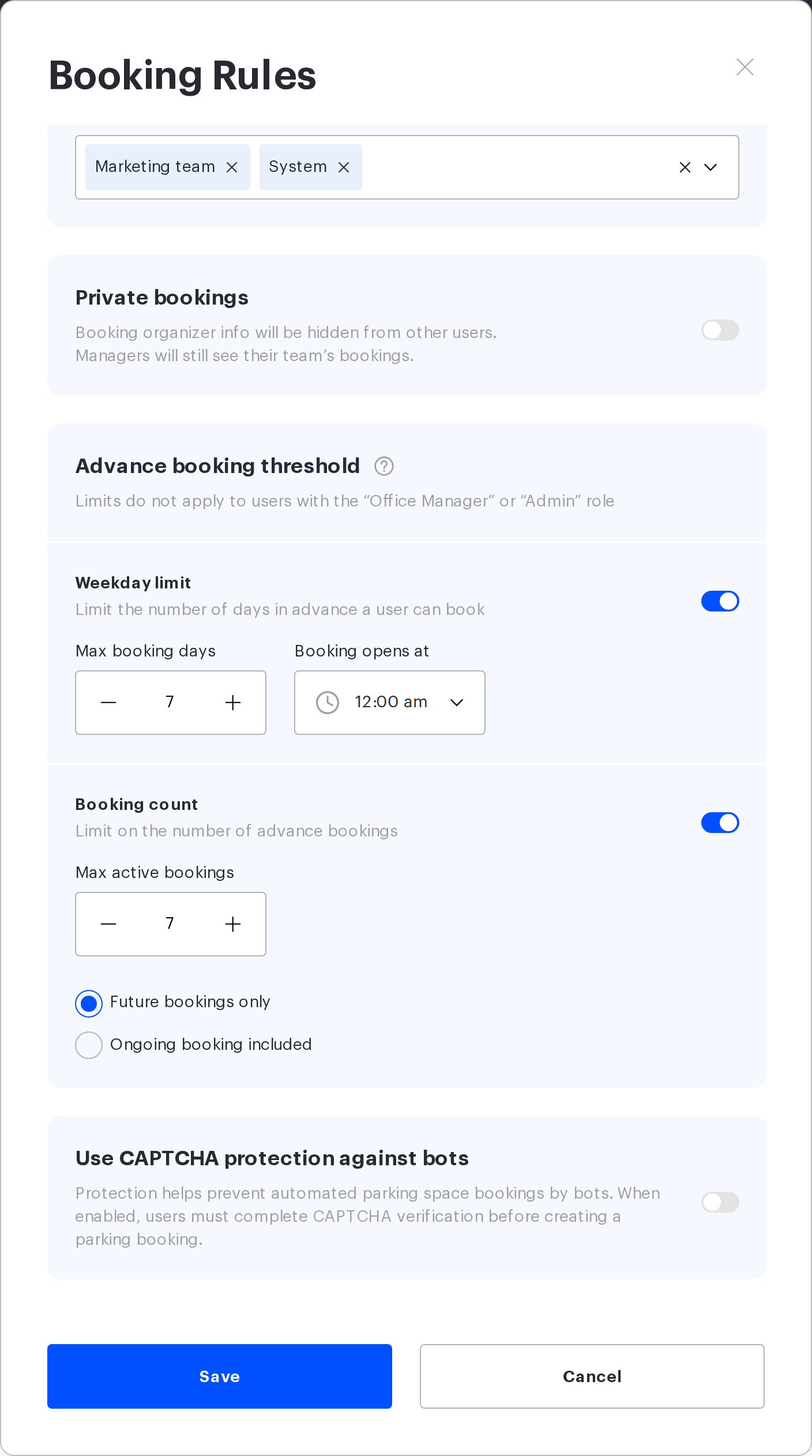
| Setting | What it limits | Unit |
|---|---|---|
| Weekday limit | How far ahead bookings are allowed (the block itself is titled “Advance booking threshold”) | Working days: weekends and holidays are not counted and push the limit further out |
| Booking opens at | The time of day when the next day of the horizon opens | Hours and minutes |
| Booking count | How many advance bookings an employee holds at once in this office | Items |
| Ongoing bookings | Whether a booking that has already started counts towards the limit; in the UI — a choice of “Future bookings only” / “Ongoing booking included” under the “Booking count” limit | Choice of two options |
What matters about the horizon:
- The horizon is an office setting, not a company one: different offices have different values.
- For an employee it looks like this: dates beyond the horizon are blocked in the calendar, and no resources are shown for them.
- The horizon is not applied to guest bookings. When booking for a colleague, the limit is counted against the person the booking is made for, not against the person making it.
- Resources assigned by weekday have their own limit of 28 calendar days, see the article on assignment.
The roles the horizon does not apply to. The limits are bypassed by the Super Administrator and the Office manager — the setting hint puts it as “Limits do not apply to users with the “Office Manager” or “Admin” role”. Note the nuance: the Offices Administrator, the Users Administrator and the Integrations Administrator are subject to the horizon and the limits, even though the word “administrator” in the hint may suggest otherwise. If you test the behaviour on your own Super Administrator or Office manager account, you will not see the limits a regular employee sees.
How to choose a setting
| Task | Setting | What to keep in mind |
|---|---|---|
| The resource is free for every employee | “Bookable” + “On any days”, access “All users” | The number of bookings is limited by policies and the horizon, not by access |
| Resources belong to one department whose members change often | The “Owner” field — the department | The list updates together with the organisational structure, nothing has to be maintained by hand |
| Resources are available to several teams that do not match the organisational structure | Access Groups | Group membership is maintained separately or comes from an external directory |
| A permanent seat for a specific employee | “Assigned” + “By weekday” | On days of absence the resource is released to the others automatically |
| A seat for an employee for the duration of a project or a trip | “Assigned” + “For period” | No longer than three months; parking has no such option |
| Several people compete for one resource, but they have priority | “Assigned” + “Priority” | The others will only be able to book it on the day of use |
| A team comes to the office on certain days | “Bookable” + “Priority” with a group selected | No automatic bookings are created |
| The resource is taken on the day of arrival only, with no advance booking | “Bookable” + “Day to day” | Handy for resources in free-seating zones |
| Restrict who books a meeting room | Access Groups only | Meeting rooms have no owner and no assignment |
| Take a resource out of booking completely | Type of use “Unavailable” | The “No one” option does not do this — it only removes the group links |
What is not access
| Mechanism | The question it answers | Where it is configured |
|---|---|---|
| Access rights | Whether the employee may book this object at all | The object card and Access Groups |
| Booking horizon | How far ahead and how many bookings at once | The office card, “Booking Rules” → “Advance booking threshold” |
| Booking policies | How many days a week, booking for colleagues and for guests | Company settings |
| Booking confirmation | Whether approval is required for a booking to take effect | The meeting room card, delegates |
Policies and the horizon do not take part in the availability calculation: an employee who has hit the limit sees the resource as available but is refused when they try to book it. Booking confirmation exists for meeting rooms only: in strict mode the employee has access to the meeting room, but the booking does not take effect until a delegate confirms it. Desks, parking and lockers have no confirmation.
One more interface detail: an unavailable resource does not disappear from the office map — it is shown as blocked. An unavailable office is different: neither its map nor its resources are shown.
Two more states are unrelated to rights: if a floor has no map or the office is hidden by the administrator, its resources are shown to nobody regardless of the access settings.
Frequently asked questions
Do I have to select an Access Group?
No. If the resource has an owner department or is assigned to an employee, access will appear without any groups. A group is needed when the circle of employees matches neither the department nor the list of assigned people.
An employee set an absence status — who can book their seat?
On days with the “Work remotely” or “Not working” status no automatic booking is created for the assigned desk, and the desk is free that day (parking is an exception: its automatic bookings ignore absence statuses). It can be booked by any employee who has access through any of the sources: a member of an Access Group as well as an employee of the owner department. One source does not switch off another — the availability rule here is the general one, not “the group only”.
The group is linked to a floor, but the resource is still unavailable
Access is not inherited down the space tree. The link is needed on the object being booked: if resources were added after the floor was configured, they have to be linked to the group separately.
What happens to bookings if access is removed?
If it is about Access Groups, the owner department or group membership — the bookings that already exist are kept, and the change only affects new ones. Editing the resource card itself, however, can delete bookings. When the resource is switched to “Unavailable”, when the list of priority employees changes and when the resource is assigned for a period, the interface asks whether to delete the existing bookings; switching “On any days” to “Day to day” always deletes future bookings — the system only asks for confirmation.
Related articles
- Workspace access rights: overview — the entry point to this section
- Configuring resource access rights: all settings — the settings reference
- Access Groups: rules and configuration options
- Workspace access through the organisational structure
- Assigned seats, priority and the booking horizon
- Booking policies — booking limits, booking for colleagues and for guests
