
By office analytics: PACS data
The By data → PACS switch builds the analytics of the By office tab from the actual entries employees made through the physical access control system, instead of from bookings in UnSpot. It is the way to see the gap between booking a place and turning up at the office — and to judge how well bookings reflect real attendance.
What PACS mode gives you
A booking and an actual arrival are two different events. An employee can book a place and not come, come without booking, or come for an hour instead of the whole day. PACS mode shows the second side of that picture.
The typical reasons to switch it on:
- To check how closely bookings match reality before deciding to shrink or expand the office.
- To measure attendance in companies where booking a place is optional and not everyone books.
- To find the days and weeks when noticeably more or fewer people are in the office than the booking pattern suggests.
The switch lives in the Build analytics window: Filters → By data → PACS → Save.
Uploading PACS events
PACS events reach UnSpot through the incoming webhook or are uploaded as a file. The Upload PACS data button sits in the top right corner of the page and is available to a Super Administrator only — other roles, including Offices and Users Administrators, do not see it. The By office tab itself is open to a Super Administrator only with subordinates or the All users option.
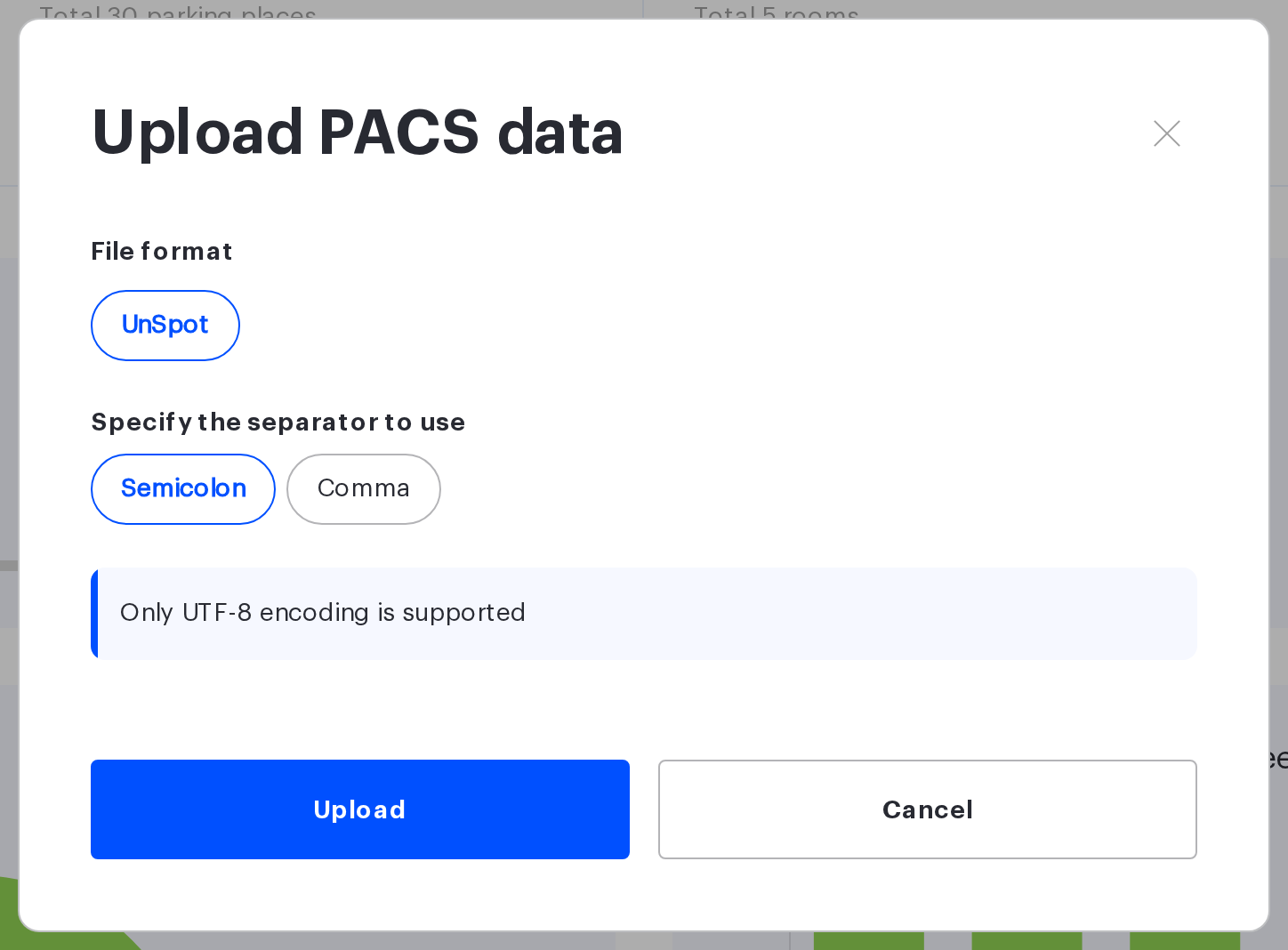
The window has two switches and an Upload button that opens the native file dialog — there is no separate drop area for the file.
| Setting | Options | Comment |
|---|---|---|
| File format | UnSpot | Defines which columns the system reads the file by |
| Separator | Semicolon • Comma | Semicolon by default. Must match the separator used in the file |
| Encoding | UTF-8 only | Not configurable. A file in any other encoding will be read incorrectly |
| File | CSV only | Picked through the native dialog after pressing Upload. Files with other extensions are rejected |
Formats of Russian PACS vendors (SIGUR, RusGuard, PERCo, Bolid) appear in the list only in installations with Russian services enabled; elsewhere the UnSpot format is the only one.
The system tries to assign an office to every event in the file. In the UnSpot format the value is taken from the Office column: the system looks for an office or a space inside it (such as a floor) with that name, ignoring case; if several spaces have that name, any of them is taken. In the formats of Russian vendors the access point from the file is looked up among the access points of all incoming webhooks of the company, including switched-off ones. If nothing matches, the event is uploaded without an office. Access point mappings live only in webhooks: if your events arrive only as files, create an incoming webhook (you can switch it off right away) and map the access points in it — see Incoming webhooks API reference.
After the upload the system reports the result: N out of M lines successfully loaded. The number of loaded lines may be lower than the number in the file, and that is normal for two reasons: repeated events of the same employee on the same day with the same direction (two entries in a row, for example) are merged into one, and an event is not added when the employee already has a mark with the same direction on that day — from a previous upload, from a connected access control system or from a booking check-in by QR code, location or button. In the last case the day does not reach PACS analytics: it counts only PACS events and uploaded files. An entry and an exit of the same employee on the same day are two different events and both are kept. If the format is not recognised, Incorrect format is shown instead of the result.
An event gets its office once — when it is received or uploaded. Mapping access points later or uploading the same file again does not add an office to events already stored: repeats are skipped. Events stored before 5 October 2026 have no office at all.
The UnSpot file format
The UnSpot format follows the structure of the History of Office Visits (PACS) report from the Reports section, so the easiest route is to export that report, edit it and upload it back. Note that the Office column of the export holds the name of a single space without its parents (for example, “Floor 3”): on upload it is matched to any space with the same name. The system reads four columns out of the whole file — three required ones and an optional Office column; any others are ignored.
| Column | Format | What it contains | Example |
|---|---|---|---|
| Action date | DD.MM.YYYY HH:MM | The moment of the entry. Read in the company time zone | 14.07.2026 09:12 |
| Action Type | One of two values | The direction of the passage: • in_office — entry • out_office — exit | in_office |
| Owner Email | An email address | The employee the event belongs to. Must match the email in UnSpot | jmiller@example.com |
| Office | A space name | Optional. Where the employee came to — an office or a space inside it, such as a floor. Looked up by exact name, ignoring case; if several spaces have that name, any of them is taken. An empty or unknown value uploads the event without an office | London |
An example of the file content with a semicolon separator (the third line has no office — that event is uploaded without one):
Action date;Action Type;Owner Email;Office
14.07.2026 09:12;in_office;jmiller@example.com;London
14.07.2026 18:35;out_office;jmiller@example.com;London
14.07.2026 09:47;in_office;rthompson@example.com;
What to watch out for when preparing the file:
- The values in Action Type are strictly technical —
in_officeandout_office. Words such as Entry and Exit are not accepted: the file will upload, but every line will be rejected and the message will read 0 out of N lines successfully loaded with no explanation of why. - A line missing any of the three required columns is skipped silently, but it is still counted in the total of the N out of M message. The column headers must match the headers of the report export in the current interface language: a file with headers in another language gives 0 out of N.
- The email must belong to an existing employee. An event with an unknown address is matched to nobody and never reaches the analytics.
- One event per employee per day is enough. What matters for the analytics is the fact of presence, not the number of passages through the turnstile.
What stays on the page
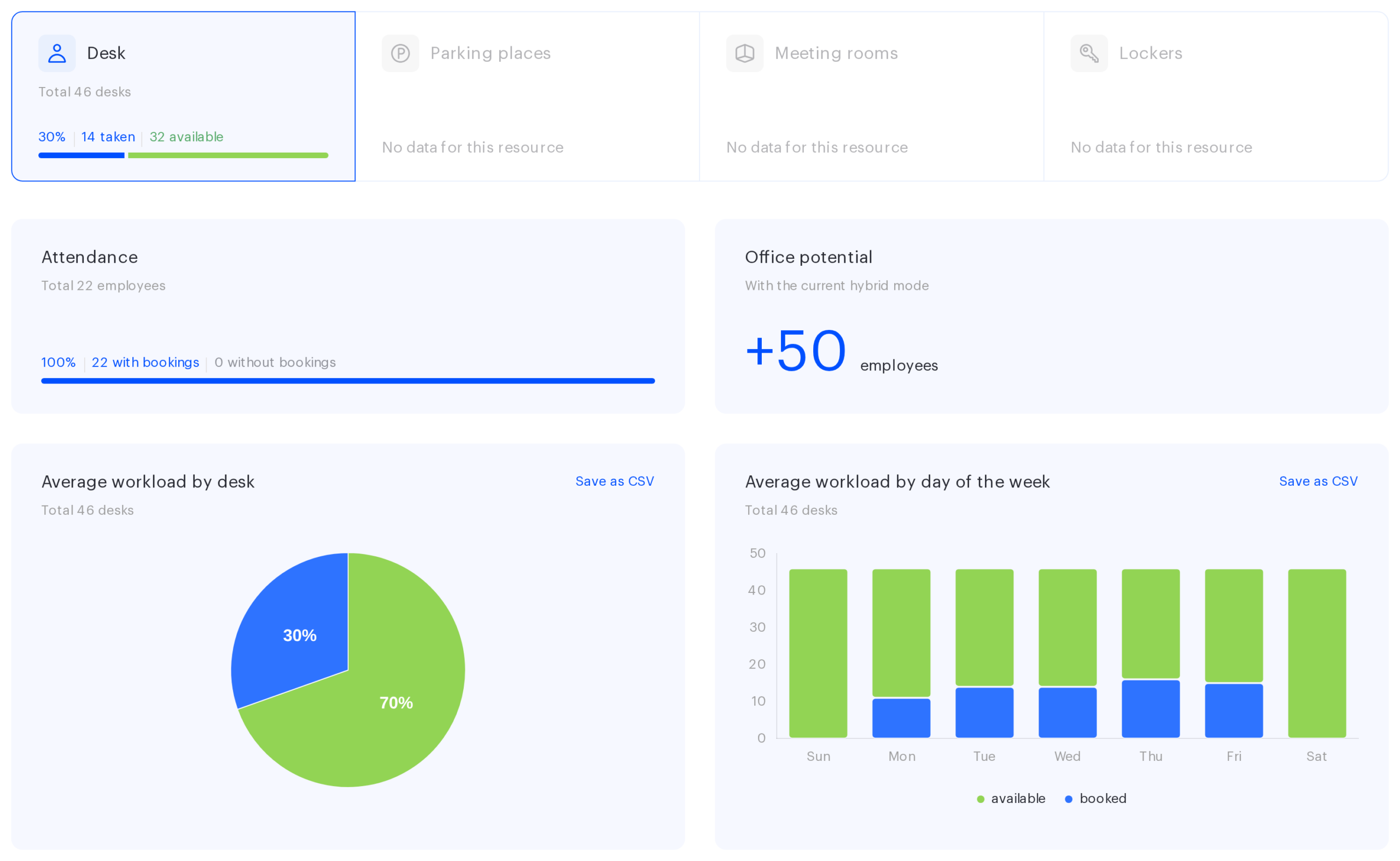
PACS mode shrinks the page considerably. Only one of the four tiles keeps working.
| Tile | State in PACS mode |
|---|---|
| Desk | Works, shows the entry data |
| Parking places | Disabled, No data for this resource |
| Meeting rooms | Disabled, No data for this resource |
| Lockers | Disabled, No data for this resource |
The set of blocks inside the Desk tab stays the same — attendance, capacity potential, the pie chart, the bar chart by day of the week and the trend. What changes is their content:
- There are two segments instead of four — booked and available. Entry data has no notion of assigned or unavailable.
- No legend is shown under the pie chart. Use the legend of the bar chart below it: the colours are the same on both.
- The CSV export has different columns too — Available and Booked instead of the four place types.
How occupancy is calculated
The main rule: the number of places counted as taken on a given day equals the number of unique employees who passed through the access control system that day. An entry event is not tied to a specific desk — the system knows the person was in the office, but not where they sat. The day of an event is determined in the company time zone, not the office time zone used for bookings.
From there the calculation repeats the logic of the bookings mode: the share of taken places is computed in place-days across the working days of the period, and the result is converted back into a number of places. Non-working days from the company calendar are left out.
Three limitations are worth knowing in advance:
- Desks switched off from booking are not excluded and fall into available. If the office has many such places, the PACS occupancy percentage will be lower, and Office potential higher, than the booking figures.
- Desks created after the end of the selected period are not counted. The creation date is compared with the end of the selected period.
- The By resources → By office filter also selects the entries. With an office selected, only events assigned to that office (including its nested spaces) are counted — events without an office are left out. An event gets its office from the access point mapping of the incoming PACS webhook or from the uploaded file. Until an office is assigned — access points are not mapped and the UnSpot file has no Office column — events arrive without an office, and with this filter PACS occupancy comes out as zero. The same applies to any period before 5 October 2026: those events have no office. If a floor is selected in the filter while the access point is mapped to the whole office, such events are not counted either. The filter also changes the Attendance and Office potential blocks: only employees whose entries are assigned to the selected office count as having come to the office, and the rest of the selection counts as not having come. With the All option every event is counted, as before. The By department and By group options of this filter narrow only the set of places and do not select entries.
Why the figures differ from bookings
A discrepancy between the two modes is not an error — it is the whole point of the comparison. It helps to know which way it usually goes.
| What you see | What it tells you |
|---|---|
| PACS shows more taken places than bookings | Some employees come to the office without booking. Check whether booking is mandatory under the company rules and whether people know about it |
| PACS shows fewer taken places than bookings | People book but do not turn up. Check-in policies and the automatic release of unconfirmed bookings help here |
| The two modes are close | Bookings reflect reality, and the office can be planned from them |
| PACS is empty while bookings are not | No events arrived for the selected period — check the incoming PACS webhook or upload the file again, checking the period. If the By resources → By office filter is set, it may be the cause: events without an office — including all events stored before 5 October 2026 — are not counted with it |
It is also worth remembering that Attendance in PACS mode counts everyone who passed through the entrance at least once during the period (with the By office filter — only by entries assigned to the selected office), while in bookings mode it counts everyone who had at least one booking (except cancelled bookings and bookings released for a missed check-in). These are different sets of people, and comparing them head-on as better or worse is not sound.
