
Booking policies
Booking policies are company-wide rules that limit the booking of meeting rooms, desks and parking places, define who can book on behalf of colleagues and for guests, and control the personal-data retention period and the monthly credit for external meeting rooms. The section lives in Manage → Company settings → the “Booking policies” tab. Changes apply immediately after a value is selected — the tab has no separate Save button.
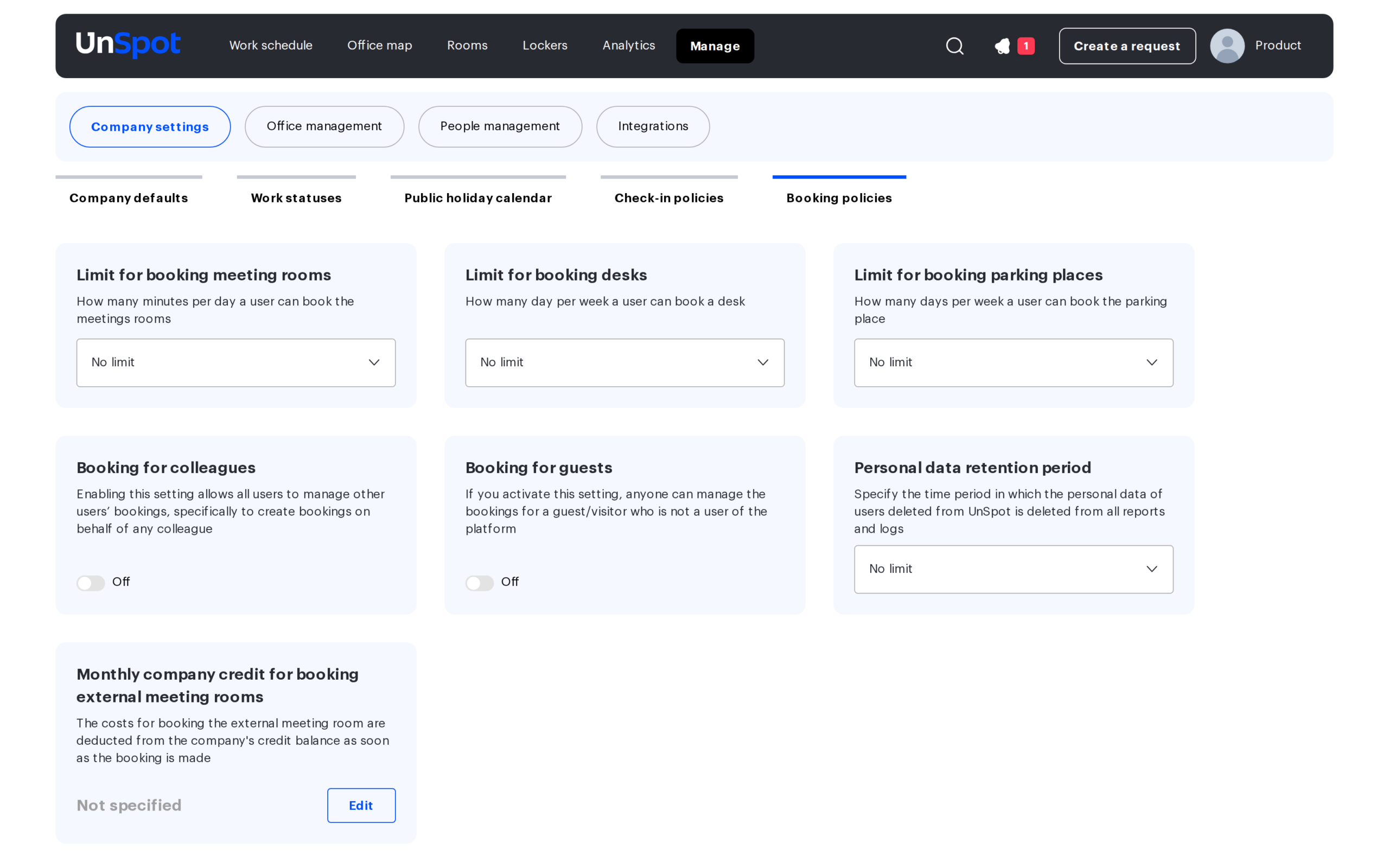
Limit for booking meeting rooms
What it is. A cap on the total time one employee can book meeting rooms for within a single day. It keeps meeting rooms from being monopolised by individual employees and leaves them available to the whole team.
How it works. When a booking is created or moved, the system adds up the duration of all meeting-room bookings where the employee is the organizer within the calendar day (00:00 to 24:00) — including the booking being created. If the total exceeds the limit, the booking is not created and the employee sees a message with the limit value. The day is counted in the time zone of the office the meeting room belongs to; if the office uses company settings — in the company time zone. Bookings in all offices are counted, and a booking that crosses midnight is counted only by the part that falls into the current day.
Values. “No limit” (default) or a fixed value from 30 minutes to 24 hours in 30-minute steps.
- the limit applies to all roles, including administrators. The exception is bookings created from the panel at the meeting-room door (the panel account does not check the limit);
- guest bookings are not counted in the total;
- the limit is per day, not per office: bookings in different offices add up;
- independently of this limit, each meeting room can have its own maximum duration of a single booking — it is set in the meeting-room card and checked separately.
Keep in mind. A limit that is too small gets in the way of long meetings: one two-hour meeting with a 2-hour limit uses up the whole day. When the limit is tightened, existing bookings are not deleted and remain valid — the limit kicks in when the next bookings are created.
Limit for booking desks
What it is. A cap on the number of days per week on which an employee can book desks. Used in hybrid schedules where there are fewer office desks than employees: the limit makes sure office days are available to everyone.
How it works. The system counts the unique days of the week (Monday to Sunday) on which the employee has at least one desk booking and does not allow bookings on more days. Several bookings on the same day count as one day. Days are determined in the office time zone (or the company one, if the office uses shared settings).
Values. “No limit” (default) or 1 to 6 days per week.
Who and what it does not affect. The limit applies only to employees with the User role — managers and administrators book without restrictions. The day count excludes:
- non-working days — weekends and holidays from the Work calendar (a Saturday booking does not spend the limit);
- days on which the employee books a desk assigned personally to them for that weekday;
- bookings of a desk assigned to several employees at once, including this one, — such bookings are not checked against the limit at all;
- days on which the desk is assigned to a group the employee belongs to;
- bookings created for guests.
Keep in mind. The counting week is always the calendar week, Monday to Sunday; the “First day of the week” setting on the General settings tab does not affect the count. The limit checks desk bookings only — meeting rooms and parking have their own limits. Existing bookings are not deleted when the limit is tightened: it starts acting on attempts to create new ones.
Limit for booking parking places
What it is. A cap on the number of days per week on which an employee can book a parking place. It follows the same rules as the desk limit — unique days of the calendar week, working days only, the User role only.
Values. “No limit” (default) or 1 to 6 days per week.
Specifics. If a parking place is assigned to the employee for at least one day of the week and they book exactly that place — the limit is not checked at all. Days of assigned places and group-assigned places are excluded from the count, as with desks; guest bookings are not counted.
Keep in mind. The desk and parking limits are independent: an employee with a “2 days” limit on each can drive to the office only on days when both limits allow it — plan for this if everyone who comes in also parks. “No limit” with scarce parking leads to just-in-case bookings a week ahead.
Everyone can book for colleagues
What it is. A toggle that lets any employee create bookings on behalf of any colleague — for example, an assistant books places for the whole team for an offsite day.
How it works. On — when booking, any employee can pick another employee as the booking organizer. The created booking belongs to the organizer: the creator cannot delete it — that is done by the organizer, a manager or an administrator. Off — booking for colleagues is available only to managers, administrators and employees who are allowed to manage specific colleagues (for example, a team lead for their team).
Values. On / Off.
What does not depend on the toggle. Employees always create and delete their own bookings. Managers and roles with the right to manage all users create and delete bookings for anyone regardless of the toggle.
Keep in mind. A booking created for a colleague spends the limits of the organizer (the person being booked for), not the creator. With the toggle on, any employee can “spend” a colleague’s limits by creating bookings in their name — the booking appears with the colleague, who can delete it.
Everyone can book for guests
What it is. A toggle that lets any employee book desks and parking for guests — office visitors who have no UnSpot account. Do not confuse it with the Visits module: a visit request handles the guest’s visit and pass, while a guest booking reserves a specific desk or parking place for them — these are independent features.
How it works. On — when booking, any employee can specify a guest (name and e-mail) instead of a colleague. Off — guest bookings are available only to employees whose user card has the personal right to book for guests enabled.
Values. On / Off.
- meeting rooms cannot be booked for guests in any position of the toggle — guest bookings work for desks and parking only;
- guest bookings are not counted in booking limits — neither the creator’s nor anyone else’s;
- the personal right in the employee card works independently of the global toggle.
Keep in mind. Because guest bookings do not spend limits, the enabled toggle is a way around desk limits — an employee can book a desk “for a guest” for themselves. If your company enforces strict limits, it is safer to keep the toggle off and grant the right selectively (reception, office managers).
Personal data retention period
What it is. The period after which the personal data of employees deleted from UnSpot is automatically anonymised in all reports and logs. The setting helps meet personal-data regulations such as GDPR: data of former employees is not kept longer than the chosen period.
How it works. Once a day a background job finds users deleted from the system earlier than the selected period ago and cleans their data: personal fields are removed or anonymised in work-schedule, booking and user reports, in the logs of sign-ins, office visits, report downloads, user actions, integrations and lockers; their favourite colleagues, personal settings and vehicles are deleted. The countdown starts from the date the user was deleted, not the date they left the company.
Values. “No limit” (default — data of deleted users is kept indefinitely) or 1 to 24 months.
Keep in mind. Anonymisation is irreversible: the data cannot be restored after the policy fires. Active and blocked (but not deleted) users are not affected. When the policy is enabled on a long-running system, the first run anonymises everyone deleted earlier than the chosen period — if you need historical reports with names, export them beforehand. Analytics is preserved: numeric indicators remain, only the link to the person disappears.
Monthly credit for external meeting rooms
What it is. The company’s shared monthly budget for booking external meeting rooms — paid venues outside your offices connected to UnSpot. The credit caps the total spending of all employees per calendar month.
How it works. Bookings of external meeting rooms are paid from the company credit at the rate set in each external room’s card. When booking, the employee sees the remaining credit for the current month. The credit is not a hard block: if it is not enough, the booking is still created and the company is invoiced for the difference — the employee is warned about this while booking. The cost is shown in the currency selected on the General settings tab.
Values. An integer from 0 to 999,999,999; changed with the “Edit” button.
Keep in mind. The credit is company-wide — there are no per-team budgets, so one team can use up the whole monthly amount, and exceeding the credit results in an invoice, not in a booking refusal. The setting only matters if your company uses external meeting rooms with rates.
How the policies relate to other settings
The policies do not work in a vacuum — their actual effect depends on settings in other console sections:
| Policy | What else it depends on |
|---|---|
| Meeting-room limit | Company and office time zones (day boundaries); the maximum duration of a single booking in each meeting-room card — checked separately from the limit |
| Desk limit | The Work calendar (non-working days do not spend the limit); desk assignment to employees and groups; the employee’s role (applies to Users only); time zone |
| Parking limit | The same, plus parking assignment: booking one’s own assigned place bypasses the limit |
| Booking for colleagues | Roles and rights: managers and roles that manage all users do not depend on the toggle |
| Booking for guests | The personal “book for guests” right in the employee card; guest bookings do not spend limits — mind this with strict limits |
| Data retention | Counted from the date the user was deleted from the system (not blocked) |
| Monthly credit | The Currency from General settings; the rates in external meeting-room cards |
Related articles
- Booking control: overview
- Company settings — branding, available functionality, date and time;
- User roles — who Users, Managers and administrators are, and which of them the limits apply to;
- Work statuses — configuring work-schedule statuses.
- Statuses in the schedule: setting them and the effect on bookings
