
The direct manager in the employee profile
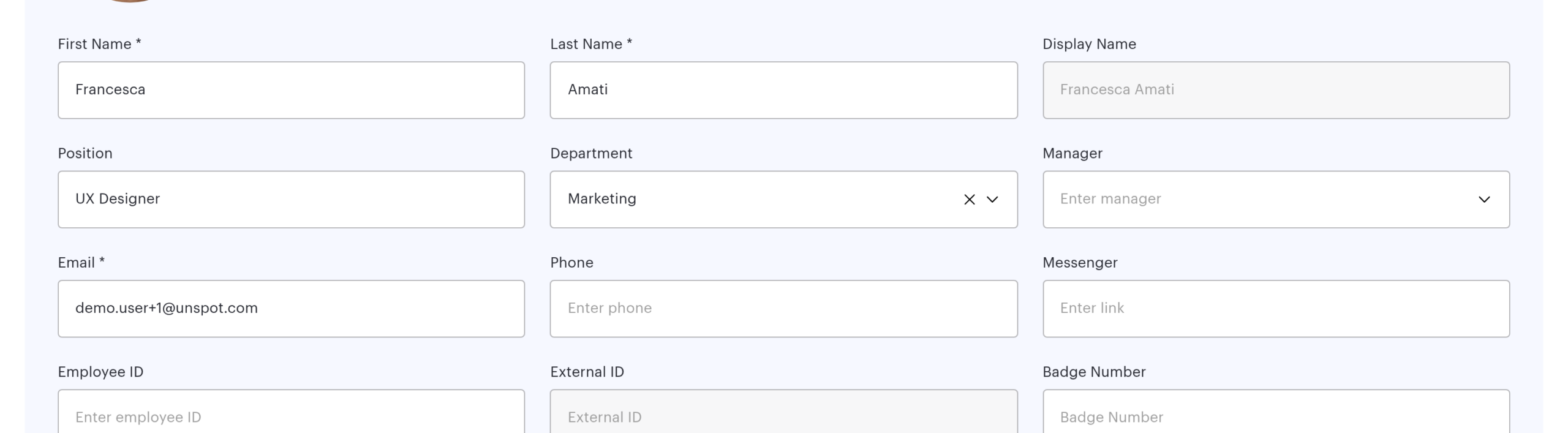
Every employee profile has a Manager field. It is configured from the other end: you name the manager in the subordinate’s profile, and the rights appear for the person you named. Usually the field is filled not by a person but by synchronisation with the company directory — there are seven such channels, from Active Directory to an OpenID Connect sign-in. This article covers what the field grants, where its value comes from and why it sometimes disappears without warning.
Contents
What rights the Manager field grants
Why the manager disappeared from a profile
When to choose the Manager field
Where the value comes from: AD, OpenLDAP, Entra ID, Google, SCIM, CSV, OIDC
What happens on leaving, deactivation and archiving
Can an employee have two managers?
How soon does the field update after a change in the directory?
Can the field be filled for everyone at once?
The field is locked and cannot be changed. Why?
Which wins — the Manager field or the organisational structure?
What rights the Manager field grants
The named manager gets the same rights as adding the person to the Subordinates block: managing bookings and schedules, working with requests, visibility in reports, four fields in the profile. Full reference: What a manager can do: bookings, schedules, requests. The one exception is stopping someone else’s meeting room booking: that requires the Office manager or Super Administrator role and honours only the manual list.
Two limits to know straight away:
- There is exactly one manager. The field stores a single person; an employee cannot have two direct managers.
- Rights do not walk up the chain. If an engineer reports to a team lead and the team lead reports to a director, the director has no rights over the engineer — no schedule, no bookings, no requests. To grant them, add the engineer to the director as a list entry or through a team.
The filled field is visible to more than administrators: in the colleague card that opens from the map, the schedule and search, any employee sees a Manager line with the name and a link to that person’s card.
The only built-in check forbids making someone their own manager. A pair where two people name each other is accepted without objection and gives both of them rights over the other — such pairs have to be found by hand.
Why the manager disappeared from a profile
The most frequent complaint about this mechanic is “the field was filled and now it is empty”. Every synchronisation channel works the same way: the manager is looked up by email address among employees who already exist in UnSpot. The field is cleared in two cases — there is no profile with that address, or the profile found is deactivated or archived. Directory synchronisations do this silently, with no error in the log. Two channels behave differently: SCIM answers with an error, and the CSV import rejects the row if the manager is deactivated.
| Symptom | Likely cause | What to do |
|---|---|---|
| The field emptied for many employees after an import | The Manager column in the CSV file was empty | Import a file with the column filled in: an empty cell is read as “clear it” |
| The field emptied for some employees after a synchronisation | The manager is not in UnSpot, is deactivated or is archived | Check their profile; once it is restored the field is filled on the next run |
| The field reverts to its old value after the employee signs in | An update through OpenID Connect | Check the provider settings: the field is updated on every sign-in regardless of the tick in the field list |
| The wrong person ended up in the field | Google Workspace synchronisation | Check the order of relations in the Google account: the first one is taken, not the one typed as manager. If an assistant comes first, the assistant lands in the field |
| The field is empty for everyone although the directory has it | OpenLDAP returned a value that does not look like an email address | Make the manager identifier in the directory an email address |
| The field cannot be edited by hand | It is maintained by synchronisation | Change the value in the source directory, or remove the field from the synchronised list |
When to choose the Manager field
The field suits two situations. First, subordination is already maintained in the company directory: switch it on in the synchronisation settings and it will follow staff changes by itself. The organisational structure also arrives from the directory (the employee department and the department manager, from Active Directory and SCIM), while assigning a team to a manager is always a manual step.
Second, exceptions to the tree: an employee sits in one department but actually reports to a mentor, a project lead or a regional manager. The profile field describes that more precisely than the organisational structure.
Where the value comes from: AD, OpenLDAP, Entra ID, Google, SCIM, CSV, OIDC
| Channel | Where the value comes from | What to watch out for |
|---|---|---|
| Active Directory | The manager attribute of the account; the object path is resolved into an email address | The field must be ticked in the list of synchronised fields, otherwise it is not requested |
| OpenLDAP | The manager attribute — an object path resolved into an identifier or an email address | If the result does not look like an email address, the field stays empty |
| Entra ID (Microsoft Graph) | The user principal name (UPN) of the manager | If the UPN differs from the email address in UnSpot, no match is found and the field is cleared |
| Google Workspace | The first entry in the relations list of the account | The relation type is not checked: if the first one is not a manager, the wrong person lands in the field |
| SCIM | The manager attribute of the enterprise extension; an identifier or an email address | A manager that cannot be found makes the request fail — this channel does not stay silent |
| CSV import | The Manager column — the manager’s email address | An empty cell clears the field and so does an unknown address, without a message. If the manager is deactivated or archived, the import rejects the whole row with an error |
| OpenID Connect | A claim from the provider response | Updated on every sign-in, even when the Manager checkbox is cleared in the list of updated fields |
Active Directory and OpenLDAP sort their export so that employees without a manager are processed first, and profiles created in the same run are immediately available for linking. Entra ID and Google have no such sorting: if the manager is created by the same exchange, the field may only be filled on the next one.
How to set it up
Manually:
- Open the employee profile in Manage → People management → Users.
- Start typing a name in the Manager field and pick the person from the list.
- Save the profile.
In bulk, through CSV:
- Open Manage → People management → Users and download the employee data, ticking Department and Manager.
- In the file these are the Department and Manager columns; the headers are always in English, whatever the interface language.
- Fill the Manager column with the managers’ email addresses and upload the file through the user import.
- Remember: the First name, Last name and Email columns are mandatory — without them the whole file is rejected; an empty Manager cell clears the field.
Through synchronisation:
- Open the settings of the synchronisation you use in the integrations section.
- Tick Manager in the list of synchronised fields.
- Run the synchronisation and spot-check a few profiles.
What happens on leaving, deactivation and archiving
- The employee is deactivated. They disappear from every circle on screen at once: deactivated and archived people are not shown in Work schedule, in reports or in people pickers. The links in the profile survive and work again after reactivation. The exception is the organisational structure: the department and any department management are lost on deactivation.
- The profile is archived. Every link is broken at once: the person is removed from other people’s Subordinates lists, their own list and teams are cleared, and the Manager field is emptied for them and for all of their subordinates.
- Synchronisation found a blocked account. The profile is archived and the Manager field is cleared for their subordinates automatically.
- The employee comes back. There is no separate restore button: create the user again with the same email address and the system will find the archived profile and bring it back. The previous subordinates, teams and access groups do not return — they have to be set again.
Frequently asked questions
Can an employee have two managers?
No. If two people must manage them, give the second one this employee through the Subordinates block or through a team — the mechanics add up.
How soon does the field update after a change in the directory?
On the next scheduled synchronisation, and for OpenID Connect on the employee’s next sign-in. Running the synchronisation manually speeds this up.
Can the field be filled for everyone at once?
Yes, through a CSV import with the Manager column. Remember that an empty cell is not skipped but clears the field, so export the current values before editing.
The field is locked and cannot be changed. Why?
The field is maintained by synchronisation, and manual editing is blocked so that the next exchange does not overwrite it. Change the value in the source directory, or remove the field from the list of synchronised ones.
Which wins — the Manager field or the organisational structure?
Neither: they add up. A person is your subordinate if at least one source matches, and there is no “strong” source that overrides the rest.
