
The floor plan: upload, replace and delete the map
The floor plan is the background of a workspace map: an image of the premises on top of which desks, parking spaces, meeting rooms and the other objects are placed. This article is about the file itself — where it is uploaded, what requirements it has to meet, what happens when it is replaced and how to delete the map altogether.
Where the floor plan is uploaded
The floor plan is uploaded inside the map editor, in the Seating mode. The path to the editor:
- “Manage → Office management → Workspaces” → click Change map next to the workspace you need;
- the Drafts page opens — choose Edit on the published version, or create a draft and open it;
- in the editor switch to Seating — uploading and replacing the background is available there only.
The Drafts page is covered in “Seating drafts: overview”, the mode itself in “Map editor: placing objects”.
File requirements
- format png or jpg;
- size up to 5 MB;
- the closer the proportions of the image are to the proportions of the premises, the less you will have to scale the objects.
A file that does not meet the requirements is not uploaded: the editor shows “Please upload image (png, jpg)” or “Max map size is 5 MB”.
The first upload
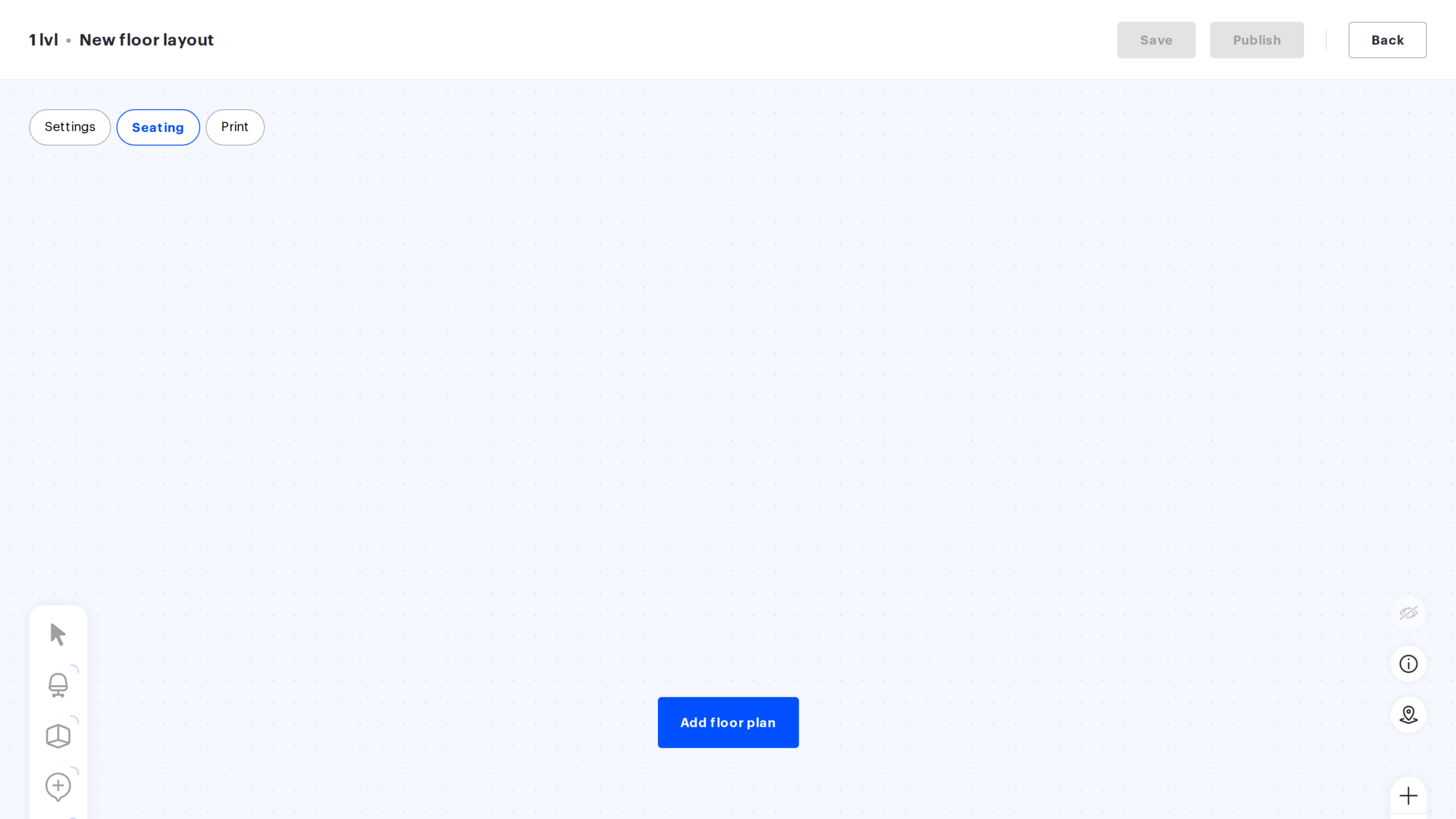
An empty draft has no floor plan, so the editor opens straight in Seating with the Add floor plan button in the middle of the working area. Click it and choose the file.
Until the floor plan is uploaded, Save and Publish stay disabled: there is nothing to publish.
Replacing the floor plan
Once a background exists, it is replaced by the Change the floor plan action in the action panel on the right. The new file has the same requirements.
This is the only action in the editor that applies immediately: the file goes to the server the moment you pick it, without waiting for Save or Publish changes, and the Back button does not roll it back. On the published map the new plan becomes the workspace plan at once and the previous file is deleted — the only way to get it back is to upload it again from your computer. If you want to look before switching, replace the plan in a draft: there it reaches the map only when the draft is published.
Replacing it inside a draft does not touch the published map: a draft keeps its own copy of the floor plan, and until it is published the replacement concerns nobody. The reverse is true as well — if the floor plan is replaced in the published version, a draft that already exists keeps the background it was created with.
What happens to the objects
Only the map background is replaced. Desks, parking spaces, pods, meeting rooms, lockers, nested workspaces and points of interest stay at their previous coordinates with all their settings — the editor simply redraws the background under them.
The practical consequence: if the new plan was drawn at a different scale or from a different angle, the objects will sit out of place relative to the walls and the layout will need fixing by hand. Replacing the background of an office that is already laid out is safer inside a draft — there you can look at the result before employees do.
While there is no plan
A workspace with no published map is not available to employees, and the Drafts page says so directly: “This space has no published version and is not available to employees.” To make the workspace available, create a draft, upload the plan, place the desks and publish the draft.
Deleting the workspace map
The map is deleted not from the editor but from the Drafts page — the Delete action in the Published version block. The confirmation dialog names both consequences:
- the workspace map is deleted together with all desks and parking spaces on it;
- the workspace becomes unavailable to employees.
The drafts of the workspace are kept — deleting the published version does not touch them. Deletion cannot be undone, so run it only if the map really is no longer needed.
Hiding a workspace
If a workspace needs to be temporarily taken away from employees, there is no need to delete the map. Visibility is switched in the office card: the workspace visibility section → change status → the “Available to users” toggle.
Related articles
- Map editor: placing objects — what to do with the plan once it is uploaded;
- Desks on the map — adding, configuring and deleting desks;
- Seating drafts: overview — the published version and drafts;
- Publishing a seating draft — how a draft becomes the working map;
- Map editor: configuring placed objects — parameters of the objects on the plan.
- Office map editor: an overview of the actions — all the actions with the map.
