
Integrations: overview
UnSpot connects to your company systems at several points: where employees come from, how they sign in, where meeting room calendars live, what happens at the door and in the parking lot, and where notifications go. Most connections live in Manage → Integrations; the rest are set up on their own screens — the calendar in a meeting room card, displays and lockers next to your workspaces. This article does not teach you to configure anything: it shows what can be connected to what, and points you to the right instruction.
What you will need
- Your role in UnSpot. The Manage → Integrations section is open to the Super Administrator and the Integrations Administrator. They are also the ones who create a company-wide connection to Microsoft 365 or Exchange. A meeting room calendar is connected by the Super Administrator or an Offices Administrator, but through a company-wide connection by the Super Administrator only.
- Access on the other side. Almost every connection needs rights in someone else’s system: a Microsoft tenant administrator, a Google Workspace super administrator, an account with the right permissions in the external service. This is usually the bottleneck — agree on access before you start.
- Deployment matters. The set of tiles depends on how your UnSpot is deployed and on your company settings, so a tile missing from your console is not a fault.
What you can connect
The table below answers “what do I want to achieve”, not “which tab does it”. The last column points to the overview of that area, where the options are compared and the order of steps is described.
| Goal | What you connect | Where it is set up | Start here |
|---|---|---|---|
| Fill the employee list without typing it in | SCIM 2.0, Entra ID (Azure AD), AD LDAP or OpenLDAP, Google Workspace, CSV, OpenID Connect | Synchronisations | How to choose a user synchronization method |
| Let employees sign in with a corporate account | Microsoft, Google, Apple ID, AD FS, Keycloak, OAuth 2.0 | Synchronisations → User authentication, Login options / SSO | AD FS, Keycloak, OpenID Connect |
| Show bookings in the meeting room calendar | Microsoft 365, Microsoft Exchange, Google Calendars | Synchronisations → Calendar synchronization, then the meeting room card | Meeting room calendar: connection options overview |
| Understand how the calendar exchange works | — | — | How calendar synchronisation works |
| Send notifications to a messenger | Slack | Synchronisations → Notification channels | Configuring integration with Slack |
| Attach an online conferencing service | Zoom | Synchronisations → Online conferences | Configuring integration with Zoom |
| Put a display next to a meeting room | UnSpot Display on a tablet | Meeting room displays | Meeting room displays: connection and setup |
| Open locker cells | A lock management system | Synchronisations → Devices | Locker integration setup: Pocket Lock |
| Work with UnSpot inside a messenger | The UnSpot app for Microsoft Teams | Microsoft Teams | Setting up UnSpot for Microsoft Teams |
| Build your own automation | External API, SCIM API, outgoing and incoming webhooks | API Settings, Incoming and Outgoing webhooks | What are webhooks, External API: User sync via SCIM |
Rollout order
The order is not mandatory, but skipping it is expensive: every connection below relies on the result of the previous one.
- Employees. Start with the source of users — the later settings have no one to apply to otherwise. The choice between the methods is made in How to choose a user synchronization method.
- Sign-in. Sign-in is configured separately from synchronization: a user who arrived from a directory does not automatically get a corporate sign-in option.
- Meeting rooms and their calendars. A calendar is attached to a room that already exists in UnSpot. Which option fits is answered in Meeting room calendar: connection options overview.
- Office hardware. Displays, lockers and parking cameras — in any order, they do not depend on each other.
- Your own scenarios. Connect the API and webhooks last, once the data in UnSpot has settled: webhooks push events out, while External API returns data on request.
Users and sign-in
Employees reach UnSpot through one of several methods, from a CSV file to synchronization with the company directory. The method is chosen once: changing the source later means migrating accounts, so it is worth walking through the comparison first.
- How to choose a user synchronization method — a comparison table of every method and its limitations.
- CSV import, SCIM 2.0 (Entra ID, Okta), Entra ID via Graph API, AD LDAP and OpenLDAP, Google Workspace — how each method works; every article links to its own setup instruction.
- OpenID Connect — users are created at their first sign-in from a corporate domain.
- Sign-in: AD FS, Keycloak, two-factor authentication. The User authentication block lists the providers available in your deployment — Microsoft, Google, Apple ID, AD FS, Keycloak and OAuth 2.0.
Meeting room calendars
A calendar is connected per meeting room and works both ways: events from the calendar become bookings, and bookings made in UnSpot appear in the calendar. There are three providers, and Microsoft alone has four connection options that differ in transport and in where the credentials live.
- Meeting room calendar: connection options overview — the entry point: which option to choose and in what order to act.
- Microsoft calendar synchronisation: choosing an option — the fork between the four Microsoft 365 and Exchange options.
- Connect a Google Workspace calendar to a meeting room and Create a resource calendar in Google Workspace.
- How calendar synchronisation works — what moves between a booking and an event, what does not, and how conflicts are resolved.
Notifications and online conferences
On top of email and mobile push notifications, UnSpot can post to a messenger, and meeting rooms can carry a video conferencing link.
- Slack. An administrator connects it in the Notification channels block — instruction.
- Zoom. Connected with a Server-to-Server OAuth app — instruction.
- Microsoft Teams. UnSpot works as a tab inside Teams — Setting up UnSpot for Microsoft Teams.
- Mattermost, Webex, BlueJeans. The tiles are in the console but marked “Coming soon”: their connect button does not work yet.
Devices in the office
This group describes the office as a physical space: what is shown next to a meeting room, what opens locker cells, and what watches the parking lot.
- Meeting room displays. Connection and setup and the PWA app for tablets.
- Lockers. Locker integration setup: Pocket Lock opens cells for a booking; the exchange protocol is in Locker integration: lock system API requirements. What lockers are and how they are managed: Lockers: overview and Locker management.
- Parking cameras. Connected in the Devices block with a host, port and password; the cameras recognise licence plates at the entrance.
Your own scenarios: API and webhooks
When there is no ready-made integration, the scenario is assembled from the building blocks: webhooks push events out and accept events in, and the External API returns data on request.
- What are webhooks and how do you use them to automate processes — the mechanism as a whole.
- Outgoing: setting up guide and API reference.
- Incoming: setting up guide and API reference — this is how events from external systems, including access control, reach UnSpot.
- External API: get bookings, get users, monitoring, update user schedule status.
- External API: User sync via SCIM — managing users, groups and the org structure through the SCIM 2.0 standard.
Where to find it in the console
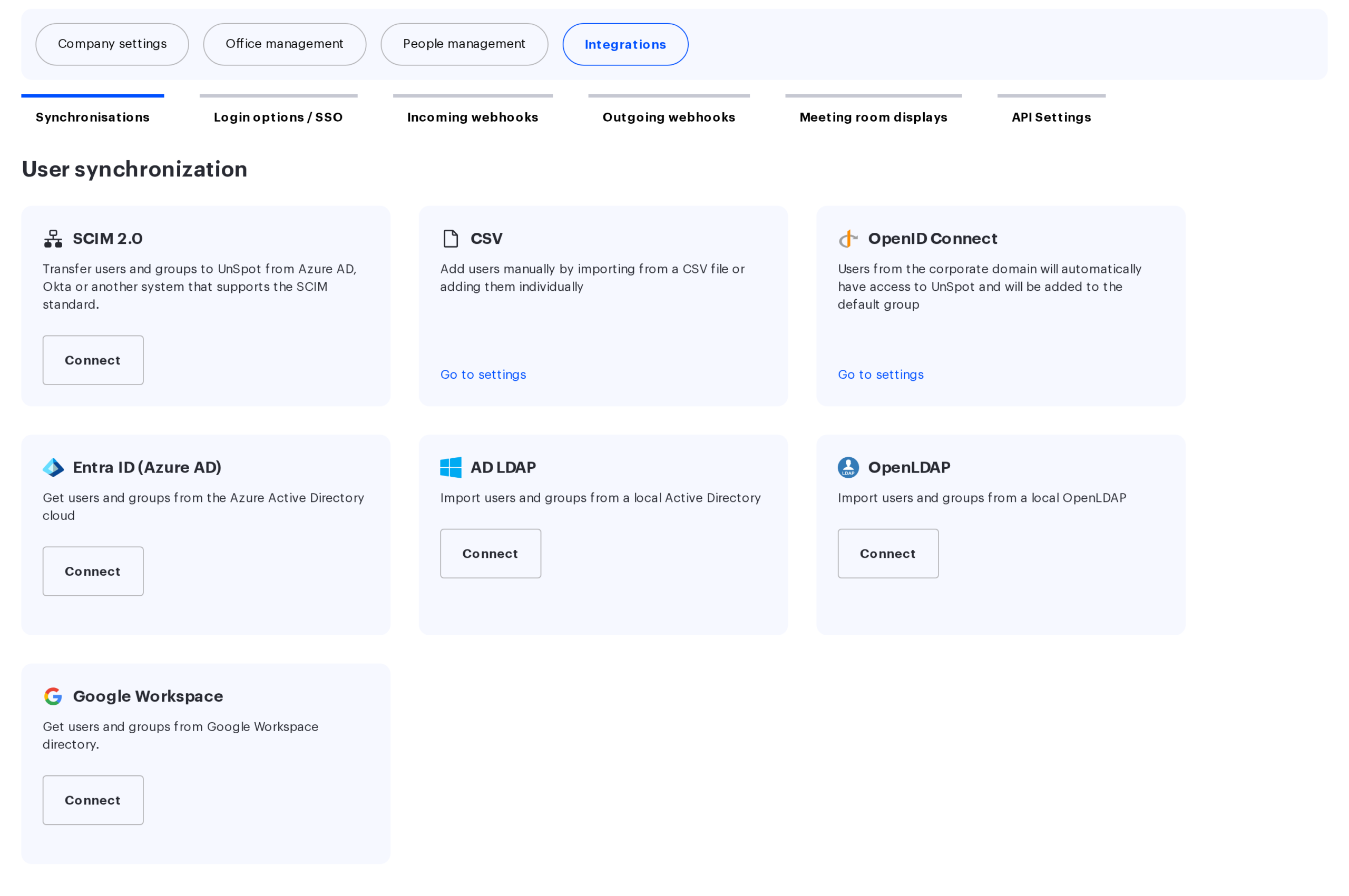
Most connections live in Manage → Integrations. The section has six tabs.
| Tab | What it configures |
|---|---|
| Synchronisations | User sources, authentication providers, calendars, messengers, online conferences and devices |
| Login options / SSO | Sign-in rules, preconfigured providers, two-factor authentication |
| Incoming webhooks | Receiving events from external systems |
| Outgoing webhooks | Sending UnSpot events to external systems |
| Meeting room displays | Registering and configuring tablets next to meeting rooms |
| API Settings | Keys and parameters for the External API |
The busiest tab is Synchronisations, split into five blocks.
- User synchronization — SCIM 2.0, CSV, OpenID Connect, Entra ID (Azure AD), AD LDAP, OpenLDAP, Google Workspace.
- User authentication — the company sign-in providers.
- Calendar synchronization — company-wide connections to Microsoft 365, Microsoft Exchange and Google Calendars.
- Notification channels and Online conferences — messengers and conferencing services.
- Devices — parking cameras, the lock management system and meeting room displays.
Two things live outside the section: a meeting room calendar is attached in the room card in the workspace tree, and lockers are managed on the workspace screen.
Limitations and common misconceptions
- User synchronization and sign-in are different things. An employee imported from a directory does not automatically get a corporate sign-in option: that is configured on its own tab.
- Webhooks do not replace synchronization. Outgoing webhooks report an event after the fact; they are not a way to populate an external system with data — the External API and SCIM are.
- Microsoft stores access in two different ways. Credentials on each meeting room and a single company-wide connection are not the same thing and do not replace each other; the difference is explained in the Microsoft overview.
- A tile marked “Coming soon” is an announcement, not a setting. Its connect button is disabled.
- The set of tiles depends on your deployment and company settings. A missing tile does not mean a broken integration.
If something goes wrong
| Symptom | Where to go |
|---|---|
| A booking exists in UnSpot but not in the calendar | How calendar synchronisation works and Microsoft calendar synchronisation |
| Employees did not appear after synchronization was set up | How to choose a user synchronization method |
| Corporate sign-in does not work | Connect SSO (OAuth 2.0) via AD FS, via Keycloak |
| An outgoing webhook never arrives | Outgoing Webhooks setting up guide |
| Events from an external system do not reach UnSpot | Incoming Webhooks setting up guide |
| Meeting names from Office 365 look wrong | Office 365 meeting names fix |
