
Booking control: overview
Booking control (check-in) is the mechanism that releases resources nobody used: if an employee does not confirm a booking or does not come to the office, the system cancels it and the resource becomes available again. This page is the entry point to the topic: it helps you decide which stage of control you need, at which level to configure it and which article to open next.
What you will need
| Item | Details |
|---|---|
| Role | Super Administrator or Offices Administrator for company and meeting room settings. An Office manager can configure a single space only |
| Where in the console | Manage → Company settings → Check-in policies |
| Prerequisites | Spaces with desks and meeting rooms are already set up; QR confirmation needs printed codes, badge confirmation needs a connected access control system |
| What employees will need | Enabled notifications and, for the automatic methods, the UnSpot mobile app |
Where to start: choosing an option
The control consists of two independent stages. They can be enabled separately, and everything else follows from that choice.
| Option | When it fits | Limitations | Article |
|---|---|---|---|
| First step only — advance confirmation | Employees book ahead and never cancel bookings they no longer need | Does not prove anybody arrived: it can be confirmed from anywhere | Scenario 1: freeing up desks early |
| Second step only — office presence control | Resources count as occupied while nobody is in the office | Needs at least one confirmation method: QR code, PACS, the office network or the button (the button does not prove presence) | Scenario 2: accurate attendance analytics |
| Strict in-office confirmation only | You need proof the employee physically arrived | Remote confirmation is switched off; the form requires a QR code or PACS | Scenario 3: strict confirmation |
| Both stages | You need both an advance clean-up and real arrival control | The stage windows must not overlap — such settings are rejected | Scenario 4: full control |
| Different rules per office | Office demand differs | A local set is defined as a whole, not on top of the company one | Space and meeting room settings |
| Different rules for parking and desks | Parking is scarcer than desks | There is one setting for both: the spaces have to be split | Desks and parking |
| Meeting room control | Rooms are blocked by meetings that never happen | Confirmation by QR code or from a display only | Meeting room check-in |
| Control without disturbing employees | You need the real occupancy picture, with no notifications to employees | Works together with PACS: “Switch off notifications” silences second-step messages while QR code and Remote confirmation stay off; parking notifications keep arriving | Check-in methods |
Rollout order
- Understand the mechanics. How the windows are calculated, what happens to an unconfirmed booking and what reaches the reports — How booking control works.
- Review your space structure. If parking and desks need different rules, the split comes before the settings — Desk and parking check-in.
- Choose a presence confirmation method and prepare it: print QR codes, connect the access control system, collect the office network lists — Check-in methods.
- Define the company-wide settings — pick a ready-made scenario or build your own set with the settings reference.
- Configure exceptions per office and meeting room if the rules differ — Check-in settings for a space and a meeting room.
- Tell your employees and share the guide — Confirming your booking (check-in).
Steps 2 and 3 come before step 4 for a reason: the control extends to bookings that already exist. Some of them — bookings within the next day whose window is already open — are confirmed automatically, but bookings whose window has already passed can be cancelled within minutes of saving. If there is no confirmation method in place, employees will lose bookings they had no way to confirm.
Where it is in the console
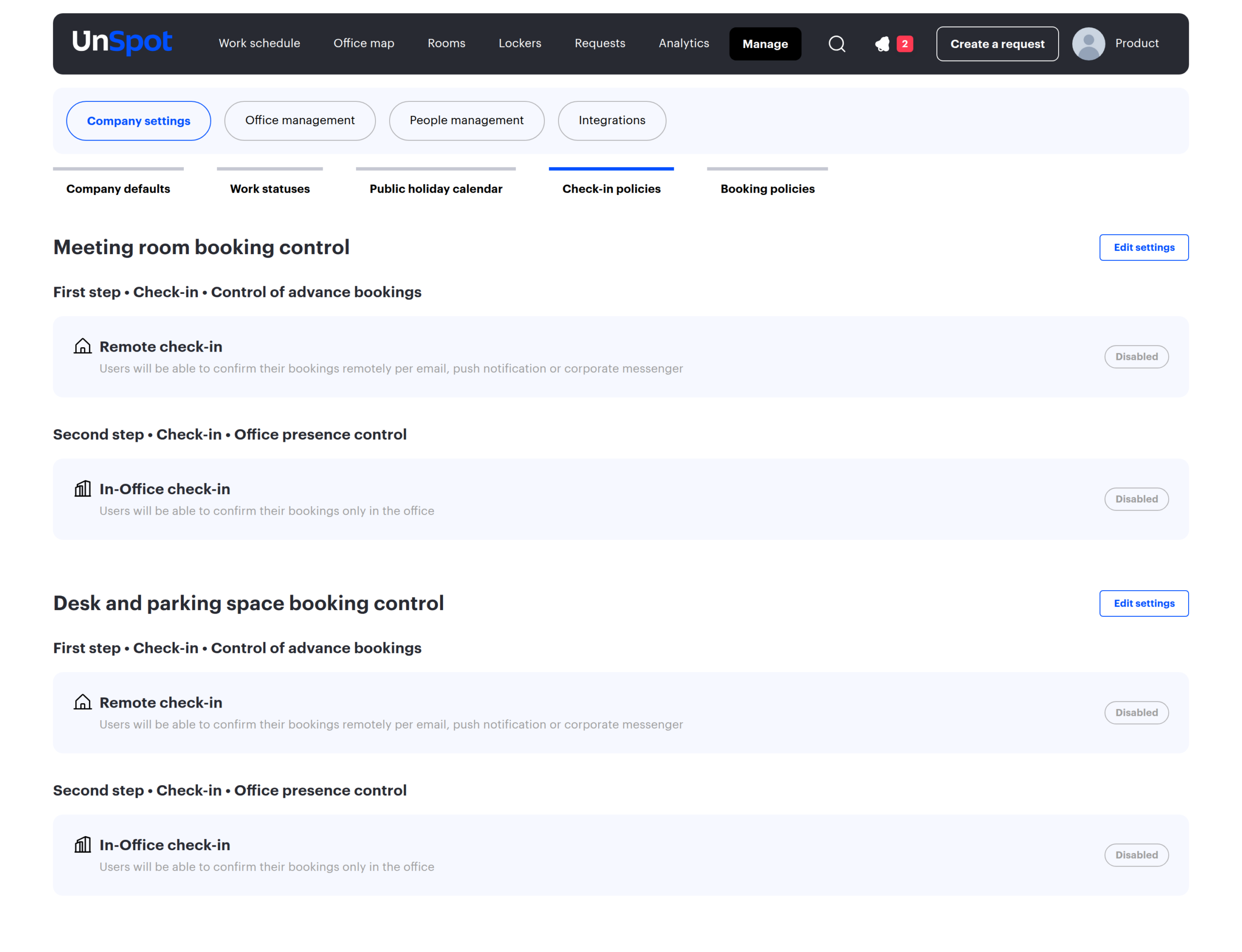
The menu item is called Check-in policies; the page itself consists of two blocks — Meeting room booking control and Desk and parking space booking control. Local settings live in the space card and in the meeting room form, where the block is called Booking confirmation in both cases.
Limitations and common misconceptions
| Misconception | How it actually works |
|---|---|
| “Check-in can be configured for a specific resource” | There are three levels only: company, space, meeting room. An individual desk or parking space has no check-in settings, and locker cell bookings are not covered by the control at all — check-in only applies to desks, parking and meeting rooms |
| “Parking can have its own window” | There is one setting for the desks and parking spaces of a space. Different rules require different spaces |
| “Local settings extend the company ones” | Either the whole local set applies or the whole company set. Fields from different levels are never mixed |
| “A floor inherits the settings of its building” | There is no inheritance down the space tree: the rules come from the space where the resources are |
| “One confirmation is enough” | With both stages enabled, two confirmations are required — in advance and in the office |
| “Meeting rooms are configured together with desks” | That is a separate block with a different set of fields and different defaults |
| “Approval by a room administrator is check-in too” | Different mechanisms. The difference is explained in meeting room check-in |
If something does not work
| Symptom | Where to look |
|---|---|
| Bookings disappear although employees confirmed them | Check whether both stages are enabled: only the first one may have been confirmed — the mechanics |
| The settings form will not save | Most likely the stage windows overlap or no check-in method is selected — form errors |
| Confirmation by geolocation never fires | The space has no office coordinates set — local settings |
| Employees receive no confirmation requests | “Switch off notifications” may be enabled: it silences second-step messages while PACS is the only enabled method — check-in methods |
| Meetings are cancelled although everybody attends | The second step needs a QR code or a display; an email or a messenger does not satisfy it — meeting room check-in |
| Utilisation in reports dropped after enabling control | That is expected: bookings cancelled by check-in are excluded from reports — what stays in the reports |
| A manager cannot confirm a subordinate booking | Only the organiser of a booking can confirm it — who can confirm |
| A badge entry did not confirm a parking booking | Expected: PACS only confirms desk bookings — parking specifics |
All booking control articles
How it works
- How booking control works — stages, time windows, automatic cancellation, the log and the reports.
- Desk and parking check-in: one shared setting — why the setting is shared and how to split the rules.
- Meeting room check-in: how it works and how to set it up — how rooms differ and how check-in differs from booking approval.
How to configure it
- Booking control scenarios: four ready-made setups — ready combinations of stages, windows and methods for typical goals.
- Booking control: settings reference — every field: what it does, what it affects, when to use it.
- Check-in methods: how to verify office presence — network, QR, remote button, PACS and notification suppression.
- Check-in settings for a space and a meeting room — company and local settings, the “Different from company settings” switch.
For employees
- Confirming your booking (check-in) — how to confirm a booking and what happens if you miss the deadline.
