
Map editor: configuring placed objects
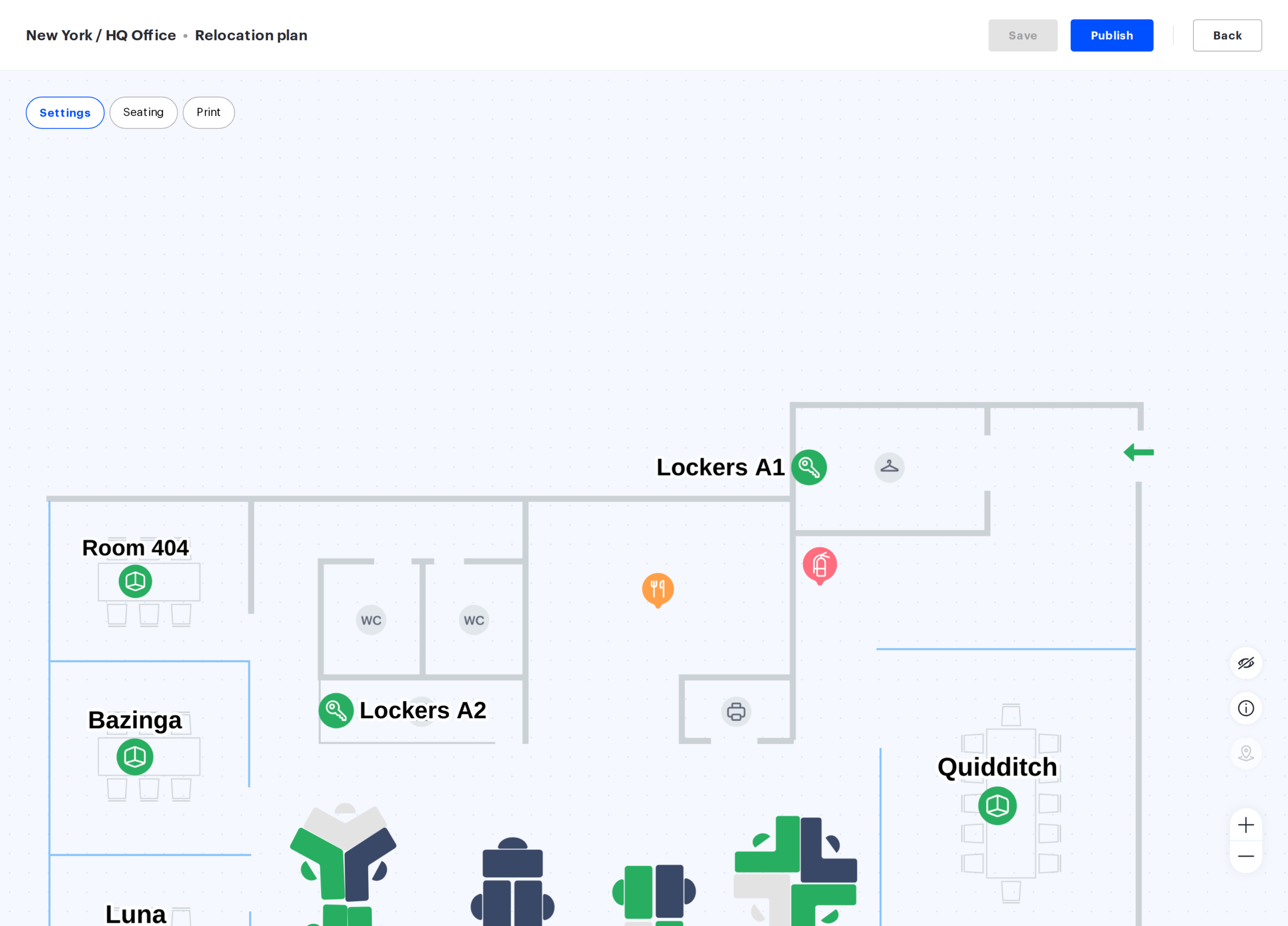
Settings is the mode of the map editor where the objects you have placed are locked in position and only their parameters change: name, type of use, assignments, amenities, department, access groups. Placement itself — moving, rotating, adding and deleting objects — lives in a separate mode and is covered in “Map editor: placing objects”.
Who needs this mode
This is the mode you work in most. Placing objects is rare — when an office is set up or the layout changes — while desk parameters are edited constantly: an employee moves to another desk, a department relocates to another wing, a desk is taken out of booking during a refurbishment, a monitor is added. That is why the mode is built so the map cannot be spoiled: objects in it do not move.
Switching to Settings
The mode switches are at the top of the editor: Settings, Seating, Print. If the floor plan is already uploaded, the editor opens in Settings and nothing needs switching. All three modes show the same map, and switching requires no intermediate saving.
How the mode differs from Seating
| Action | Seating | Settings |
|---|---|---|
| Open an object’s parameters | yes | yes |
| Bulk editing | yes | yes |
| Move, rotate, resize | yes | no |
| Add or delete an object | yes | no |
| Duplicate an object | yes | no |
| Group desks into a pod | yes | no |
| Rename a pod | yes | yes |
| Change the floor plan | yes | no |
What you configure on a single object
A double click on an object opens its card — a modal window above the map. The pencil button above the selected object and the cmd/ctrl + E shortcut do the same; a single click only selects the object. The set of fields depends on the object type; for a desk it is the shape, name, description, owner department, amenities, type of use and assignments.
The fields of each card are covered in their own articles:
- Desks on the map — every field of the desk card and the warnings when they change;
- Desk types — what each type of use means;
- Assigning a desk to an employee — assignments and reseating;
- Desk pods — pod parameters;
- Meeting rooms on the map — the room card on the plan;
- Parking spaces on the map — parking space parameters;
- Points of interest on the map — the marker form: icon, description and photo.
Type of use and booking type
The most frequent change in this mode is the type of use of a place (Bookable · Assigned · Unavailable) and the booking or assignment type that depends on it. A bookable place has three subtypes (“On any days”, “Day to day” and “Priority” for Access Groups), an assigned one has three as well (“By weekday”, “Priority” for several employees and “For period”). Bookings are not always removed when the type changes: the warning appears only when switching to “Day to day”, while switching to “Unavailable” and assigning open a window where you choose whether to keep or remove the existing bookings. The full breakdown of every option and how parking spaces differ is in “Desk types”; the assignment procedure and the “Assign a place?” window are in “Assigning a desk to an employee”.
Who can book the place
The Available for bookings for switch has three positions: No one, Selected Groups and All users. How this relates to access groups and resource rights is covered in “Resource access rights”.
Bulk editing
The main tool of this mode. Select several objects with a frame or press cmd/ctrl + A — the bulk edit action appears above the selection, and the parameters you set are applied to every selected object at once.
- one selection must hold objects of one kind: either desks and pods, or parking spaces;
- a selected pod expands into its desks — the parameters are applied to each desk of the pod;
- desks that belong to a pod are not picked up by cmd/ctrl + A — select the pod as a whole;
- in the Print mode the bulk edit controls are not shown.
Desks: what you can set at once
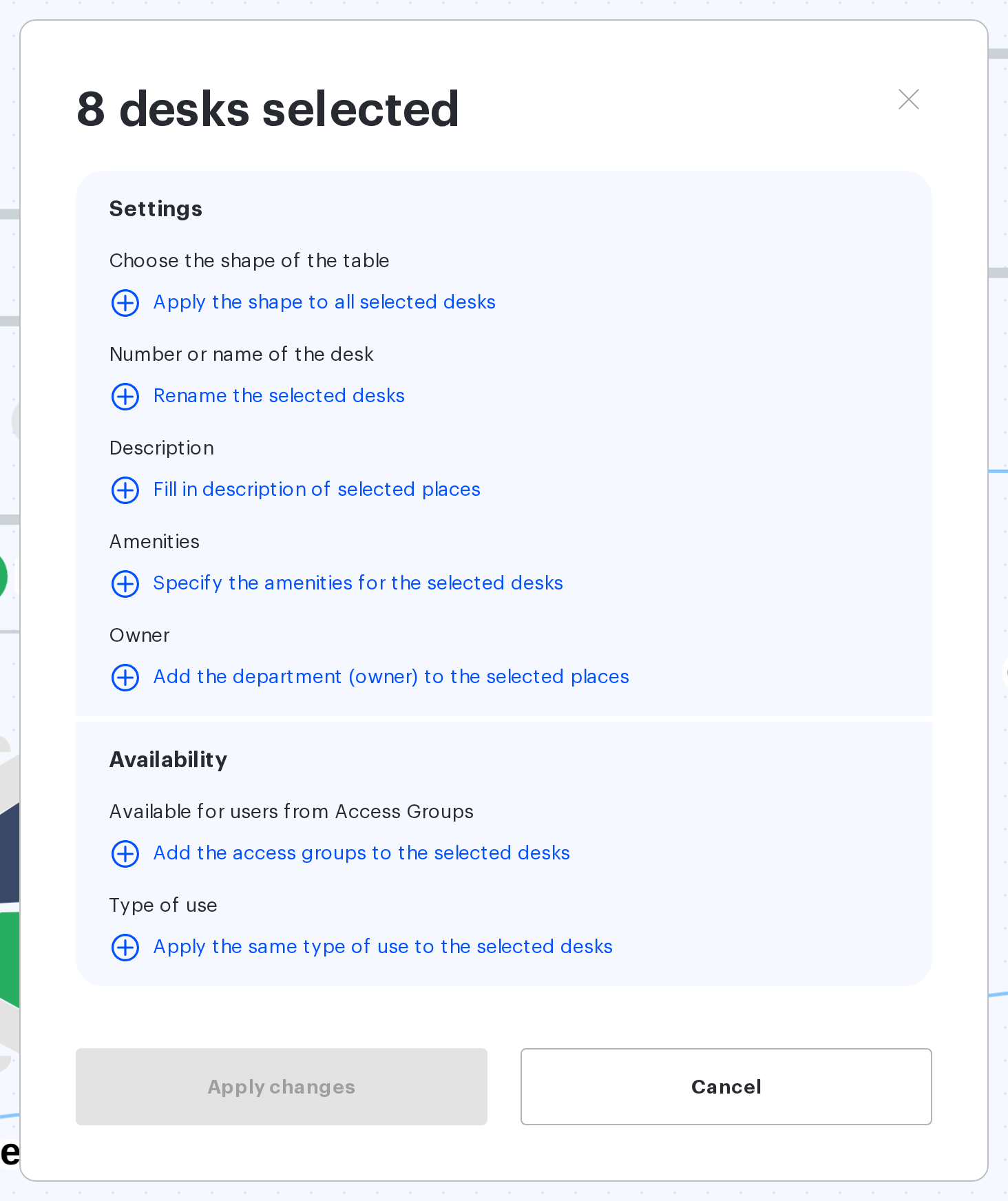
The form is titled “{desksCount} desks selected”. Every parameter is switched on by its own checkbox; parameters you leave off are not touched on the desks:
| Checkbox | What it does |
|---|---|
| Apply the shape to all selected desks | one desk shape for the whole selection |
| Rename the selected desks | a common name with automatic numbering |
| Fill in description of selected places | one description for all places |
| Specify the amenities for the selected desks | a common set of amenities |
| Add the department (owner) to the selected places | one owner department |
| Add the access groups to the selected desks | common access groups |
| Apply the same type of use to the selected desks | one type of use and the booking type that goes with it |
Two limits of bulk editing. The “Assigned” type is not available here — a desk can be assigned only in its own card. And applying a type of use resets the previous assignments and subtypes of all selected desks without a warning: the “Assign a place?” and “Change place status” windows never appear in the bulk form.
Parking spaces: what is different
The form is titled “{parkingsCount} parking spaces selected”. The set of checkboxes is shorter: rename, description, department, access groups and type of use. Parking spaces have no shape and no amenities, and the booking type has no “Day to day”.
Hotkeys in this mode
The hotkey panel in Settings is shorter than in Seating — four shortcuts, because the other nine are about moving and deleting objects (the full table of thirteen is in the “Hotkeys” section of the Seating article; the panel on the right and the save and exit buttons, common to all modes, are there as well):
| Action | Shortcut |
|---|---|
| Zoom | cmd + mouse wheel |
| Select all | cmd + A |
| Moving | long press on the space bar |
| Rename pod / Edit desk | cmd + E |
cmd is for macOS; on Windows and Linux use ctrl instead.
What is different inside a draft
- changes are invisible to employees and do not affect bookings until you publish;
- assigning a desk For period is not supported in a draft: the button is hidden and an assignment already set to that mode falls back to By weekday. The other assignment types work;
- when the product checks whether an employee is free to be assigned, only the assignments inside this same draft are taken into account; as on the published map, a “By weekday” assignment to a new place removes the overlapping days from the previous one — see “Assigning a desk to an employee”;
- employees, access groups, amenities and departments deleted from the product while the draft was waiting are cleared from the cards the next time the draft is opened.
What happens to these settings and to bookings at the moment of publishing is covered in “Publishing a seating draft”.
Messages you may see
| What you see | What it means |
|---|---|
| “Changes saved successfully” or “Draft updated successfully” | The save went through: on the published map the changes are already in effect, in a draft they are written into it |
| “Failed to publish changes. Please try again later.” or “Couldn’t update draft. Please try again later.” | The server rejected the save; the message does not say why. Most often another administrator is saving or publishing the same map at that moment — the map is protected by a lock; wait and try again. If the error repeats, contact support |
| “Name must be unique” | The place card or the bulk rename uses a name that already exists on the map. Letter case is ignored: “Desk 12” and “desk 12” count as the same |
| “Name can contain up to 60 characters” | The place name is too long |
| “The assignment period cannot exceed three months” | The “For period” assignment is given a longer period |
| “Select user” | No employee is selected for the “For period” assignment |
| “Select at least one user” | No employee is selected for an assigned “Priority” desk |
| Highlighted group and schedule fields without a text | A bookable “Priority” desk has no Access Group selected or the weekday schedule is empty |
Related articles
- Map editor: placing objects — the first mode: how objects get onto the plan;
- Desks on the map — the desk card field by field;
- Seating drafts: overview — the published version and drafts;
- Publishing a seating draft — what happens to the settings when a draft is published;
- Printing the office map — the third mode of the editor.
- Office map editor: an overview of the actions — all the actions with the map.
