
Meeting room check-in: how it works and how to set it up
Meeting room booking control is configured separately from desks and is simpler: there are no place types, no office network verification and no PACS. A meeting can be confirmed “from the office” in exactly two ways — by QR code or from the display next to the room. This article covers the meeting room settings, explains what happens to an unconfirmed meeting and separates check-in from the similar-sounding Meeting approval — booking approval by the person responsible for the room.
Contents
How meeting room check-in differs
Meeting room settings field by field
First step: advance confirmation
Second step: office presence control
What happens to an unconfirmed meeting
Rescheduling a meeting resets the confirmation
External calendar meetings and recurring meetings
How meeting room check-in differs
| What | Desks and parking spaces | Meeting rooms |
|---|---|---|
| Where the company rules are defined | The Desk and parking space booking control block | The Meeting room booking control block |
| Local settings | On a space — one set for all its resources | On each meeting room individually |
| Bookable / Assigned place types | Present | Absent: the rules apply to every booking of the room |
| Check-in methods | Five: network, QR, remote button, PACS, notification suppression | One: QR code (which is also the display button) |
| Automatic check-in by office network and geolocation | Present | Absent |
| Confirmation by a PACS event | Present | Absent |
| Default windows | 24 h / 16 h before the start; 2 h before / 1 h after | 2 h / 1 h before the start; 10 min before / 10 min after |
| Rescheduling a booking | The confirmation is kept | The confirmation is reset |
The difference in defaults is deliberate: meetings are shorter than a working day, and a ten-minute window around the start is a natural measure of “the meeting is actually happening”.
Where it is configured
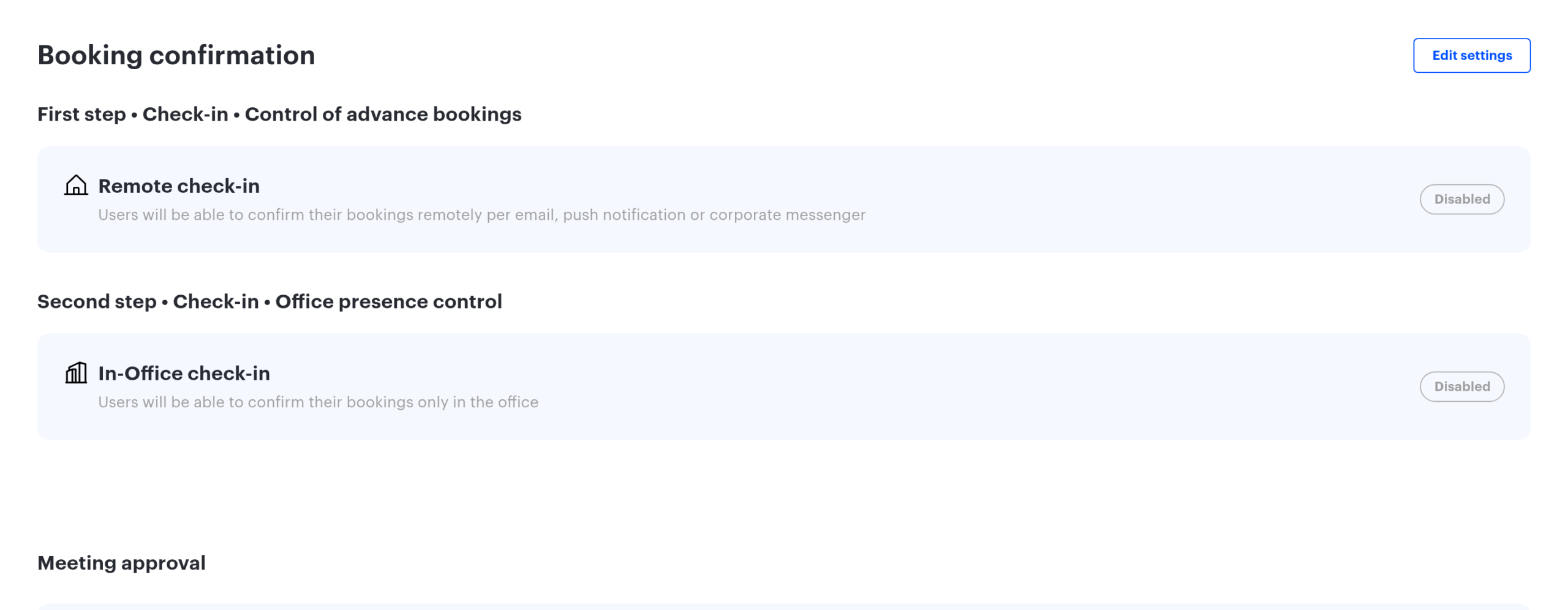
Company-wide rules for all meeting rooms: Manage → Company settings → Check-in policies, the Meeting room booking control block (it comes first on the page) → Edit settings.
Rules for one room: the meeting room edit form → the Booking confirmation block. The block appears only for an existing room — while creating a new one it is not there yet.
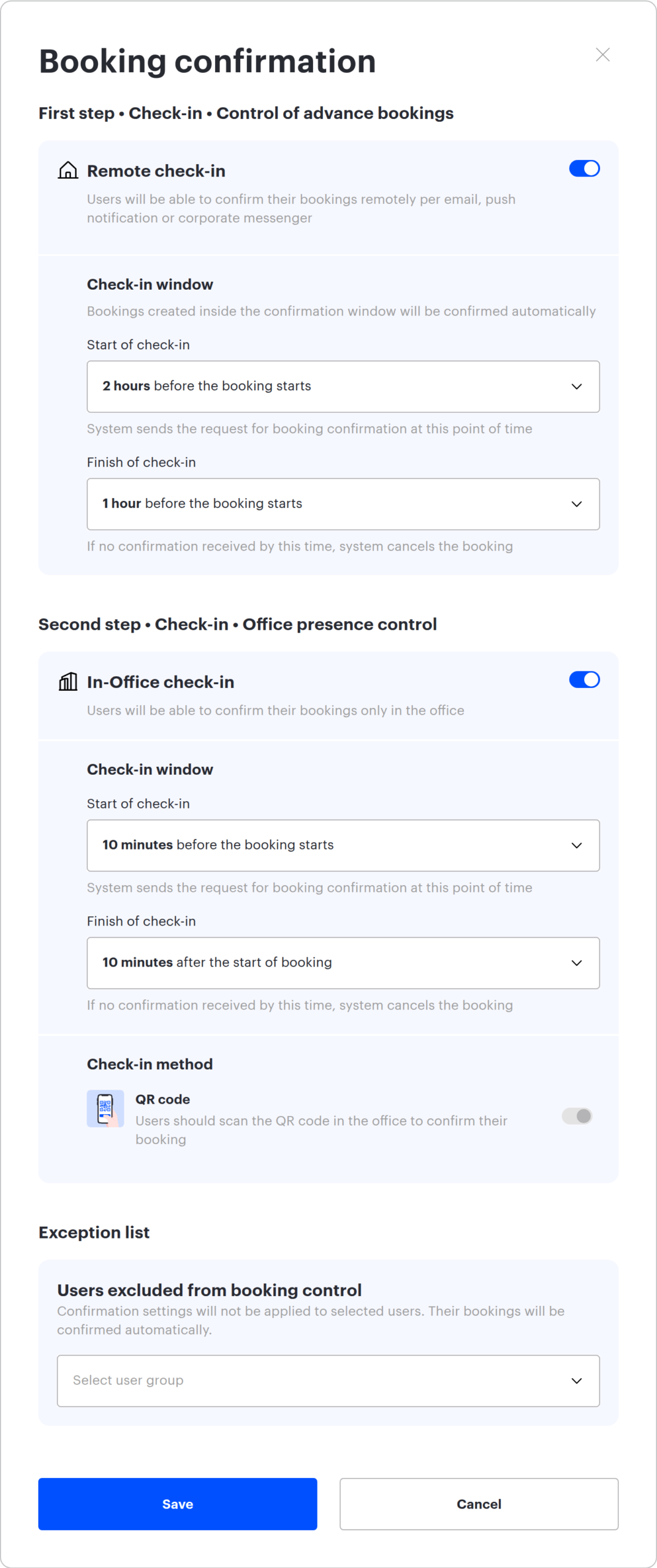
Meeting room settings field by field
First step: advance confirmation
The stage toggle is Remote check-in. It verifies whether the meeting is needed at all. The organiser receives a request and confirms it remotely — a button in an email, a push notification or a corporate messenger. This is the most useful part of the control for meeting rooms: it is exactly the forgotten calendar entries that block rooms nobody uses.
| Field | What it sets | Default | Available values |
|---|---|---|---|
| Start of check-in | When the advance confirmation window opens | 2 hours before the start | “At the time of starting the booking”, 5, 10, 15, 20, 30, 40, 50 minutes and 1 to 24 hours before the start |
| Finish of check-in | When the window closes and an unconfirmed meeting is cancelled | 1 hour before the start | From 23 hours down to 1 hour before the start, “at the time of starting the booking”, then 5–60 minutes and up to 4 hours after the start |
Second step: office presence control
The stage toggle is In-Office check-in. It verifies that the meeting has really started. It can be confirmed only in the office — from the display next to the room or by scanning a QR code.
| Field | What it sets | Default |
|---|---|---|
| Start of check-in | From which moment the meeting can be confirmed | 10 minutes before the start |
| Finish of check-in | By which moment the meeting has to be confirmed | 10 minutes after the start |
As with desks, the first step has to finish before the second one begins — overlapping windows are rejected by the form.
Check-in method: QR code
In the meeting room form this block contains a single toggle — QR code, described as “Users should scan the QR code in the office to confirm their booking”. The toggle is locked in the enabled state: it cannot be switched off, because the system has no other way to confirm presence in a meeting room.
Exception list
Works exactly as for desks: the selected user group is not covered by the control and their meetings count as confirmed automatically. For meeting rooms this is a separate field — a group selected in the desk block does not apply to meeting rooms.
Local settings of a room
The room form adds a Different from company settings switch. While it is off, the company values are displayed and the fields are locked. Switching it on unlocks the fields but resets them to the defaults — previous local settings are not restored.
How a meeting is confirmed
| Channel | First step | Second step |
|---|---|---|
| The display next to the room | Confirms | Confirms |
| A QR code at the room or on the display | Confirms | Confirms |
| A button in the email | Confirms | Does not confirm |
| A push notification | Confirms | Does not confirm |
| A corporate messenger | Confirms | Does not confirm |
| The Bookings section of the system | Confirms | Does not confirm |
⚠️ With the second step enabled, neither the email, nor the push notification, nor the messenger will save the meeting. The system says so in the email itself: instead of an active button it shows an inactive “Confirmation available from office” caption and a hint to scan the QR code. The only working channels on the second step are the display and the QR code.
What is confirmed automatically:
- a meeting created inside an open check-in window — for the matching stage;
- a meeting created from the display next to the room — for the first step; the display closes the second step by itself only when the first one is switched off, otherwise presence is confirmed inside the second window;
- meetings of members of the exception group — always.
On the display, a meeting awaiting confirmation is shown with a “Confirm until” caption and a Confirm button. Display setup is covered in Meeting room displays: connection and setup.
What happens to an unconfirmed meeting
| State of the meeting | What the system does |
|---|---|
| The meeting has not started yet (or started less than a minute ago) | The meeting is deleted: the room is fully released |
| The meeting is already running | The end time is moved to the current moment — the meeting finishes early and the room is released for the remainder |
The organiser receives an email about the cancelled or stopped meeting with a suggestion to book a room again. If the meeting came from an external calendar, the cancellation is sent there as well.
The check runs continuously, so a meeting is cancelled almost immediately after the window closes.
Rescheduling a meeting resets the confirmation
This is the difference from desks worth knowing in advance: changing the time of a meeting drops its confirmation if the new start has not yet entered the confirmation window. Move a meeting from 11:00 to 16:00, and it has to be confirmed again. If the meeting was shifted inside an already open window, the confirmation is kept.
External calendar meetings and recurring meetings
- Meetings from Exchange, Microsoft 365 and Google Workspace are controlled on the same terms. Synchronisation creates ordinary meeting room bookings, and the control makes no exceptions by source. The organiser of such a meeting receives a confirmation request, and a cancellation is sent back to their calendar.
- Every occurrence is confirmed separately. A recurring series consists of separate bookings per date, each with its own confirmation window.
- Meetings in external meeting rooms with no resolved organiser are not covered — there is nobody to confirm them. This happens to events from a shared room calendar whose author is not matched to any UnSpot user.
Check-in and Meeting approval are different mechanisms
In the meeting room form the Booking confirmation block sits right next to the Meeting approval block (its toggle is called Booking Approval), and the two are easy to confuse. They are different mechanisms answering different questions.
| What | Booking control (check-in) | Meeting approval |
|---|---|---|
| The question it answers | Is the meeting actually happening? | Has the person responsible for the room approved this booking? |
| Who acts | The organiser of the meeting (or the display) | The room administrator |
| When | In the window around the meeting start | Before the meeting starts |
| What is configured | Stages, windows, QR | The list of room administrators and the strict mode |
| What happens on failure | The meeting is deleted or truncated by check-in | The meeting is deleted or stopped as unapproved |
| How it is marked | Cancellation by check-in is a separate reason in the log and in analytics | Cancellation as a user action |
The mechanisms are independent and can work at the same time: an unapproved meeting is removed by the approval flow, while an approved but unconfirmed one is removed by check-in.
What to keep in mind
- The second step works poorly without displays. If the rooms have no displays and no printed QR codes, there is physically nothing to confirm a meeting with from the office — and the enabled second step will start cancelling meetings.
- A display must be allowed to check bookings in. Device settings have separate permissions for booking and for check-in; without them the Confirm button does not appear on the screen.
- Offline confirmation is impossible. If a display loses connectivity during the confirmation window, the meeting will be cancelled: the display has no local queue of confirmations.
- Meeting room analytics ignores meetings cancelled by check-in. Room utilisation will drop after the control is switched on — that is expected: it used to include meetings that never happened.
- Meeting rooms send no repeated reminder: the request for each stage is sent once.
