
Microsoft calendar synchronisation: choosing an option
UnSpot synchronises meeting room bookings with Microsoft calendars in four different ways. The choice depends on two things: where your calendars live — in the Microsoft 365 cloud or on your own Exchange server — and how you want to grant access: per meeting room, or once for the whole company. This article helps you pick the option before you configure anything, and points to the step-by-step instructions.
What you need
- Meeting rooms set up as resource calendars — a room mailbox in Microsoft 365, or a room resource mailbox in on-premise Exchange. A regular personal calendar can be connected too, but it behaves differently: it does not accept meeting invitations automatically.
- Permissions in UnSpot. Connections on the Synchronisations page are created and deleted by the Super Administrator or the Integrations Administrator. A calendar is attached to a specific meeting room by the Super Administrator and the Offices Administrator, but through shared connections only by the Super Administrator: UnSpot returns the list of connections to the Super Administrator and the Integrations Administrator only, while attaching a calendar is allowed to the Super Administrator and the Offices Administrator. So the Offices Administrator works with the Cloud Microsoft and On-premise Microsoft options only: the Microsoft and Microsoft Exchange connection tiles do not appear in their room window, and error messages about access pop up when the window opens. A manual re-sync can only be run by the Super Administrator.
- Permissions on the Microsoft side — different for every option: either an account with access to the room calendars, or an application in Microsoft Entra, or the impersonation role in Exchange.
Four connection options
The first column is the name of the option in UnSpot. Cloud Microsoft and On-premise Microsoft are picked with tiles in the room calendar window; the tiles themselves read Microsoft 365 and Exchange EWS, and the names Cloud Microsoft and On-premise Microsoft appear on the room’s Calendar card once a calendar is connected. Microsoft 365 and Microsoft Exchange are cards in the Calendar synchronization section. Do not mix them up: the Microsoft 365 tile in the room window is the Cloud Microsoft option, not a connection through an Entra application.
| Option | Where your calendars live | How UnSpot gets access | When it fits |
|---|---|---|---|
| Cloud Microsoft | Microsoft 365 cloud | an administrator signs in to a Microsoft account, and UnSpot works with the calendar on its behalf | few meeting rooms, no option or appetite for registering an application in Entra; employee personal calendars need to be synchronised |
| Microsoft 365 | Microsoft 365 cloud | an application registered in Microsoft Entra; UnSpot works as the application | many meeting rooms, the tenant room list is needed and one setup for the whole company |
| On-premise Microsoft | your own Exchange server | EWS under a service account that has been granted access to the room calendar | an Exchange server, few meeting rooms, impersonation is not an option |
| Microsoft Exchange | your own Exchange server | EWS under a service account with the ApplicationImpersonation role: every call is made on behalf of the room mailbox | an Exchange server, many meeting rooms, permissions are easier to grant once |
The names Cloud Microsoft and On-premise Microsoft refer to the connection method, not to the product version: the Microsoft 365 option also works with the cloud, just through an application. Do not describe the on-premise Exchange option as an enterprise app — no Microsoft Entra application is involved there; it relies on the impersonation role on the Exchange server itself.
The main choice: per-room permissions or one connection
Cloud versus your own server is not really a choice: you either have Microsoft 365 or Exchange. The actual decision is made on the second axis, and it is the same for the cloud and for the server.
- Permissions per meeting room — the Cloud Microsoft and On-premise Microsoft options. Permissions are granted on each room calendar, and the connection is configured for every meeting room separately. If the account password changes or access expires, every calendar connected under that account stops working; to bring them back it is enough to reconnect one of them — the credentials are shared. UnSpot raises the invalid flag for the cloud option only: an On-premise Microsoft calendar is never marked as broken, and a loss of access looks like silence — calendar events simply stop arriving.
- One connection for the whole company — the Microsoft 365 and Microsoft Exchange options. The credentials are entered once in the Synchronisations section and are then used for any number of meeting rooms. The flip side: deleting the connection disconnects every calendar that worked through it.
A practical rule of thumb: up to five meeting rooms the difference is barely noticeable, beyond that the per-room setup becomes more expensive to maintain. If meeting rooms are added and removed regularly, the single-connection option saves the most time — and in the cloud UnSpot will also fill in the room list from the tenant for you.
What each option can do
| Property | Cloud Microsoft | Microsoft 365 | On-premise Microsoft | Microsoft Exchange |
|---|---|---|---|---|
| Where it is configured | room calendar window | Integrations → Synchronisations | room calendar window | Integrations → Synchronisations |
| What the administrator enters | nothing: a sign-in to a Microsoft account | ClientId, TenantId, ClientSecret, connection name | server address, version, resource email, username, password | server address, username, password, email, connection name, version |
| One setup for many meeting rooms | no | yes | no | yes |
| How the room calendar is picked | from the list of the account’s calendars | from the tenant room list | the resource email is entered in the form, then the calendar is picked from the list of that mailbox’s calendars | the resource email is typed in manually, there is no list |
| Permissions granted per calendar | yes | no | yes | no |
| Write access checked when connecting | no | yes, with a test event | no | yes, with a test event |
| Employee personal calendars | yes | no | yes | no |
| Incoming synchronisation has to be restarted manually | no | yes | no | yes, if notifications were interrupted |
The personal calendars row matters more than it looks: the Microsoft 365 and Microsoft Exchange connections serve meeting room calendars only. An employee’s personal calendar is connected the same ways as Cloud Microsoft and On-premise Microsoft — it is an independent setting the employee makes on their own. In the personal calendar window the cloud tile also reads Microsoft 365 and the local one reads On-premise Microsoft; the cloud tile has nothing to do with the Microsoft 365 card on the Synchronisations page.
Where it lives in the console
The Microsoft 365 and Microsoft Exchange connections live in Manage → Integrations → Synchronisations, in the Calendar synchronization block. The card with the Connect button is always there: existing connections are shown as separate cards next to it.
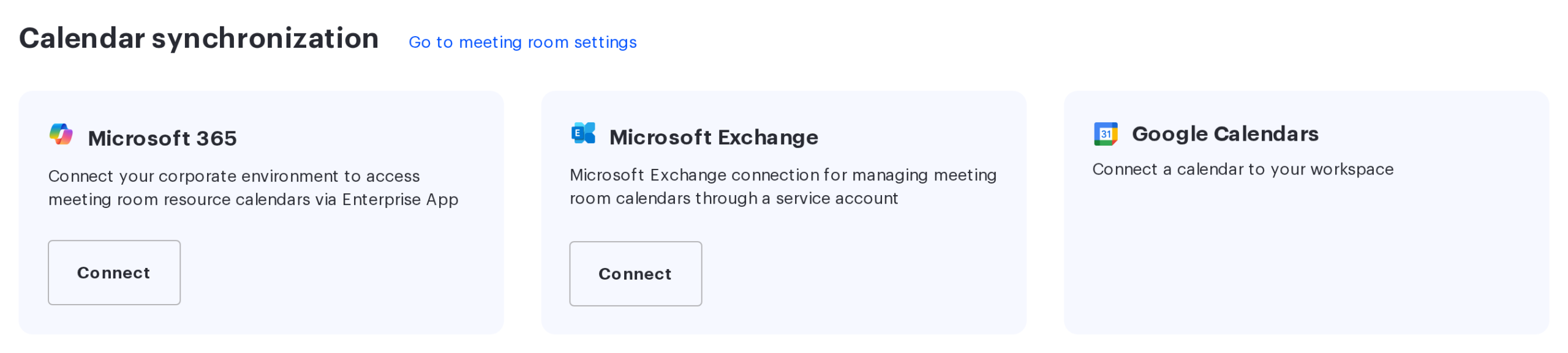
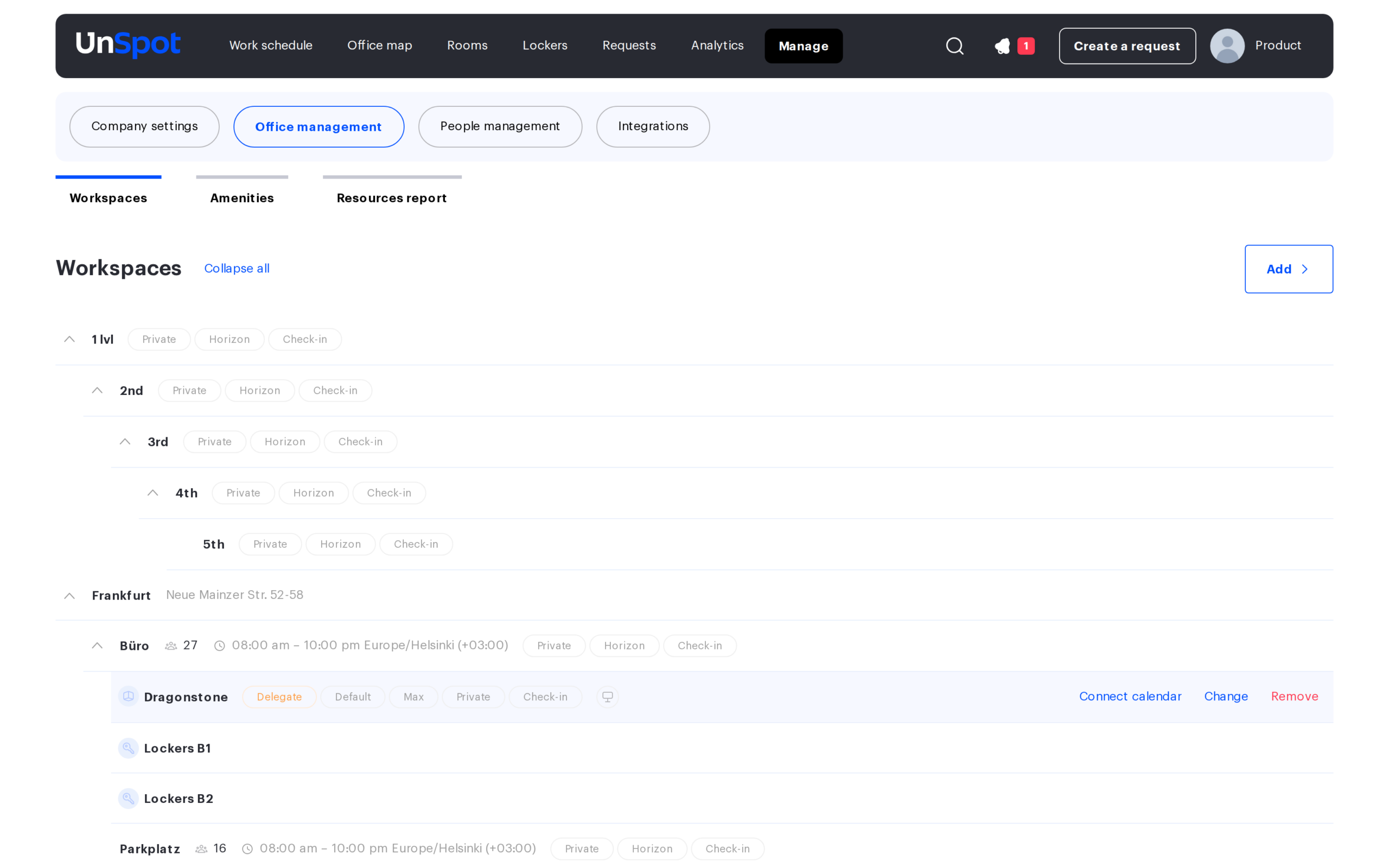
The Cloud Microsoft and On-premise Microsoft options have no cards here — they are only available from the room calendar window: Manage → Office management → Workspaces, then the Connect calendar button in the meeting room row.
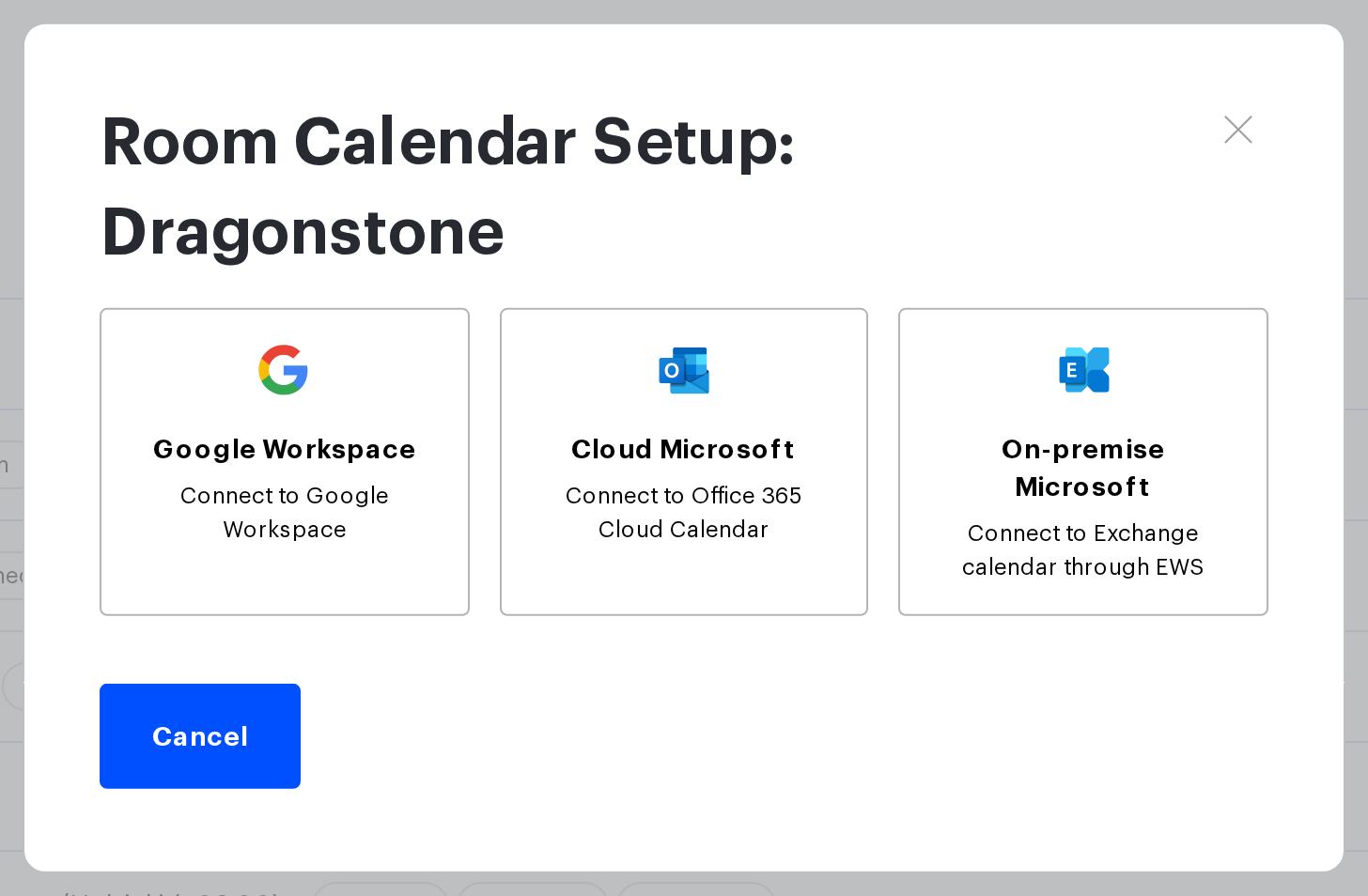
The same window also shows tiles for connections that already exist — one tile per connection, with its name below the heading. The tile for a connection through an Entra application is called Microsoft (not Microsoft 365, the way the card in the Synchronisations section is), and the tile for an impersonation connection is called Microsoft Exchange. A tile is shown even for a connection marked Connection Error: if you pick such a Microsoft connection, the calendar list does not load and the message Invalid credentials. or Insufficient permissions for service account or application. appears — fix the connection first with the Edit button on its card. Only the Super Administrator sees and uses the connection tiles.
Rollout order
The order is the same for all four options: first the preparation on the Microsoft side, then the setup in UnSpot. Skipping the first step produces an access error in the second.
| Option | Step 1: preparation in Microsoft | Step 2: setup in UnSpot |
|---|---|---|
| Cloud Microsoft | create the resource calendar, then grant the account access to it | connect the calendar to the meeting room with a Microsoft sign-in |
| Microsoft 365 | create the resource calendar, then register the application in Entra and grant it permissions | create the connection, then pick the meeting room from the list |
| On-premise Microsoft | grant the service account access to the resource calendar | fill in the server parameters in the meeting room window |
| Microsoft Exchange | create the service account and grant it the impersonation role | create the connection, then enter the email of the room resource calendar |
How the synchronisation itself works is covered in two separate articles: one for the Microsoft 365 cloud, one for on-premise Exchange. Reading them before the setup is not mandatory, but that is where you will find which event fields travel, what happens when bookings overlap, and why incoming synchronisation sometimes goes quiet.
Limitations and common misconceptions
- A meeting room can have only one calendar. A second one cannot be connected — disconnect the first one. The same calendar cannot be connected to two meeting rooms. The refusal text depends on the option: connections answer This calendar is already connected, while the meeting room window says the calendar is already connected to another resource.
- Options do not mix within one meeting room, but they do mix within a company. Some rooms may work through a Microsoft 365 connection and others through Cloud Microsoft; that is allowed, although it makes support harder.
- There can be several connections of the same type — for example, one per Microsoft tenant or per Exchange server.
- The permissions for a connection and for attaching a calendar are different. The Offices Administrator attaches a calendar to a meeting room in the Cloud Microsoft and On-premise Microsoft options. The Microsoft 365 and Microsoft Exchange options are out of reach for them entirely: creating the connection belongs to the Super Administrator and the Integrations Administrator, and only the Super Administrator can attach a calendar through a connection — UnSpot does not allow the Integrations Administrator to attach one. A manual re-sync belongs to the Super Administrator as well.
- Impersonation in on-premise Exchange is not an application. It is the ApplicationImpersonation role granted to a service account with an Exchange Management Shell command. Nothing has to be registered in Microsoft Entra for this option.
- The room list is capped. UnSpot requests up to 1000 rooms from Microsoft at a time and does not page through the rest — in a very large tenant the list may be incomplete.
- Exchange 2019 is not in the version list. The supported versions are 2010, 2010 SP1, 2010 SP2, 2013, 2013 SP1 and 2016.
If something goes wrong
| Symptom | What it means | Where to go |
|---|---|---|
| Invalid credentials. on save | Microsoft rejected the authentication: wrong username and password, wrong application secret, or the secret has expired | the preparation article for your option |
| Insufficient permissions for service account or application. | authentication succeeded but there is no access to the calendar: application permissions were not consented to, or the impersonation role was not granted | the preparation article for your option |
| Calendar not found. | the resource does not exist or is not reachable with these permissions | check the resource calendar email |
| This calendar is already connected. | the calendar is taken by another meeting room | disconnect it from the previous meeting room |
| The connection card is marked Connection Error | the application credentials stopped working — for example, the Entra application secret expired or was revoked, or its permissions were revoked. UnSpot never marks a Microsoft Exchange connection this way: after the service account password changes, events simply stop arriving — update the password with the Edit button | update the data with the Edit button on the card |
| Calendar is not available next to a meeting room in the workspace tree | access to the calendar has been lost. The mark appears for the cloud options only: UnSpot never marks an on-premise Exchange calendar as invalid | reconnect the calendar |
| UnSpot bookings reach the calendar, but calendar events do not appear in UnSpot | incoming synchronisation has stopped | a manual re-sync with the Start Sync button in the room calendar window helps once. The re-sync does not recreate the notification subscription — if the silence comes back, disconnect and reconnect the calendar |
Related articles
- How the synchronisation works: Microsoft 365 cloud · On-premise Exchange
- Cloud Microsoft: Create a resource calendar in Office 365 · Prepare Microsoft 365 calendar to work with UnSpot · Connect a meeting room calendar with a Microsoft 365 service account
- Microsoft 365 through an Entra application: Create a resource calendar in Office 365 · Microsoft Entra application: registration and permissions · Connect Microsoft 365 via a Microsoft Entra application
- On-premise Microsoft: Prepare Exchange calendar to work with UnSpot · Connect a meeting room calendar to on-premise Exchange
- Microsoft Exchange through impersonation: Exchange service account with impersonation rights · Connect Microsoft Exchange via impersonation
- All providers: How calendar synchronisation works · Meeting room calendar: connection options overview
- Integrations: overview
