
Processing service requests
Requests submitted by employees are processed on the “Service requests” page. The provider accepts a request, confirms its fulfilment or cancels it, while UnSpot emails the participants and keeps the status history. This article is about how processing is arranged: who sees which requests, what each status means and why some transitions happen on their own.
Where to find requests
The “Requests” section in the UnSpot header → the “Service requests” tab. The same screen opens from the profile menu with the item “My service requests” — it is one and the same page, just labelled differently.
The “Requests” section is shown only when at least one of the two modules is enabled — “My requests” or visitor pass requests. If the “My requests” module is off, there will be no “Service requests” tab in the section, and a direct link to it returns you to the start of the section.
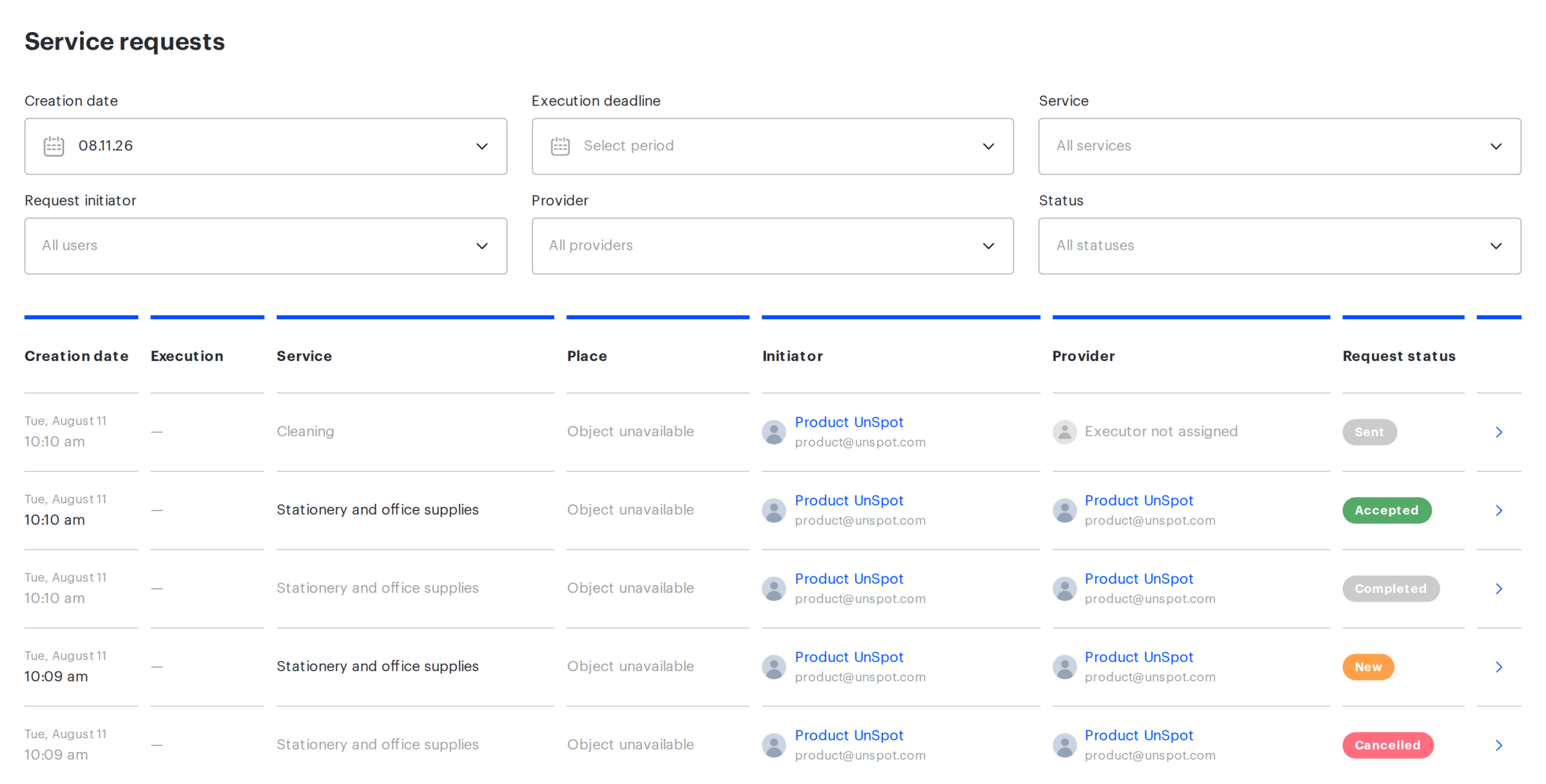
Who sees which requests
The list is not shared: everyone sees their own slice. An employee gets into it if at least one condition holds.
- they are the provider of the request;
- they are the author of the request;
- they are the direct manager of the provider;
- they are listed among the provider’s managers;
- the provider belongs to an access group assigned to the viewer’s team;
- they head the department the provider belongs to.
The right to see all requests of the company is separate. It is granted not by a role but by a setting in the employee card: the “Subordinates” block, the value “All users”. This distinction matters: the Super Administrator role on its own does not open the full list of requests — without that setting the employee sees only their own slice, by the rules above. What you need to check is the employee card, not their role.
Columns and filters
| Column | What it shows |
|---|---|
| “Creation date” | When the request was submitted |
| “Execution” | The execution deadline of the request. Filled in only for “In meeting room” requests — there it is the start time of the meeting |
| “Service” | The name of the service the request was submitted for |
| “Place” | The object of the request or the meeting room. If the object has been deleted, it reads “Object unavailable” or “Booking removed” instead. “For employee” requests have no object by design, so they always read “Object unavailable” — that is not a sign of trouble |
| “Initiator” | The author of the request. For requests submitted by QR code without signing in, and for requests of deleted employees, this reads “No user data available” |
| “Provider” | Who handles it. If the provider has been removed, it reads “Executor not assigned” |
| “Request status” | The current status |
There are six filters: “Creation date”, “Execution deadline”, “Service”, “Request initiator”, “Provider” and “Status”. On a computer they apply immediately, as soon as you close the dropdown. On a phone there is a “Filter” button instead of the panel: it opens the “Request Filter” dialog with the same fields, and there the changes take effect only via the “Apply” button.
The main thing to know about this screen: the “Creation date” filter is preset to today. It is set automatically, before the first query, and it has no clear button — unlike the neighbouring “Execution deadline”, which does have one. So on the first visit the list shows only requests submitted today, and yesterday’s request looks as if it has vanished. To see the rest, set the period you need in that filter by hand.
There is a single sort order on this screen and it cannot be switched: the newest by creation date come first. Column headers are not clickable. The list loads as you scroll, in batches of twenty. If nothing matches the current filters, the table is replaced with the message “No requests were found based on the specified parameters”.
Request statuses
| Status | What it means | Where it can go |
|---|---|---|
| “New” | The request has been submitted and is waiting for the provider | To “Accepted” or “Cancelled” |
| “Accepted” | The provider has started working on the request | To “Completed” or “Cancelled” |
| “Completed” | The work is finished | Nowhere: the status is final |
| “Cancelled” | The request is closed without being fulfilled | Nowhere: the status is final |
| “Sent” | The request went out to the external ticket system as an email | Nowhere: the status is final and is assigned right at creation |
The completed status is spelled two different ways on the same screen. In the list and in the request card it is “Completed”, while the status filter offers the same status as “Done”. These are the same status — the difference is only in the wording of the interface.
A final status cannot be undone. If you made a mistake and confirmed fulfilment too early, the request cannot be reopened — a new one has to be created. No role can set a request to “New” by hand: only the system moves it there, in the cases from the section below.
Requests for services with external processing have no processing buttons at all. Such a request gets the “Sent” status immediately and is then handled in the external system. See the article about the external ticket system for details.
Accept, complete, cancel
The processing buttons live in the request card. On a computer it opens with the arrow in the last column of the list, on a phone with the “Show details” button under the row.
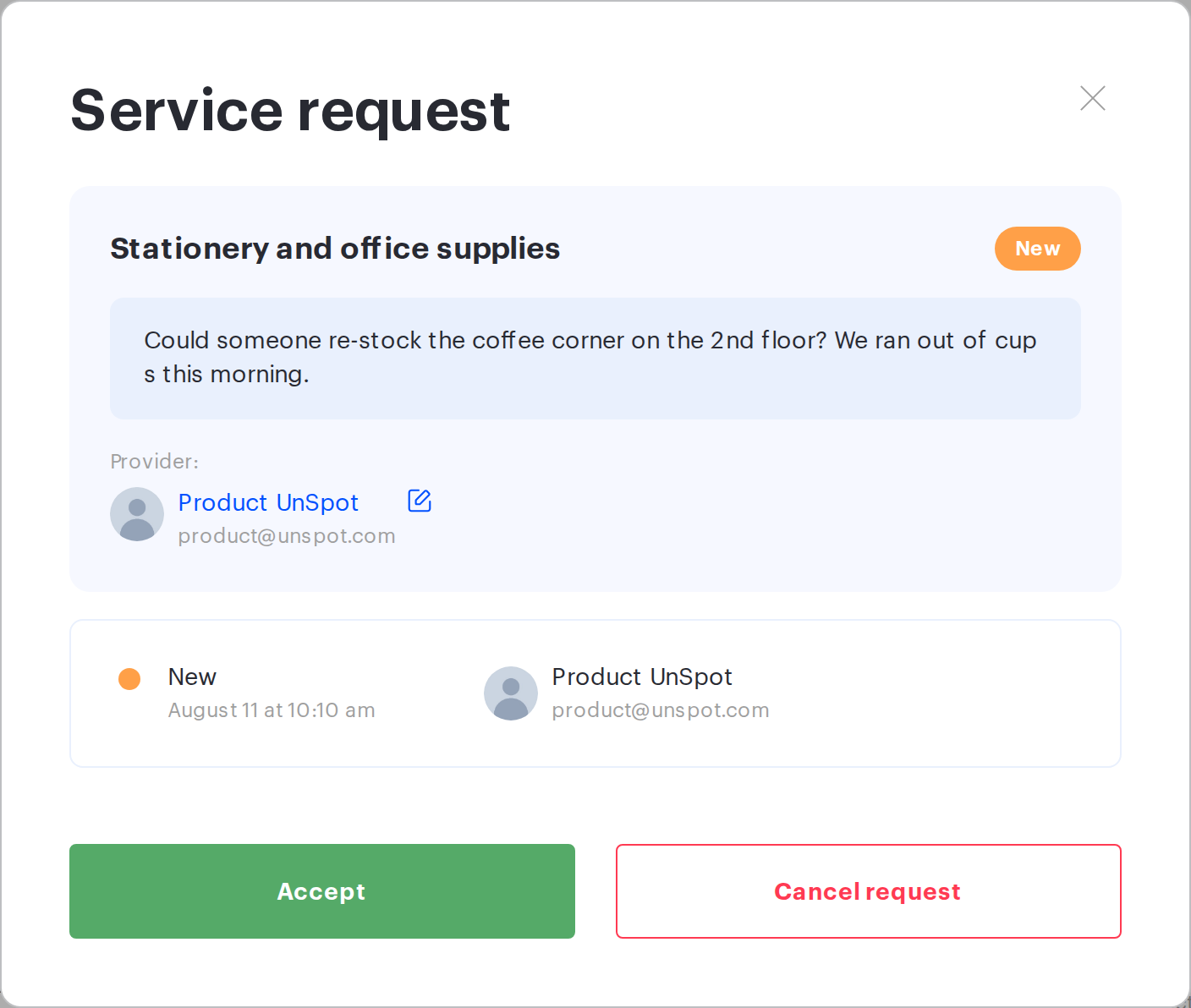
| Button | Confirmation dialog | Comment |
|---|---|---|
| “Accept” | “Accept the request?”, the “Your comment to the request” field | Optional, up to 500 characters |
| “Confirm fulfillment” | “Confirm the fulfillment?”, the same comment field | Optional, up to 500 characters |
| “Cancel request” | “Reject a request?”, the “Reason for rejection” field | Required, up to 500 characters |
The comment goes into the status history of the request and into the email the participants receive. The reason for rejection is the only way to explain to the employee why the request was closed, which is why the field is mandatory.
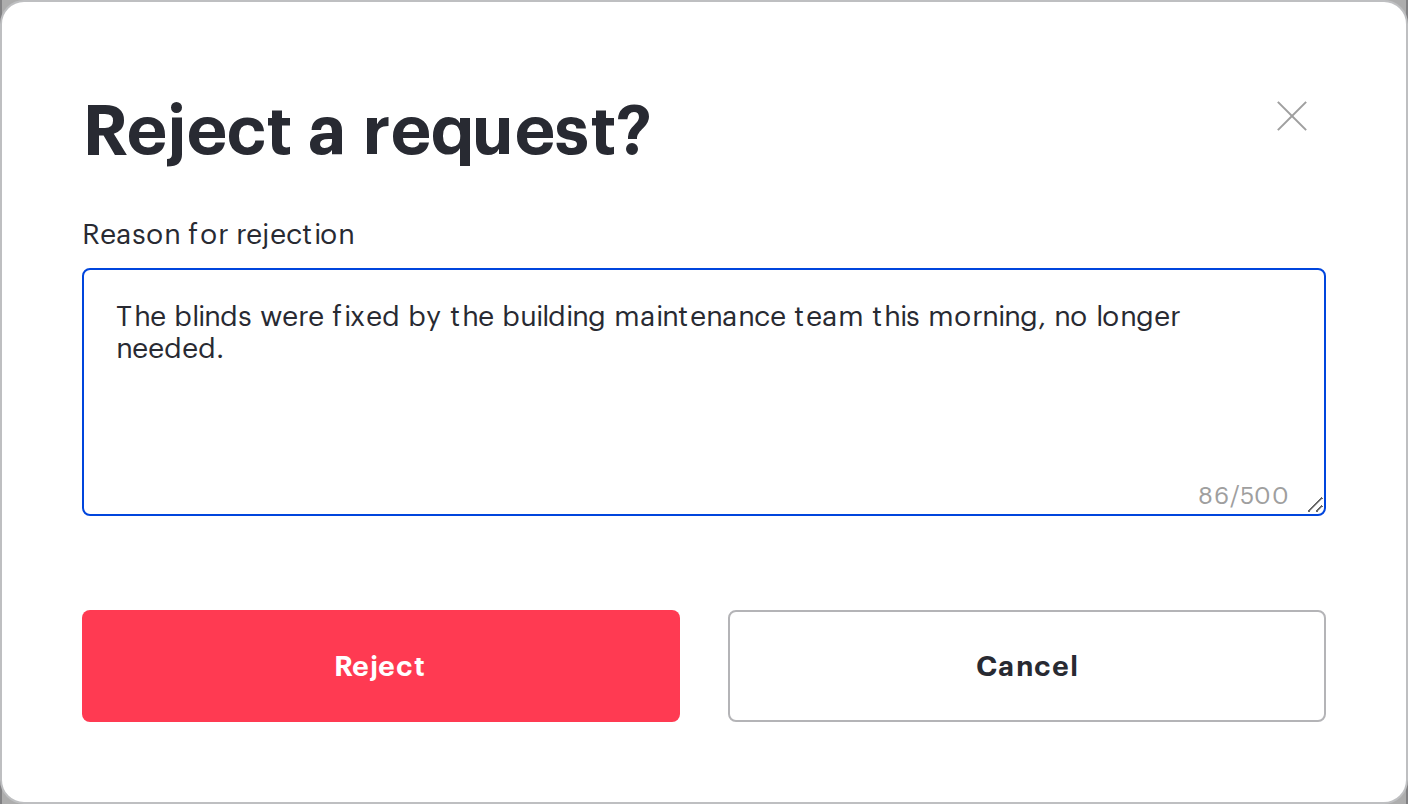
Who can do what:
| Action | Who can do it |
|---|---|
| Accept | The provider of the request, their manager, an employee with the right to manage all users |
| Confirm fulfillment | The same |
| Cancel request | The same and the author of the request |
| Change the provider | The Super Administrator role only |
The author of a request can cancel it but cannot accept or complete it: withdrawing your own ask is not the same as closing the work. This is how an employee closes a request that is no longer relevant, without waiting for the provider.
Changing the provider
The provider of a particular request is changed in its card: next to the provider name there is an edit icon with the “Change provider” hint. It is shown to the Super Administrator role only — neither the Offices Administrator nor the provider themselves can do it.
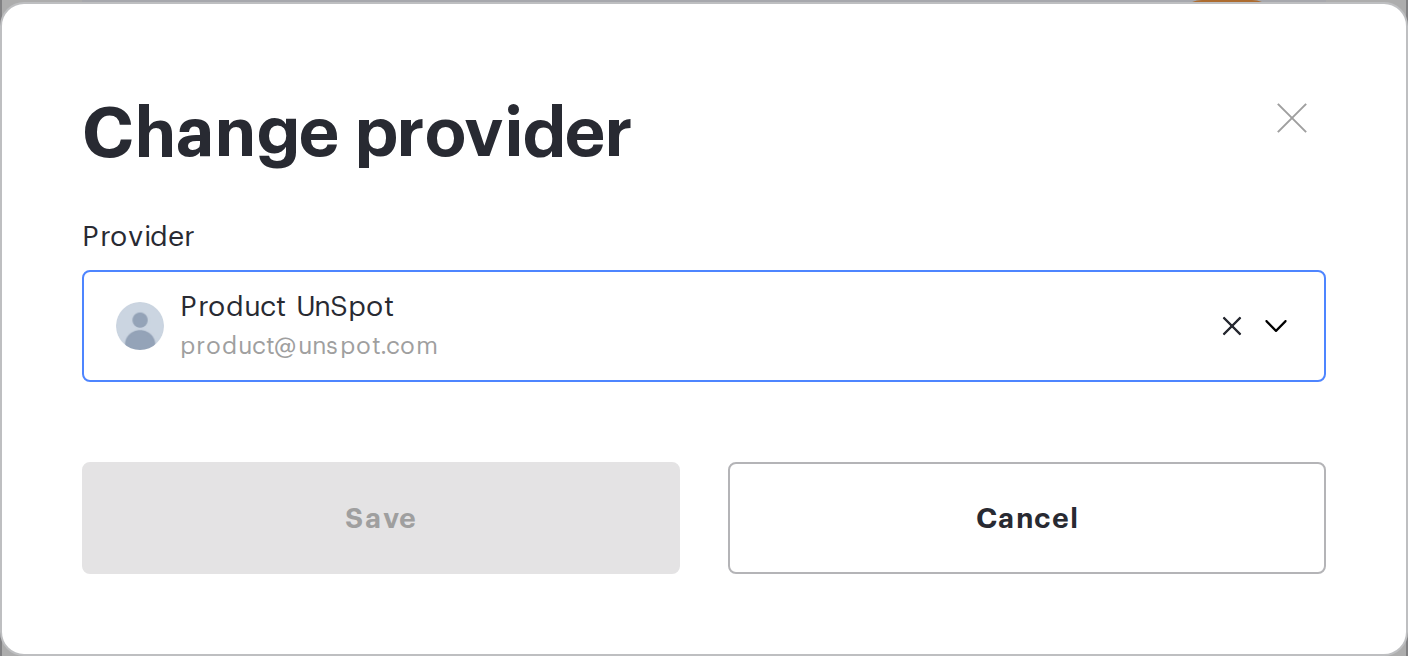
Changing the provider returns the request to the “New” status, even if it had been accepted. A system entry is added to the history: “Service-Provider was changed: from … to …”, or, if there was no previous provider, “Service-Provider was changed to …”. The new provider receives an email. The logic is that the request was accepted by the previous provider, and the new one has to confirm that they are taking it on.
For a request in a final status the provider does not change: the edit icon is simply not shown there. This applies to requests in the “Sent” status too.
Do not confuse this with the provider of a service: that one is set in the service settings and decides where new requests go. Changing the provider in a service does not reassign requests that already exist, and changing the provider in a request does not change the service setting.
Transitions the system makes itself
Some status changes happen with no human involved. If a request has “by itself” reopened or closed, the reason is in this table.
| What happened | What happened to the request |
|---|---|
| The object of the request was deleted: desk, parking space, meeting room, office, point of interest, locker, locker cell or booking | The status changes to “Cancelled” with a system comment. This affects only requests in the “New” and “Accepted” statuses |
| The time of the meeting the service was ordered for has changed | The status goes back to “New”, and “Booking was changed” is added to the history. Does not apply to requests in final statuses or to requests with external processing |
| The provider was blocked, deleted or archived | The provider field in the request is cleared, the status goes back to “New”, and an entry saying the provider is inactive is added to the history |
| The Super Administrator changed the provider of the request | The status goes back to “New” with an automatic comment |
There is one case where the system does not step in, although you might expect it to: if a meeting room is deleted entirely, requests for meetings in it are not cancelled. They keep their status, and the “Place” column starts to read “Booking removed”. Such requests have to be closed by hand — otherwise they stay in progress and block deletion of the service.
Emails about a request
UnSpot notifies about requests by email only: there are no push notifications and no messenger notifications for service requests.
- An email goes out when the request is created and on every status change, including the system transitions from the section above.
- There are two recipients: the author of the request and its provider. Both have to be active — a blocked employee is not emailed.
- If neither the author nor the provider is active, no email is sent at all. That happens with anonymous QR-code requests whose provider has also been removed.
- The heading of the email depends on the event: new service request, service request updated, in progress, completed, declined. Requests with external processing have their own heading — “Service request submitted” — and the subject of the email is replaced with the service name.
- The comment you left when changing the status goes into the body of the email.
- Request attachments are not attached to internal emails — the files are downloaded from the request card. To the email sent to an external ticket system, on the contrary, they are attached.
For services with external processing the rule is different: the email goes out once, at the moment the request is created, and it is addressed to the ticket system. The author, the provider and the observers receive a copy — but only if the administrator ticked the corresponding checkboxes in the service settings. There will be no follow-up emails for such a request.
Things to keep in mind
| Detail | How to work with it |
|---|---|
| On the first visit the list shows only today’s requests, and this filter cannot be cleared with one button | Set the period you need in the “Creation date” filter first. It is also the first thing to check when a request has “disappeared” |
| The right to see all requests comes from an employee setting, not from a role | If a manager cannot see the requests they need, check the “Subordinates” block in their card, not their role |
| A final status cannot be undone | Confirm fulfilment only after the work is really finished |
| A request can go back to “New” on its own | This is not a duplicate and not a fault: look at the status history, the reason is there |
| Deleting a meeting room leaves requests for its meetings in progress | Close them by hand right after deleting the room |
| When an action fails, the error text is generic | The cause is usually one of two: you have no right to that action, or the request is already in a final status. Reload the page and check the current status |
| The sort order and the set of columns cannot be configured | Use the filters for selections by other criteria |
Related articles
- Service requests: overview — which service types exist and which to choose
- “For employee” requests: setup — setting up “For employee” requests
- “In the office” requests: setup and QR codes — setting up “In the office” requests and QR codes
- “In meeting room” requests: setup — setting up “In meeting room” requests
- Processing requests in an external ticket system — processing requests in an external ticket system
- How to submit a service request — how an employee submits a request
