
Service request for an employee
If something is needed in the office but it is not tied to a particular desk or meeting room — the paper has run out, you need access to a room, the mail is not working — submit a service request. It reaches the employee responsible for that kind of task, and you can see what happens to it.
When you need it
UnSpot has three kinds of service request, and they are submitted differently. This article is about requests that are not connected to a particular place in the office.
| What happened | Where to submit it from |
|---|---|
| You need stationery, access, IT help — the task is not tied to a place | The “Create a request” button in the UnSpot header — this article |
| Something specific is broken: a desk, a socket, the coffee machine, a parking space | The card of that object on the map, or the QR code on it |
| You need a service for a meeting: a coffee break, room preparation | The card of your meeting-room booking |
How to submit a request
- Click “Create a request” in the UnSpot header. If your company also has visitor pass requests enabled, a list of two cards opens — choose “Submit an employee request”. If only one kind of request is available, the form opens straight away.
- On a phone and in the dropdown menu under your avatar there is no button: there, the “Requests” section holds a ready item “Submit an employee request”, which opens the form directly.
- In the “Service” field pick the one you need. Its description appears under the selected service, if the administrator filled it in — it usually says what to include in the request.
- Describe the task in the “Description” field. The more specific, the fewer follow-up questions: what exactly you need, where you are, by when.
- Attach images if needed — see the next section.
- Click “Send request”. The message “Request submitted successfully” appears.
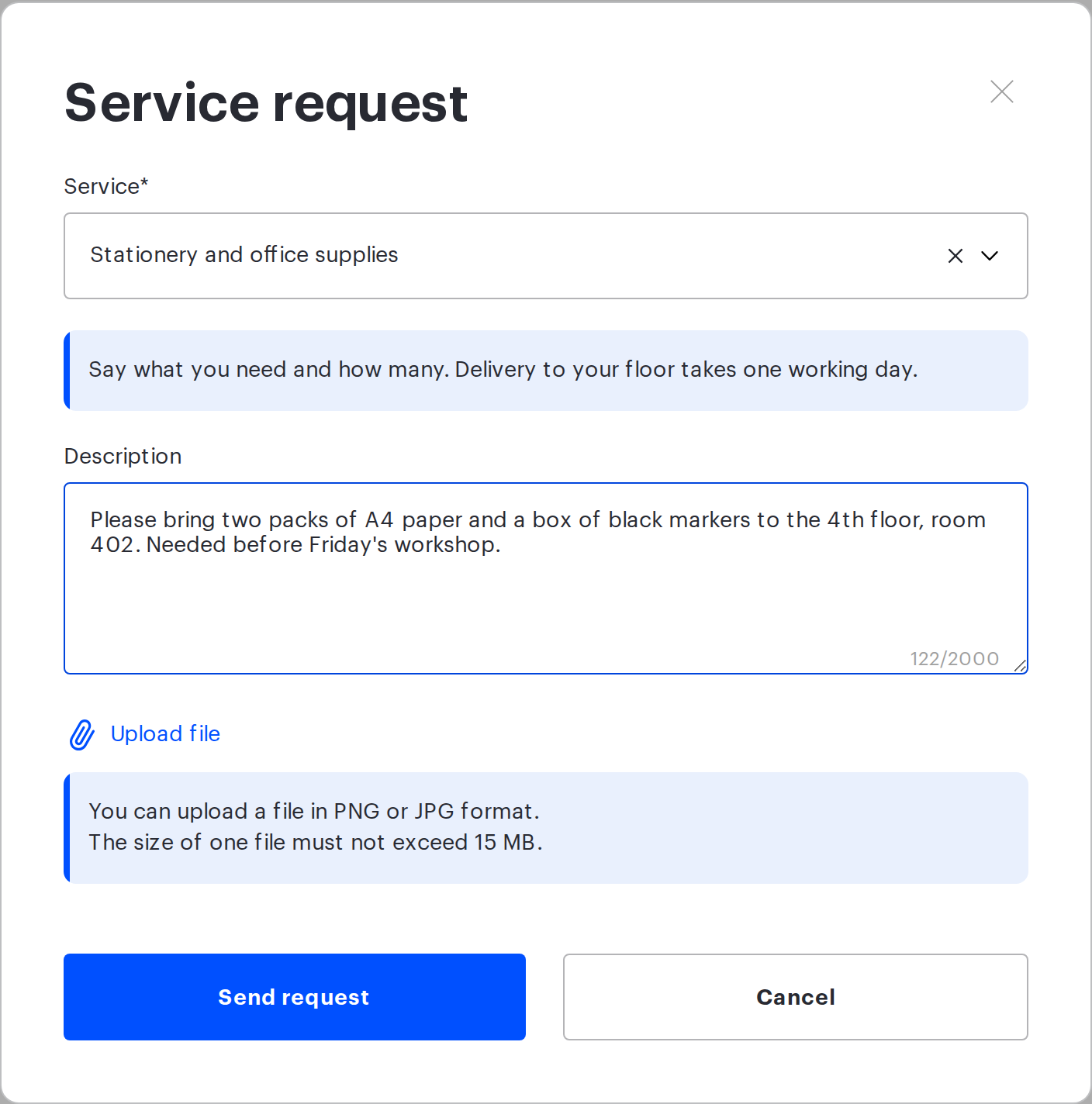
The description takes up to 2000 characters. The counter in the bottom right corner of the field shows how much you have typed, but it does not cut the input off: if you go over the limit, the form accepts the text and shows the error only when you submit. Watch the counter.
What you can attach
| Limit | Value |
|---|---|
| How many files | Up to three |
| Formats | Images only: PNG and JPG. Documents, spreadsheets and archives cannot be attached |
| Size of the file that gets stored | 2 MB |
| Size of the source file the system will accept | 15 MB |
The two limits are not a typo, they work together. The hint under the upload button mentions 15 MB — that is the upper bound of the file you pick. Anything heavier than 2 MB is compressed by UnSpot, and the compressed version is attached to the request. A file heavier than 15 MB is not accepted at all. The message is the same in both cases — “You cannot upload a file larger than 15 MB” — even though the cause can differ: occasionally the image cannot be compressed down to 2 MB, and then even a file under 15 MB is rejected. If that happens, resize the image yourself and attach it again.
Compression turns the picture into JPG. If you attach a PNG with a transparent background and it weighs more than 2 MB, the transparency is lost: a black background appears instead. Screenshots are usually unaffected: they are rarely that heavy and go through without compression. Files under 2 MB are attached as they are.
If you pick a file of another format, the message “Only JPEG or PNG images are allowed” appears. An uploaded file can be removed before sending — there is a delete button next to it.
What happens after you send it
The request gets the “New” status, and an email about it goes to the provider of the service and to you. From there you can follow it in the “Requests” section → the “Service requests” tab.
The exception is services that are processed in an external ticket system. Such a request immediately gets the “Sent” status and the email goes to that system; you receive a copy only if the administrator enabled that setting.
| Status | What it means for you |
|---|---|
| “New” | The request has been sent and is waiting for the provider to take it on |
| “Accepted” | The provider has taken up the task. If they left a comment, you will see it in the request card and in the email |
| “Completed” | The work is finished. In the status filter this status is called “Done” |
| “Cancelled” | The request was closed without being fulfilled. The provider must state a reason — it will be in the card and in the email |
| “Sent” | The service is processed in an external ticket system: UnSpot passed your request there by email and does not track it further. The status in UnSpot will not change again |
An email arrives on every status change — except for requests in the “Sent” status: those have no status changes. You can cancel your own request — if the task is no longer relevant, open its card and click “Cancel request”, giving a reason. The author cannot accept a request or confirm its fulfilment: that is the provider’s job.
Cannot find your request in the list? Most likely it is the “Creation date” filter: it starts out showing today only. Set the period you need there and the request will appear.
If there is no button
The “Create a request” button or the “Submit an employee request” item may not appear — this depends on the company settings, not on your account.
- the “My requests” module is off in the company;
- no service of this kind has been created;
- services exist, but all of them are switched off;
- the service has no provider assigned and is not routed to an external system.
There is a fifth case too: the button is there, the form opens, but the “Service” list inside it is empty. That is what it looks like when the provider of the service has been blocked or deleted. In all these cases only the UnSpot administrator of your company can help — write to them.
Related articles
- How to submit a service request — all three ways to submit a service request
- Request for an office object and by QR code — a request for a specific office object and by QR code
- Service request for a meeting — a service request for a meeting
- Service requests: overview — how service requests work in UnSpot
