
Subordinates and teams in the employee profile
Two blocks in the employee profile — Subordinates and Teams — make a person a manager over people you pick by hand. The organisational structure plays no part here: you can collect anyone from any department or office. This article covers the three options of the Subordinates block, explains what teams are for and helps you pick the right one for your case.
Contents
The Subordinates block: three options
Teams: when subordination does not match the org chart
Limits of manual lists and teams
How is a team different from an access group?
Can one team be given to several managers?
Why does the Groups & Teams screen not show who manages a team?
How do I find out who manages a particular employee?
An employee is both on the list and in a team. Do the rights double?
The Subordinates block: three options
Open Manage → People management → Users, find the person and switch to editing their profile. Near the end of the form there are two blocks: Subordinates and Teams. Only the Super Administrator and the Users Administrator can change them; a manager sees only four fields in a subordinate’s profile and never these blocks.
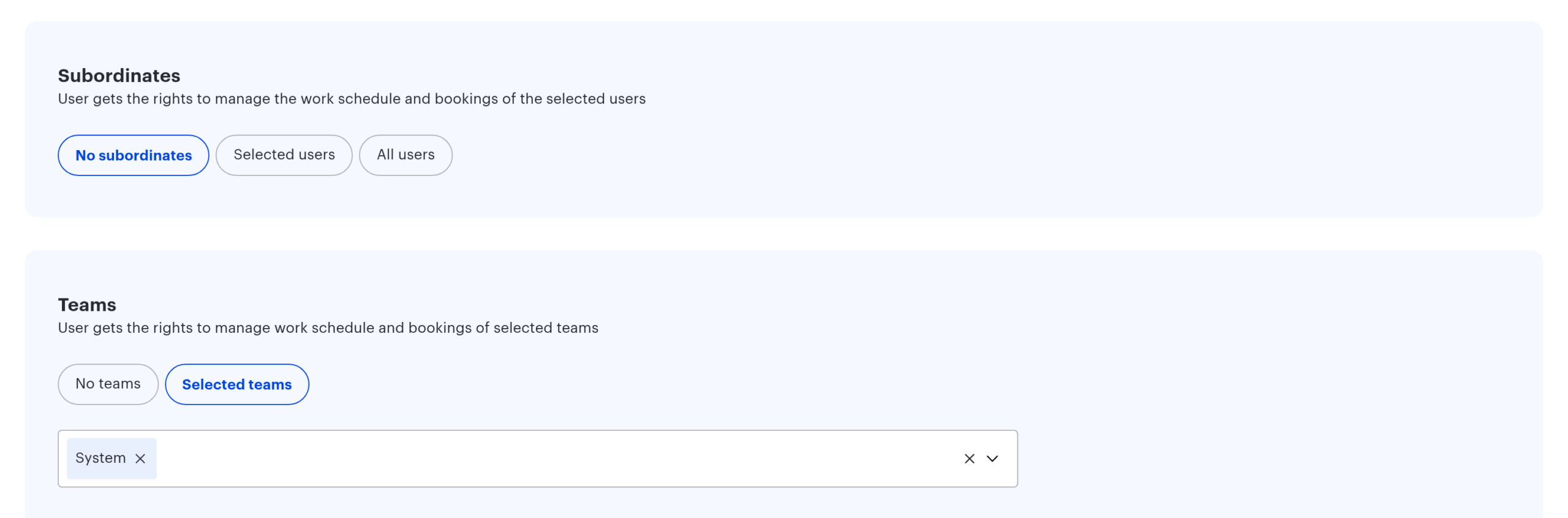
The block switches between three options, and only one is in effect at a time. The neighbouring Teams block has two: No teams and Selected teams.
| Option | What it means | When it fits |
|---|---|---|
| “No subordinates” | The person manages nobody through this block | The default for a regular employee |
| “Selected users” | Subordinates are the people on a list you build by hand | Point exceptions: a mentor, a deputy, an assistant |
| “All users” | The subordination check is switched off: every employee counts as a subordinate | A users administrator, a support desk, a workplace coordinator |
The hint under the block puts it this way: “User gets the rights to manage the work schedule and bookings of the selected users”. The full set of capabilities is wider — see What a manager can do: bookings, schedules, requests.
The “Selected users” option
This is a manual list. You open the future manager’s profile and add the people they should manage. Nothing appears in the subordinates’ own profiles: to find out who manages them you have to open managers’ profiles one by one.
For example: a mentor leads two trainees from sales and one from support. All three are added to her list; their own managers lose nothing — the mechanics add up.
There are no department limits. The downside is that the list is maintained by hand and does not update itself — a new joiner has to be added separately. Archived employees are filtered out automatically.
The “All users” option
This option grants rights over every employee at once, and it works not as one more list but as the removal of a limit: in most access checks the system simply does not ask whether the person is your subordinate. Typical holders are a users administrator, a workplace coordinator or a support desk.
- “All users” and “Selected users” are mutually exclusive: switch on the first and the collected list is cleared; pick the second and the first is removed.
- Teams keep working under any option. You gave someone two teams, then switched on “All users” — the teams no longer affect rights, but they are still there. Remove the flag and both teams work again. The interface gives no hint: the Teams block looks the same either way. To take rights over a team away, clear it in the Teams block.
- Under this option the Work schedule section shows nothing. The My team block is built from the manual list and the Manager field only, and this option clears the manual list. Lists of subordinates appear there only if the person has teams or manages a department.
- The option also affects list visibility: service requests, for example, become visible across the whole company.
Teams: when subordination does not match the org chart
A team is a group of employees handed to someone to manage. It is the same object as an access group for places, only in a different role: one group can open a meeting room to its members and serve as a team for their manager at the same time.
| Role of the group | What it grants | Where it is configured |
|---|---|---|
| Access group | Members get access to the places linked to the group | The place profile, the group profile |
| Team | The manager gets rights over the members of the group | The Teams block in the manager’s profile |
A practical consequence: when you change the roster of a group for the sake of place access, you also change the circle of subordinates for everyone who holds that group as a team.
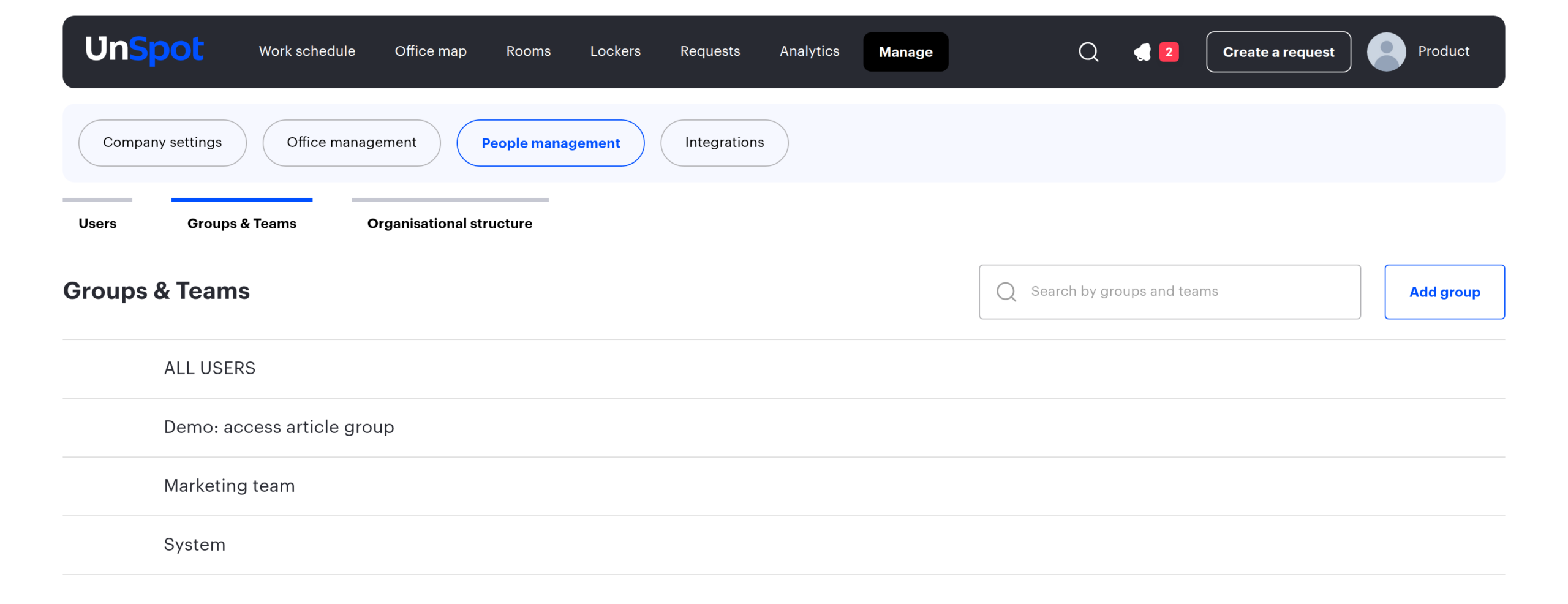
For example: an office relocation project involves people from IT, facilities and HR. Collect them into a group on the Manage → People management → Groups & Teams screen and give that group to the project lead — they get rights over everyone without touching the organisational structure. The people stay in their departments and keep their line managers.
One manager can be given several teams, and one team can be given to several managers. The roster is maintained in one place and changes apply to all of its managers at once. The only way to find out who manages a team is to look at managers’ profiles: the Groups & Teams screen does not list them.
How to set it up
- Open Manage → People management → Users and switch to editing the future manager’s profile.
- For a point list: pick “Selected users” in the Subordinates block and add the employees.
- For an administrator: pick “All users” in the Subordinates block.
- For a matrix setup: create a group in Groups & Teams and fill it with members first, then pick that group in the Teams block of the manager’s profile.
- Save the profile. You can check the result in My → Work schedule → Colleagues as the manager — except for the “All users” option, which produces no lists there.
Limits of manual lists and teams
- The list is manual. “Selected users” does not follow staff changes. Neither does a team roster, unless the group is synchronised with a directory — for synchronised groups the members come from the exchange.
- A role change touches both blocks, in different ways. The Super Administrator role clears the Subordinates block — both the option and the list. The Member, Offices Administrator, Users Administrator and Integrations Administrator roles clear the Teams block right in the open form: the teams disappear from the field and are removed on save. After changing a manager’s role, check both blocks.
- The Reception role has neither block. Such a profile shows no Subordinates, no Teams and no access groups, and the person is not offered in people pickers.
- Archiving a profile clears the lists. An archived employee loses both blocks and their own Manager field; restoring from the archive does not bring them back. Deactivation keeps the lists.
- Edits to these blocks are not logged. The User management history report records changes to the Manager field, the department, the role and the “All users” option, but changes to the Subordinates list and the Teams block are not tracked at all: there is no way to find out who granted a team and when.
- Lockers are outside subordination. A cell cannot be booked or released for an employee through any mechanic — only by the person themselves or by the Super Administrator.
- Guests are outside subordination. A guest has no employee profile, so the circle does not apply; the right to book for a guest comes from a separate toggle in the employee profile.
Frequently asked questions
How is a team different from an access group?
It is the same entity in two roles. As an access group it opens places to its members; as a team it grants rights over those members to whoever holds it. One group can serve both roles at once, and editing the roster changes both the place access and the circle of subordinates.
Can one team be given to several managers?
Yes. A team is assigned in each manager’s profile separately, and there is no limit on the number of managers.
Why does the Groups & Teams screen not show who manages a team?
The setting lives in the manager’s profile, not in the group. To find every manager of a team you have to go through the employee profiles.
How do I find out who manages a particular employee?
There is no ready-made list: the setting is spread across several places. Check them in turn — the Manager field in their profile, the manager of their department in the organisational structure, and the profiles of anyone who might hold them in a list or in a team.
An employee is both on the list and in a team. Do the rights double?
No. The sources combine on an “at least one matches” basis, so the set of rights does not change. To take a person out of the circle you have to remove every source.
What happens to subordinates when a manager leaves?
Deactivation keeps the links but removes the person from every list on screen: deactivated and archived employees are not shown. Archiving the profile clears all of their lists and teams and empties the Manager field for everyone they managed. Reassigning people is a manual job.
Related articles
- Employee subordination: overview — start here
- Subordination through the organisational structure
- The direct manager in the employee profile
- What a manager can do: bookings, schedules, requests
- Subordination in analytics and reports
- Access groups: rules and setup options — the other role of the same group
- Teams in the schedule and subordinates’ schedules
