
Set up user sync with Entra ID (Azure AD) via Graph API
A guide for the UnSpot administrator and the Microsoft Entra ID administrator: how to connect employee synchronization from the cloud directory Entra ID (Azure AD) through Microsoft Graph API, which fields to transfer and how to narrow the result. You connect it in Manage > Integrations > Synchronisations. The roles that may configure integrations are Super Administrator and Integrations Administrator. How the exchange works, which permissions are granted and what leaves the directory is covered in the companion article User sync with Entra ID (Azure AD) via Graph API: how it works — that is also the one to hand to your information security team.
What you need
- An UnSpot role: Super Administrator or Integrations Administrator.
- A Microsoft account with the right to read the organization directory — a global administrator, for example. The exchange then runs on its behalf, so disabling it stops the synchronization.
- The ability to grant administrator consent to the Graph permissions: several are
.Allpermissions and do not work without it. - A free synchronization slot: only one method can be connected at a time — Entra ID, Google Workspace, AD LDAP or OpenLDAP. If another one is connected, disconnect it first.
Step 1. Connecting
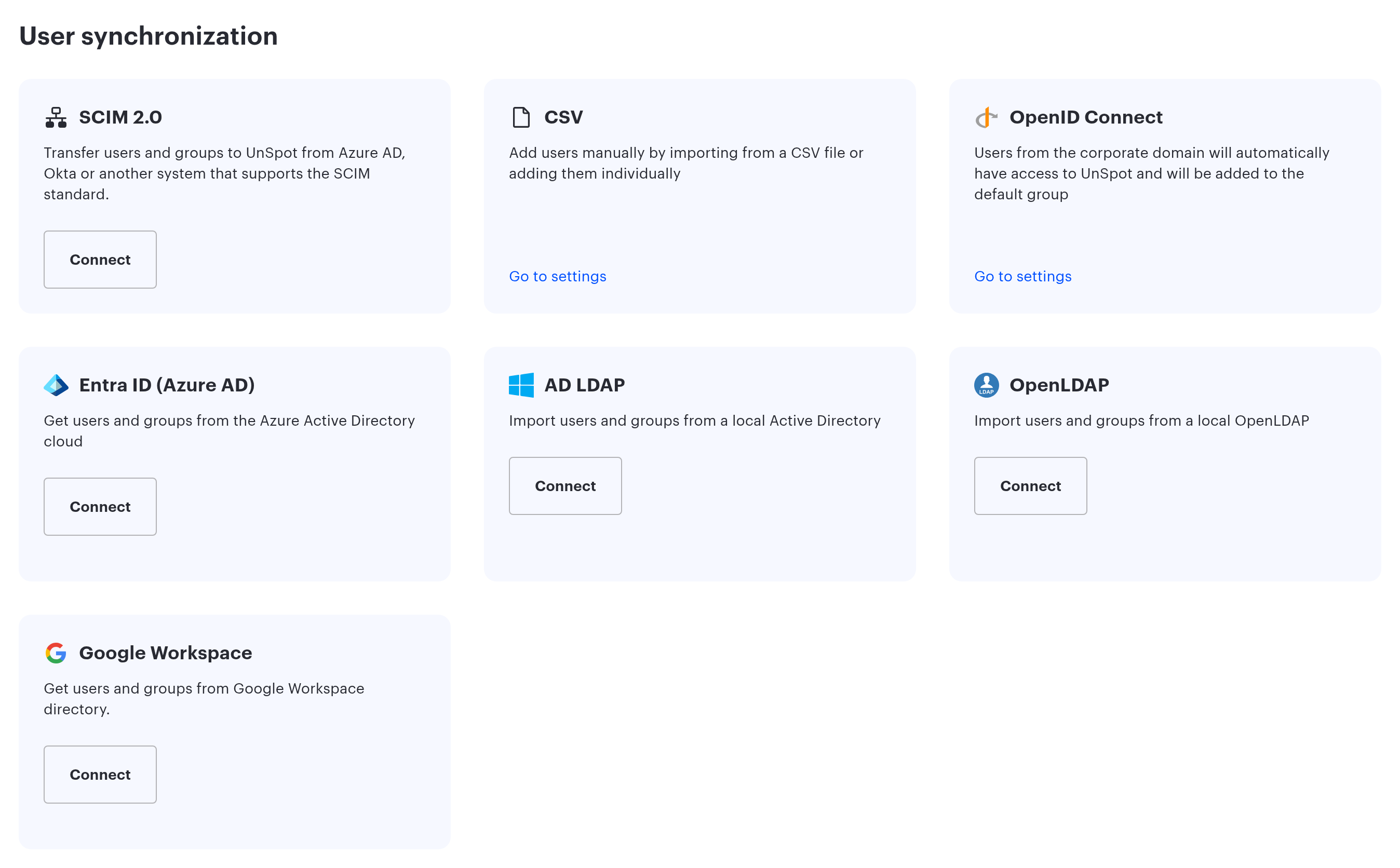
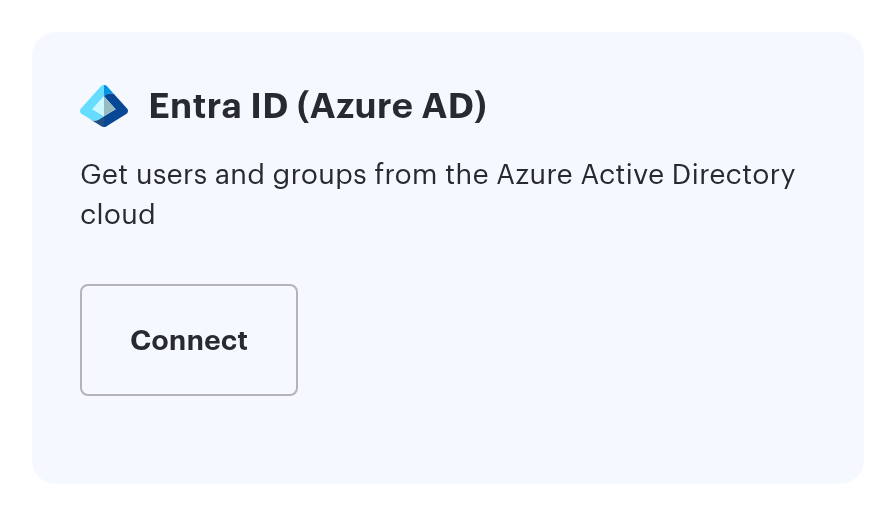
- Open Manage > Integrations > Synchronisations and click Connect on the Entra ID (Azure AD) card.
- The Microsoft sign-in window opens. Sign in with an account that can read the organization directory and confirm the requested permissions.
- Microsoft returns you to UnSpot, the card shows the connected account, and employee synchronization starts immediately.
If consent is granted only partially, the connection still succeeds and the synchronization fails later with an access error. Confirm the whole set of permissions at once — UnSpot does not check which of them were actually granted.
Step 2. Synchronization data
Email, first name and last name are always transferred. The other fields are switched on with the Edit button on the card — the field set cannot be changed before connecting.
| Checkbox | What is transferred |
|---|---|
| Display Name | The displayName property from Microsoft Graph. The checkbox appeared on 31 Aug 2026 and is off by default; it exists only in the Synchronization settings window behind the Edit button — the field set is not offered during the initial Microsoft sign-in. The value is transferred as is, with no word splitting and no fallbacks: if displayName is empty in the directory, the field on the record is cleared. While the checkbox is off the field is left alone. Once it is on, the Display Name field on the employee record becomes read-only |
| Department | The department property. It does not go into the Department field of the record but into the organizational structure: the value becomes a node of the tree, and a / creates nested departments |
| Phone | The mobilePhone property. Business phones are not transferred |
| Position | The jobTitle property; values longer than 128 characters are truncated |
| Manager | The manager property. The link is built by email address, so the manager record has to be in UnSpot as well and must not be archived |
| User profile picture | The profile photo. Refreshed by a separate platform job — avatars will not appear immediately after you select the checkbox |
| Groups | Directory groups are transferred into UnSpot groups. The checkbox is available only after connecting |
There is no organizational structure checkbox on this integration form — Graph API does not transfer the tree; sending the field through the API makes UnSpot reject the change. Departments are filled from the Department field instead.
There is no NumberPass checkbox on this integration form — it exists only for AD LDAP and OpenLDAP. The badge number is not sent through Graph API; the field exists only at the API level, and enabling it there clears the values on the records. If you need the badge number, fill it in another way.
Transferring groups has two consequences worth knowing in advance. Every group in the directory is transferred, not only the ones named in the filter. And the directory owns membership: employees added to a synchronized group by hand are removed from it on the next cycle.
Step 3. Group filter
To synchronize part of the directory rather than all of it, click Edit on the card. In the Groups field enter Entra ID group identifiers separated by commas and select the mode:
- Synchronize users — only the members of the listed groups reach UnSpot;
- Don’t sync users — the members of the listed groups are excluded and everyone else is synchronized.
| Limit | Value |
|---|---|
| How many groups you can list | from 1 to 10 on the server. The form field is limited to 255 characters — about six identifiers in practice. An empty field is not rejected: it removes the filter, and the whole directory synchronizes |
| Which members count | direct members only. Nested groups are not expanded: a member of a child group will not reach UnSpot |
| What the filter applies to | employees only. Every group is transferred regardless |
| When it is applied | after the directory is downloaded, on the UnSpot side |
You can look a group identifier up in the Microsoft Entra admin center: Groups then the group, the Object ID field. Changing the filter starts a resynchronization of employees straight away.
Note when narrowing the filter: excluded employees are not merely skipped, they are archived — with every booking, session and assigned desk released. The companion article covers the mechanics.
What is available after connecting
The card shows the connected account. From then on the synchronization runs automatically, once a day on the platform schedule. This integration has no manual run button — that exists only for connections to a local directory.
Employees created by the synchronization receive no email from UnSpot: the password is generated randomly and told to no one. They sign in through Microsoft SSO (when configured) or by recovering the password for their email address.
| Button | When it is available | What it does |
|---|---|---|
| Edit | while the connection is healthy | Opens the settings: the field set and the group filter. Adding a field or changing the filter starts a resynchronization right away; clearing a checkbox takes effect from the next cycle, and values already transferred stay on the records |
| Reconnect | only while the connection is flagged as invalid — the card then reads that the account is not valid and asks you to reconnect it or use another one | Runs the authorization again. The settings and the links between directory entries and UnSpot records are cleared, and objects are matched again by email address |
| Disconnect | always | Stops the synchronization and clears the settings together with the tokens. Employee records and the groups that were created are kept. The application consent on the Microsoft side is not revoked — if that is what you need, remove it in the Entra ID admin center |
Graph API or SCIM
There are two ways to synchronize with Entra ID, and they differ in where the rules live.
| Graph API (this article) | SCIM 2.0 | |
|---|---|---|
| What you configure | authorization in UnSpot only | an enterprise application and provisioning in Entra ID |
| Who initiates the exchange | UnSpot pulls the data | Entra ID pushes the data |
| Where the rules are set | in UnSpot: the field set and the group filter | in Entra ID: user and group assignment, attribute mapping, sync scope |
| Organizational structure | not transferred | transferred |
| Works with other providers | no | yes — Okta, OneLogin and any SCIM 2.0 |
| Faster to set up | this method |
Use one method rather than both: turning them on together is technically possible, but the directory then has two sources of truth.
If something does not work
| What you see | Why | What to do |
|---|---|---|
| A message that the account is not supported for synchronization and asking you to check its permissions | Microsoft rejected the connection — usually the .All permissions were not granted | Connect again and confirm the whole set; grant administrator consent in the Entra ID admin center if needed |
| A message that the account is not valid | The token stopped working: the password of the authorising account changed, the account was disabled, or the consent was revoked | Click Reconnect and authorise again |
| A message that user synchronization is already connected through another directory service | Another synchronization method is already connected | Disconnect it first, then connect this one |
| A message about incorrect synchronization data | The organizational structure field was sent through the API — the integration form has no such checkbox | It is not available for Graph API — use the Department checkbox instead |
| An error when connecting Entra ID on top of AD LDAP or OpenLDAP | Switching between those methods without disconnecting first is handled incorrectly | Click Disconnect on the current connection, wait for the card to refresh, then connect Entra ID |
| Not all employees were synchronized | The group filter applied: only direct members count and nested groups are not expanded | List the child groups explicitly or clear the filter |
| Employees have the wrong email address | The address comes from userPrincipalName, not from the mail property | If the two differ, align the UPN on the Entra ID side |
| Avatars did not appear | Photos are refreshed by a separate platform job | Wait for the next run of that job |
| The synchronization seems frozen while the card looks healthy | Cycle errors are not shown in the console | The telltale sign: entries with the synchronization initiator stop appearing in the User management history report; the errors themselves go to the platform service log — mention that when contacting support |
Changes made by the synchronization are visible in Analytics > Reports, the User management history report: such entries carry a synchronization marker in the initiator column.
