
Subordination in analytics and reports
The circle of people a manager sees in analytics and in reports is almost the same one — the ordinary circle of subordinates that applies everywhere else in the product. There is one difference: in analytics the circle also includes the employees of the departments where the manager is assigned as the manager, together with every department nested in them, while in reports nested departments where the manager is not assigned are not part of the circle. On the By office tab the employee filter starts with the By subordinates option. This article explains which circle stands behind analytics and behind each report, how the department filter works and what to do when a report comes back empty.
Contents
Which circle of people applies in analytics and reports
How the department filter works
Analytics and reports: one circle, different purposes
The circle of people in each report
How to find out who changed subordination and when
What to do when the figures do not match
Are employee names visible in analytics?
A division manager sees analytics for nested departments. Is that correct?
Can a manager be limited to their own department in analytics?
Why does an employee not see the analytics tab?
Which circle of people applies in analytics and reports
The circle of subordinates is the people you hold through the Subordinates list, a team, the Manager field in their profile, or as the manager of their department. Details: Employee subordination: overview.
| Section | Who it shows |
|---|---|
| Reports | Your subordinates and you |
| Analytics, the By office tab | Your subordinates and you, plus the employees of the departments where you are assigned as the manager, together with every department nested in them |
| Analytics, the By employee tab | Your subordinates and you; in analytics, plus the departments nested in the ones you manage |
| Analytics, the By employees tab | Your subordinates and you — the same circle as on the By office tab, including nested departments; the tab itself requires an administrative role |
In numbers: a division has 6 employees of its own and 52 in nested departments. A division manager who is not assigned as the manager of the nested departments sees, on the By office tab, statistics for all 58: nested departments enter analytics automatically because the manager heads the division. The History of Office Visits report, however, includes only the same six, and they are the only ones whose bookings the manager can cancel — the other 52 appear neither in reports nor in booking lists, even if a nested department is picked with the By department option. To bring them into the circle of reports, make the manager the manager of those departments in the org structure, or add the people as a list or a team or through the Manager field in their profiles.
How the department filter works
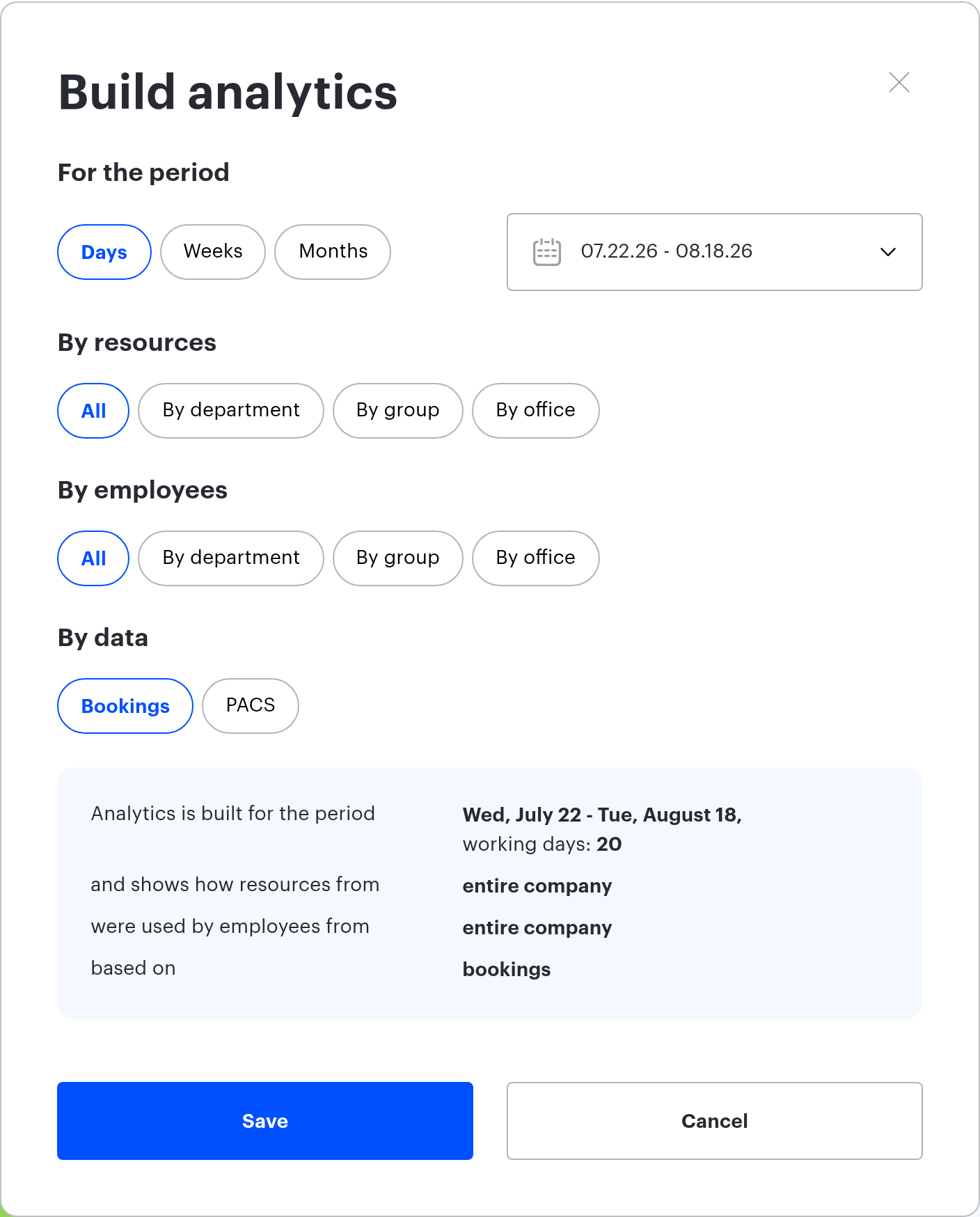
The filters of the By office tab live in the Build analytics dialog. There are two of them and they mean different things: By resources selects places assigned to a department, By employees selects people. They are different dimensions of the same screen.
When the tab opens, the By employees filter is set to By subordinates: the system assembles the circle itself, and it matches the circle of subordinates in reports. No department is substituted automatically — if you need analytics for a specific department, pick it by hand with the By department option.
What the filter offers:
- a department manager without the “All users” option gets By subordinates, By department (in the tree only their departments together with the nested ones are active) and By team if they have teams; By office is unavailable;
- holders of the “All users” option can pick any departments, groups and offices.
Selecting a department in the filter — in analytics and in reports alike — always includes every nested department; there is no need to tick them separately. For a manager without the “All users” option, however, the selection is intersected with the circle: in reports, employees of a nested department where the manager is not assigned are not counted, while in analytics the circle already includes the departments nested in the ones the manager heads.
Note that the filter restrictions repeat the access rule on the server: even a department picked by hand does not widen the circle beyond the subordinates. The By office tab shows depersonalised figures and discloses no personal data.
Analytics and reports: one circle, different purposes
Analytics answers the question “how is the office used”: how many places are occupied, how attendance is distributed. You cannot manage people from those figures. The circle of people is almost the same as in reports: the only extension in analytics is the departments nested in the ones the user heads.
If a division manager does not see activity from a nested department in analytics, the manager heads neither that department nor a higher one, so those people are not part of their circle of subordinates — and they will not find them in reports, schedules or bookings either.
The By office tab opens by having subordinates, not by administrative role: it is visible to any employee who has at least one subordinate or holds the “All users” option. The Reports and By employee tabs are open to everyone, while On the map, Meeting Rooms, By desks and Tariff require an administrative role (each tab has its own set of roles) and will not open for a department manager. The By employees tab is shown to a Super Administrator, an Office manager and an Integrations Administrator (the other administrative roles can open the page by its direct address); a manager without an administrative role cannot open it, and the circle of people inside it is the same circle of subordinates. See By employees analytics: overview.
The circle of people in each report
Reports live in Analytics → Reports and are arranged in five groups. The rule is simple: reports about people and bookings show your subordinates and yourself, while the administrator action histories are opened by role and do not apply the circle at all.
| Group | Reports | Who can open them and who they show |
|---|---|---|
| Work Schedule | Employees’ work schedule; Work schedule change history; Attendance Report; Attendance Report (detailed) | Every employee; your subordinates and you |
| Bookings | Bookings — Desks / Parking places / Meeting rooms; the three Booking time reports; Booking costs — Meeting rooms (external) | Every employee; your subordinates and you |
| Bookings history | Booking history for desks, parking, meeting rooms, guest bookings and Locker | Every employee; your subordinates and you |
| User Action History | Pass request history — everyone; History of Report Downloads and History of Office Visits (PACS) — administrative roles, circle still applies; History of Logins — administrative roles, no circle | See the description |
| Administrator Action History | User management history; History of Integration Management; History of Adding and Removing Locations (Desks, Parking, POI) | Super Administrator and Office manager, plus the matching specialised administrator; the circle is not applied |
There are no reports that would count subordinates by a formula of their own: all three booking reports — meeting rooms and parking included — use the common circle. In every report limited by the circle, you are always part of the selection.
How to find out who changed subordination and when
The User management history report in the Administrator Action History group answers this — with one caveat. It records changes to the Manager field, the department, the role and the “All users” option, but edits to the Subordinates list and the Teams block never reach the log.
Two columns are not obvious. The changed-fields column lists technical field names: subordination is covered by manager (the Manager field), orgDepartment (the department), manageAllUsers (the “All users” option) and role. The action-source column shows where the change came from: admin for a person editing in the console, sync for a directory exchange, scim, oauth2 for an OpenID Connect sign-in and csv_import for a file import.
For one specific person it is quicker to open the report from their profile: the change history button opens it with the filter already applied.
What to do when the figures do not match
| Symptom | Cause | What to do |
|---|---|---|
| Employees of nested departments are missing from analytics | You are not the manager of that department or of a higher one, and the employees were not given to you as a list, a team or through the Manager field | Make yourself the manager of those departments in the org structure, or add the employees as a list, as a team or through the Manager field |
| A child department was picked with By department in a report — there is no data | The department is active in the tree as a descendant of yours, but in reports its employees are not part of your circle of subordinates until you are made its manager (in analytics the departments nested in yours are part of the circle) | Make yourself the manager of that department in the org structure |
| A report has no By employees filter | You have no subordinates and no “All users” option | Check the subordination settings in your profile |
| The By team option is inactive | No team has been given to you | Assign a team in the manager’s profile |
| A booking report is empty | You and your subordinates have no bookings of that type for the selected period | Widen the period or check the composition of your circle |
| The By office tab is not shown | The employee has no subordinates at all — not through a list, the Manager field, a team or as a department manager — and no “All users” option; an administrative role alone does not grant access | Make them the manager of a department or change the subordination setting |
| Some options of the employee filter are inactive | Without the “All users” option By department is available to a department manager only, By team only when teams are assigned, and By office is unavailable | Every option is available to holders of the “All users” option |
Frequently asked questions
Are employee names visible in analytics?
Not on the By office tab — the statistics there are depersonalised. Personal data appears in reports and on the By employee and By employees tabs (the latter is open to administrative roles only), and all of them are limited by the circle of subordinates.
A division manager sees analytics for nested departments. Is that correct?
Yes, if they are assigned as the manager of a higher department: in analytics the employees of every department nested in it are counted automatically. Reports do not work that way — there nested departments enter the circle only if the manager is assigned as the manager of those departments, or their employees are given to them as a list, a team or through the Manager field.
Can a manager be limited to their own department in analytics?
No separate setting is needed: without the “All users” option analytics already counts only the manager’s own circle — their subordinates, themselves and the employees of the departments they head, together with every department nested in them. Nobody else appears in it.
Why does an employee not see the analytics tab?
The Reports and By employee tabs are open to everyone. By office appears for any employee who has at least one subordinate or holds the “All users” option; an administrative role alone does not open it — a Super Administrator needs subordinates too. By employees is shown to a Super Administrator, an Office manager and an Integrations Administrator (the other administrative roles reach it by its direct address); a manager without an administrative role cannot open it. The remaining tabs require an administrative role (each tab has its own set of roles).
Does the “All users” option affect reports?
Yes, it removes the circle limit in every report that has one. It does not affect the administrator action histories — those are decided by role.
Related articles
- Employee subordination: overview — start here
- Subordination through the organisational structure
- Subordinates and teams in the employee profile
- The direct manager in the employee profile
- What a manager can do: bookings, schedules, requests
- By employees analytics: overview
- By employees analytics: the three charts and their calculation
- User Roles
