
Meeting rooms on the map: placing, swapping and hiding
A meeting room reaches the office map differently from a desk: the room is first created in the office settings and only then placed on the plan. This article covers everything that happens to a meeting room on the map — placing, swapping, resizing, copying and hiding.
What has to be done before placing
A meeting room cannot be created in the map editor — only an existing one can be placed. If the room does not exist yet, create it in the office settings first. If every meeting room of the office has already been placed, the tool is disabled and the tooltip says “No meeting rooms available”.
How to place a meeting room on the map
- open the editor: “Manage → Office management → Workspaces” → Change map → on the Drafts page choose the published version or a draft;
- switch to the Seating mode;
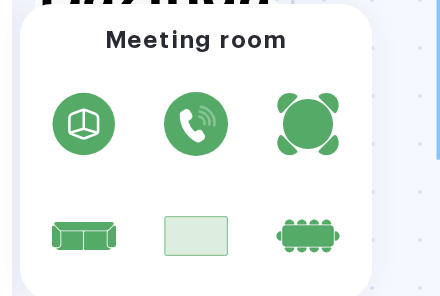
- pick Meeting room in the object panel on the left — a panel with six room shapes opens;
- choose a shape and place it where you need it on the plan;
- the “Meeting room” window opens right after that: choose the room from the list (the shape can be changed here too) and click Add. Cancel in this window removes the object you have just placed;
- save the changes.
The shape of the room
The shape only affects how the object looks on the map — it has no effect on booking. The available values:
| Shape | When it fits |
|---|---|
| Room | an ordinary meeting room |
| Phone booth | a one-person spot for calls |
| Meeting room | a closed room |
| Quiet zone | an area for focused work |
| Conference hall | a large hall; a Title is entered for it as well |
| Conference room | a conference room in the general sense |
How to swap the room
Open the card of the object with a double click — or select it with a single click and press the pencil button above the selection. The list holds only the rooms of this office that are not on the map yet (disabled rooms are not shown, and external meeting rooms only when a calendar is connected to them); if everything is placed already, the window says “All available meeting rooms have already been added to the map”, and if the office has no rooms at all — “You dont have meeting rooms in this office”. The spot on the plan, its size and rotation are kept: only the room behind it changes. Save the changes.
Size, rotation and copying
- drag a corner of the icon to resize it, or use cmd/ctrl + ↑ and cmd/ctrl + ↓; every shape keeps its proportions except the Conference hall, which can be stretched in width and height separately with the side handles;
- rotation (R + ↑ and R + ↓ or the rotation handle) exists only for the Quiet zone, Conference hall and Conference room shapes; Room, Phone booth and Meeting room always stand upright.
All of this is available in the Seating mode only; in Settings the objects are locked in place.
A meeting room can be copied — with cmd/ctrl + D, cmd/ctrl + C and cmd/ctrl + V or the duplicate icon above the selection — but the copy does not create a new room: each particular room is still on the map once. Next to the original, right away and without a selection window, the first free meeting room of the office is placed — one that is not on the map yet and is not disabled. It takes the shape, size, rotation and label style of the original and keeps its own name and settings; if you need another room, swap it as described above. If there are no free meeting rooms, the “Meeting room” window says “All available meeting rooms have already been added to the map”. More on copying objects is in Map editor: placing objects.
How to take a room off the map
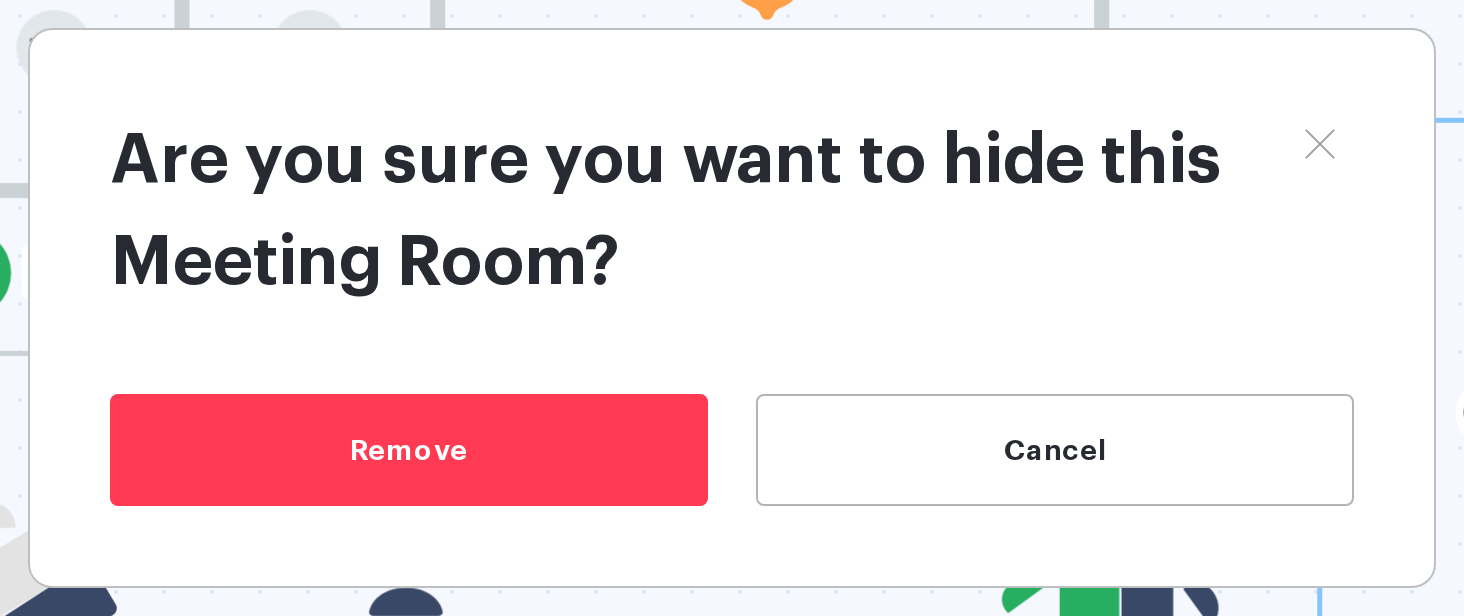
Select the meeting room and press Delete or Backspace, or use the delete control above the selection. The confirmation asks: “Are you sure you want to hide this Meeting Room?” — for several selected rooms the text is in the plural.
Note the word hide. The meeting room is not deleted: it is taken off the map but stays in the office settings with its calendar, amenities and booking history. The same behaviour applies when a draft is published — rooms removed from the draft are taken off the map rather than deleted.
How to bring a room back
A room taken off the map appears in the list of available rooms again: open the Meeting room tool and choose it. Its size and position are set anew.
What the employee sees
On the office map an employee sees the icon of the room and its name; a click opens the room’s schedule. A room taken off the map disappears from the office map — it can then be booked only from the list of meeting rooms.
What is different inside a draft
- a new meeting room cannot be created in a draft — only an existing one placed;
- if the room was deleted from the office settings while the draft was waiting, it disappears from the draft silently the next time it is opened and is skipped when the draft is published;
- changes are invisible to employees until the draft is published.
Related articles
- Map editor: placing objects — placing objects and hotkeys;
- Desks on the map — desks on the same plan;
- Parking spaces on the map — parking on the same plan;
- Publishing a seating draft — what happens to the rooms when a draft is published;
- Map editor: configuring placed objects — parameters of the objects on the plan.
- Office map editor: an overview of the actions — all the actions with the map.
