
Confirming your booking (check-in)
If booking control is switched on in your company, a booking has to be confirmed. An unconfirmed booking is cancelled automatically and the resource is released for colleagues. This article explains how to confirm a booking: where the button is, when it can be used and what happens if you miss the deadline. For the administrator side see Booking control: settings reference.
When you need to confirm
An administrator can enable one or two confirmation stages, and that determines how many times and from where a booking has to be confirmed:
| Stage | What you confirm | Where you can confirm from |
|---|---|---|
| Remote check-in | That the booking is still relevant and you intend to use it | From anywhere: an email, a push notification, a corporate messenger or the system |
| In-Office check-in | That you are really in the office | From the office: by scanning the QR code, from a meeting room display, automatically by the office network or by badging in. If the administrator enabled Remote confirmation — with the button from any channel as well |
If both stages are enabled, two confirmations are needed: one in advance and one on arrival. Confirming one stage does not substitute for the other.
The time ranges are set by the administrator — they can differ between offices and between meeting rooms. The exact time is shown on the booking itself: under the Confirm button you can see from which moment the confirmation is available or by which time it has to be done.
💡 A booking created inside the confirmation window does not need confirming — the system does it for you. A booking created by scanning the QR code of a resource closes the first step automatically; if the second step is enabled too, presence still has to be confirmed inside its window.
Confirming in the Bookings section
The most reliable way is to open your bookings in the system:
- Click your profile icon in the top right corner and choose Bookings.
- Find the booking you need. If the confirmation is already available, the Confirm button next to it is active; if it is not yet, the caption next to it says from which time it becomes active.
- Click Confirm.
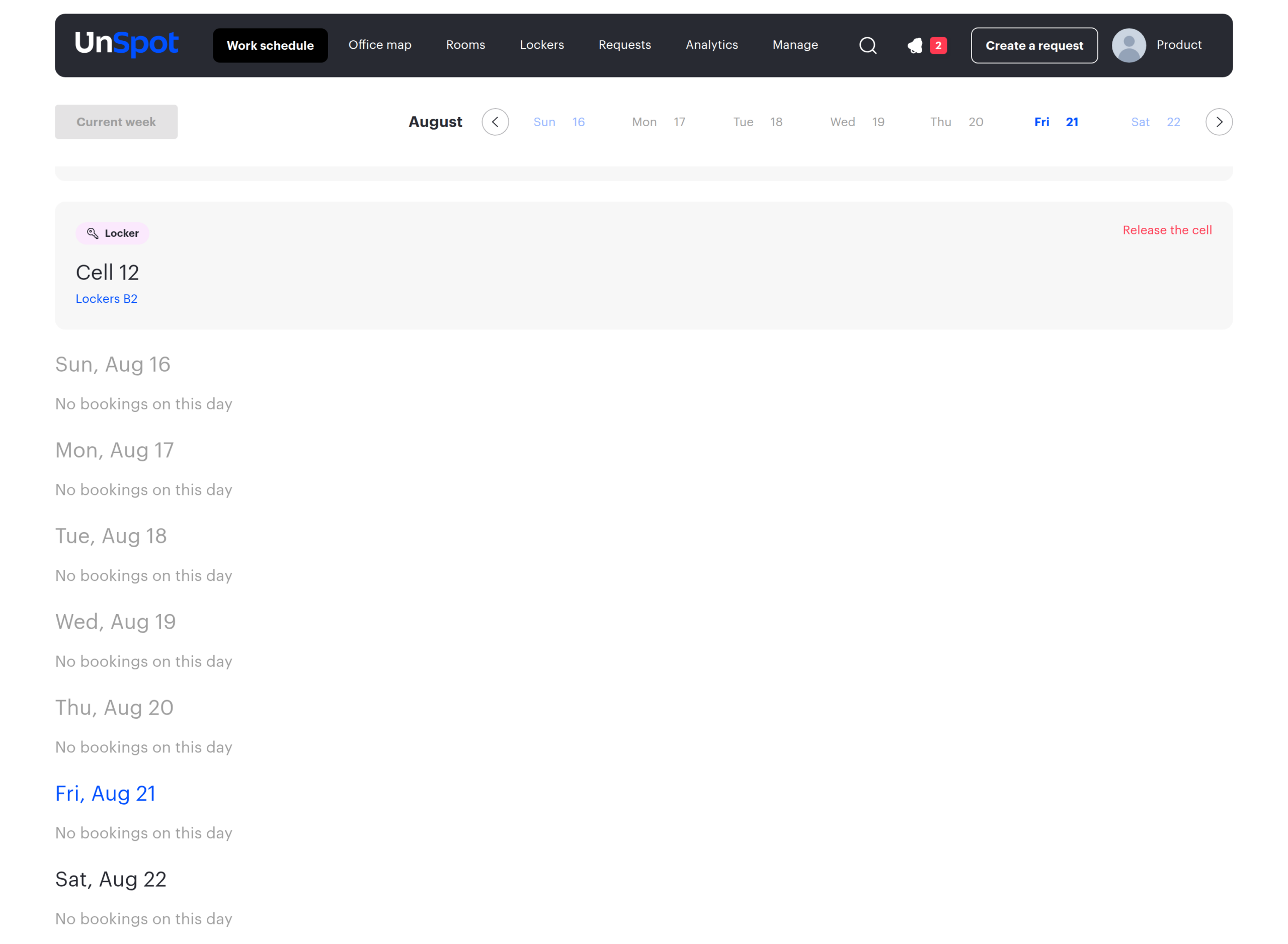
After the confirmation the booking is marked as confirmed. In the mobile app the path is the same: the More section → Bookings → the Confirm button next to the booking.
Confirming from the email
When the confirmation window opens, an email titled “Please confirm your desk booking” (for parking and meeting rooms — “…your parking place booking” / “…your meeting room booking”) arrives at your work address. It lists the date, the resource and the amenities, with a Confirm booking button below. The button opens a confirmation page — the booking is confirmed automatically as the page opens.
⚠️ The second button in the email — Cancel booking — does not “postpone” the confirmation, it deletes the booking. Use it only if you are really giving the resource up.
If the administrator has enabled the second step without the Remote confirmation method, the email shows an inactive Confirmation available from office caption and a hint to scan the QR code instead of an active button: such a booking cannot be confirmed by email. With the method enabled, the email button stays active on the second step too.
Confirming from a push notification or a corporate messenger
If push notifications or corporate messenger notifications are connected, the Confirm button arrives there as well:
- Push notification — press Confirm in the notification itself, in the web version or in the mobile app;
- Corporate messenger — press Confirm under the message from the UnSpot app.
⚠️ The second button in a notification or a messenger message is called Cancel and also deletes the booking.
Confirming that you are in the office
The second step can only be confirmed on site. The available ways are chosen by the administrator:
| Method | What to do |
|---|---|
| QR code | Use your phone camera to scan the code attached to the desk or parking space, or shown on the meeting room display |
| Meeting room display | Press Confirm on the screen next to the room: the meeting is shown there with a “Confirm until” caption |
| Automatically by the office network | Nothing: the app reports that you are in the office if your phone is connected to the office WiFi or is near the office |
| Automatically by your badge | Nothing: the booking is confirmed after you badge in at the entrance |
| The Confirm button | If the administrator enabled the Remote confirmation method, the button works on the second step too — in the email, the push notification, the messenger and the Bookings section |
The automatic methods need the UnSpot mobile app with the relevant permissions granted: without it the system cannot tell that you have arrived.
What happens if you do not confirm
| Situation | What happens |
|---|---|
| The booking has not started yet | The booking is deleted and the resource is released for colleagues |
| The booking has already started | The booking finishes at the current moment and the remaining time is released |
In both cases you receive a notification that the booking was cancelled — unless the administrator switched notifications off. The booking is not restored afterwards: the resource has to be booked again.
Frequently asked questions
| Question | Answer |
|---|---|
| There is no Confirm button at all | Either the confirmation window has not opened yet (check the caption under the button), or booking control is not enabled for this booking |
| Instead of the button it says “Confirm by QR code” or “Confirmation by PACS” | This is the second step: the booking can only be confirmed on site — by scanning the code or by badging in |
| A colleague made the booking — who confirms it? | Only the employee the booking is issued for can confirm it. A manager who created a booking for a subordinate cannot confirm it |
| A booking for several days | Each day is confirmed separately: these are separate bookings |
| I rescheduled a meeting — is the confirmation kept? | For meeting rooms the confirmation is dropped when a meeting is moved and has to be repeated. For desks and parking spaces it is kept |
| I confirmed, but the booking disappeared anyway | Most likely both stages are enabled and only the first one was confirmed. Check whether confirmation from the office is required |
| I booked for a guest — who confirms? | The request goes to the guest address with a copy to you. You can confirm the booking yourself from the Bookings section. The cancel button in the guest email deletes the booking as well |
| I am never asked to confirm anything | You may be in the exception list: an administrator can exempt a group of employees from the control, and their bookings are confirmed automatically |
