
Employee subordination: overview
Subordination decides whose bookings, schedules and requests an employee can manage and whose data they see in reports. There are three independent ways to set it up, and they add up rather than override each other. This article helps you pick the right one and points to the instructions; the settings are changed by the Super Administrator and the Users Administrator.
Three mechanics: how they differ
| Mechanic | When it fits | Limits | Article |
|---|---|---|---|
| Organisational structure | A strict hierarchy of departments and their managers | Rights cover the direct employees of a department only and do not cascade down | Subordination through the organisational structure |
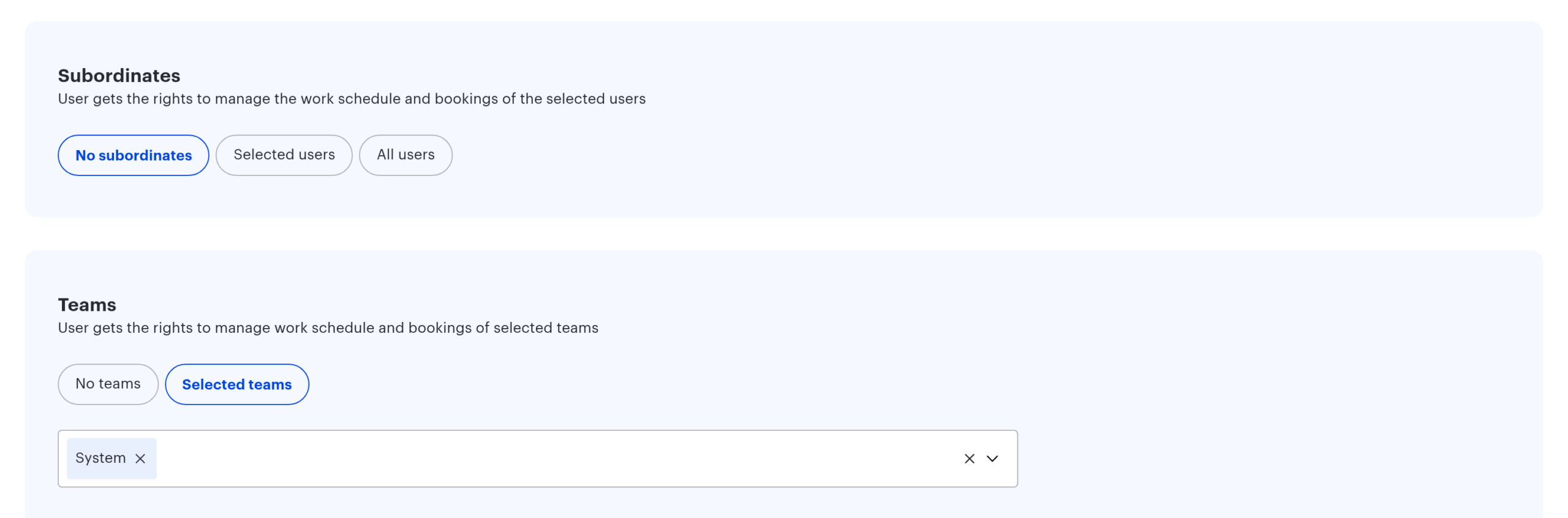
| Teams and subordinates in the profile | A matrix structure, project groups, a users administrator | The list is maintained by hand and does not follow staff changes | Subordinates and teams in the employee profile |
| The Manager field | Subordination comes from the company directory; individual exceptions to the tree | Exactly one manager, and rights do not walk up the chain | The direct manager in the employee profile |
Find your task
| Task | Mechanic | Where to go |
|---|---|---|
| Department managers manage their own employees | Organisational structure | Subordination through the organisational structure |
| A project lead runs people from several departments | Teams | Subordinates and teams in the profile |
| An employee reports to someone other than their department manager | The Manager field in their profile | The direct manager in the profile |
| An administrator or support desk serves the whole company | The “All users” option | Subordinates and teams in the profile |
| A mentor looks after two or three trainees | The “Selected users” option | Subordinates and teams in the profile |
| Subordination is already maintained in Active Directory | The Manager field through synchronisation | The direct manager in the profile |
| A manager needs employees of nested departments too | The organisational structure plus a team or a list | Subordination through the organisational structure |
The mechanics add up
A person counts as your subordinate if at least one of these is true:
- they are on the Subordinates list in your profile;
- they belong to a team given to you;
- their profile names you in the Manager field;
- they work in a department where you are the manager.
There is no priority: none of the sources overrides the rest. There are four sources but three mechanics, because the second mechanic is two separate blocks of one profile — Subordinates and Teams. The “All users” option is not part of the count: it adds no source but switches the check off.
Two practical consequences. First, the mechanics combine freely — run the baseline through the organisational structure and add exceptions with teams and the Manager field. Second, to take a person out of your circle you have to remove every source.
Where each mechanic is configured
| Mechanic | Path in the console |
|---|---|
| Organisational structure | Manage → People management → Organisational structure |
| Subordinates and teams | Manage → People management → Users, employee profile |
| Team roster | Manage → People management → Groups & Teams |
| The Manager field | The employee profile or the synchronisation settings |
What subordination does and does not grant
The set of rights is the same for all three mechanics:
- subordinates’ bookings — create, cancel, reassign;
- schedules and statuses — view, set, lock the template;
- their service requests and pass requests;
- four fields in their profiles: start and end of the working day, assigned office, attendance rate.
The full reference with the caveats: What a manager can do: bookings, schedules, requests.
What subordination does not grant: access to desks (a separate mechanic, see Desk access rights: overview), administrator rights, and rights over the next level down — no mechanic walks up the reporting chain.
How to check who manages whom
There is no ready-made “who manages whom” report, but the picture can be assembled from four places, one per source.
| What you need to know | Where to look |
|---|---|
| Who manages the departments | Organisational structure: the manager is shown in the tree row, or “Manager not specified” |
| Who has which direct manager | Users → download the employee data with the Department and Manager columns |
| Who has a Subordinates list or the “All users” option | Only each individual profile: there is no summary screen |
| Who holds which teams | Only managers’ profiles: the Groups & Teams screen does not list them |
The User management history report shows who changed the Manager field, the department, the role and the “All users” option, and when. Edits to the Subordinates list and the Teams block never reach the log — see Subordination in analytics and reports.
Rollout order
- Build the organisational structure and appoint department managers — enough for most companies: Subordination through the organisational structure.
- If subordination already lives in the company directory, switch the Manager field on in the synchronisation settings: The direct manager in the employee profile.
- Describe the exceptions: project groups as teams, individual cases as a Subordinates list: Subordinates and teams in the employee profile.
- Give the “All users” option to those who serve the whole company.
- Check the result: sign in as the manager and open My → Work schedule → Colleagues. If the organisational structure says “Department: 6 employees”, the department block must contain exactly six people — employees of nested departments do not appear there.
Common misconceptions
| Misconception | How it actually works |
|---|---|
| A division manager manages everyone in the branch | Only the direct employees of their own department |
| Analytics and reports show the same circle | Office analytics expands the branch of departments; a manager’s rights do not |
| One mechanic overrides another | They all add up on an “at least one matches” basis |
| Removing someone from a team ends their subordination | Only if no other source holds them: a list, the Manager field or a department |
| An administrator sees every request and every employee | In most sections it is the “All users” option that decides, not the role |
| Subordination opens access to places | These are independent mechanics; place access is configured separately |
| An employee can have two direct managers | The Manager field stores one; a second manager is added as a list or a team |
If something does not work
| Symptom | Where to go |
|---|---|
| A manager does not see employees of a nested department | Subordination through the organisational structure, the section on the boundary |
| The Manager field emptied for many employees | The direct manager in the employee profile, the section on the disappearing value |
| Subordinates or teams vanished after a role change | Subordinates and teams in the employee profile, the limits section |
| Analytics figures do not match the report | Subordination in analytics and reports |
| A subordinate’s booking cannot be stopped | What a manager can do, the section on partial support |
| Work schedule shows only some employees of a department | What a manager can do, the 100-people limit per block |
Frequently asked questions
Where do I start if nothing is configured?
With the organisational structure: appointing department managers covers most cases in one step. Exceptions are added with teams and the Manager field.
How do I remove someone from subordination completely?
Remove every source at once: the Subordinates list, the team, the Manager field in their profile and the department where you are the manager. One remaining source is enough for the rights to stay.
Who should get the “All users” option?
People who serve the whole company by the nature of their job: a users administrator, a support desk, a workplace coordinator. It is a profile setting rather than a role — an administrator without it will not see every employee.
Related articles
- Subordination through the organisational structure
- Subordinates and teams in the employee profile
- The direct manager in the employee profile
- What a manager can do: bookings, schedules, requests
- Subordination in analytics and reports
- Desk access rights: overview — the neighbouring topic of access to places
