
Connect Microsoft 365 via a Microsoft Entra application
Microsoft App is a way to connect Microsoft 365 calendars to UnSpot through an application registered in Microsoft Entra. You create the application in your tenant once, grant it calendar permissions and enter its identifiers in UnSpot — after that, this single connection serves all meeting room resource calendars: UnSpot fetches the list of your organisation’s rooms and connects their calendars without signing in under a user account and without delegating rights to each calendar separately. The classic scheme with a service-account sign-in keeps working — see Prepare Microsoft 365 calendar to work with UnSpot.
How it works
UnSpot calls Microsoft Graph as the application, not as a signed-in user. The application is registered in Microsoft Entra in your tenant, receives a client secret and two application-level permissions: Place.Read.All — to read the organisation’s room list, and Calendars.ReadWrite — to manage calendar events. Once a tenant administrator grants admin consent, UnSpot authenticates directly with Microsoft using the application identifiers (Client ID + Tenant ID + Client Secret) — no interactive sign-in and no repeated user authorisation.
- When you save a connection, UnSpot verifies access by requesting the tenant’s room list from Microsoft. If the application data is wrong or consent has not been granted, the connection is not saved — UnSpot shows the error description and the original Microsoft response.
- When you connect a calendar to a meeting room, UnSpot attempts to create a test event in the room calendar and immediately deletes it — this is how write access is checked.
- After that the synchronisation is two-way: UnSpot meeting room bookings are created, updated and deleted in the default calendar of the room mailbox, and events created directly in the room calendar (for example, from Outlook) appear in UnSpot. Changes arrive via a Microsoft Graph change-notification subscription that UnSpot sets up when the calendar is connected.
- One connection serves all rooms of the tenant. You can create several connections — for example, for different Microsoft tenants.
Requirements
- Access to Microsoft Entra with the right to register applications and grant admin consent — for example, the Global Administrator role.
- Meeting rooms exist in Microsoft 365 as room resource mailboxes (Room mailbox) — otherwise UnSpot will not see them in the list. How to create one: Create a resource calendar in Office 365.
- UnSpot permissions: in this option the connection on the Synchronisations tab is created by a Super Administrator or an Integrations Administrator, and a calendar is attached to a meeting room by a Super Administrator — UnSpot returns the list of connections to these two roles only, so the Microsoft tile never appears in the room window for an Offices Administrator.
Creating the application in Microsoft Entra
Registering the application, creating the secret, granting the permissions and having a tenant administrator consent to them are covered in a separate article: Microsoft Entra application: registration and permissions. It also carries the Entra portal screenshots for every step, how to limit the application scope, and what to do when the secret expires.
Three values from Entra are what you need here — Application (client) ID, Directory (tenant) ID and the secret value. They are entered in UnSpot in the next step.
Creating a connection in UnSpot
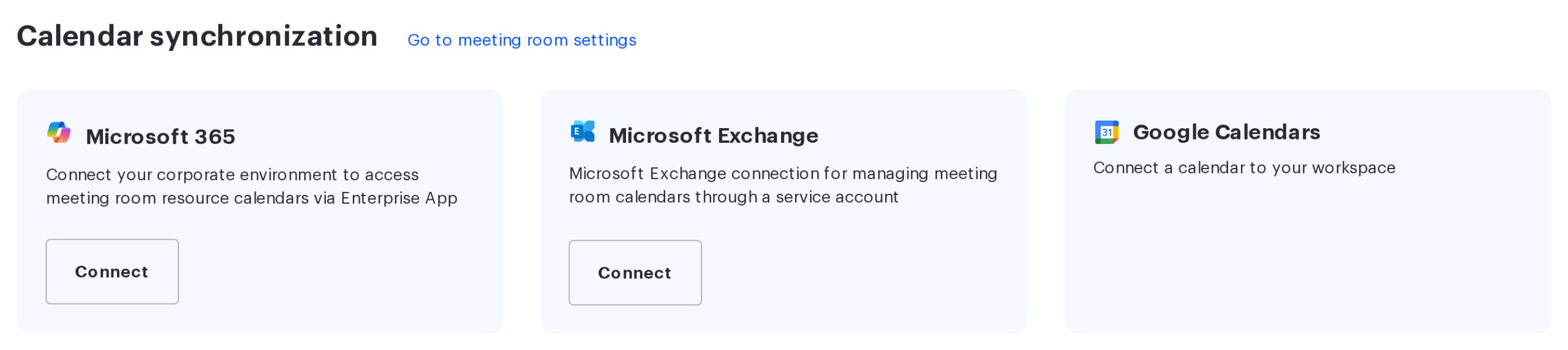
Go to Manage → Integrations → Synchronisations, find the Microsoft 365 card in the Calendar synchronization section and click Connect.
Fill in the Microsoft Connection form — all fields are required:
| Field | What to enter |
|---|---|
| ClientId | The Application (client) ID from the application’s Overview page. Each connection needs its own ClientId — the same one cannot be used in two connections. The field cannot be changed after the connection is created. |
| TenantId | The Directory (tenant) ID from the application’s Overview page. |
| ClientSecret | The secret’s Value copied when the secret was created. After saving, the secret is hidden and never shown when editing. |
| Connection name | Any name from 2 to 255 characters — shown on the connection card and when picking a connection for a meeting room. |
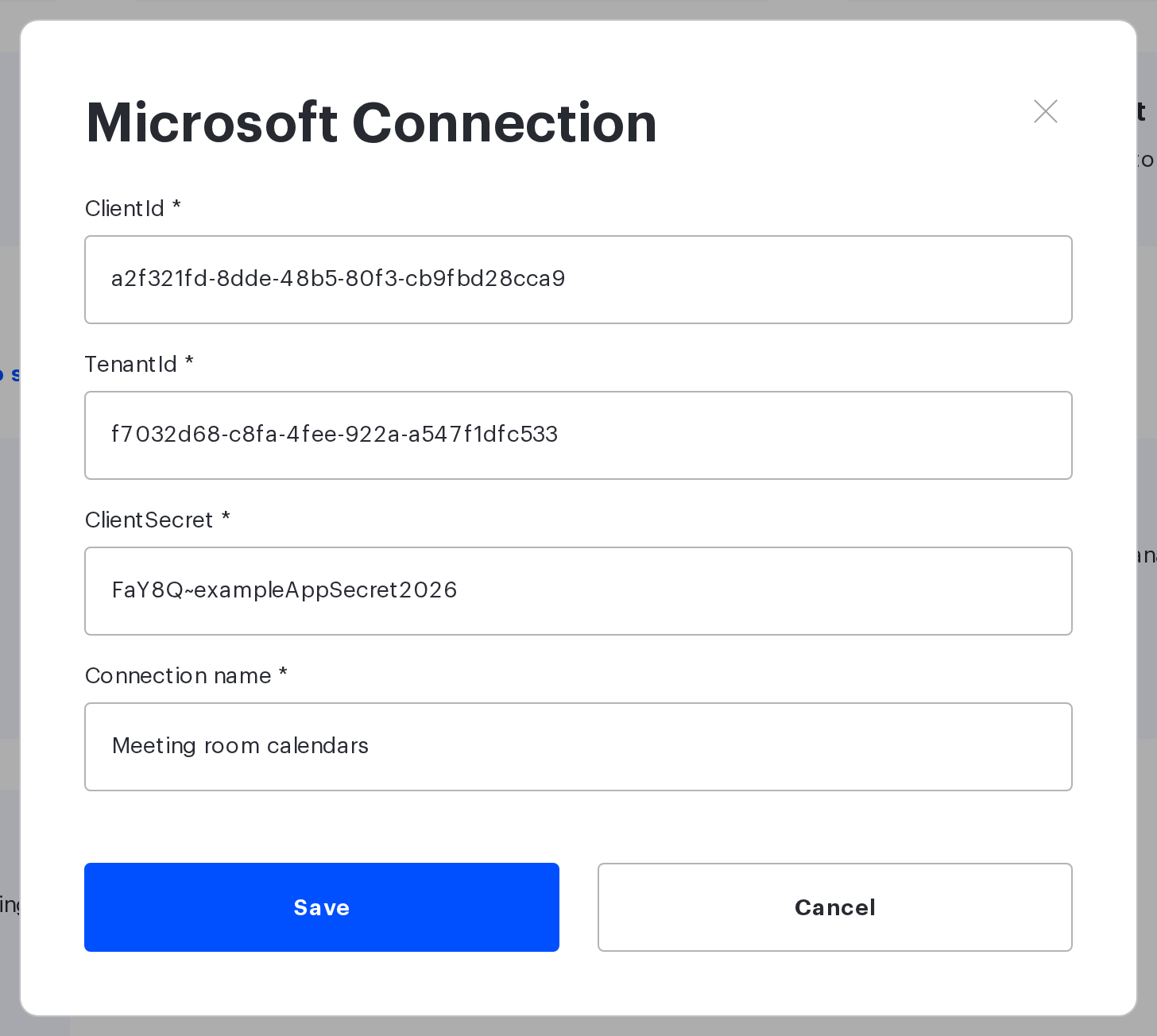
After you click Save, UnSpot verifies access by requesting the tenant’s room list from Microsoft. On success the window closes, the connection appears in the card list and the “Microsoft connected successfully” toast is shown. If the check fails, the form window stays open and a separate dialog shows the error description and the original Microsoft response.
Managing connections
- You can have several connections — each is shown as a separate card, and there is always a card with a Connect button to add another one.
- Edit — change the connection. ClientId cannot be edited (create a new connection for a different application); TenantId, ClientSecret and the name can. The saved secret is never displayed — the form shows a ******** mask instead; a new value is sent only if you type it in. UnSpot re-verifies access on save.
- Disconnect — removes the connection after a confirmation dialog. Meeting room calendars linked to this connection are disconnected together with it.
- If a connection stops working — for example, the ClientSecret has expired or consent was revoked — the card is marked “Connection Error”. Update the data via Edit. Until the connection is fixed, its tile stays in the room window, but picking it does not load the calendar list — the message Invalid credentials. appears (if the secret expired) or Insufficient permissions for service account or application. (if the permissions were revoked).
Connecting a room calendar
A calendar is connected from the meeting room card; no repeated Microsoft sign-in is required:
- Go to Manage → Office management → Workspaces, hover over the meeting room row and click Connect calendar.
- Pick the Microsoft tile with the name of the connection you need.
- In the Calendar connection window select the room’s resource calendar from the list and click Connect. The list shows calendars that are not yet connected to other rooms.
During the connection UnSpot attempts to create a test event titled [UNSPOT] Permission probe in the calendar — dated roughly a month ahead and five minutes long — and immediately deletes it. If the event could not be created, UnSpot shows the error message as a pop-up notification; the original Microsoft response is not displayed at this step — it is shown in the error window when the connection itself is saved. A meeting room with a connected calendar shows the Microsoft icon on the workspaces page. The calendar is disconnected the same way as for other providers — from the meeting room card.
Right after the calendar is attached UnSpot reads it: meetings that already sit in the room calendar show up as bookings within a minute. That is the sign that everything works.
Limitation: incoming synchronisation has to be restarted manually
To receive meetings created on the provider side, UnSpot subscribes to calendar changes. For calendars connected through an Entra application that subscription is currently not renewed automatically and expires about 70 hours after the calendar is connected.
What it looks like: bookings created in UnSpot keep appearing in the calendar, while meetings created in Outlook stop reaching UnSpot after a few days.
What to do until the fix ships:
- to pull in the missed meetings once — open the meeting room calendar window and click Start Sync. The button is available to a Super Administrator and no more than once an hour: the Available at caption next to it shows when the next attempt is possible;
- to restore the continuous event stream — reconnect the calendar to the meeting room.
The limitation has been reported to the development team. This section will be removed from the article once it is fixed.
Connection errors
| Message | What it means and what to do |
|---|---|
| Client ID is already used | A connection with this ClientId already exists. Register a separate Entra application for a second connection. |
| Invalid credentials. | Microsoft rejected the application sign-in. Check the ClientId, TenantId and ClientSecret; make sure the secret has not expired. |
| Insufficient permissions for service account or application. | The application lacks permissions. Check that the Place.Read.All and Calendars.ReadWrite application permissions are added and admin consent is granted. |
| External calendar provider error. | A general error while calling Microsoft. UnSpot shows the original service response in the error dialog — it points to the cause. |
| This calendar is already connected. | The selected resource calendar is already linked to another meeting room. |
| Room already has a connected calendar | A meeting room can have only one calendar — disconnect the current one first. |
| Calendar not found. | The resource calendar is not available to the application — check that the room exists in the tenant as a Room mailbox. |
Related articles
- Microsoft calendar synchronisation: choosing an option
- Microsoft 365 cloud: how calendar synchronisation works
- Microsoft Entra application: registration and permissions
- Connect Microsoft Exchange via impersonation
- Prepare Microsoft 365 calendar to work with UnSpot
- Office 365 meeting names fix
- Meeting room calendar: connection options overview
- Connect a meeting room calendar with a Microsoft 365 service account
