
How booking control works
Booking control (check-in) frees up resources nobody used: if an employee does not confirm a booking or does not come to the office, the system cancels the booking itself. This article covers the mechanics — which stages the control consists of, how the confirmation window is calculated, what exactly happens to an unconfirmed booking and what traces it leaves in reports. For the settings themselves, see the settings reference.
Two independent stages
Booking control has two stages, and they are switched on separately. These are not sequential steps of one check but two independent checks: each has its own time window, its own set of confirmation methods and its own mark on the booking.
| Stage | What it verifies | How users confirm | Label in the interface |
|---|---|---|---|
| First step | Is the booking still relevant? Does the employee intend to use it at all? | Remotely: a button in the email, in a push notification, in a corporate messenger or in the Bookings section | Remote check-in |
| Second step | Did the employee actually come to the office? | With the method the administrator selected: QR code, the meeting room display, automatically by the office network or by a PACS event. If Remote confirmation is among the enabled methods, an ordinary button works too — it just does not prove presence | In-Office check-in |
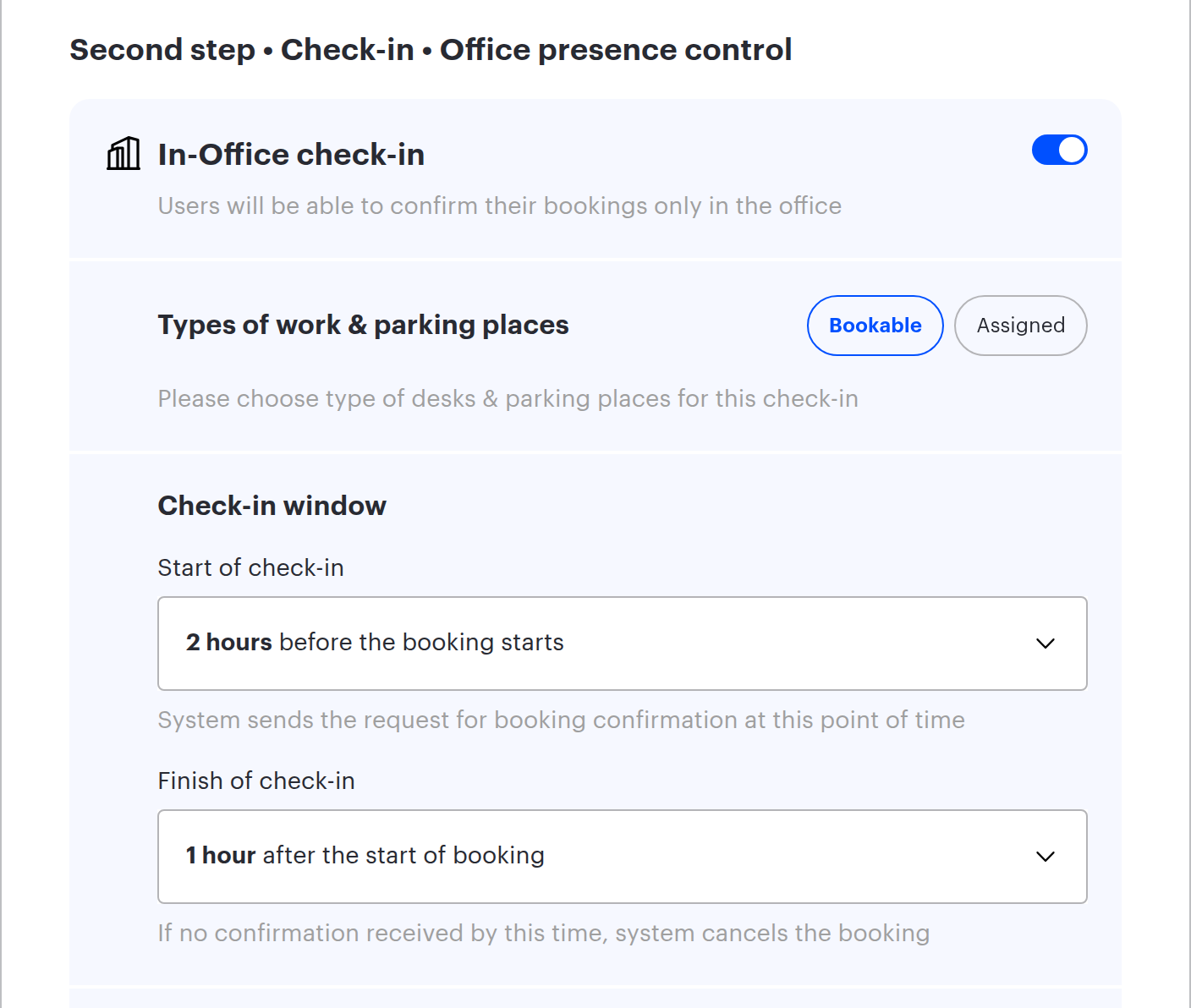
On the settings page the sections are titled First step • Check-in • Control of advance bookings and Second step • Check-in • Office presence control.
⚠️ Failing either enabled stage cancels the booking. A booking confirmed in advance still disappears if the employee did not confirm office presence at the second step — and the other way round. The stages do not substitute for each other.
How the time window is calculated
Each stage is defined by a pair of values, and both points are counted from the start of the booking — not from the moment it was created, not from “now” and not from its end.
| Field | What it sets | How the value reads |
|---|---|---|
| Start of check-in | The moment the window opens: the system asks for confirmation and accepts it | “24 hours before the booking starts” — anything from “at the time of starting the booking” up to 24 hours before |
| Finish of check-in | The moment the window closes: after it the booking is cancelled | “16 hours before the booking starts” or “1 hour after the start of booking” |
Note the second row: the closing moment can be either before or after the booking starts. That is why the first step closes 16 hours before the start by default — an advance confirmation has to finish well before the booking so that a released resource can still be taken by somebody else. The second step is the opposite: by default it waits for the employee up to an hour after the booking has already begun.
Other things worth knowing about the window:
- The first step must finish before the second one starts. Overlapping windows are rejected by the form with the message “Finish of check-in window of 1st step may not be later than start of 2nd step”.
- A booking created after the first-step window has opened gets that confirmation automatically. If the window is already open — or even already closed — at the moment of creation, the first step is marked at once: asking a user to confirm what they are doing right now makes no sense. The consequence: the first step only filters bookings made in advance — same-day bookings pass it untouched. This rule never applies to the second step.
- The window is not clipped by the end of the booking. The rule is always counted from the start; if the booking ends before the window closes, the reminder shows the deadline capped by the booking end. A booking that has already ended can no longer be confirmed either way.
- Every day is a separate booking and a separate confirmation. Multi-day and repeating bookings are created as separate records per day, so each one is confirmed on its own. The exception is a single booking that runs continuously for more than a day: it has one window, counted from the start of the first day.
- The timeline drawn on the settings page is an illustration, not a calculation for a specific booking. The booking start is shown at a fixed reference point; the hint under the timeline warns that for bookings starting at another time the actual moments shift.
What happens when there is no confirmation
When the window closes and the required mark is missing, the system reacts differently depending on whether the booking has started:
| State of the booking | What the system does | What the employee sees |
|---|---|---|
| The booking has not started yet | The booking is deleted | The booking is gone from the list; in the action log it is marked as deleted by the system |
| The booking has already started | The booking end time is moved to the current moment | The booking looks as if it finished early; the resource is immediately free for others |
In both cases the employee receives a notification about the cancelled booking — unless notifications were switched off by the “Switch off notifications” method (see check-in methods).
Practical consequences worth knowing in advance:
- The check runs continuously, not once a day. The control service reviews bookings once every 30 seconds, so a booking is cancelled almost immediately after the window closes.
- Bookings roughly a day ahead are in scope. The service works with bookings that start within about 24 hours; more distant ones simply have not been picked up yet.
- Cancellation by check-in and cancellation by a user are different events. They are logged differently and treated differently in analytics.
When a booking is confirmed automatically
There are four situations in which the employee has nothing to do:
| Situation | What happens |
|---|---|
| The booking was created after the first-step window opened | The first step is marked as confirmed at creation time. The second step is never closed this way |
| The booking was created by scanning the QR code of the resource | The first step is closed. The second step is marked automatically only if the first one is switched off: with both stages enabled, presence still has to be confirmed inside the second window |
| A meeting room booking was created from the display at the room | The same rule: the first step is closed first, and only with the first step off does the display close the second one |
| The employee belongs to the group in the Exception list | Both marks are set automatically and the booking is never cancelled |
Automatic presence detection is a separate case: with Automatic Check-in via Mobile Device or PACS enabled, the system sets the second-step mark itself as soon as it detects the employee in the office. See check-in methods.
Who can confirm a booking
Only the organiser of the booking can confirm it — the employee it is issued for. In addition, a Super Administrator and a meeting room display can do it, provided the device is allowed to check bookings in. Confirmation requests also go to that employee — the one the booking is issued for, not the one who created it.
⚠️ An Offices Administrator and an Office manager cannot confirm somebody else’s booking, even though they can change the check-in settings.
⚠️ A manager who booked a resource for a subordinate cannot confirm that booking, although they can edit and delete it. If booking on behalf of colleagues is common practice in your company, the second step will be impossible to satisfy for such bookings: only the employee themselves can confirm.
Guest bookings (with an external email address) are controlled on the same terms: the request goes to the guest address and a copy goes to the organiser.
What stays in the reports
Every confirmation and every cancellation is written to the booking log with the system as its author:
| Event | How it appears in the log |
|---|---|
| First step confirmed | Action CHECKED IN (REMOTE) |
| Second step confirmed | Action CHECKED IN (IN OFFICE) |
| Booking cancelled before it started | Action DELETED; the place of action shows which stage was missed — Checked in (Remote) or Checked in (In office); author — System |
| Booking cancelled after it started | Action STOPPED; the same place of action; author — System |
In analytics, bookings cancelled by check-in behave differently from ordinary ones:
- the By employee analytics tab has a dedicated segment for unconfirmed bookings cancelled by check-in — it shows how many bookings the company loses exactly because of missing confirmations;
- such bookings are excluded from desk and meeting room utilisation reports: the resource counts as unused, because nobody used it;
- they are not counted in attendance or in the employee schedule either.
Limitations and common misconceptions
| Misconception | How it actually works |
|---|---|
| “One confirmation is enough” | With both stages enabled, two confirmations are required: in advance and in the office |
| “The Cancel booking button in the email declines the confirmation” | It deletes the booking (the button is called Cancel booking in the email and simply Cancel in a push notification or a messenger). There is no intermediate “I do not confirm, but keep the booking” state |
| “Every resource has its own check-in setting” | Settings exist at the company, space and meeting room level. An individual desk or parking space has none — see desk and parking check-in |
| “A confirmation notification always arrives” | The “booking confirmed” message is sent in three cases: after confirming with the button in a push notification and after the phone auto-confirms by the office network — as a push notification back; after an automatic PACS confirmation — through every connected channel, including email. Confirming from the web interface, from a messenger, by QR code or from a display produces no notification |
| “The reminder comes twice” | A repeated reminder is sent only if less than an hour is left before the window closes and more than an hour has passed since the first one. With a short window there is no second reminder at all |
| “Rescheduling a booking resets the confirmation” | For meeting rooms it does: moving a meeting drops the confirmation and it has to be repeated. For desks and parking spaces the confirmation is kept |
