
“In meeting room” requests: setup
A service of the “In meeting room” type is what you order for a meeting: a coffee break, paper and markers laid out, help with the video link, cleaning after the session. A request for such a service is tied not to the room but to a specific booking, so the provider sees when the meeting starts and by when everything must be ready. The service is ordered by the organiser of the meeting, straight from their booking card.
When this type fits
The hint under the chips describes this type as: “Services related to a specific meeting room and a specific meeting. For example: a coffee break before the meeting, preparing the room, cleaning before or after, checking the equipment before the booked time.” The key word is “meeting”: without a booking, a request of this type cannot be submitted at all.
| Task | Which service type to use |
|---|---|
| Lay out a coffee break for the 3 p.m. meeting | “In meeting room” — the request is tied to the booking and carries its time |
| Repair the projector in a meeting room, unrelated to any particular meeting | “In the office” — the request is tied to the room as an object |
| Order stationery for a department | “For employee” — there is no object at all |
Creating the service
What you need: the Super Administrator or Offices Administrator role; the “My requests” module enabled (Manage → Company settings → the “Available functionality” block); an employee to assign as the provider.
- Open Manage → Office management → the “Services” tab and click “Add service”.
- In the “Service type” block choose “In meeting room”.
- In the “Where to process requests” block keep “Inside UnSpot” or choose “In external ticket system”.
- Fill in “Service” and, if useful, “Service description”.
- Fill in “Provider” — for processing inside UnSpot this field is required.
- Save the service. It appears in the table with “In meeting room” in the “Service type” column.
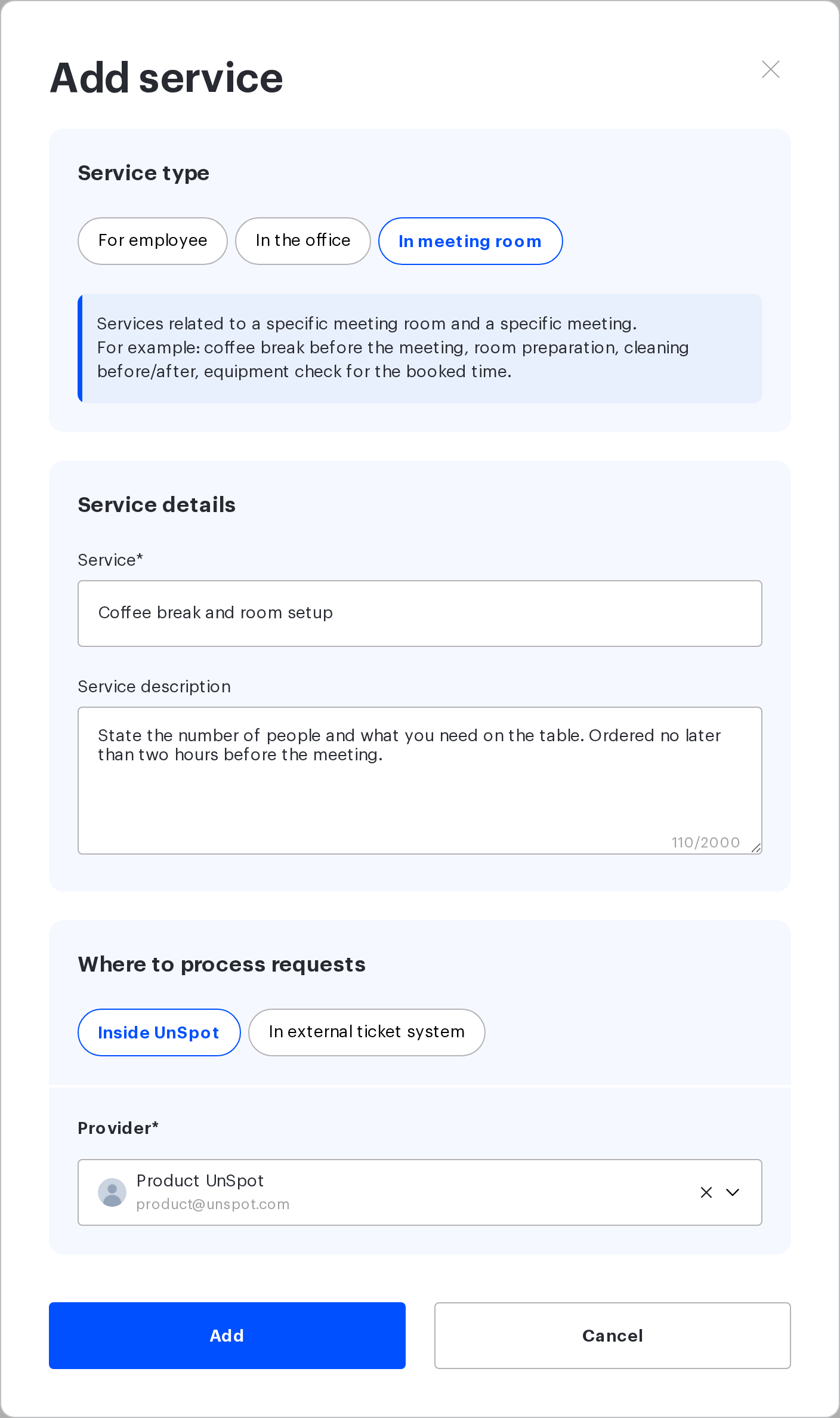
“Service type” and “Where to process requests” are set once and cannot be edited afterwards. In the edit form both chip groups are read-only. Everything else stays editable: the name, the description, the provider and the status toggle — and for services with external processing, the ticket-system address, the observers, the email copy checkboxes, the project ID and the priority level as well. To switch the type or the processing method, the service has to be deleted and created again.
This type has no “Service mode” block: private and public modes exist only for “In the office” services. Only a signed-in employee can order a service for a meeting.
Who can order a service for a meeting
The “Service” block appears on the meeting-room booking card, not in the UnSpot header. For the “Request service” button to be there, three conditions must hold at once. Plus one separate limitation: the block is not shown if the booking was created from a meeting-room display panel, that is, if its organiser is a device. Bookings from Google or Outlook whose organiser is an ordinary employee do show the block.
| Condition | What must be true |
|---|---|
| The module is on | “My requests” in the “Available functionality” block |
| A matching service exists | At least one service of the “In meeting room” type with its status switched on. For processing inside UnSpot that is not enough: the service must have an active provider — with a blocked employee the service will not appear in the order list |
| The employee has rights to this booking | They are the organiser of the meeting, or they manage all users, or they are the organiser’s manager |
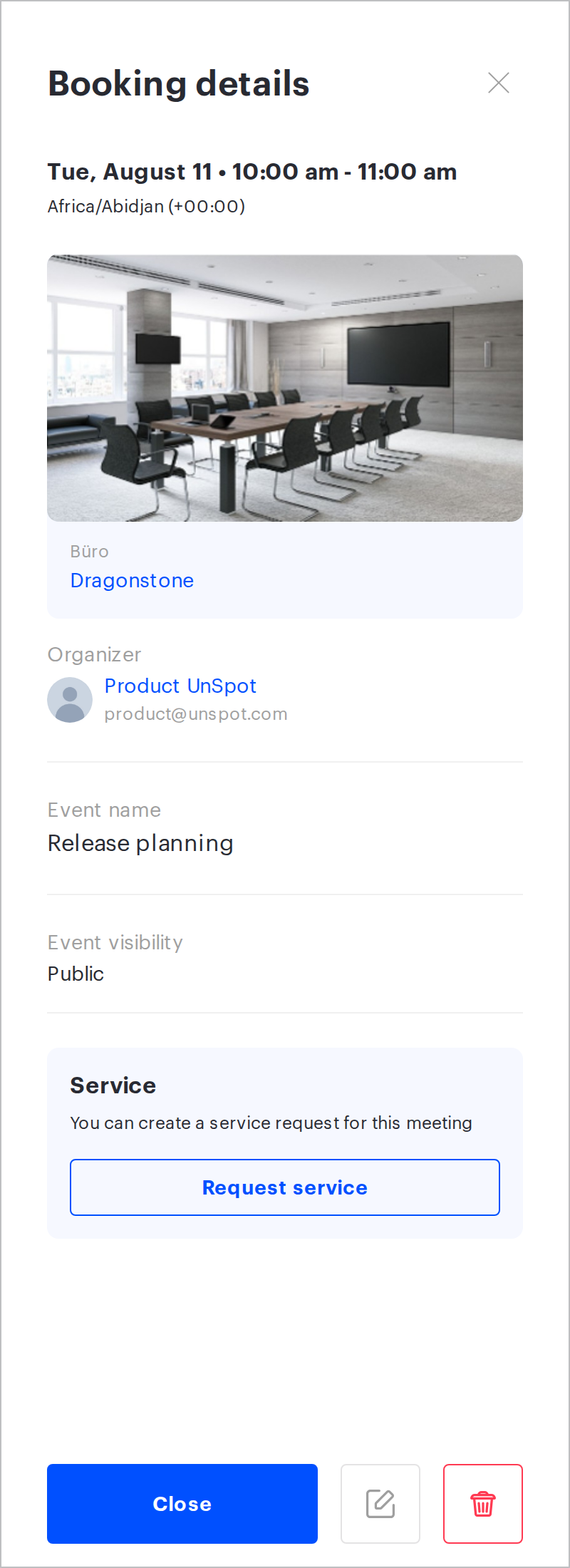
An ordinary attendee cannot order a service: the button is visible only to the organiser, their manager and an employee with the right to manage all users. The restriction lives in the interface — the request-creation endpoint itself does not check the organiser role.
The execution deadline
In the request form for a meeting, the “Execution deadline” field is shown instead of the attachments block. It is not an input field: UnSpot puts the start time of the meeting into it and lets neither the employee nor the administrator change it. The logic is simple — the service must be ready by the moment people walk into the meeting room.
The provider sees the same moment in the request list, in the “Execution” column. The request list also has an “Execution deadline” filter — the same wording as the field in the form, but a different meaning: the filter selects requests by the end time of the meeting rather than by its start, so for long meetings its result differs from what the column shows.
Requests of this type have no attachments. A photo or a file cannot be attached to an “In meeting room” request — the form has no upload block. Everything the provider needs has to fit into the request text, so it is worth describing in the “Service description” what exactly to specify: the number of people, the set of drinks, the serving time.
What happens when a meeting is moved or cancelled
The request lives together with the booking, and UnSpot keeps it in step when the booking changes. The automation touches only requests that are still in progress: those already in the “Done” or “Cancelled” status are left alone entirely.
| What happened to the booking | What happened to the request |
|---|---|
| The meeting time changed | The request goes back to the “New” status and the system entry “Booking was changed” is added to its history. The provider has to accept the request again, for the new time. If the request was already “New”, the status does not change, but the history entry is still added |
| The meeting was ended early with the stop button | The request is moved to “Cancelled” — the same way as when a booking is deleted, not the way a reschedule works. The status is final; the request cannot be brought back into progress |
| The booking was deleted | The request is moved to “Cancelled” with a system comment. This affects only requests in the “New” and “Accepted” statuses; closed ones are left alone |
| The meeting room was deleted entirely | The request is not cancelled and keeps its status. UnSpot ties such requests to the booking rather than to the room, so deleting the room does not touch them. In the list, the place of the request will read “Booking removed” — you will have to close it by hand |
The automation does not apply to requests with external processing. If the service is processed in an external ticket system, the request immediately gets the final status “Sent”, and moving the meeting does not touch it: the email to the external system has already gone out, and UnSpot does not send a second one. The reschedule has to be communicated to the provider separately — for instance, by an email to that same ticket system.
Things to keep in mind
| Detail | How to work with it |
|---|---|
| The request is tied to the booking, not to the room | For tasks about the meeting room itself, outside any meeting, create a separate service of the “In the office” type |
| The execution deadline equals the start of the meeting and cannot be edited | If the service has to be delivered before the start, state the lead time in the “Service description” — the form field will not help |
| The form has no attachments | Ask people to describe the order in text; a photo cannot be attached to such a request |
| Moving a meeting returns the request to “New”, while ending it early cancels the request | Warn the providers: a request reappearing in progress is not a duplicate but the result of a reschedule. If the meeting finished early and the service is still needed, the request has to be created again |
| The service type and the processing method cannot be changed after saving | Decide before the first save; to switch, delete the service and create it again |
| A service cannot be deleted while it has requests in the “New” and “Accepted” statuses | Close those requests, or simply switch the service off with the status toggle |
Related articles
- Service requests: overview — which service types exist and which to choose
- “For employee” requests: setup — setting up “For employee” requests
- “In the office” requests: setup and QR codes — setting up “In the office” requests and QR codes
- Processing requests in an external ticket system — processing requests in an external ticket system
- Processing service requests — how requests are processed inside UnSpot
- Service request for a meeting — how to order a service for a meeting
