
By employee analytics: filters, period and employee selection
The By employee tab builds analytics for one selected person over one selected period rather than for the company as a whole. Both parameters are set in a single modal, and everything you see on the page depends on them: the set of blocks and the denominator of the percentages alike. This article walks through the parameters window field by field — what is selected where, which defaults apply, why the employee selector is sometimes unavailable and where the three-month limit comes from.
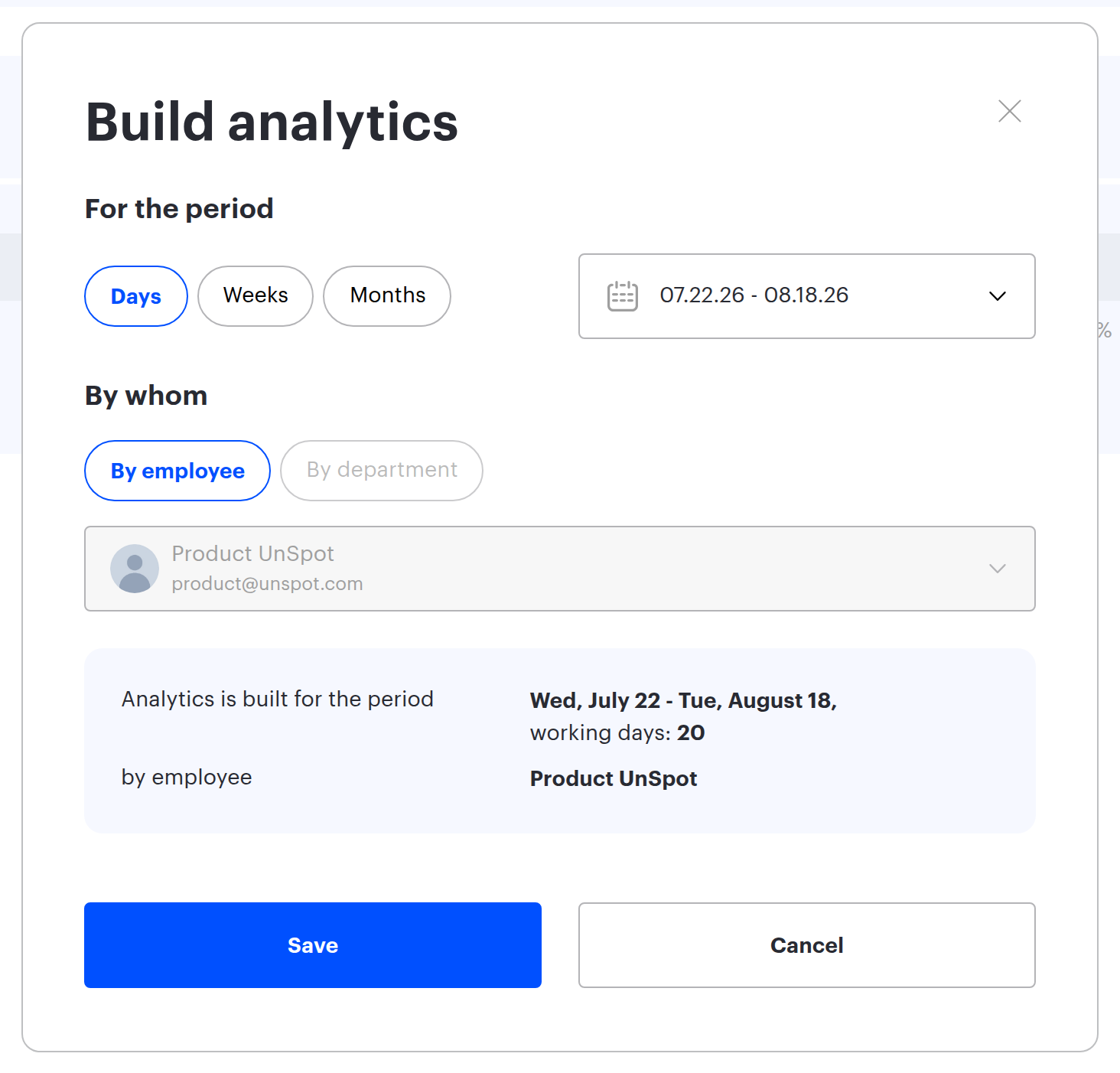
Where to open the parameters
Open Analytics → By employee and click the Filters button on the right-hand side of the header. The Build analytics window opens with three blocks: the period, By whom and the employee selector. Changes are applied with Save; Cancel closes the window without recalculating anything.
You do not have to open the parameters the first time you visit the tab: the analytics is built straight away using the default values.
| Parameter | Default value |
|---|---|
| Employee | yourself |
| Period | from “today minus four weeks” up to and including yesterday |
| Period grouping | Days |
| By whom | By employee |
The current day is not part of the default period — the period ends yesterday. You can still pick today in the calendar, and the Days chip sets exactly today’s date. The same default applies on the By office, By desks, On the map and Meeting Rooms tabs.
Employee selection
The employee field is mandatory: without it the analytics cannot be built. The list contains you and everyone the system considers your subordinate. That is not only the people listed explicitly in your own user card: the circle is assembled from several sources, and they combine with an “or”.
- You are marked as the head of a department in the org structure.
- The employee is listed in the subordinates field of your user card.
- You are listed in the manager field of the employee’s card.
- The employee belongs to a group listed in the Teams field of your user card: you get the rights to that group’s work schedule and bookings, and its members appear in the employee selector.
- You are allowed to manage all users — then the list contains the entire company.
If the field is disabled, you have no subordinates. When the response contains exactly one person — yourself — the field stays locked and the tab works only for your own profile. This is neither an error nor a sign of missing permissions: there is simply nobody to choose from.
Whose profile is open also determines the set of blocks: your own profile shows three blocks, someone else’s shows six. The three “control” blocks — schedule fill, attendance rate and the attendance check — are what a manager needs to look at the team, so they are not rendered in your own profile. What is inside them is explained in the articles about the schedule and office attendance and about cancelled bookings.
Period and grouping
The period is set with the calendar at the top of the window. Above the calendar there are three grouping chips: Days, Weeks, Months.
Any click on a grouping chip resets the period you have already selected instead of re-splitting it — including a repeat click on the chip that is already active. This is the most common surprise on this screen: you pick an interval, then click a chip — and the interval is replaced by a new one.
| Chip | What happens when you click it |
|---|---|
| Days | the period resets to the current day, the second date is cleared |
| Weeks | the period resets to the current week |
| Months | the period resets to the current month |
Hence the order of actions: pick the chip first, then select the dates. Do it the other way round and the selected dates are lost.
The three-month limit
The reporting period on this tab cannot be longer than three months. If you try to select more, a red banner with the text “The reporting period cannot be longer than three months” appears under the calendar in the parameters window and the Save button goes inactive. If the period does reach the server, the same text is shown as a pop-up warning and the page keeps the previous numbers.
The limit is checked in three places, and their thresholds differ slightly: the parameters window disables Save already at exactly three months, the check that runs when the filter is applied fires only at strictly more than three, and the server rounds any extra day up to a whole month. So an interval of exactly three months plus one day passes the window and is rejected by the server. A reliable choice is an interval noticeably shorter than three months — two months, for example, or a quarter minus a week.
The limit does not apply to every tab of the section: the same three-month limit is in force on By employees, By office and By desks, while on On the map and Meeting Rooms the length of the period is not limited at all.
The description line under the heading
Under the employee name there is a line repeating the current parameters: “Analytics is built for the period …”, “by employee …” and the working days counter. It exists so that you do not have to open the parameters window just to check what the numbers were built for.
The working days counter in this line and the denominator of the chart percentages follow the same rule — the working days of the period by the company work calendar and the company week template. The only difference is where they are calculated: the counter in the browser, the percentages on the server. ⚠️ The two numbers normally match; they can diverge when the period spans two calendar years, because the interface loads the work calendar only for the year the period starts in. This is not an error in the data.
The By department chip does not respond
The By whom block has two chips: By employee and By department. The second one is displayed but disabled and non-functional — building analytics for a whole department is not implemented on this tab yet.
If you need the picture for a department rather than for a person, use the other tabs of the section. Schedule completion, the work schedule and the attendance rate for a whole department are shown on the By employees tab with the By department filter. For workload rather than schedules, use By office with a department filter, or By desks, where the whole report is built around the org structure.
Frequent questions
| Symptom | Reason |
|---|---|
| The employee selector is greyed out | you have no subordinates — only your own profile is available |
| The selected dates disappeared | a grouping chip was clicked after the dates were selected; it resets the period |
| Save was clicked but the numbers did not change | the period is longer than three months — the request was not sent and a warning was shown |
| The current day is missing from the report | the default period ends yesterday; today has to be added manually |
| A colleague’s profile has more blocks than your own | this is by design: the three control blocks are not rendered in your own profile |
| The working days counter does not match the percentages | the period spans two calendar years: the interface loads the work calendar only for the year the period starts in |
