
Processing requests in an external ticket system
Requests for a service can be processed outside UnSpot, in your own ticket system: every request goes out as an email to the address you specify, and the email carries service headers with it — the provider, the observers, the project ID and the priority level. That is how the Services module plugs into a service desk you already run, without making employees create accounts in it. The processing method is set per service and is available for all three types — “For employee”, “In the office” and “In meeting room”.
How it works
When an employee submits a request for a service with external processing, UnSpot does three things at once: it stores the request, gives it the “Sent” status immediately and sends an email to the address of your ticket system. From that point the request lives in the external system — UnSpot never comes back to it.
This is a one-way handover, not a two-way integration: the ticket number from the external system does not arrive in UnSpot, the status in UnSpot never changes again, and on the “My service requests” page the employee always sees “Sent”.
| What we compare | Processing inside UnSpot | Processing in an external system |
|---|---|---|
| Provider | Required | Optional: used only as the value of a service header and as an address for the email copy |
| Status of a new request | “New” | “Sent” — final, cannot be changed |
| The “Accept”, “Confirm fulfillment” and “Cancel request” buttons | Present | Absent |
| Changing the provider inside a request | Available to the Super Administrator until the final status | Not available |
| Status history | Accumulates | A single entry |
| Emails | On creation and on every status change — to the initiator and the provider | One email on creation — to the external system address |
| Request attachments | Stored in UnSpot, not attached to emails | Attached to the email as files |
| Deleting the service | Blocked while there are requests in the “New” and “Accepted” statuses | Always possible: requests of such a service are never in progress |
Setting up a service with external processing
What you need: the Super Administrator or Offices Administrator role; the “My requests” module enabled (Manage → Company settings → the “Available functionality” block); the email address from which your ticket system creates tickets.
- Open Manage → Office management → the “Services” tab and click “Add service”.
- Choose the “Service type”: “For employee”, “In the office” or “In meeting room”. A hint about the selected type appears under the chips.
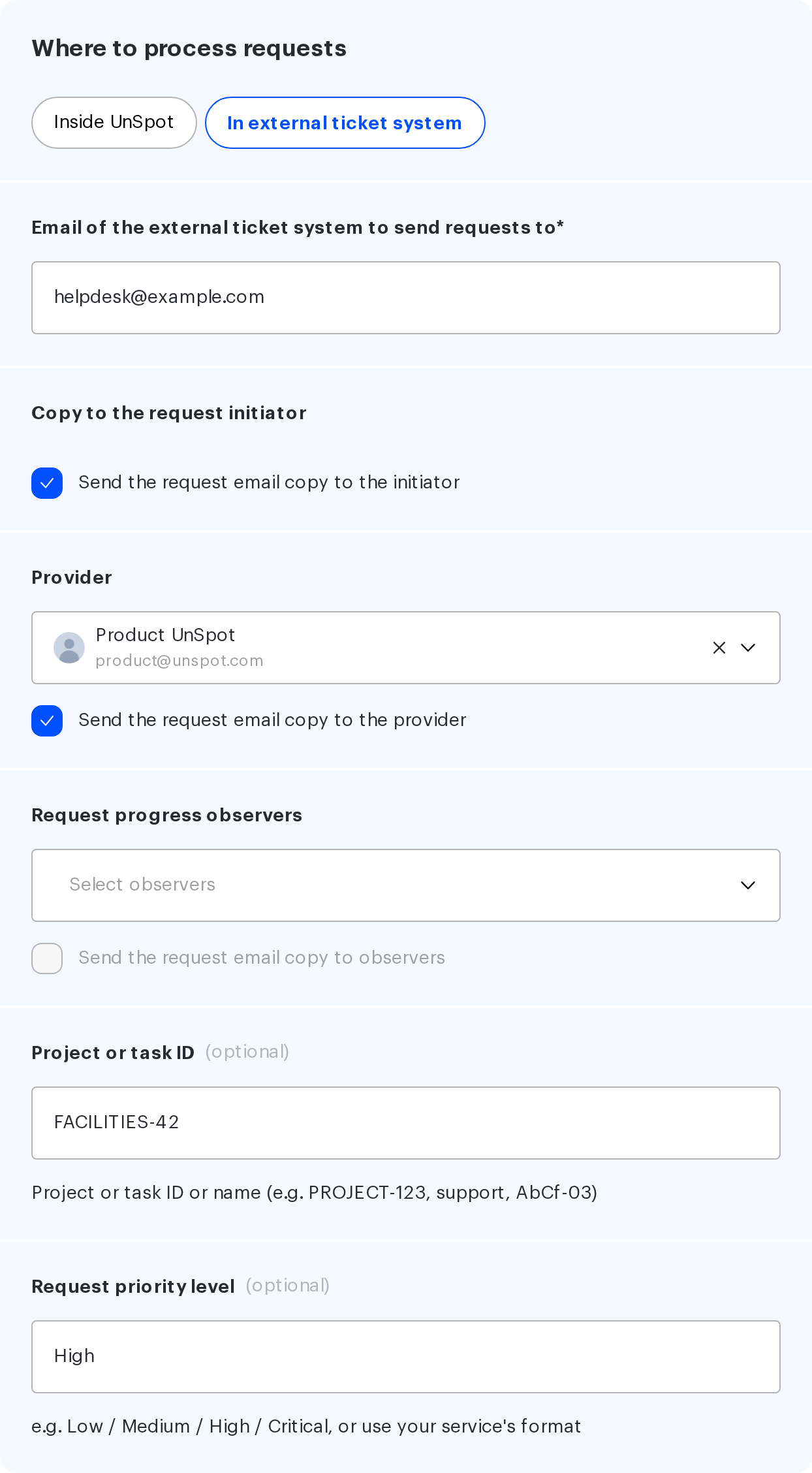
- In the “Where to process requests” block choose “In external ticket system”.
- Fill in “Service” and, if useful, “Service description” — the employee sees them in the request form.
- Fill in the integration fields — they are described below.
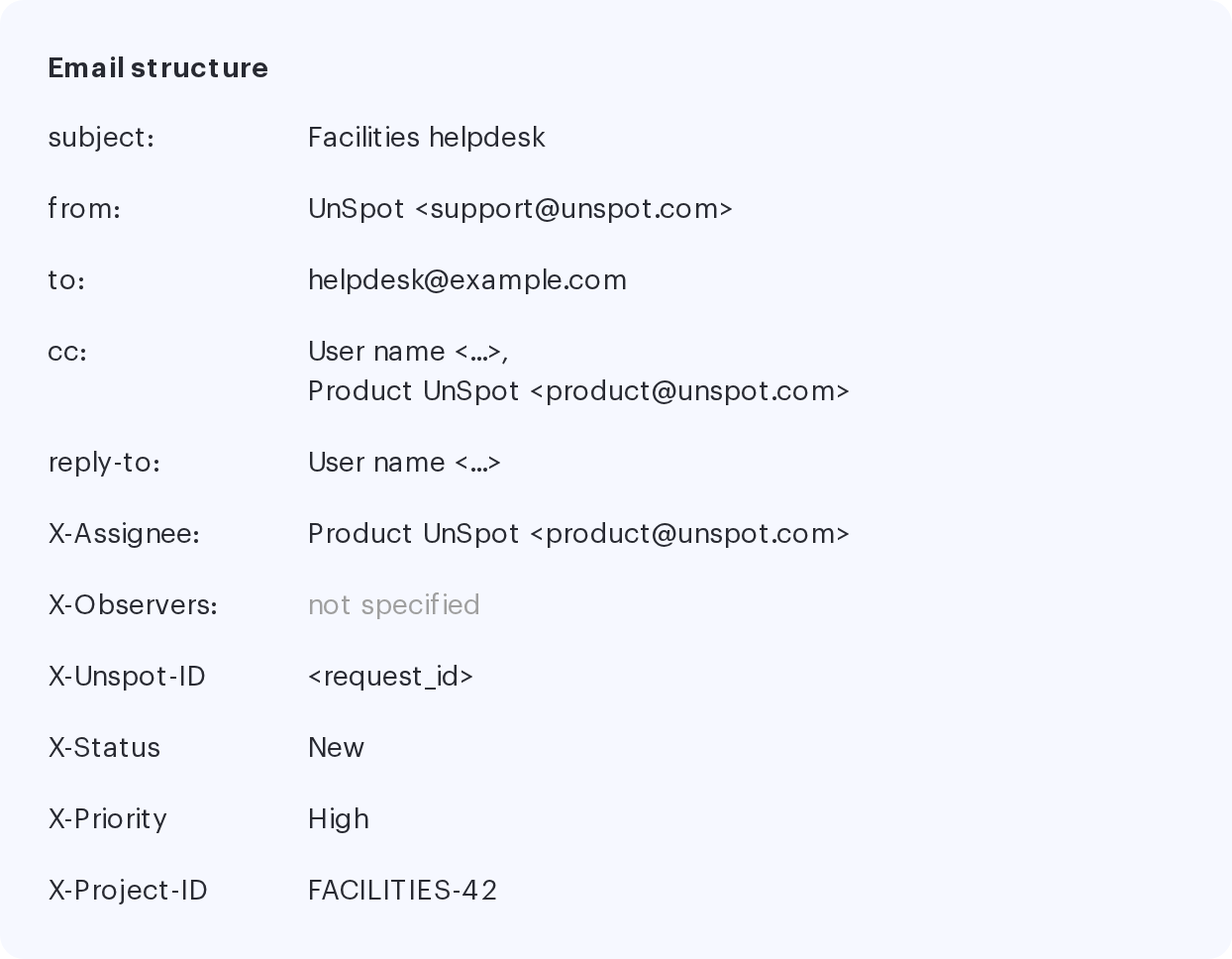
- Check the “Email structure” block: it shows how the header part of the email will look with the current values of the form.
- Save the service. It appears in the table with “External” in the “Request type” column.
The processing method cannot be changed after saving. In the service edit form the “Service type” and “Where to process requests” chips are read-only — only the remaining fields can be changed. To move a service from internal to external processing you have to delete it and create it again, and a service with internal processing can only be deleted once all of its requests have reached the “Done” or “Cancelled” status. Plan this before the first save.
Integration fields
| Field | Required | What it controls |
|---|---|---|
| “Email of the external ticket system to send requests to” | Yes | The only recipient of the email. Use the address from which your ticket system creates tickets |
| “Provider” | No | Their address is passed in the X-Assignee service header. For a service with external processing the provider is optional — unlike an internal one |
| “Request progress observers” | No | Their addresses are passed in the X-Observers service header, comma-separated |
| “Project or task ID” (optional) | No | Free text up to 255 characters, passed into the X-Project-ID header unchanged. The hint in the interface suggests the formats PROJECT-123, support, AbCf-03 |
| “Request priority level” (optional) | No | Free text up to 255 characters, passed into the X-Priority header unchanged. The hint suggests Low / Medium / High / Critical or the format used by your own service |
| “Send the request email copy to the initiator” | No | Adds the author of the request to the email copy |
| “Send the request email copy to the provider” | No | Adds the provider to the email copy |
| “Send the request email copy to observers” | No | Adds the observers to the email copy. The checkbox is available only when at least one observer is selected |
UnSpot does not validate the values of “Project or task ID” and “Request priority level”: this is free text passed into the email header byte for byte. They will work exactly as far as your ticket system is able to parse them — check its email processing rules before filling the fields in.
What the email carries
The subject of the email is the service name, with no date and no request number. The body contains the heading “Service request submitted”, a block with the object data (for “In meeting room” requests — the date, the meeting name and the organiser; for “In the office” requests — the place and the office), the request block itself (service, request text, provider, status, comment) and a “Go to UnSpot” button leading to the request card. Images attached by the employee are attached to the email as files.
Beyond the visible part, the email carries service headers — the ticket system sorts requests by them:
| Header | Value | When it is sent |
|---|---|---|
| X-Assignee | The address of the service provider | Always, if a provider is set and active |
| X-Observers | Observer addresses, comma-separated | Always, if observers are set |
| X-Status | The constant value New | Always |
| X-Unspot-ID | The request identifier in UnSpot | Always |
| X-Priority | The value of the “Request priority level” field | If the field is filled in |
| X-Project-ID | The value of the “Project or task ID” field | If the field is filled in |
The X-Assignee and X-Observers headers are sent regardless of the copy checkboxes. The checkboxes only control who receives a copy of the email; the addresses of the provider and the observers leave for the external system in any case. If the work addresses of your employees must not leave the company perimeter, do not assign a provider and observers to services with external processing.
The value of the “Request priority level” field is passed into the X-Priority header unchanged. If you enter word levels such as “High” or “Critical”, make sure your ticket system parses text values of that header.
Email copies and the reply address
Copies are sent in the visible Cc field: every recipient sees the addresses of the others. There are no blind copies. Only active employees are put into the copy — a blocked or deleted initiator will not receive the email.
The reply address of the email is the address of the request initiator, if it is known — so a reply from the ticket system reaches the employee directly. Requests submitted by QR code without signing in have no initiator: such an email goes out with no reply address, and there will be nobody to answer. Keep this in mind if you enable external processing for a public service.
What happens to the request after it is sent
- The request is stored in UnSpot and is visible on the “Service requests” page alongside the others.
- Its status is “Sent”. That status is final: such a request has no processing buttons, and neither the status nor the provider can be changed.
- The status history consists of a single entry — the sending itself.
- The email goes out once, at the moment the request is created. There will be no follow-up emails for this request.
- Attachments stay available for download from the request card in UnSpot.
Things to keep in mind when setting it up
| Detail | How to work with it |
|---|---|
| The “Sent” status means UnSpot has sent the email. UnSpot receives no delivery confirmation and does not reflect one in the request | Track incoming requests on the ticket system side, not by the status in UnSpot |
| The handover is one-way: the ticket number from the external system does not come back, and the status in UnSpot is not synchronised | If the employee needs the ticket number, set up an auto-reply on the ticket system side — the reply address of the email leads to the request initiator |
| The email subject is identical for all requests of one service | Set your ticket system parsing rules on the X-Unspot-ID header, not on the email subject |
| The processing method is set once, when the service is created | Decide before the first save; to switch, delete the service and create it again |
| The request form does not say that the service is processed in an external system | Write about it in the “Service description” field — it is shown to the employee under the selected service |
Related articles
- Service requests: overview — which service types exist and which to choose
- Processing service requests — how requests are processed inside UnSpot
- “For employee” requests: setup — setting up “For employee” requests
- “In the office” requests: setup and QR codes — setting up “In the office” requests and QR codes
- “In meeting room” requests: setup — setting up “In meeting room” requests
