
Publishing a seating draft
Publishing is the moment a draft becomes the map employees book from. This article covers how to start it, what happens to the floor plan, the objects, bookings and assignments, and what the product does if something has changed while the draft was waiting.
Starting the publication
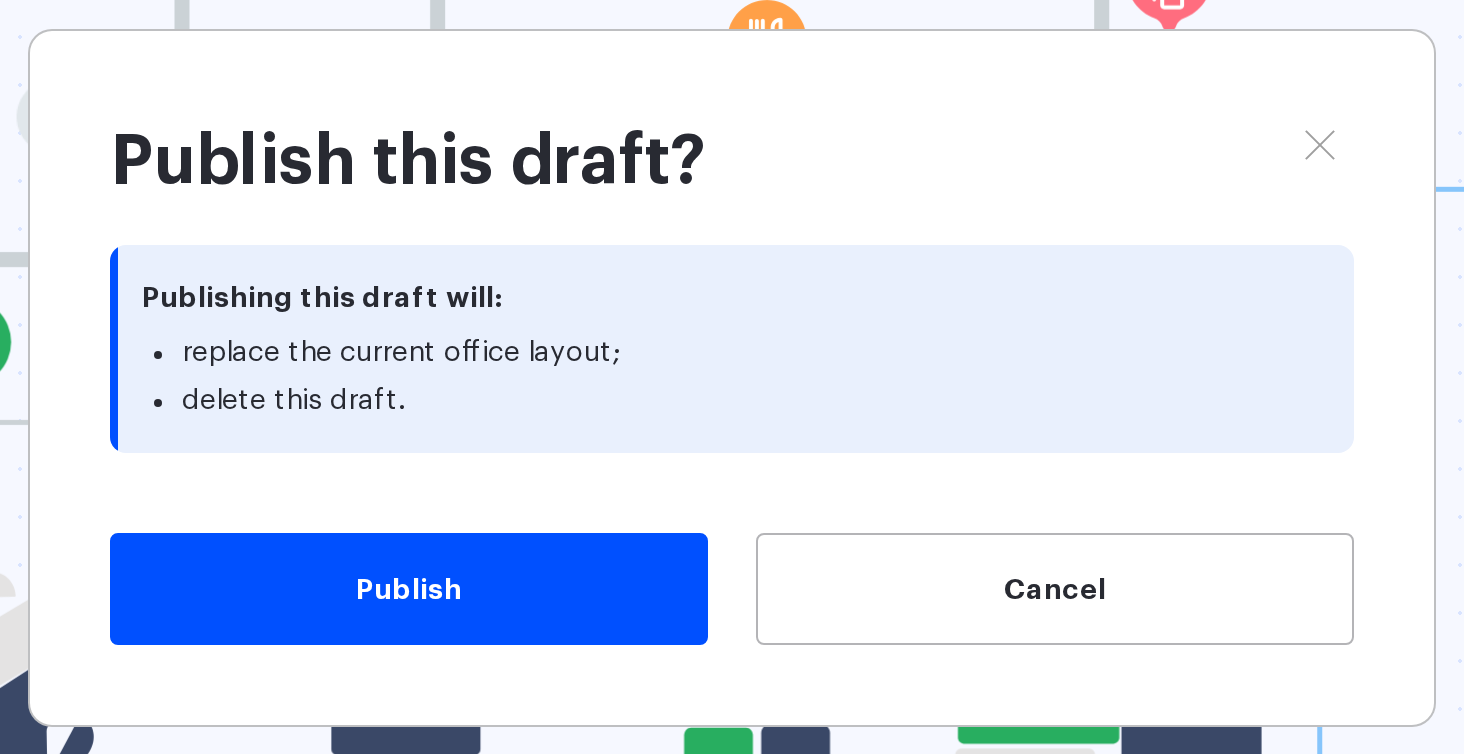
The Publish button is in the map editor opened on a draft. Before it runs, a confirmation dialog names both consequences: the workspace map will be replaced completely, and the draft itself will be deleted. Current changes are saved into the draft automatically before publishing, so there is no need to press Save separately.
After publishing, the editor closes and you are back on the Drafts page. The published draft is no longer in the list.
The Publish button is active as soon as the draft has a floor plan — even if you changed nothing: publishing an unchanged draft replaces the map and deletes the draft all the same. Publishing cannot be undone — the previous version of the map is not kept. If you want a safety net, run Duplicate on the published version on the Drafts page before publishing: the copy stays as a backup draft from which the previous layout can be published back.
What happens to the map
- the floor plan from the draft becomes the floor plan of the workspace — if you replaced the background in the draft, it is replaced here too;
- the published version receives the whole set of objects from the draft;
- the workspace name does not change — the draft name is not carried over to it;
- the published version is still called “Seating plan”.
What happens to the objects
| Situation | Result of publishing |
|---|---|
| An object was created in the draft | Created on the workspace map as a new object |
| An object exists both in the draft and on the map, but was changed | Updated on the map |
| An object was not changed and is still on the map | Stays as it was, nothing is rewritten |
| An object is in the draft, but it was deleted from the published map in the meantime | Created again — as a new object with a new identifier. External references to the former object (in integrations, reports and exports) will not point to it |
| A desk, a parking space, a pod or a point of interest is on the published map but was deleted from the draft | Deleted from the workspace map |
| A meeting room, a locker or a nested workspace is on the map but was deleted from the draft | Removed from the map, but kept in its own settings section and still available to be placed again |
| A meeting room, a locker or a nested workspace was deleted from the product | Skipped: publishing is not interrupted |
Hence the main practical rule: after publishing, the workspace map looks exactly like the draft. Technically the product compares the draft with the published map and applies the difference, but the result is the same. If someone added an object directly to the published map after the draft was created, publishing the draft makes that object disappear — the draft does not know about it.
What happens to bookings and assignments
- a desk assignment configured in the draft turns into real bookings after publishing;
- if the usage type of a desk or the set of assigned employees changed, existing bookings may be released — this is controlled by the corresponding setting in the desk card, which you set while still in the draft;
- emails about a change of desk are not sent to employees when a draft is published;
- assigning a desk For period is not available in a draft — if you need it, configure it on the published map after publishing.
If the data went stale while the draft was waiting
A draft can sit for weeks, and something in the company will change in the meantime. Publishing does not fail because of that: references that no longer exist are simply dropped.
| What changed in the product | How publishing handles it |
|---|---|
| An employee was deleted | Removed from the employees assigned to the desk (deactivation is not checked) |
| An access group was deleted | Removed from the groups and from group-based assignments |
| An amenity was deleted | Removed from the amenities of the desk |
| A department was deleted | The desk is left with an empty department value |
| A meeting room, a locker or a nested workspace was deleted | The object is skipped and is not carried onto the map |
The same alignment with the current state happens when you simply open a draft, so as a rule there are no surprises left at the moment of publishing. There is no “this draft is out of date” warning in the product — nothing tells you that the published map has moved on since the draft was made.
If publishing fails
Publishing either completes in full or does not happen at all. If a step fails, the map stays as it was, the draft is not deleted and the changes are not applied — you can look into the cause and try again. While publishing runs, the workspace map is locked; Publish changes on the published map takes the same lock, so a second operation started in those seconds waits up to 5 seconds and is rejected — with the same generic message as any other failure. The draft itself is not locked: you can keep editing it.
Messages you may see
| What you see | What it means |
|---|---|
| “Draft published successfully” | The publication went through: the map is replaced, the draft is deleted and you are back on the Drafts page |
| “Failed to publish draft. Please try again later.” | The publication was rejected as a whole: the map is unchanged and the draft is still there. The message does not say why; most often another administrator is saving or publishing the same map at that moment, or the floor plan file has gone missing. Try again in a minute; if that does not help, contact support |
| “Couldn’t update draft. Please try again later.” | The automatic save before publishing failed: the unsaved changes were not written and the publication did not start |
| The Publish button is inactive | The draft has no floor plan, or a load or save is still running. There is nothing to publish without a plan — upload the background in the Seating mode |
How this differs from editing the published map
If you open the editor on the published version straight away, the button is called Publish changes: it saves the edits into the working map and deletes nothing. Before saving, the “Notification to users” question is asked — “Yes, notify” emails the employees whose desk settings changed, “No” saves silently. A draft has no such question: publishing a draft never sends emails, even if the assignments in it changed. The publication confirmation and the deletion of the draft after it is applied are specific to drafts.
Who can publish
Drafts can be published by the Super Administrator, the Office manager and the Offices Administrator — the same roles that can create and delete drafts.
Related articles
- Seating drafts: overview — how map work is organised;
- Seating drafts: create, duplicate and delete — preparing a draft;
- Map editor: placing objects — what you can change before publishing;
- Printing the office map — printing the layout before or after it goes live.
- Office map editor: an overview of the actions — all the actions with the map.
