
Request for an office object and by QR code
If something specific is broken or has run out — the socket by the desk, the parking barrier, the paper in a meeting room — it is easier to submit the request for that object directly. Then the provider does not have to work out where exactly you are: the place is filled in automatically. There are three ways to submit such a request: from the object information card on the office map, from the requests menu, or via the QR code stuck on the object itself.
Which way to choose
| From the object information card | From the requests menu | By QR code | |
|---|---|---|---|
| Signing in required | Yes | Yes | No |
| Where you are at that moment | Anywhere: the object is picked on the map | Anywhere: the object is picked through search | Next to the object — the code is stuck on it |
| Is it visible who submitted the request | Yes, you are named as the initiator | Yes, you are named as the initiator | No, the request is anonymous |
| Can you check the status later | Yes, in the “Requests” section | Yes, in the “Requests” section | No |
| Which services are available | All enabled services of the “In the office” type | The same as from the object information card | Only those “In the office” services the administrator opened for submission without signing in |
If you are an employee of the company and have an account, choose either of the first two ways: the request will show up in your list, you will receive status emails and you will be able to cancel it if it becomes irrelevant. The QR code is made for people who have no account — visitors, tenants, contractors.
A request from the object information card
- Open the office map and click the object: a desk, a parking space, a meeting room, a point of interest or the office itself. A compact booking card opens.
- Go to the object information from it — the link is named after the object: “About the workplace”, “About the parking space”, “About room”. The information card opens at the side, with a row of actions at the bottom: “On the map”, “Link”, “Request”, “Edit”.
- Click “Request”.
- In the form that opens, pick the “Service”. You do not need to change the object — it is already filled in and shown as a card at the top.
- Describe the problem in the “Description” field and attach images if needed.
- Click “Send request”.
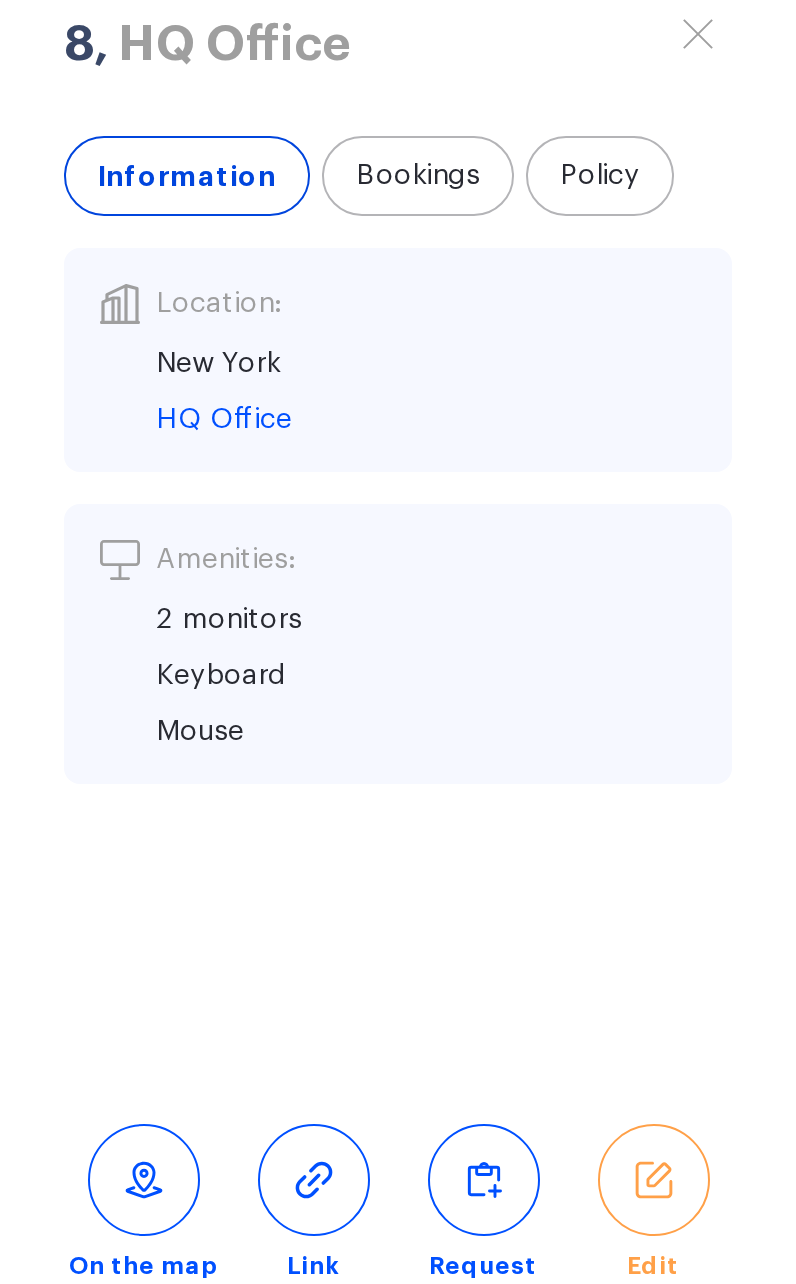
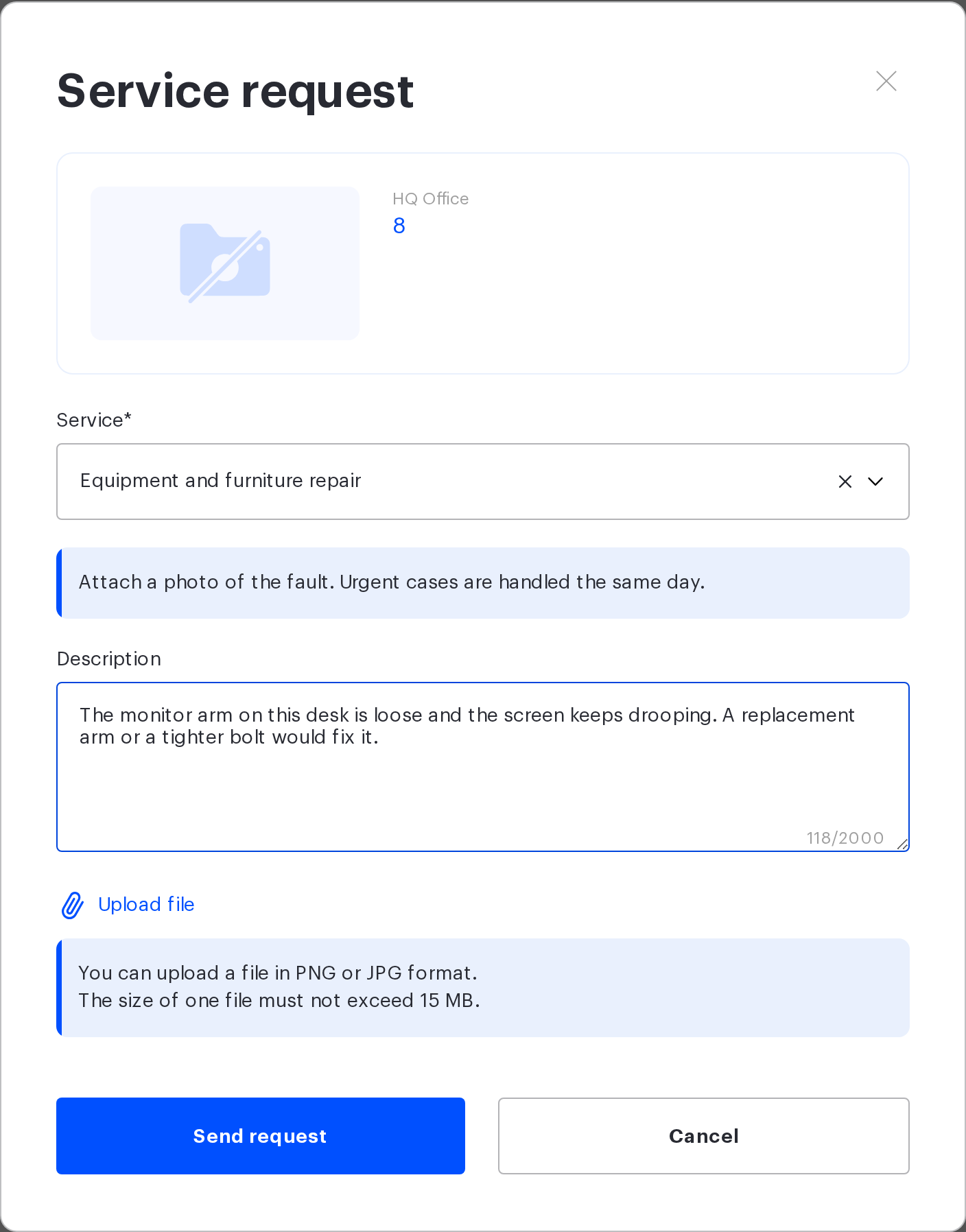
The “Request” button in the object information card does not depend on whether any services are configured: it is there even if the company has not created a single one. In that case the “Service” list in the form will be empty and the request cannot be sent — contact the UnSpot administrator of your company. The requests-menu entry, by contrast, appears only when the “My requests” module is enabled and the company has at least one active service of the right type — that is, a service that is not disabled and is either external or has a working provider. A service whose provider has been deleted, archived or deactivated does not bring the button back. If there is no button, or there is nothing to pick in the “Service” list, contact the UnSpot administrator of your company. Employees with the Reception role do not see that set of buttons at all, and on a meeting-room card the action block is hidden while the occupancy schedule is open.
Such a request cannot be submitted for lockers and individual locker cells: their information cards have no request button. If the problem is with a locker, describe it in an office request or in a “For employee” request and name the locker in the text.
A request from the requests menu
This way does not require finding the object on the map: the form opens empty and the object is picked through search. It helps when you are out of the office or do not remember where exactly on the plan the desk you need stands.
- Click “Create a request” in the app header. In the header burger menu, in the “Requests” section, the cards are listed as separate items, so step 2 can be skipped there.
- Pick the “Create an in-office request” card — “Submit a service request for an office resource”. If exactly one card is available, the form opens right away, with no drop-down list.
- In the “Service request” form click the “Find a resource” tile and pick the object in the search that opens. Five object types are available, split into tabs: “Desks”, “Parking”, “Meeting rooms”, “Offices”, “Points of interest”. “Desks” is open by default, and the “Search” field looks objects up by name.
- Check the card of the object you picked — it shows the image, the name and the office. The “Change” link lets you pick another object.
- Pick the “Service”, describe the problem in the “Description” field, attach images if needed and click “Send request”.
The “Object” field is mandatory: if you leave it empty, the form shows the “This field is required” error. There are no role limits — any employee can submit such a request. From the object information card on the map the form still opens with the object fixed, and it has no “Object” field.
⚠️ The object search is not limited to your offices. The choice may include objects of offices you have no access to, so check the office on the card of the object you picked before you send the request.
A request by QR code
Point your phone camera at the code — the request page opens. There is no need to sign in.
A note for employees: if you are already signed in to UnSpot in this browser, the public page will not open. You will be taken to the requests section with a ready form for the same object — and the request will be submitted under your name, not anonymously. That is more convenient: such a request has an initiator, emails and a way to follow its status.
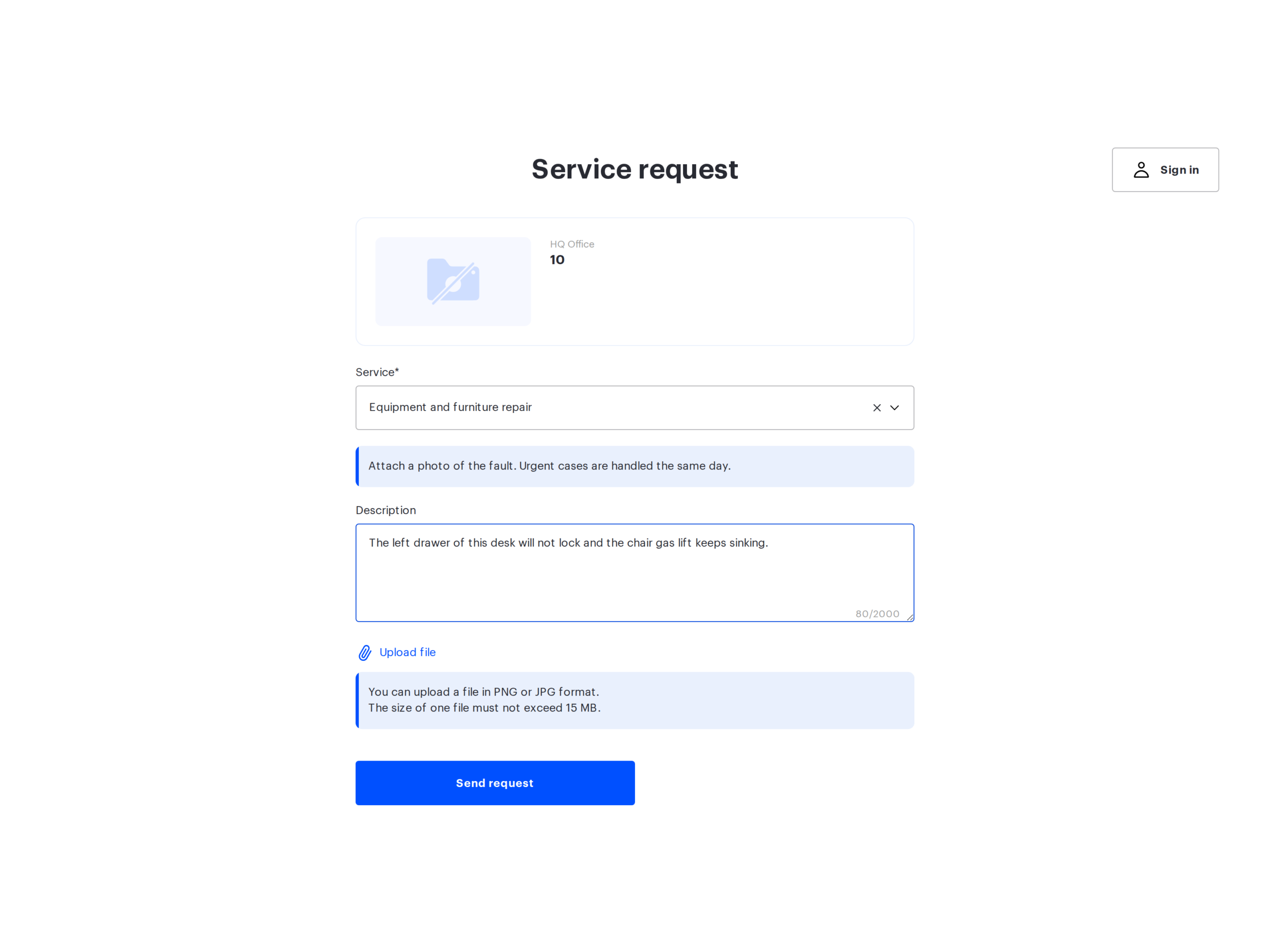
- Check the object card at the top of the page — it says what the request is about.
- Pick the “Service” from the list.
- Describe the problem and attach images if needed.
- Click “Send request”. The message “Request submitted successfully” appears and the form clears.
The service list may contain unfamiliar names. The page shows every service of the company that is open for submission without signing in: the list is narrowed neither by the object whose code you scanned nor by the office — services in UnSpot are created for the whole company at once and are not tied to an office. Choose by the meaning of the task, and if you are not sure, describe the problem in more detail in the text.
A request by QR code is anonymous. The page asks for no name, no phone and no email, and there will be no feedback on such a request: no number, no link, no way to check the status later. So describe everything at once and as precisely as possible, and if an answer matters to you, leave your contact right in the request text.
If you are an employee of the company, the page has a “Sign in” button. After signing in you land in the requests section with the form for the same object already open — and the request is submitted under your name, with all the emails and the ability to follow the status.
If the “404 Not Found” page opens instead of the form, the object behind the link was not found — most often it has been deleted — or the link itself is incomplete. Renaming an object or moving it elsewhere does not break the code. Tell the administrator: if the object has been deleted, the code has to be reissued.
What you can attach
The rules are the same for both ways: up to three images in PNG or JPG format. Documents and archives are not accepted.
A file larger than 2 MB is compressed by the system, and the compressed version is attached to the request; a file larger than 15 MB is not accepted at all. The message is the same in both cases — “You cannot upload a file larger than 15 MB” — although occasionally it appears for a smaller file that could not be compressed. Compression converts the image to JPG, so the transparent background of heavy PNGs is lost. Photos from a phone usually go through with no quality loss visible to the eye.
A photo is the most useful thing to attach to a request about an object: from it the provider immediately understands what exactly is broken and arrives with the right tool.
What happens after you send it
The request gets the “New” status and goes to the provider of the service. If the request was submitted from an account, you will find it in the “Requests” section → the “Service requests” tab and will receive an email on every status change. You can cancel your own request if it becomes irrelevant.
If the service is processed in an external ticket system, the status will be different — “Sent” — and it will not change any more: UnSpot passed the request there by email and does not track it further.
If you cannot find the request in the list, check the “Creation date” filter: it starts out showing today only.
If the object is deleted, the request for it closes automatically with the “Cancelled” status and a system comment. That happens when a desk or a parking space is removed from the map while the request is still in progress. Requests that are already closed are unaffected.
Related articles
- How to submit a service request — all three ways to submit a service request
- Service request for an employee — a request not tied to a specific place
- Service request for a meeting — a service request for a meeting
- “In the office” requests: setup and QR codes — how an administrator sets up such services and exports QR codes
