
Configuring resource access rights: all settings
This is a reference of every setting that controls workspace access in UnSpot: where each one lives, which values it takes, what it does and what it affects. If you need to understand the system as a whole rather than find a specific field, start with How workspace access rights work.
Settings map: where everything lives
| Setting | Where it is | Level |
|---|---|---|
| Access Groups | Manage → People management → Groups & Teams | Company |
| Assigning groups to an employee | Employee card → “User rights management” | Employee |
| Organisational structure and departments | Manage → People management → Organisational structure | Company |
| “Available for bookings for” (in the office card view mode — “Who can book”) | The office, building and floor card | Space |
| “Available for bookings for” | The desk and parking card on the map, the meeting room and locker card; a cell has the “Cell type” and “Access group” fields instead | Object |
| “Owner” | The desk or parking space card | Object |
| “Type of use”, “Booking type” | The desk or parking space card | Object |
| The booking horizon | The office card → “Booking Rules” | Office |
| Booking policies | Manage → Company settings | Company |
Access Groups
An Access Group is a list of employees plus a list of objects they are allowed to book. Section: “Manage → People management → Groups & Teams”.
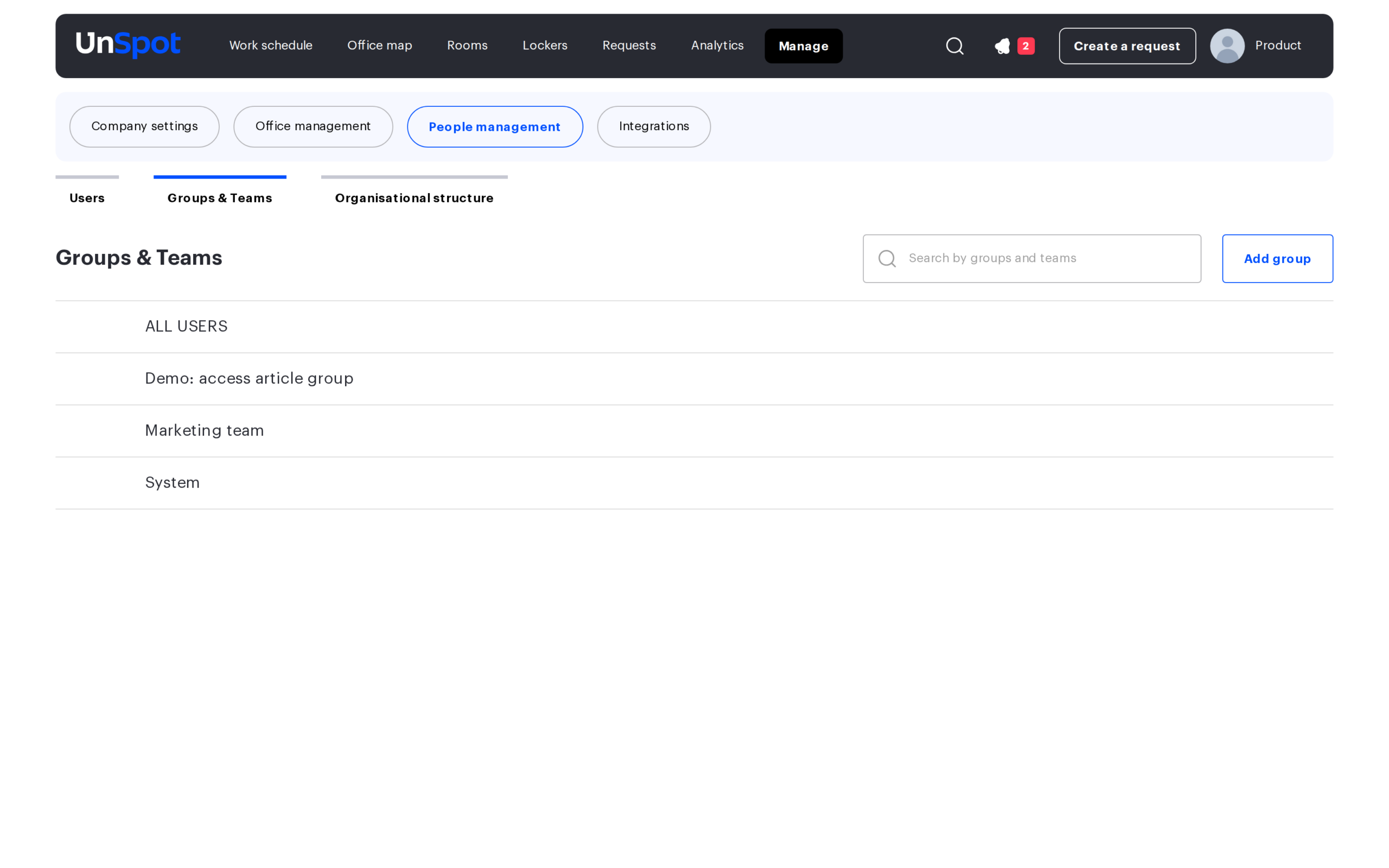
Creating, editing and deleting a group
- Open “Manage → People management → Groups & Teams” and click “Add”.
- Enter the group name. The name is mandatory, up to 255 characters, and must be unique within the company — a duplicate name will be rejected.
- Add users.
- Tick the objects available to the group.
- Save.
Editing uses the same card and the “Edit” button. Deleting uses the “Delete” button with a confirmation. Deletion limits:
- the built-in ALL USERS group cannot be deleted;
- the system group System cannot be deleted;
- a synchronised group that came from an external directory cannot be deleted — the interface reports that a synchronised group cannot be deleted;
- a group that is the last one left on a meeting room display cannot be deleted — connect the display to another group first.
The System group. The second built-in group: it is created together with the company, cannot be deleted and is added by default to the access block of new objects — desks, meeting rooms, offices, locker cells. A new object is immediately open to its members unless the group is removed while creating the object. The first company administrator and the employees arriving through user synchronisations join System automatically; the hint in the employee card calls its objects the “default resources”.
Group members
- There is no limit on the number of members.
- An employee may belong to any number of groups — their access rights add up.
- Archived and disabled employees are not shown in the group membership.
- For synchronised groups the membership is overwritten by the synchronisation: an employee who is not in the external directory group will be removed from it.
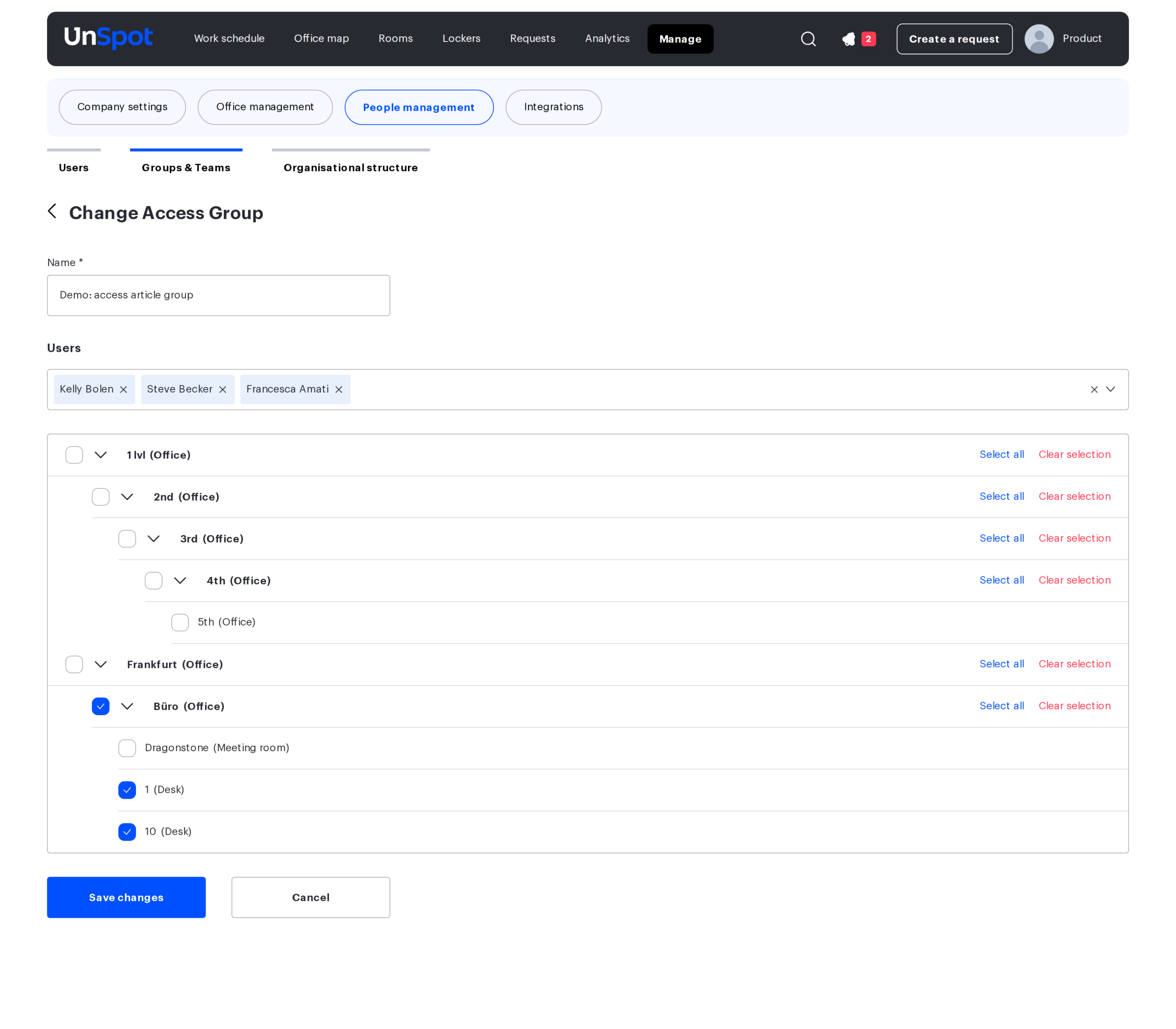
Objects in a group
A single group may contain objects of different types:
| Object type | What the link gives |
|---|---|
| Office, building, floor | The space is visible to group members. The resources inside are not opened by this |
| Desk | The desk is available for booking to group members |
| Meeting room | The meeting room is available for booking to group members |
| Parking space | The space is available to group members |
| Locker | The locker is visible to group members |
| Locker cell | The cell can be taken by group members |
| Meeting room display | The display shows the meeting rooms of this group |
Points of interest are not linked to groups. There is no limit on the number of objects in a group. An object can be linked from either side — from the group card or from the object card; the result is the same.
The built-in ALL USERS group
The group is created together with the company and stands first in the list. Its counter shows every active employee, and the card is captioned to say that all users belong to this group.
| Action | Available |
|---|---|
| Delete | no |
| Rename | no |
| Change the membership | no — employees are counted in automatically |
| Give another group the same name | no |
| Select it in the group list of an object card | no — the “All users” button is used instead |
Assigning groups to an employee
Creating a group and opening resources to it is only half the job: until the group is assigned to an employee, it does not affect their access. The assignment is made in the employee card: “Manage → People management → Employees → the card → User rights management → Access groups”.
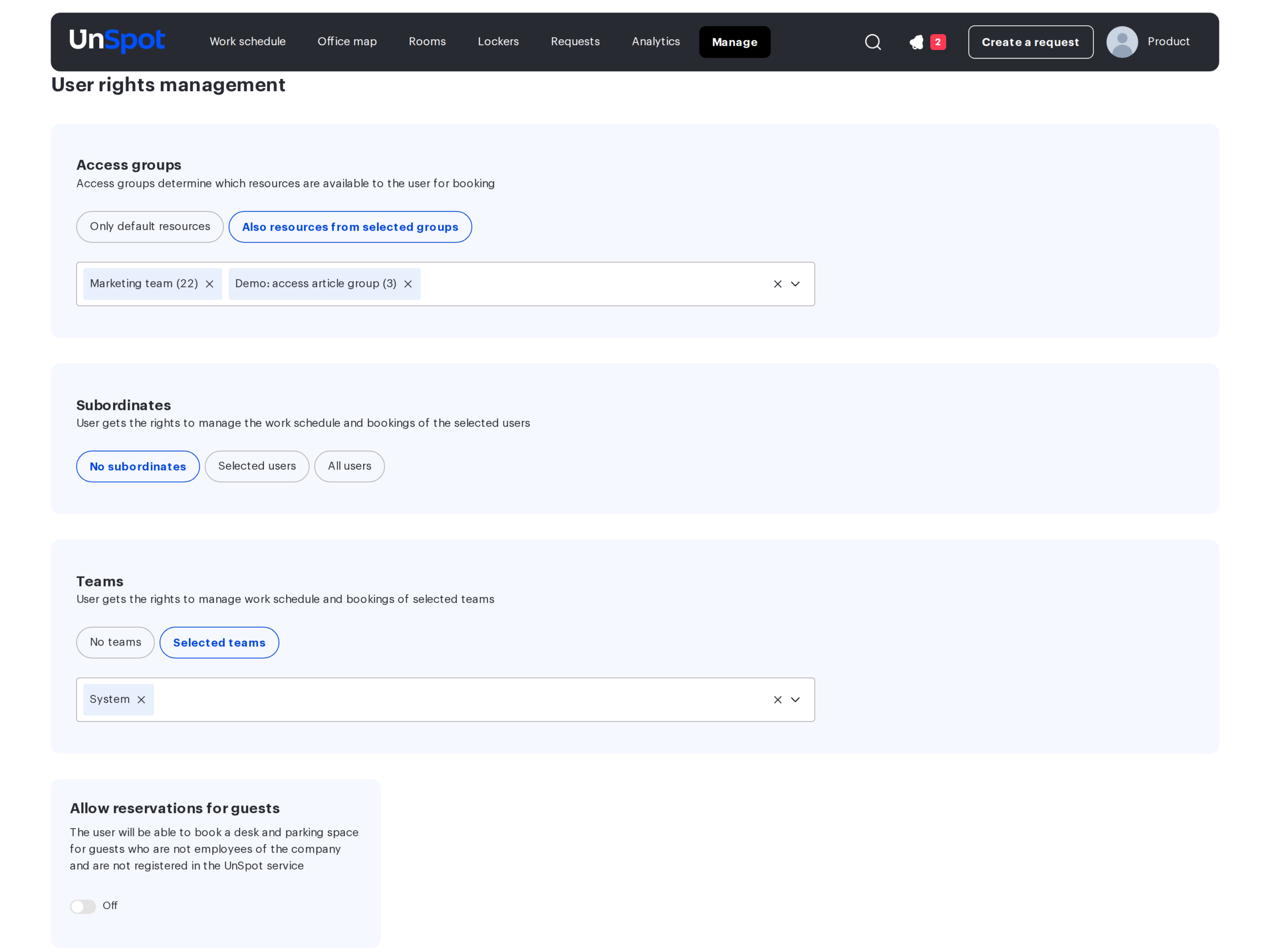
| Switch value | What it means |
|---|---|
| Only default resources | The employee gets the objects of the System group (the “default resources”), everything open to “All users”, plus access by department and by assignment |
| Also resources from selected groups | A group selection field appears below; the objects of those groups are added to what is available |
Groups cannot be assigned to an employee with an administrator role — the block in their card is unavailable, and the interface explains: “You cannot assign groups for administrator.”
Two similar-looking blocks sit next to it and have nothing to do with access: “Teams” makes the employee a manager of the selected teams, and “Subordinates” — of the selected employees: the interface hints describe it as the rights to “manage the work schedule and bookings”. Workspace access is not configured through these blocks.
Access on the object
Every object has its own access switch. On desks, parking spaces, meeting rooms and lockers it is called “Available for bookings for”. A locker cell has two fields instead: “Cell type” (“Available to all” / “Unavailable for booking”) and an “Access group” list — an empty list means no one. In the edit window of an office, a building and a floor the block is named the same way as on resources; the “Who can book” heading is what you see in the office card view mode.
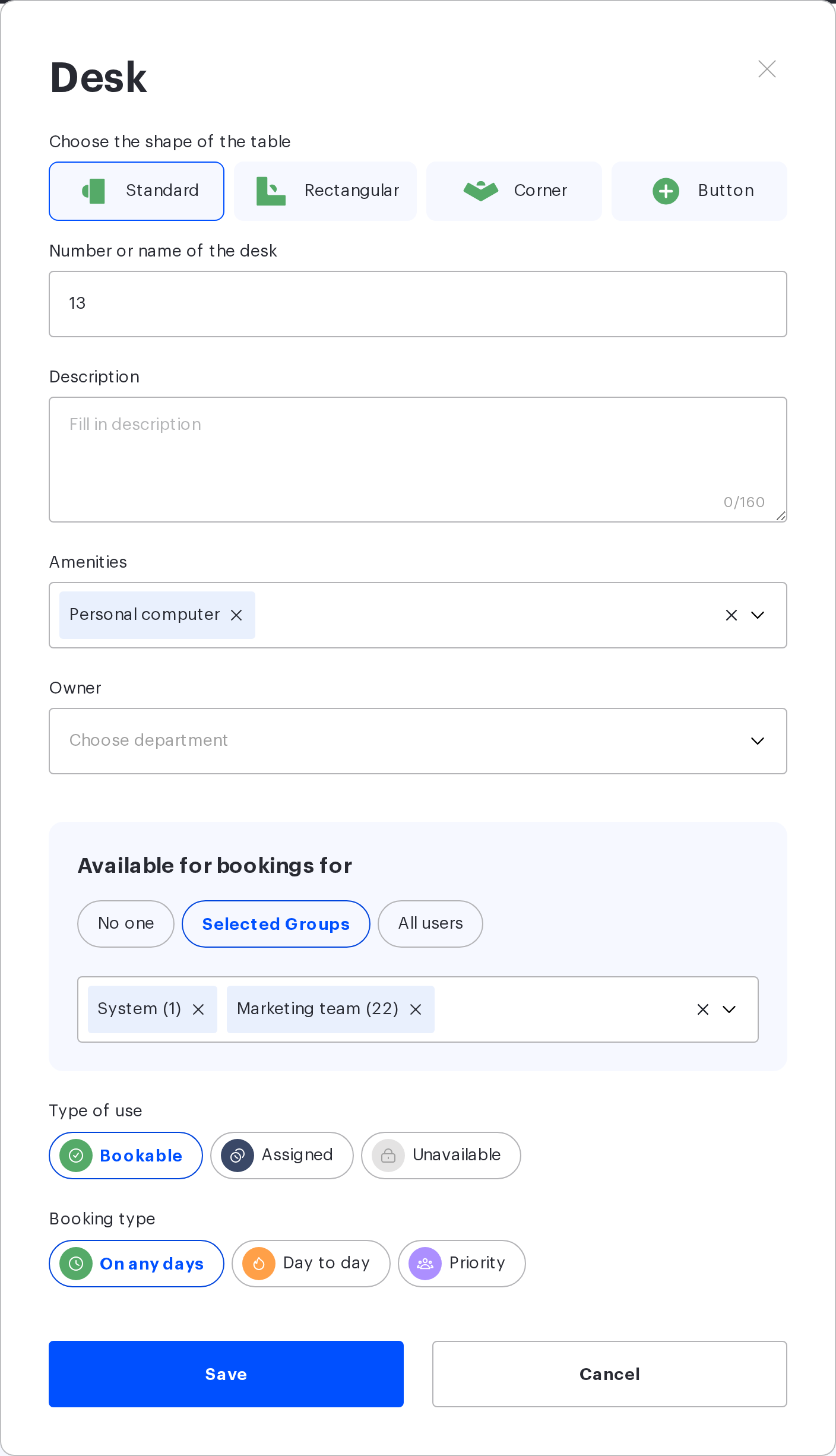
| Value | On the object | On the space | What it does |
|---|---|---|---|
| None | “No one” | “Nobody” | Removes the group links. Access by owner and by assignment is kept |
| Selected groups | “Selected Groups” | “Users from selected groups” | A group selection field appears below; there may be several groups |
| All | “All users” | “All Users” | Links the object to the built-in ALL USERS group |
The “On the space” column shows the office card view mode. In the edit window of an office, a building and a floor the buttons are named the same way as on resources: “No one” / “Selected Groups” / “All users”.
Important: the setting on a space does not extend to the objects inside it. By opening a floor you make the floor itself visible — the resources on it have to be opened separately. The reverse works more strictly: if the floor is closed to the employee, its resources are not shown at all.
The “Owner” field
| Property | Value |
|---|---|
| Where it exists | The desk and parking space card |
| Where it does not | Meeting rooms, lockers, cells, spaces |
| Allowed values | One department from the organisational structure, or empty |
| Placeholder | “Choose department” |
| What it gives | Access to the employees of the owner department and of every department nested inside it |
| What else it affects | Shown in the resource card, used in booking report filters, included in the resource settings report |
| What it does not affect | Booking priority, booking confirmation, notifications |
If an employee has no department filled in, this source of access does not work for them. When an employee is disabled, their department is cleared.
Type of use and booking type
These are two linked settings in the desk and parking space card. First you pick the “Type of use”, then the “Booking type” block shows its own set of options.
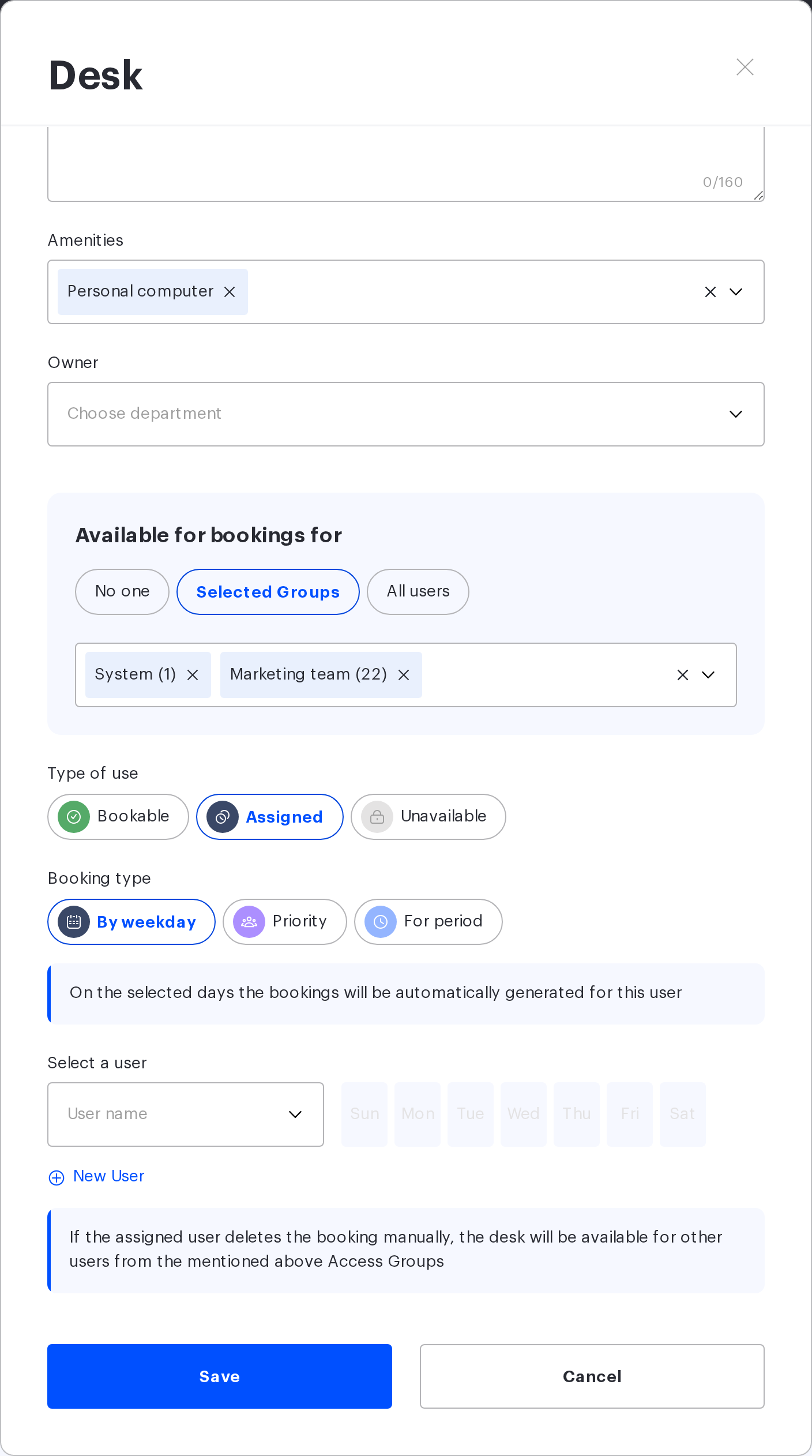
| Type of use | Booking type | What it does | Extra fields |
|---|---|---|---|
| Bookable | On any days | A regular resource: booked on any date within the office horizon | none |
| Bookable | Day to day | The resource is taken on the current day only, it cannot be booked in advance | none |
| Bookable | Priority | Priority belongs to an Access Group on the selected weekdays: group members book on those days even with no other access sources, everybody else — day to day only | Group and weekday selection (“Add group”) |
| Assigned | By weekday | The resource is assigned to an employee; on the selected days a booking is created automatically 28 days ahead | User and weekday selection: there may be several employees (“Add user”), one day belongs to one employee |
| Assigned | Priority | Priority belongs to several employees; no automatic bookings are created, everybody else books day to day | List of users |
| Assigned | For period | The resource is assigned to an employee for a date range; bookings are created for the whole period at once | “Assignment start” and “Assignment end” |
| Unavailable | — | The resource is booked by nobody, whatever the access settings are | none |
Limits and specifics:
- The booking type options are mutually exclusive: assignment by weekday and for a period cannot be configured at the same time.
- The assignment period is no longer than three months: the form does not allow a range longer than 90 days.
- Parking spaces have no “Day to day” and no “For period” options: a bookable parking space offers only “On any days” and “Priority”.
- The name “Priority” appears in both branches and means different things: on a bookable resource the priority goes to a group, on an assigned one — to a list of employees.
- The “By weekday” assignment grants the employee access to the resource on their days on its own — even if the resource has no groups and no owner; “Priority” — on any day within the office horizon. The “For period” assignment keeps its access only inside the created bookings: a deleted booking cannot be recreated without another access source.
The office booking horizon
Configured in the office card: “Booking Rules” → “Advance booking threshold”. It limits advance bookings, not access. The neighbouring setting in the same block — “Office hours” — sets the time range within which bookings can be created at all.
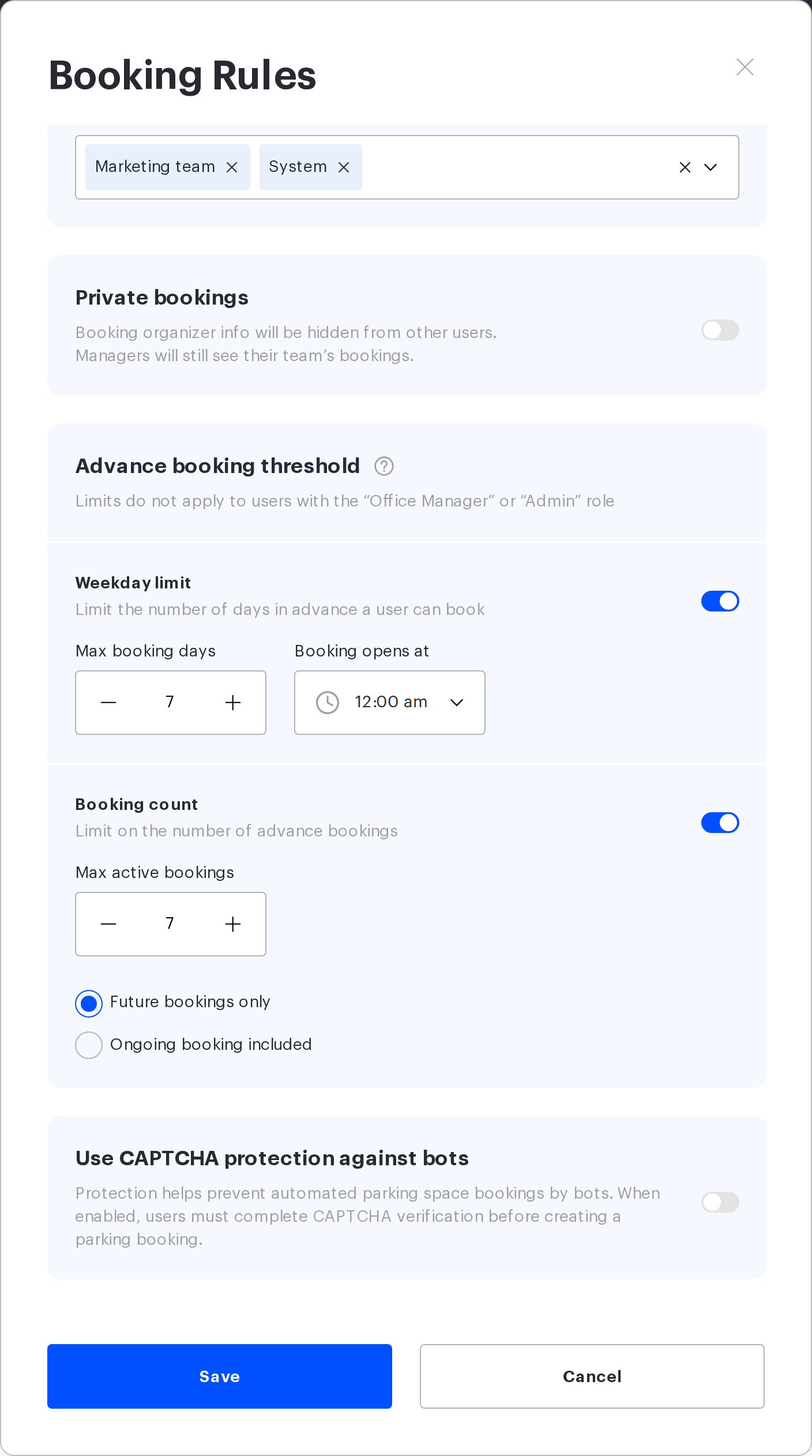
| Field | What it does | Values |
|---|---|---|
| Weekday limit | How far ahead bookings are allowed | A toggle plus “Max booking days”: from 1 to 365. Only working days count — weekends and holidays push the limit further out |
| Booking opens at | The time of day when the next day of the horizon opens | Time of day. Note: with the value 00:00 the horizon available on the day is shorter than the one configured |
| Booking count | How many advance bookings an employee holds at once in this office | A toggle plus “Max active bookings”: from 1 to 250 |
| Ongoing booking included | Whether a booking that has already started counts towards the limit | “Future bookings only” or “Ongoing booking included”; the choice appears when the “Booking count” limit is on |
What the horizon applies to:
| Object or case | Applies |
|---|---|
| Desks | yes |
| Parking spaces | yes; the count limit is also calculated per car number |
| Meeting rooms | no |
| Lockers | no |
| Guest bookings | no |
| Booking for a colleague | yes; the limit is counted against the person the booking is made for |
| Somebody else’s resource assigned by weekday | on the assigned days the nearer of the two limits applies — the office horizon or 28 calendar days |
Exception roles. The setting hint says that the limits do not apply to the office manager and the administrator. To be precise: they do not apply to the Super Administrator and the Office manager. The Offices Administrator, the Users Administrator and the Integrations Administrator are subject to the horizon and the limits.
Lockers: two levels of access
| Level | Setting | What it decides |
|---|---|---|
| Locker | The Access Groups of the locker | Whether the employee sees the locker on the map |
| Cell | The Access Groups of the cell | Whether the employee can take a specific cell |
| Cell | Assigning the cell to an employee | Personal allocation of a cell |
A caveat that is easy to miss: a personal cell assignment only works when the cell has at least one Access Group. If “No one” is selected on the cell, the assignment grants no access. Lockers and cells have no “Owner” field.
Meeting rooms: access and confirmation
- The only source of access is groups. Meeting rooms have no “Owner” field and no assignment.
- Booking confirmation by a delegate is configured separately (“Booking approval”). This is not access: the employee creates a booking and it waits for approval. What happens to an unapproved booking at its start time is set by the switch “The started unapproved booking should be:” — “confirmed” or “deleted”.
- The booking horizon does not extend to meeting rooms; the limit on the number of bookings per day is set by the company policies.
Who can change which settings
| Action | Roles |
|---|---|
| See the list of Access Groups | Any employee (via the API and in selectors); the “Groups & Teams” page opens for the Super Administrator only |
| Create, edit and delete groups | Super Administrator, Users Administrator |
| Add and remove group members | Super Administrator — in the group card; Users Administrator — through the employee card |
| Configure access on objects and on the map | Super Administrator, Office manager, Offices Administrator; the meeting room, locker, building and floor cards — without the Office manager |
| Change the office booking rules | Super Administrator, Office manager, Offices Administrator |
| Maintain the organisational structure | Super Administrator, Users Administrator |
A caveat: the “Groups & Teams” page opens for the “Super Administrator” role only. The “Users Administrator” manages groups through the employee card and via the API — the section page itself will not let them in.
What happens to bookings when settings change
| Change | Existing bookings |
|---|---|
| The membership of an Access Group was changed | Kept; the limit only applies to new bookings |
| A group was removed from an object, or “No one” was selected | Kept |
| The owner department was changed | Kept |
| The type of use or the booking type was changed | The interface asks whether to delete or keep the existing bookings; switching “On any days” to “Day to day” always deletes future bookings — the system only asks for confirmation |
| The list of priority employees was changed | The interface offers to delete or keep the existing bookings |
| The resource was assigned for a period | With “Delete existing bookings” other people’s bookings inside the period are deleted, as well as the assigned employee’s bookings on other resources on the same days; the keep option preserves them |
| A locker cell was switched to “Unavailable for booking” | The cell’s upcoming bookings are deleted, the interface asks for confirmation |
| The booking horizon was reduced | Kept; the limit applies to new bookings |
When assignments change, the system additionally asks “Notification to users”: the employees whose workplace was assigned or unassigned get an email.
Summary table of settings
| Setting | Allowed values | Affects |
|---|---|---|
| Access Group name | A string up to 255 characters, unique | Only the identification of the group |
| Group members | Any number of employees | Who the objects of the group are open to |
| Group objects | Spaces, resources, meeting rooms, parking, lockers, cells, displays | What is open to the members |
| Groups in the employee card | “Only default resources” / “Also resources from selected groups” | The access of a specific employee |
| Access on the object | No one / Selected Groups / All users | The group source of access |
| Owner | A department or empty | The organisational structure source of access (down the branch), report filters |
| Type of use | Bookable / Assigned / Unavailable | Whether booking is possible at all |
| Booking type | Depends on the type of use, see the section above | Who books the resource and when |
| Horizon: weekday limit | Off, or 1–365 | How far ahead people book |
| Horizon: booking opens at | Time of day | The moment the next day opens |
| Horizon: booking count | Off, or 1–250 | The number of simultaneous advance bookings |
| Horizon: ongoing bookings | Future bookings only / ongoing included | What counts towards the limit |
