
OpenID Connect: creating users at first sign-in
UnSpot has a setting that creates an employee record automatically — at the moment they first sign in with a corporate account, provided the domain of their email is on the trusted list. The same setting refreshes the record on every later sign-in, and can assign the employee role from their sign-in token. The setting is called OpenID Connect and does not depend on which sign-in method your company uses.
This is not directory synchronization, and the two should not be confused: only those who signed in at least once end up in UnSpot, and leavers are not deactivated on their own. What exactly happens, and where the line runs, is below. If you are choosing how to fill the directory as a whole, start with How to choose a user synchronization method.
What this setting does
The setting is three switches. The first two — Allow new users and Sync user data — are independent: either can be turned on, or both. The third, Role management via SSO, works only alongside one of them.
| Switch | What it does | What you have to provide |
|---|---|---|
| Allow new users | An employee signing in for the first time whose email belongs to a trusted domain gets a record in your organization automatically, with no administrator involved | the list of trusted corporate domains |
| Sync user data | The selected record fields are refreshed from the provider on later sign-ins. The list has no say in how a record is created — at the first sign-in everything the provider sent is written | a set of fields out of seven |
| Role management via SSO | The employee role is assigned from the role value in their sign-in token — when the record is created, and on later sign-ins while Sync user data is on | a table mapping token values to UnSpot roles |
On the OpenID Connect card each part is shown as a list: the trusted domains, the fields being refreshed, and the role mapping. When a list is empty, a Disabled badge stands in its place.

Where to find it
The path in the console: Manage > Integrations > Login options / SSO, the Authorization Rules block, the OpenID Connect card, the Edit Settings button. There is one setting for the whole workspace: it has no separate rules for individual offices or groups, and it applies to every OpenID Connect / OAuth 2.0 connection at once, however many you have. The same window is reached from the OpenID Connect card under Manage > Integrations > Synchronisations through its Go to settings link (the card is visible while no directory synchronization is connected).
The Super Administrator and Integrations Administrator roles can change it. The Users Administrator role manages employee records but does not open this setting.
One difference by sign-in method matters. Creation by trusted domain works for any sign-in method. The data refresh on later sign-ins, however, only applies to sign-ins through a provider connected on this same page as OpenID Connect or OAuth 2.0 (AD FS, Keycloak, Okta and the like). Signing in through the preconfigured cloud buttons does not touch the records of employees who already exist: the fields are not refreshed even with the switch on.
What the settings window looks like
The OpenID Connect Settings window opens from the Edit Settings button and is split into the same two parts.
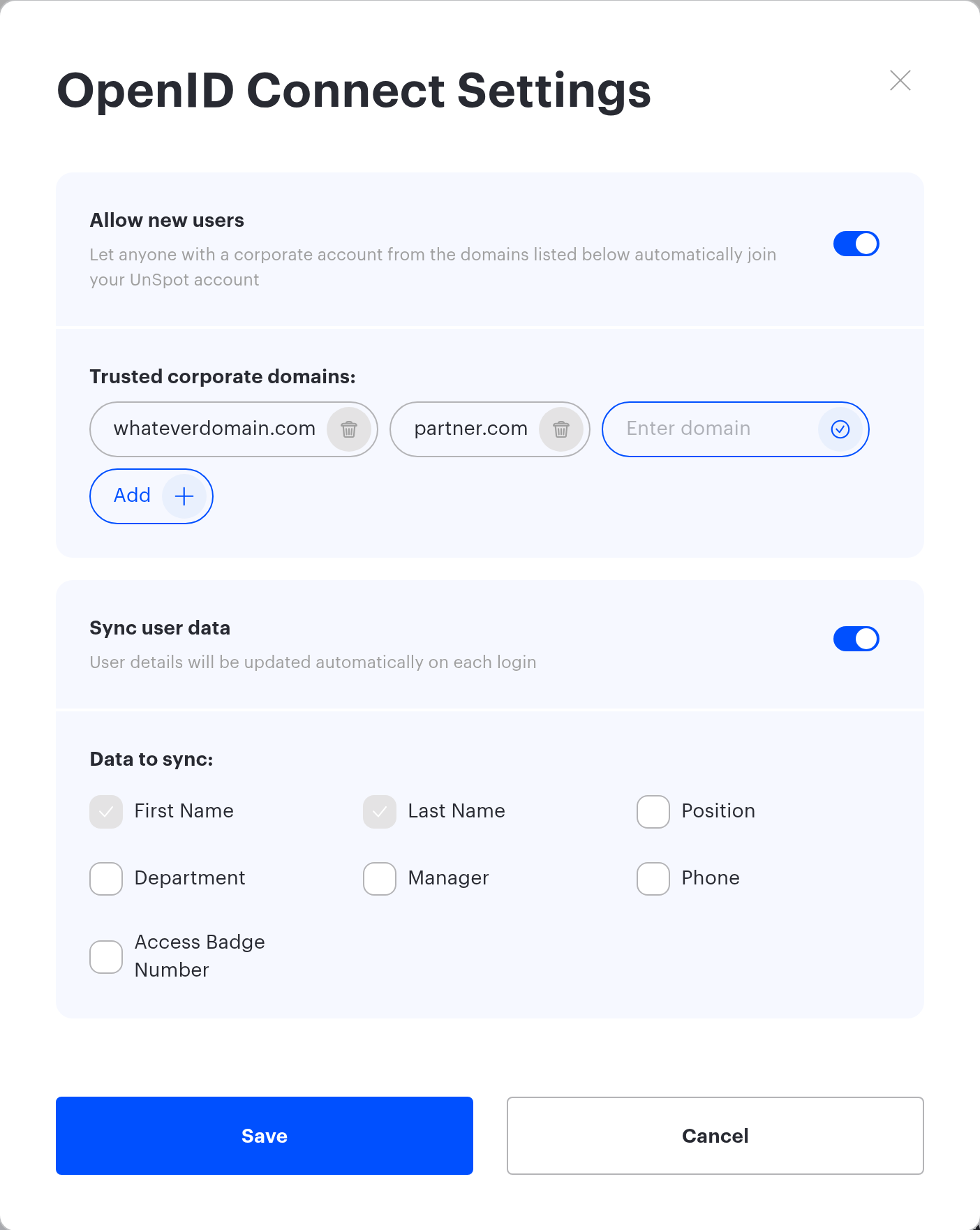
Domains already saved are shown as separate chips with a bin icon — clicking the bin removes the domain from the list. To add a new one, click Add: an empty field with the Enter domain placeholder appears next to it. That is the order — Add first, then type; the field is not shown until you ask for it. Confirm the typed domain — with Enter, the tick next to the field, or simply by leaving the field: an unconfirmed empty field does not join the list.
The Data to sync block holds seven checkboxes. The first two, First Name and Last Name, are ticked and locked: they cannot be cleared while data refresh is on at all. The other five — Position, Department, Manager, Phone, Access Badge Number — are switched on one by one.
Domains are normalized when saved: they are lowercased and the leading @ is dropped, so @example.com and example.com produce the same entry. The comparison at sign-in is exact: mail.example.com is not covered by example.com, and subdomains have to be listed separately.
How an employee is created at first sign-in
- The employee signs in with a corporate account — through any sign-in method connected in your workspace.
- UnSpot takes the email from the provider response and looks for a record with that address. Found — an ordinary sign-in. Not found — on to the next step.
- The email domain is checked against the trusted list. No match — no record is created, see the next section.
- The domain is trusted — the record is created right away: first and last name come from the provider data (or from the display name if the provider did not return them), the role is Member — or the role from the mapping table, if role management via SSO is set up — and the group is the default group.
- The sign-in completes in the same request: there is no separate “wait for approval” step.
What else lands in the new record depends on the sign-in method. Through a provider connected as OpenID Connect or OAuth 2.0, everything it sent is written — position, phone, manager, badge number, department — no matter which fields are ticked on the refresh list. The department creates a unit in the org structure, and if UnSpot has a group of the same name the employee joins that group too. Through a preconfigured cloud button, only the first name, last name and the default group reach the record.
No welcome email is sent for a record created this way. The record has no password to speak of — the employee signs in through the provider, so there is nothing to send. That is what makes the first sign-in different from a CSV import, where the email with credentials is a separate choice.
The role is Member — unless role management via SSO is set up. While the mapping table is empty, neither a trusted domain nor the provider data can hand out administrator rights: only a person with administrator rights raises a role, by hand. Once the table is filled in, a new employee gets the role their token value is mapped to, up to Super Administrator — see Role management via SSO. Roles travel only through a provider connected as OpenID Connect or OAuth 2.0: a record created at a sign-in through a preconfigured cloud button always gets Member.
From the employee side it all looks mundane: the first sign-in ends right in the app, no password email arrives, and no password is needed — signing in always goes through the provider. If the provider sent neither a name nor a display name, the record takes its name from the email address: the first name is the part before @, the last name is the domain (for example, example.com); fix such records by hand.
If the domain is not on the trusted list
Then a second workspace setting decides — whether access requests are allowed.
| Situation | What happens | What the administrator does |
|---|---|---|
| Access requests are allowed | The sign-in does not go through; an access request with the employee name and email is created instead | Approve or reject the request under People management |
| Access requests are not allowed | The sign-in stops with an access denied message | Either add the domain to the trusted list or create the record by hand |
A deactivated record is a separate case. If the employee already exists in UnSpot but is deactivated, the sign-in stops regardless of the domain list — the check never gets that far. The record is not recreated and does not reactivate itself; it has to be switched back on by hand.
Hence the practical conclusion: the trusted domain list is the switch between “we create them ourselves” and “we ask for approval”, not merely an email filter. Until the domain is on it, every new employee passes through an administrator.
What is refreshed on later sign-ins
The list of fields is closed — seven of them, and you cannot add your own. The refresh runs on every sign-in by an active employee and only for the fields you ticked. The role is refreshed separately and is not one of the seven — see Role management via SSO.
| Field | How it is refreshed |
|---|---|
| First Name, Last Name | Always on the list while the refresh is enabled. The display-name fallback applies only when the record is created: on later sign-ins a field the provider did not send is simply left alone |
| Position | The value is truncated to 128 characters — long job titles reach the record incomplete |
| Department | A unit with that path is looked up in the org structure; if there is none, it is created. An empty value from the provider unbinds the employee from their unit |
| Manager | Refreshed on every sign-in when the provider sends a manager — even with the checkbox cleared: only the master switch affects this field. Matched by email against existing records; if no such email is in UnSpot, the manager is cleared rather than kept “for later” |
| Phone | Written as is |
| Access Badge Number | Written as is; it affects the link to the access control system exactly as a manual edit would |
A field the provider did not send is left alone. That distinction matters: a field missing from the response and an empty value inside it are different things. In the first case the record keeps what it had; in the second the value is overwritten with emptiness. That applies to the five optional fields: an empty First Name or Last Name does not wipe the record — such a sign-in fails validation and the employee does not get in.
The refresh runs only for active records. A deactivated employee never gets that far: their sign-in stops earlier.
Role management via SSO
Since the release of 21 September 2026 the same “OpenID Connect Settings” window carries a “Role management via SSO” switch, below the “Sync user data” block. It maps role values from the provider token to UnSpot roles, so an employee role is assigned automatically at sign-in.
When the switch is available. It can only be turned on together with at least one of the other two: “Allow new users” or “Sync user data”. Turning both of those off switches role management off as well and clears the saved mapping. With the switch on, the table must hold at least one pair: an empty table will not save and the form answers “Add at least one role mapping”.
The mapping table. Below the switch there are three columns — “UnSpot role”, “Role value in token” and “Actions”, the last one holding the “Add” and “Delete” buttons. Seven roles can be mapped: “Member”, “Super Administrator”, “Office manager”, “Reception”, “Offices Administrator”, “Users Administrator”, “Integrations Administrator”.
- one UnSpot role can be mapped to several token values;
- the same value cannot be added twice — neither to another role nor to the same one: the form answers “This role value is already in use”. The comparison ignores case;
- a value must contain no spaces, is up to 255 characters long, and a single UnSpot role takes no more than 50 values;
- the role is read from the
rolesclaim of the ID token — that is where the provider has to put it; the claim may hold a single value or a list. The setting offers no choice of a different claim; - on the OpenID Connect card the block reads “Enabled” while the table holds at least one pair, and “Disabled” when the table is empty. A “Role” badge also appears in the “Sync user data” block.
How the role is applied. A new employee created by trusted domain gets the role from the table — provided they signed in through a provider connected as OpenID Connect or OAuth 2.0. Through a preconfigured cloud button the record is still created, but always with the Member role: the token is not read there at all. An existing employee has the role refreshed at sign-in, but only when “Sync user data” is on: with the trusted domain alone the mapping works at creation and not on later sign-ins.
When the role cannot be resolved. If the token has no roles claim, the value is not in the table, or the token values match several UnSpot roles at once, no mapped role is assigned: a new employee gets “Member” and an existing one keeps the current role. The sign-in itself is not interrupted.
What changes on the employee record. When the role mapping is filled in and “Sync user data” is on, the role field on the edit page of an existing employee is disabled, with the tooltip “This user is sync with SSO”. The same field is disabled for other reasons too — when employees edit their own record, or when a Users Administrator opens it — but the tooltip there is a different one. On the form for creating an employee by hand the role field stays available.
Synchronized fields cannot be edited by hand
While the data refresh is on, the ticked fields are closed for editing — both in the employee record an administrator opens and in the employee own profile. An attempt to save a different value returns an error. In the profile it reads You cannot edit synchronized fields until you disable data updating via SSO. In the record an administrator opens the text is a different and misleading one — it talks about Active Directory even when no directory is connected; the cause is still this setting.
The role selector on an existing employee record is closed the same way once role management via SSO is set up — see Role management via SSO.
This guards against drift: a value corrected by hand would go back to the provider data at the next sign-in anyway. If a field has to be maintained inside UnSpot, take it off the refresh list and it becomes editable again.
The one exception is the CSV import. It does not run this check and will write into a locked field. The result does not last, though: at the employee next sign-in the field is replaced by the provider data again.
Why this is not synchronization
| Question | Directory synchronization | OpenID Connect |
|---|---|---|
| Who ends up in the directory | every employee matching the selection rules, at once | only those who signed in at least once |
| When the data is refreshed | on a schedule, once a day | at the moment of a sign-in |
| What happens to leavers | dropping out of the result archives the record and cancels the bookings | nothing: the record stays active until someone touches it |
| Groups | transferred (except Google Workspace) | not transferred; the one exception is at creation, when the employee joins a group whose name matches their department, if such a group already exists |
| Org structure | transferred as a tree | only the Department line, and only if the provider sent it |
| Avatars | transferred by a separate job | not transferred |
When this is enough: a small company on a single corporate domain, where permissions are not handed out through groups and a complete directory is not needed. When it is not: you need groups in booking policies, the org structure in reports, or a leaver to lose access automatically. Then you need synchronization — and it can be switched on alongside this setting, the two do not conflict.
What ends up in the reports
- Records created at first sign-in are marked in the user management history as created through a protocol sign-in rather than by an administrator.
- A field refresh at sign-in also reaches the history, with the list of fields that changed.
- Adding and removing a trusted domain is written to the integration change log. Links to both reports — Change Log Report and History of Logins — sit right on the Login options / SSO page.
Limitations and traps
- Turning the refresh off wipes the field list. Saving with the switch off clears the set of ticked fields. Turn the refresh back on and the set has to be chosen again — the previous one does not come back.
- Switching Allow new users off wipes the domain list. Just like the fields: switch it back on and the previous set does not come back — the domains have to be entered again.
- An archived employee is not brought back by signing in. The attempt to create a record runs into “the user already exists” and the sign-in fails. Restore the record from the archive by hand — after that the sign-in works again.
- A changed email at the provider creates a duplicate. Matching goes by email only: an employee with a new address gets a second record on their next sign-in. Change the email on the UnSpot record beforehand.
- Subdomains are not inherited. A trusted
example.comdoes not coverhr.example.com: an email from the subdomain will not count as trusted. - A domain trusts everyone who holds it. Anyone with an account in that domain at your provider gets a record in UnSpot without approval. Public mail domains must never go on the list.
- The role changes at sign-in only when role management via SSO is set up. While the mapping table is empty, provider data can neither raise nor lower rights and only the seven listed fields are refreshed. Once the table is filled in and Sync user data is on, the token decides the role at every sign-in — and not only upwards: if an administrator token value is mapped to Member, they come back as a Member at their next sign-in. A value that is not in the table at all leaves the current role untouched.
- A department is created, not picked. An unfamiliar department value creates a new unit in the org structure — a typo in the provider data turns into an extra branch of the tree.
- Leavers have to be switched off by hand. The provider may close the account, but UnSpot will not learn of it: the record stays active and the bookings stand.
