
Colleague search and viewing their schedule
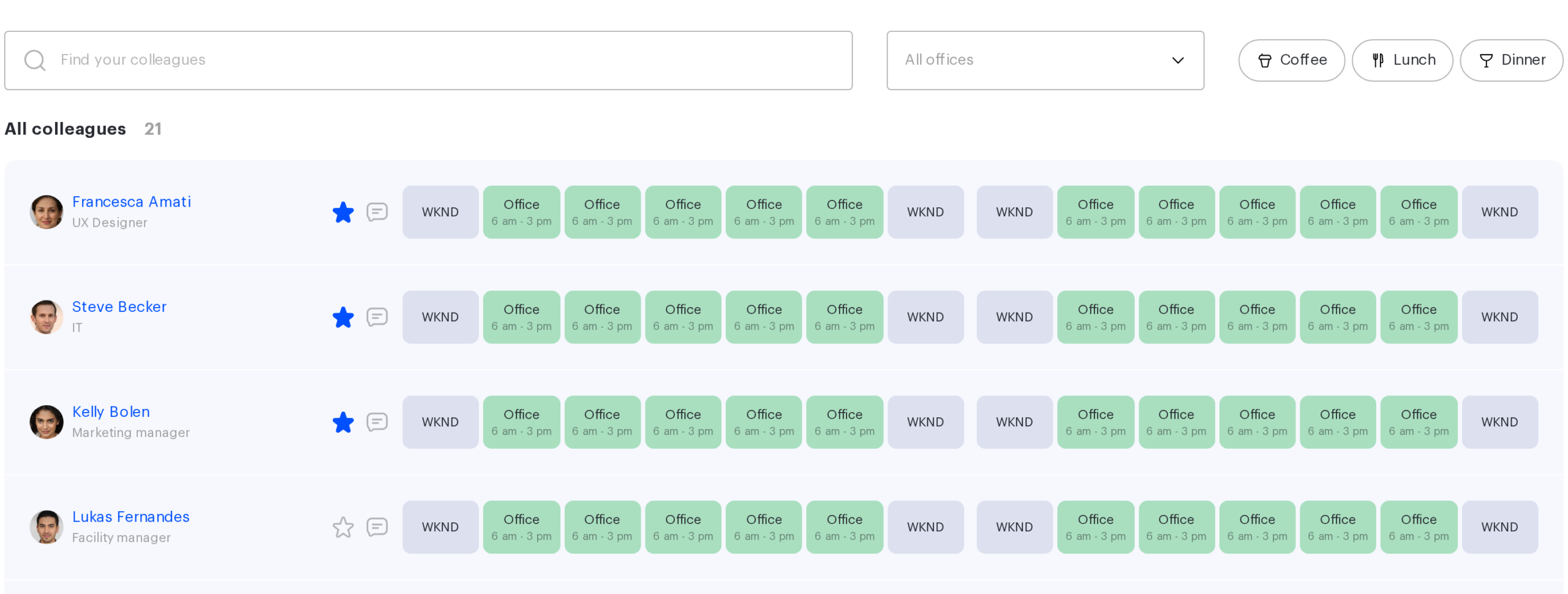
The Work schedule section shows more than your own team: the All colleagues block lets you find any employee of the company and look at their week — where they work, whether a desk is booked and whether they are up for lunch. This article covers how that search works, what it shows and how to ask a colleague to fill in their schedule.
Who can be found
The All colleagues block at the bottom of the Work schedule page shows every employee of the company, not only your own department or your subordinates. The list loads as you scroll and is sorted by last name.
Only deleted, archived and deactivated accounts are excluded, along with service accounts of devices.
Which fields the search covers
The search box is labelled “Find your colleagues”. It matches any of the profile fields:
- first name, last name, and the combinations “first last” and “last first”;
- email address;
- position;
- department and the name of the org structure unit;
- the name of the unit the employee heads;
- the name of a group they belong to;
- phone number.
A match is found anywhere inside the value and is case-insensitive. A query of a single Latin letter or digit is ignored — the list stays complete, which looks as if the search were broken. A single Cyrillic letter is searched normally.
When nothing is found, the list is replaced by the line “The user was not found. Change the search criteria” and the “Reset Filters” button.
Filters
| Filter | What it does |
|---|---|
| “Office filter” | Keeps those who work in the selected office during the displayed week. The default value is “All offices” |
| “Ready for” | Keeps those who marked “Coffee”, “Lunch” or “Dinner” in a day with an office booking |
On mobile the filters are gathered in a separate window, “Employee Filter”.
What you see about a colleague
A colleague’s row shows the same week as your own and contains:
- position, photo, phone number and email;
- working hours;
- the status of every day — including a sub-status with its colour and short title;
- the office and the desk if the day has a booking;
- the “Ready for” marks;
- whether the employee has a template switched on and whether it is locked.
Office names are not visible to everyone: if an office has “Private bookings” switched on, its name in another person’s row is hidden and visible only to that employee’s manager and to administrators. You can change the schedule of a colleague you found only if they report to you; otherwise the cells open in view mode.
How to ask a colleague to fill in their schedule
If a colleague’s week is empty, you can send them a request — the message icon next to their name.
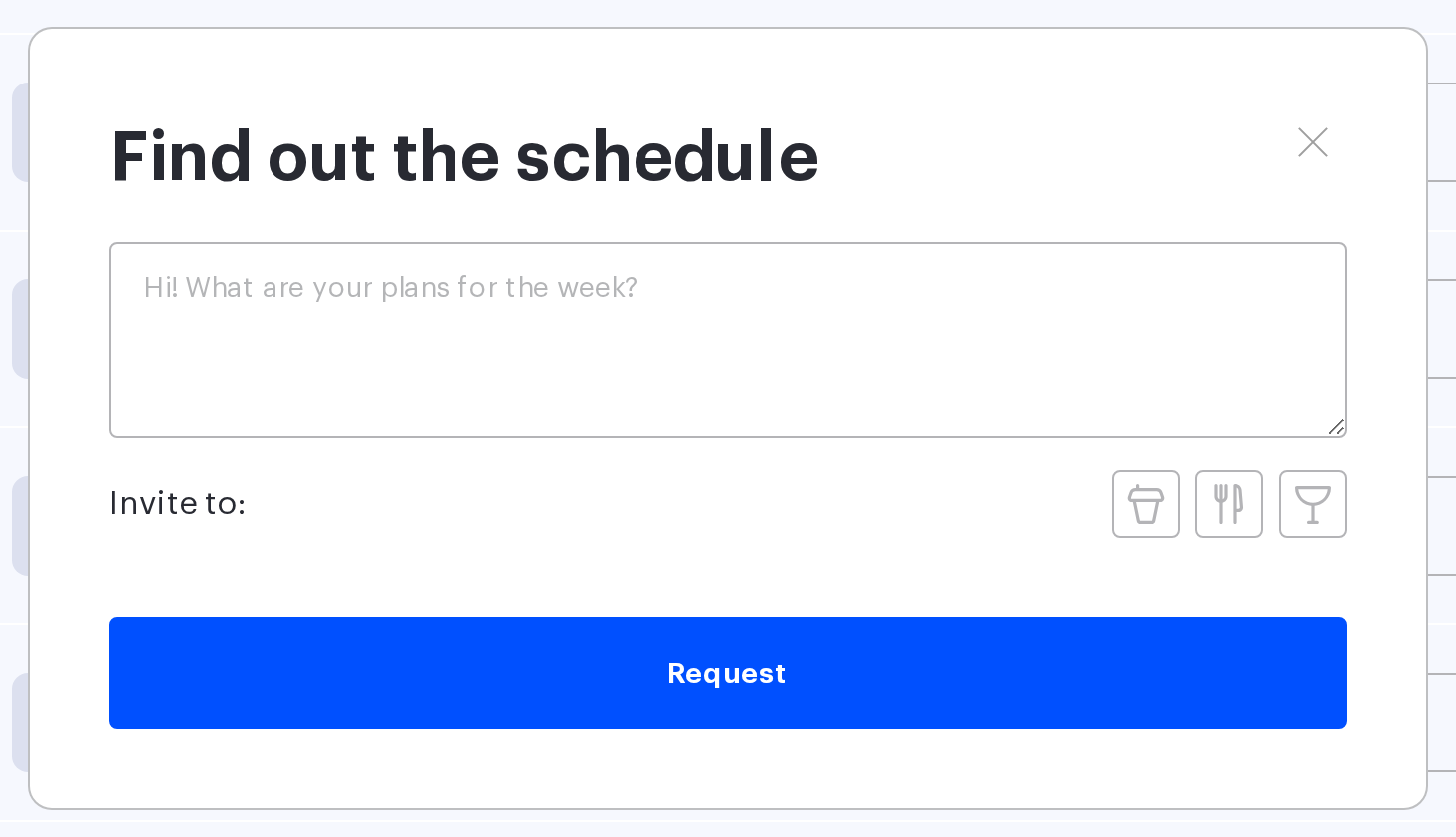
- Press the message icon in the colleague’s row. The “Find out the schedule” window opens.
- Edit the message text — “Hi! What are your plans for the week?” is filled in by default. The length is limited to a hundred characters.
- Optionally add an invitation in the “Invite to: ” line — “Coffee”, “Lunch” or “Dinner”.
- Press “Request”.
The colleague receives an email with your message and their own week. Two limits apply:
- The same person can be sent a request no more than once a day. A second attempt is refused.
- If today is Friday, the email shows the following week rather than the current one.
A request already sent is visible as a filled message icon, so you do not send it twice by mistake.
Limits and common misconceptions
| Misconception | How it actually works |
|---|---|
| The search shows only colleagues from my department | The search covers the whole company |
| If I can see an employee’s schedule I can change it | Only the schedules of subordinates can be changed |
| A one-letter query shows everyone starting with that letter | Such a query is ignored entirely and the list stays complete |
| The star in the list always shows whether I am subscribed | With many subscriptions some stars may stay unfilled until the page is reloaded |
| A schedule request can be sent as often as needed | Once a day per person |
