
By employee analytics: cancelled bookings and attendance check
Two blocks on the By employee tab are built not on the schedule but on other sources: the booking log and PACS data. They answer the questions “does the person follow through on bookings” and “does what was booked match the days the person actually came to the office”. Both blocks count differently from the schedule blocks, which is exactly why their numbers do not add up with the neighbouring ones. This article explains what they count and how.
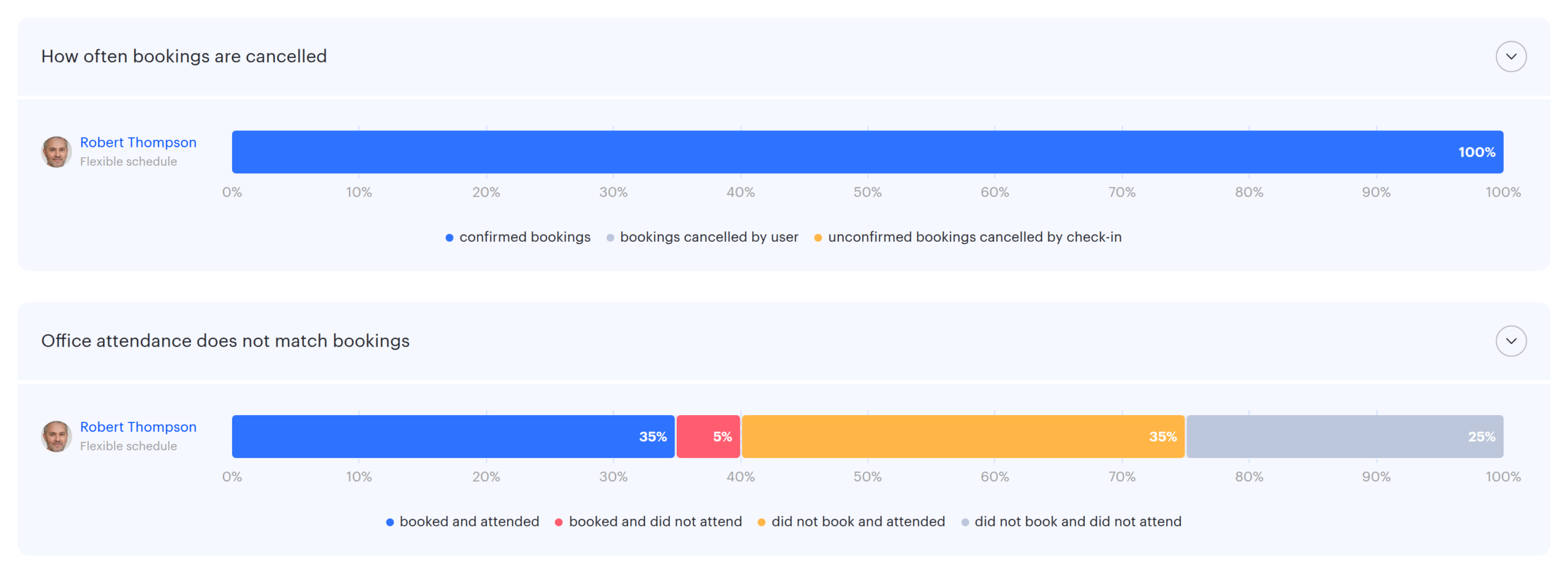
How often bookings are cancelled
The block is visible in any profile, including your own. It shows how the employee’s bookings ended over the period: how many of them took place, how many the person cancelled personally and how many the system removed automatically because the booking was never confirmed with a check-in.
The hover tooltip starts with the line “Total bookings: N”, followed by one line per outcome with a count and a percentage.
⚠️ The block counts desk bookings only. Meeting rooms, parking spaces and lockers are not included at all — even if the employee books meeting rooms constantly and cancels them regularly, none of that shows up on this bar.
Three outcomes of a booking
| Segment | What it means |
|---|---|
| confirmed bookings | the booking was neither deleted nor removed by check-in; bookings the employee ended early also land here |
| bookings cancelled by user | the booking was deleted by hand — by the employee, their manager, a delegate or an administrator |
| unconfirmed bookings cancelled by check-in | the booking was removed automatically because the employee did not check in, either in the app or at the desk |
The outcome is determined by the last operation on the booking in the log. If a booking was created, then deleted and never restored, it counts as cancelled by the user. If the system removed it under the confirmation rules, it goes into the third segment, even though formally that is also a deletion.
A large third segment is usually a sign of inconvenient confirmation rules rather than of poor discipline: a check-in window that is too narrow or set too early in the day. The rules are covered in the article about booking confirmation policies.
One booking per day
This is the key peculiarity of the block, and the reason its numbers diverge from any booking report.
Exactly one booking is counted for each day of the period, even if there were several. Which one is decided by priority.
- A confirmed booking — if there was at least one that took place that day, the day counts as confirmed.
- Cancelled by check-in.
- Cancelled by the user.
So if the employee cancelled one booking in the morning, then booked another desk and worked at it, the day is counted as confirmed and the cancellation never reaches the statistics. The bar shows a picture by days, not by bookings — even though the tooltip says “Total bookings”.
Days marked as non-working in the production calendar are excluded from the calculation entirely.
Example. Over the period the employee created 12 desk bookings on 9 different days. On one of those days they cancelled a booking in the morning, immediately booked another desk and worked at it; on another day they had two bookings and both were removed by check-in. The bar shows nine days, not twelve bookings: the day with the cancellation and the re-booking goes into “confirmed” — a confirmed booking has the higher priority — and the day with the two removed bookings counts once as cancelled by check-in. Three of the twelve cancellations do not appear on the bar at all.
⚠️ The denominator of the percentages in this block is not the working days of the period but the number of counted days with a booking: in the example above 100% of the bar is nine days, not twenty. That is why the shares of this block cannot be compared directly with the shares of the schedule blocks.
If you need honest per-booking statistics, look at the Reports section — there every booking is a separate row.
Office attendance does not match bookings
The block is visible only in another employee’s profile. For each working day it compares two independent facts: whether the schedule for that day had a desk — the same attribute the block How many times per week the office is visited relies on — and whether an entry to the office was registered in the PACS data. Because of that, “did not book” here means “the schedule had no desk on that day”: for instance when the booking was removed by check-in.
| Segment | What it means in practice |
|---|---|
| booked and attended | the normal case: the plan matched the fact |
| booked and did not attend | the desk stayed occupied and unavailable to colleagues |
| did not book and attended | the person is in the office but the system does not know it — they cannot be found on the map and no desk is assigned |
| did not book and did not attend | the normal case for a remote day or an absence |
Percentages are calculated from the working days of the period; weekends and holidays are excluded. The shares are adjusted to add up to exactly 100%.
The second and third segments are the most useful. A large second segment means the office is occupied on paper only and the real capacity is higher than the workload figures suggest. A large third segment means part of the team comes to the office outside the system, and then no booking analytics can be trusted as a picture of attendance.
Without a PACS integration
The fact of an office visit is taken from the attendance log, which is populated with data from the physical access control system. If no PACS is connected and no entry data is loaded, both segments with “attended” are always empty: the days are split between “booked and did not attend” and “did not book and did not attend”. For an employee who books desks the block will sit almost entirely in the first of them — and that does not mean the person never came to the office.
This is not a broken block and there is nothing to fix: with no data source there is simply nothing to compare. Ways to get entry data in are described in the PACS articles and in By office analytics: PACS data, which also covers uploading entries from a file.
Two different time zones
⚠️ The two blocks in this article define “a day” differently, and in companies with offices in several time zones this is noticeable.
| Block | Time zone the date is determined in |
|---|---|
| How often bookings are cancelled | the time zone of the office where the booking was made; if the office uses the default settings, the company time zone |
| Office attendance does not match bookings | the date of an entry is always in the company default time zone; whether a booking exists is resolved in the office time zone, as in the first block |
The practical consequence: for an employee who books desks in an office in a different time zone, a late evening or early morning booking may land on one day in the first block and on the neighbouring day in the second. Over a month this is a matter of a few days, but it is worth remembering when you are investigating a specific date.
How to use this
| What you see | What it tells you | What to do |
|---|---|---|
| A large share of “cancelled by check-in” | the confirmation rules do not match the real rhythm of the day | review the check-in window and time |
| A large share of “booked and did not attend” | desks are blocked for nothing | enable booking confirmation so that desks are released automatically |
| A large share of “did not book and attended” | people come to the office outside the system | find out why booking is inconvenient; check desk assignments |
| The cancellation block is empty although there are office days | desks are assigned to the employee and no separate bookings are created | this is normal, look at the schedule blocks |
| Both “attended” segments of the attendance check are empty | no PACS data is arriving | check the integration or the entry data upload |
