
Check-in methods: how to verify office presence
A check-in method is how an employee proves they are really in the office. The block appears in the settings of the second step of booking control, and at least one method has to be selected. This article covers all five: what each of them requires from the employee, what the company has to set up and when a method will not work.
Where to find it: Manage → Company settings → Check-in policies → the Desk and parking space booking control block → Edit settings → second step → Check-in method. The rest of the fields are covered in the settings reference.
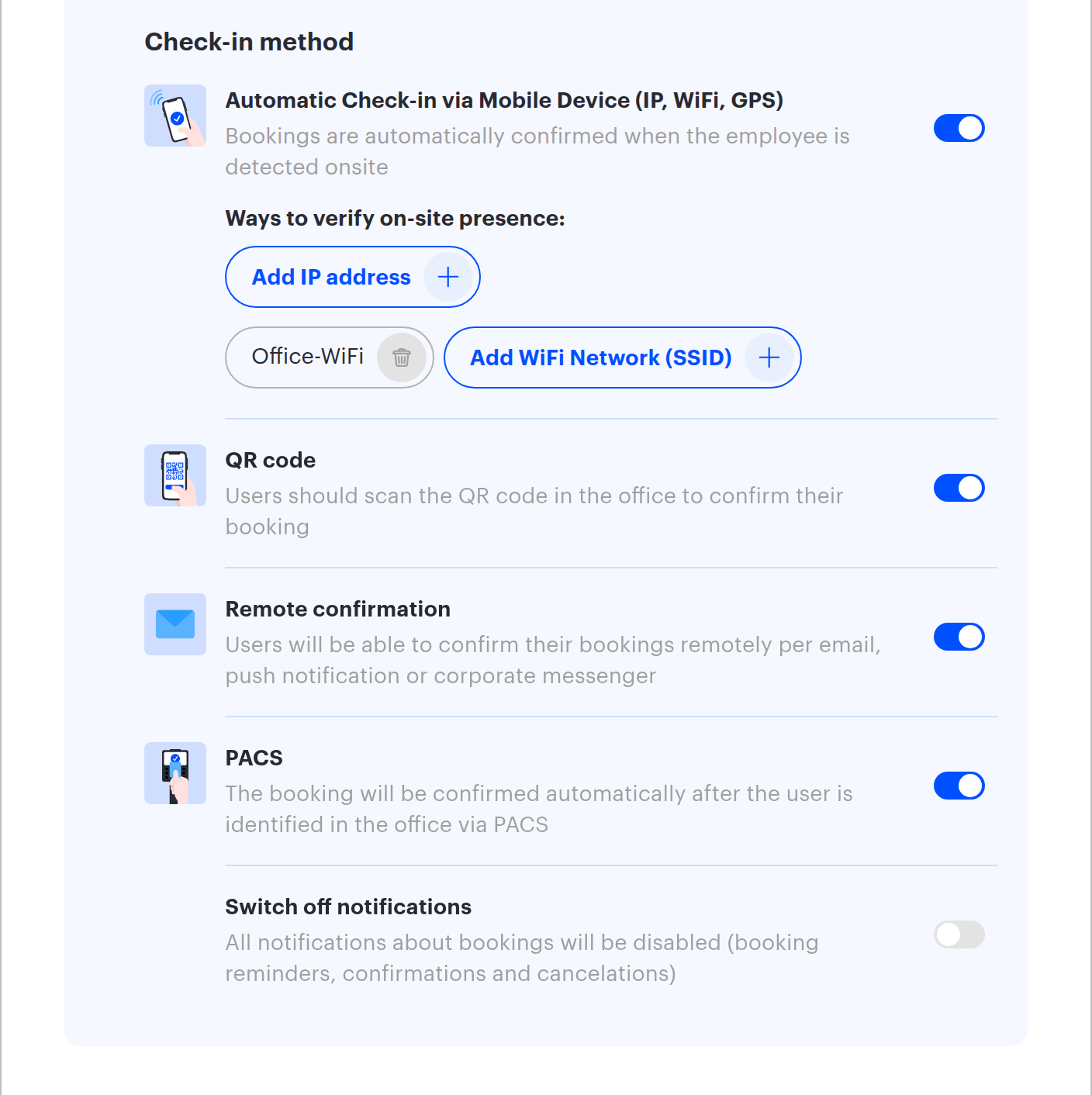
The five methods at a glance
| Method | What the employee does | What has to be set up | Works for |
|---|---|---|---|
| Automatic Check-in via Mobile Device (IP, WiFi, GPS) | Nothing — being in the office with the app is enough | Lists of office IP addresses and SSIDs, office coordinates | Desks and parking |
| QR code | Scans the QR code of the resource or confirms from a display | Printed and placed QR codes | Desks, parking, meeting rooms |
| Remote confirmation | Presses a button in an email, a push notification, a messenger or in the system | Nothing beyond enabled notifications | Desks and parking |
| PACS | Nothing — badging in at the entrance is enough | An incoming subscription from the access control system | Desks (parking — via a parking access integration) |
| Switch off notifications | Nothing, and receives no notifications | PACS enabled, with QR code and Remote confirmation switched off | Desks |
⚠️ For meeting rooms only the QR code method is available (confirming from the display at the room counts as the same method). Neither the network, nor PACS, nor the remote button exist in the meeting room form — see meeting room check-in.
Automatic Check-in via Mobile Device (IP, WiFi, GPS)
The interface description: “Bookings are automatically confirmed when the employee is detected onsite”. This is the only method that requires no action at all: the mobile app tells the system where the employee is, and the system sets the mark itself.
Under the toggle there is a subheading Ways to verify on-site presence: and two lists. Presence counts as verified if any single one of three factors matches:
| Factor | Where it is set | How it is verified |
|---|---|---|
| IP address | The Add IP address button in the same block, up to 3 values | The external IP address the app connects from matches one from the list |
| WiFi network SSID | The Add WiFi Network (SSID) button, up to 3 values | The name of the network the phone is connected to matches one from the list |
| Coordinates | The Office location coordinates field in the local settings of the space | The phone is within roughly 1 km of the office point |
What to know before switching it on:
- The lists cannot be empty. The form will not save the method without at least one IP address or SSID: the error “Entering the SSID or IP address value is mandatory” appears.
- Verification by coordinates only works where the office coordinates are set. The “Office location coordinates:” line is visible in the local settings of a space; if it reads “not set”, the geolocation factor never fires and only IP and SSID remain.
- The method requires the mobile app. The web version reports neither IP, nor SSID, nor coordinates.
- The form does not treat this method as standalone. It cannot be the only one: QR code, Remote confirmation or PACS has to be enabled next to it. Automatic network check-in is an addition to a primary method, not a replacement.
- While the window is open but it is too early for the ordinary reminder, the app receives silent service notifications — invisible to the employee and used to re-check presence. They are sent no more often than every 15 minutes.
- The lists work wherever the settings themselves work. If the IP addresses and SSIDs are defined at the company level, matching any network from the list verifies presence for bookings in every space that follows the company rules — including when the employee connects to the network of another office. With several offices, define the lists locally per space if that matters. Verification by coordinates, in contrast, is always tied to the office of the specific booking.
QR code
The interface description: “Users should scan the QR code in the office to confirm their booking”. This is the strongest proof of presence: the code is physically attached to the resource or shown on a meeting room display, and it cannot be scanned remotely.
What the company has to do:
- Switch on the QR code toggle.
- Open the Download QR Codes link next to the toggle — it leads to the resource exports section where the file with the codes is generated.
- Print the codes and place them on desks, parking spaces or next to meeting rooms.
How it looks for the employee:
- Scanning the code of a resource. The phone camera opens the booking page and the confirmation goes through automatically. If the employee has several eligible bookings on that resource, the system confirms one of them — worth keeping in mind if your company books one resource in several short intervals.
- Confirming from a meeting room display. On the screen next to the room the booking is shown with a “Confirm until” caption and a Confirm button.
- Creating a booking by QR code closes the first step automatically. The second step is marked by itself only when the first one is switched off — with both stages enabled, presence is still confirmed inside the second window.
⚠️ The Download QR Codes and Set up PACS connection links in this window are visible to the Offices Administrator role only: the Office manager does not get them, and for a Super Administrator they are hidden by a quirk of the interface permissions (reported as a defect candidate). The QR codes themselves are always available directly: Manage → Office management → the Resources report tab.
Remote confirmation
The interface description: “Users will be able to confirm their bookings remotely per email, push notification or corporate messenger”. This is the same method the first step works by, but allowed on the second step as well.
The Confirm button appears:
- in the “Please confirm your desk booking” email (parking spaces and meeting rooms have their own subjects);
- in the push notification of the mobile app;
- in the corporate messenger message;
- in the Bookings section of the system itself.
When to enable it: if physical control is not required but discipline is — so that the employee at least confirms they are coming. This method does not prove actual presence: the button can be pressed from anywhere.
⚠️ Next to the Confirm booking button in the email and in the messenger there is a second button — Cancel booking in the email, Cancel meeting for a meeting room and simply Cancel in a push notification or a messenger. It deletes the booking rather than “declining the confirmation” — there is no intermediate state.
PACS
The interface description: “The booking will be confirmed automatically after confirmation is received from the PACS”. The physical access control system reports an entry to UnSpot, UnSpot sets the employee status to in-office and confirms their bookings.
What has to be set up: an incoming subscription from the access control system. Next to the toggle there is a Set up PACS connection link leading to the incoming subscriptions section of the integrations. The protocol is described in Incoming webhooks API reference.
How the system matches an event to an employee:
- if the access control system sends an email address, only the email is used for the lookup;
- if another identifier is sent, the pass number is tried first, then the last and first name (the middle name is not used), then the employee’s display name;
- if more than one employee matches, the event is ignored.
Limitations worth knowing:
- Passing a turnstile confirms desk bookings, not parking. With the PACS method enabled, a parking space booking is confirmed by a parking access integration when the car actually enters the parking lot.
- Only the booking of the employee it is issued for is confirmed: a manager passing the turnstile does not confirm a booking they created for a subordinate.
- An entry counts even if it happened before the window opened. The presence status stays valid for about six hours: if the employee badged in in the morning and the second-step window opens later, the booking is confirmed the moment the window opens. Only an entry after the window has closed changes nothing — by then the booking is already cancelled.
- The system does not check which office the employee entered. The presence status is company-wide: badging in at one office confirms a booking in another. There is no way to restrict confirmation to “their own” office. The office of the visit that UnSpot determines from the access point in the incoming webhook goes only into the History of Office Visits (PACS) report and into analytics — it does not affect booking confirmation.
Switch off notifications
The toggle appears only when PACS is enabled. The description reads: “All notifications about bookings will be disabled (booking reminders, confirmations and cancelations)”.
The purpose of the mode is control that works invisibly. The employee receives neither a second-step confirmation request nor a message about a cancelled booking — presence is detected on entry and no extra noise is created. This is convenient when PACS covers all entrances and confirmation is effectively guaranteed.
⚠️ The suppression only works while QR code and Remote confirmation are switched off. If either of them is enabled, notifications keep arriving: staying silent would be wrong, because the employee is still expected to act. Automatic Check-in via Mobile Device may stay enabled — it does not affect the suppression, but there is a side effect: in this mode the silent service notifications stop being sent as well, so network auto-confirmation effectively stops working and a PACS entry remains the only confirmation (reported as a defect candidate). First-step notifications are never switched off by this mode.
What to consider before enabling it:
- Cancellation notifications are switched off too. A booking disappears silently, and the employee finds out only by opening their booking list. If PACS did not register the entry for any reason, it will look like a booking that vanished.
- Notifications for parking bookings keep arriving. The suppression is implemented for desks only; parking reminders and cancellation messages are sent as usual.
- The first step keeps notifying. The mode silences second-step messages only.
- The mode does not disable the control itself — bookings are still cancelled, just without warnings.
Automatic parking check-in by licence plate
A separate case that is not configured in this block: if licence plate recognition cameras are connected to the system, a parking booking is confirmed when the car drives in. The system matches the recognised plate against the licence plate number in the booking.
Specifics of this path:
- it works for parking bookings only and only with the second step enabled;
- the event and the booking start must fall on the same calendar day in the office time zone;
- the time window is not checked — matching the day is enough;
- the licence plate number in the booking must have no typos, otherwise no match is made.
What can and cannot be combined
| Combination | Result |
|---|---|
| QR code + Remote confirmation | Allowed. The employee picks whichever is convenient |
| PACS + QR code | Allowed and practical: an entry confirms the booking by itself and QR stays as a fallback |
| Automatic check-in via mobile device only | The form will not save. One more method is required: QR code, Remote confirmation or PACS |
| PACS + Switch off notifications | Allowed. Second-step notifications for desk bookings are disabled — but only while QR code and Remote confirmation stay off |
| Switch off notifications without PACS | Impossible: the toggle only appears together with PACS |
| No method at all | The form will not save: “Please choose the check-in method” |
