
How to submit a service request
A service request is the way to ask for help inside UnSpot: order stationery, report a fault, have a meeting room prepared. There are three ways to submit one, and the choice depends not on what you are asking for but on what the task relates to. This article helps you choose; the instructions themselves are in separate articles.
Three ways to submit a request
| What the task relates to | Where to submit it from | Particulars |
|---|---|---|
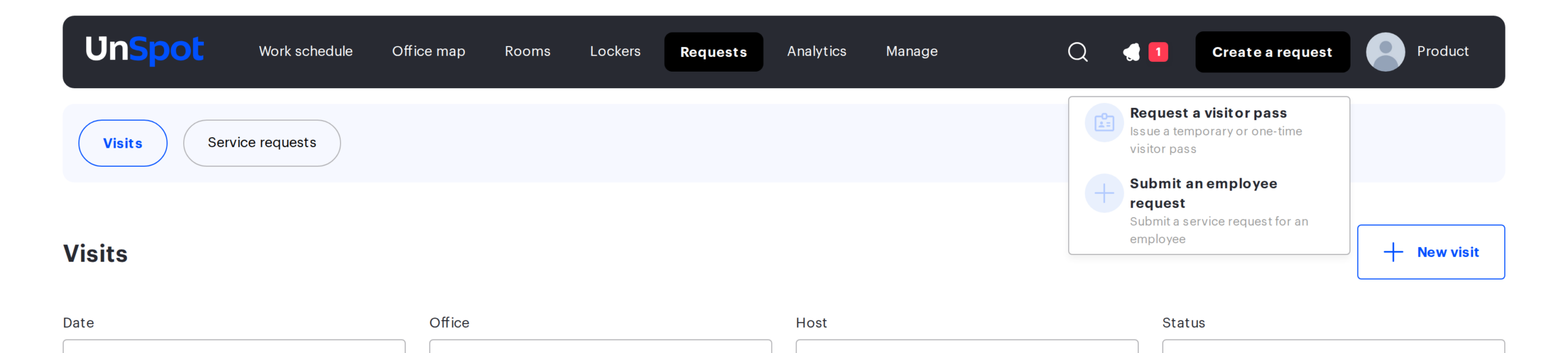
| Nothing in particular: stationery, access, IT help | The “Create a request” button in the UnSpot header | Up to three images can be attached |
| A specific office object: desk, parking space, meeting room, point of interest, the office as a whole | The object information card on the map — the “Request” button. Or the QR code stuck on the object | The place is filled in automatically. By QR a request can be submitted without signing in, but such a request is anonymous |
| A specific meeting: prepare the room, lay out a coffee break | The card of your meeting-room booking | No attachments. The execution deadline equals the start of the meeting and is filled in automatically |
Picking the wrong way is not a problem: the request still reaches the provider. But the more precisely the way is chosen, the fewer clarifications are needed: a request about an object already carries the place, a request for a meeting carries the time by which everything must be ready.
What has to be set up for each way
All three ways depend on the company settings. There is one common condition: the “My requests” module has to be enabled in UnSpot and at least one matching service has to exist — switched on and with a provider assigned. Then, by way:
| Way | What has to be set up |
|---|---|
| The button in the header | An active service of the “For employee” type exists. The button itself may be in place without one — the visitor pass module shows it as well |
| The object card | An active service of the “In the office” type exists. The “Request” button is always in the object information card, but without a service the list in the form will be empty |
| The QR code | The same service is switched to “Public” mode, and the administrator has exported and printed the codes |
| The booking card | An active service of the “In meeting room” type exists, and you are the organiser of the meeting or the organiser’s manager |
If the entry point you need is missing, only the UnSpot administrator of your company can set it up — an employee has no influence on this.
What happens after you send it
Whichever way you use, the request lands in one and the same list: the “Requests” section → the “Service requests” tab. Its status and history are there too. The exception is requests submitted by QR code without signing in: they are anonymous and cannot be looked up afterwards.
- The request gets the “New” status and goes to the provider of the service by email.
- Every status change is emailed to you and to the provider.
- You can cancel your own request if it becomes irrelevant. Only the provider can accept it or confirm its fulfilment.
- If the service is processed in an external ticket system, the status is “Sent” right away and never changes.
Cannot find your request in the list? Check the “Creation date” filter first: it starts out showing today only. Set the period you need and the request will appear.
Related articles
- Service request for an employee — a request not tied to a specific place
- Request for an office object and by QR code — a request for an office object and by QR code
- Service request for a meeting — a service request for a meeting
- Service requests: overview — how service requests work in UnSpot
