
Two-factor authentication (2FA)
UnSpot supports two-factor authentication (2FA) for password sign-in: after entering the password, the user additionally confirms the sign-in with a one-time code. The code can be received by email or generated by an authenticator app (TOTP — for example, Google Authenticator). The 2FA mode is set by an administrator and applies to the whole company.
Two-factor authentication modes
| Mode | How it works |
|---|---|
| Do not use | Users sign in with login and password only; no additional code is requested. |
| After entering the password, a one-time verification code is sent to the user’s email. | |
| TOTP | After entering the password, the user enters a 6-digit code from an authenticator app (for example, Google Authenticator). |
Two-factor authentication applies only to password sign-in. It does not affect sign-in via SSO or external providers (Microsoft 365, Google, and others).
How to enable 2FA
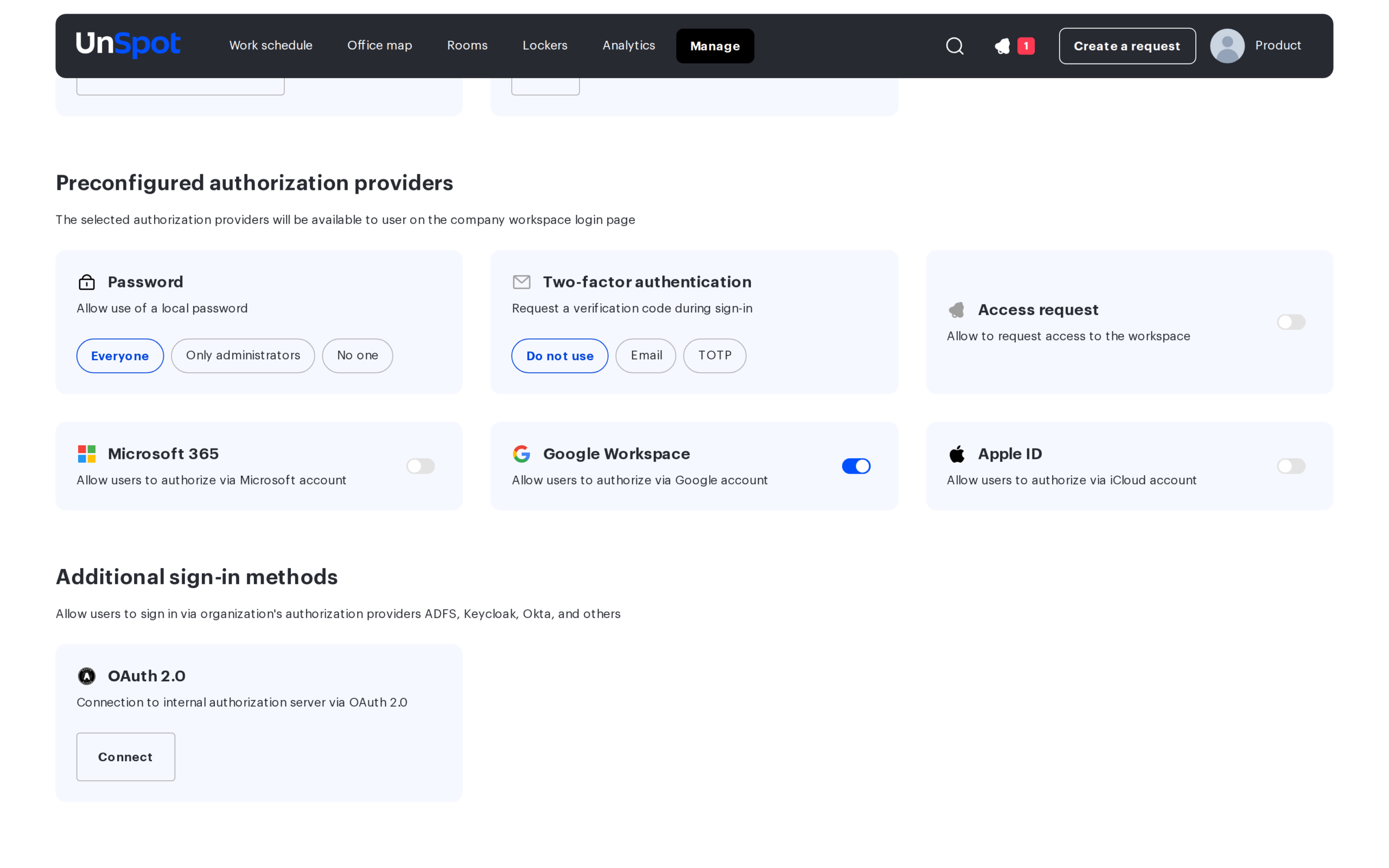
Go to Manage → Integrations → Login options / SSO. In the “Password” card, find the “Two-factor authentication” setting (“Request a verification code during sign-in”) and select one of the modes: Do not use, Email or TOTP. Only one mode can be active at a time — it applies to all company users who sign in with a password. The setting is available only when password sign-in is allowed in the company.
Signing in with an email code
In the Email mode, after a successful login and password entry, the user receives an email with a one-time code. Enter the code on the confirmation screen to complete the sign-in. If the email does not arrive, check the Spam folder and request the code again.
Signing in with an authenticator app (TOTP)
The TOTP mode works with standard authenticator apps that generate 6-digit codes refreshed every 30 seconds. Any TOTP app will do — for example, Google Authenticator.
First-time setup
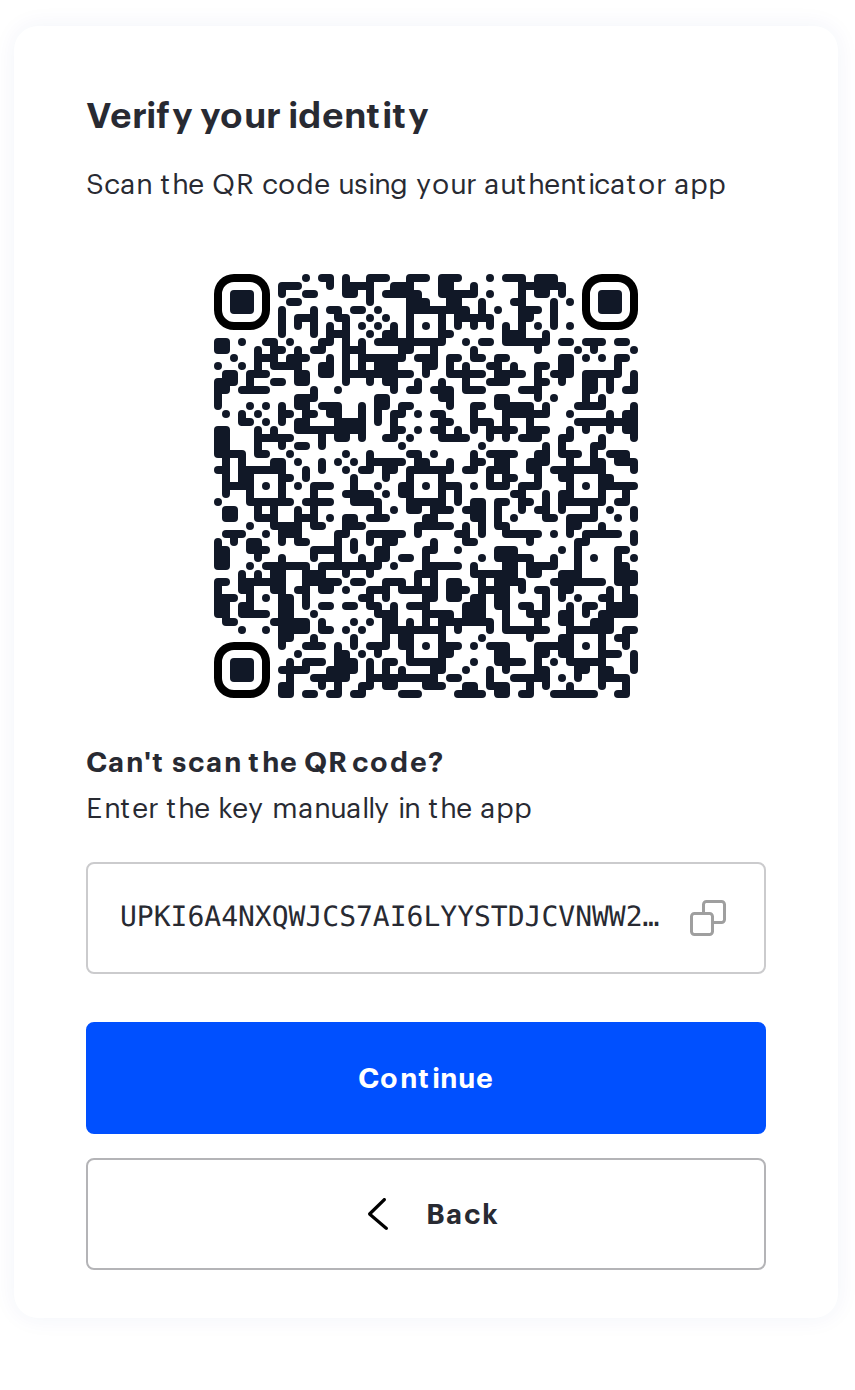
On the first sign-in after the TOTP mode is enabled (or after an administrator resets the key), the user sees the setup screen right after entering the login and password:
- Scan the QR code with your authenticator app — or enter the secret key manually (it is shown below the QR code and can be copied with a button).
- Click “Continue” — the code entry screen opens. If needed, you can go back to the screen with the QR code.
- Enter the 6-digit code from the app. Once the code is verified, the 2FA setup is complete and you are signed in.
The “Back” button cancels the setup and returns you to the sign-in screen. The confirmation session lasts 5 minutes — if it expires, start the sign-in again.
Signing in with a configured app
If 2FA is already configured, the 6-digit code entry screen opens right after the login and password step. Enter the current code from the authenticator app to complete the sign-in.
Resetting a user’s TOTP key
If a user has lost access to their authenticator app (changed the phone, deleted the entry), an administrator can reset their TOTP key. Open the user’s card in Manage → People management and click “Reset TOTP key”. After the reset, the user goes through the first-time setup again with a new QR code on their next sign-in.
- The button is shown only when the TOTP mode is enabled in the company and the administrator has the permission to reset keys.
- You cannot reset your own TOTP key.
- The key can be reset by a Super Administrator (for any user except themselves) and a Users Administrator (only for employees with the User role).
Limits and errors
- The 2FA confirmation session lasts 5 minutes — once it expires, start the sign-in again.
- Too many sign-in attempts trigger the message “Too many attempts. Try again in …” — wait for the indicated time.
- If the code is not accepted, make sure you enter the current code (it refreshes every 30 seconds) and that the time on your phone is synchronized automatically.
