
Points of interest on the map
A point of interest is a marker on the office map that cannot be booked: a coffee point, a restroom, a printer, a lift, a first aid kit, an emergency exit. The marker carries an icon, a title, a description and a photo; employees see it on the map and find it through search. This article covers how such points are added, how they differ from the other map objects and what happens to them when a draft is published.
What it is
Unlike a desk, a parking space, a meeting room or a locker, a point of interest is not a resource: it cannot be booked, it has no type of use and it does not appear in occupancy analytics. Its job is to show on the floor plan what an employee needs to know: where the kitchen is, where the fire extinguisher is, where equipment is handed out.
One more difference: a meeting room, a locker and a nested workspace are created in the office settings first and only then placed on the map, while a point of interest is created straight in the editor — like a desk or a parking space.
How to add a point to the map
- open the map editor: “Manage → Office management → Workspaces” → “Change map” → on the Drafts page open the published version or a draft;
- switch to the Seating mode — objects can be added there only;
- in the toolbar on the left choose “Points of interest (POI)”;
- pick an icon in the panel that opens — it attaches to the cursor (Esc cancels the choice);
- place the marker on the plan and fill in the “Point of interest” form;
- in a draft the point is saved together with the map — with “Save”. On the published map it is different: the point’s card (name, description, icon, photo) goes to the server the moment you click “Save” in the card itself — the message “The Point Of Interest has been created successfully.” or “…updated successfully.” appears, and “Back” can no longer undo it; the marker’s position on the plan is saved, like everything else, with “Publish changes”.
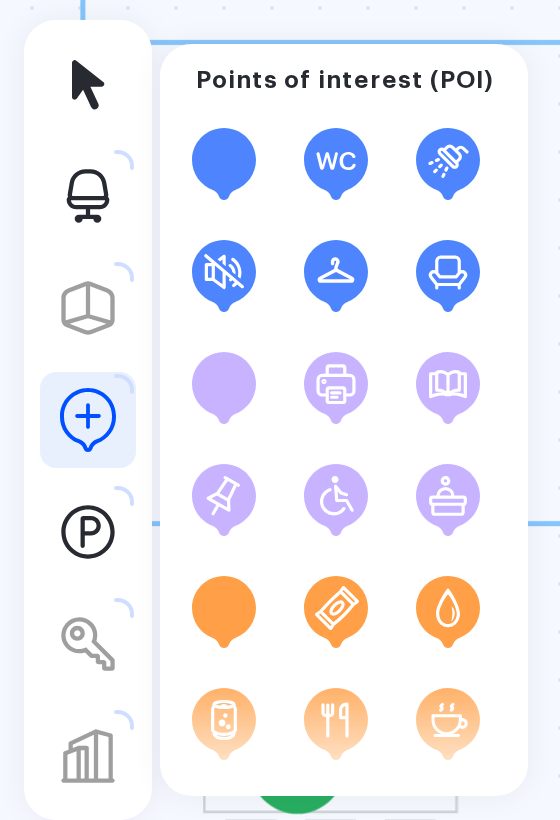
Icons and categories
The icon is picked from a ready-made set: nine categories, each with a plain colour marker and five icons with a picture. Custom images cannot be used as an icon, but a photo can be attached to the point (see the next section). The marker colours come from the company’s brand palette, so yours may differ from the screenshot.
| Category | Icons in the category |
|---|---|
| Comfort zone | WC, shower, quiet zone, cloakroom, lounge |
| Services | printer, library, office supplies, accessible spaces, reception |
| Break area | snack machine, water, beverage machine, cafeteria, coffee point |
| Security | first aid kit, medical point, fire extinguisher, emergency exit, medical room |
| Ecology | green area (two icons), recycling point, battery collection, waste bin |
| Inventory | massage chair, lounge, gym |
| Office room | phone booth, medical office, massage room, training room, gym |
| Navigation | elevator, stairs, info display, info desk, pickup point |
| Rooms | green zone, presentation room, multimedia room, relaxation room, game room |
Form fields
| Field | Required | Limits |
|---|---|---|
| Icon | yes | picked from the set above |
| Title of point of interest | yes | 1 to 60 characters; an empty field gives “This field must be filled in”, a long one “The maximum input for this field is 60 characters” |
| Description | no | up to 1 000 characters |
| Upload photo | no | png, jpg or jpeg up to 5 MB; otherwise “Please upload image (png, jpg, jpeg)” or “Max image size is 5 MB” |
The description understands simple markup — the “Text formatting” hint under the field shows the same:
*italic text*;**bold text**;__underlined text__.
The description is what an employee reads when they open the point: the opening hours of the coffee point, the rules for borrowing equipment or how to get access to a room.
What the employee sees
On the office map a point of interest is shown with the chosen icon in the colour of its category. A click opens a card with the title, the description and the photo. Points of interest are also included in the global search — a coffee point or a medical room can be found by name without scanning the plan.
Editing and removing a point
- to change a point, open its card with a double click (or with the pencil button above the selected object) — the form opens with the current values;
- the marker is moved and resized in the Seating mode; points of interest cannot be rotated — R + ↑ and R + ↓ do nothing for them. A copy of a marker (cmd/ctrl + D) gets the name, description and icon but not the photo;
- to take a point off the map press Delete or Backspace: the confirmation asks “Are you sure you want to hide this point of interest?”, and for several objects “Are you sure you want to hide selected points of interest?”;
- despite the word “hide” in the confirmation there is no list of hidden points in the interface: to bring a marker back you create it again. This is what makes a point of interest different from a meeting room or a locker, which stay in their own settings section after being taken off the map.
What is different inside a draft
- the changes are invisible to employees until the draft is published;
- the images uploaded inside a draft are stored in it and are deleted together with it;
- when the draft is published the points are carried over to the workspace map: the ones created in the draft are created, the changed ones are updated, and the ones removed from the draft disappear from the map.
Related articles
- Map editor: placing objects — the mode where objects are added;
- Map editor: configuring placed objects — the parameters of objects already placed;
- The floor plan: upload, replace and delete the map — the background the markers are placed on;
- Publishing a seating draft — what happens to the objects when a draft is published;
- Office map editor: an overview of the actions — every action with the map.
