
Subordination through the organisational structure
Make an employee the manager of a department and they get rights over the people in that department without a single checkbox in anyone else’s profile. Those rights cover direct employees only: people in nested departments are not subordinates, and UnSpot has no “cascade down” setting. This article explains where the boundary runs, how to work around it and why analytics looks different.
Contents
Does a department manager see employees of nested departments
Where the organisational structure lives
Who can be a department manager
Why a manager sees the whole branch in analytics
What breaks subordination through the organisational structure
Do not confuse this with desk access by department
Can a department have two managers?
What happens if a department has no manager?
Is a manager part of their own circle of subordinates?
Why does Work schedule show only some employees of a department?
Does a department manager see employees of nested departments
No. A manager’s rights apply only to employees of their own department. Employees of sub-departments are not in the circle — they have their own manager, and the rights over them belong to that person.
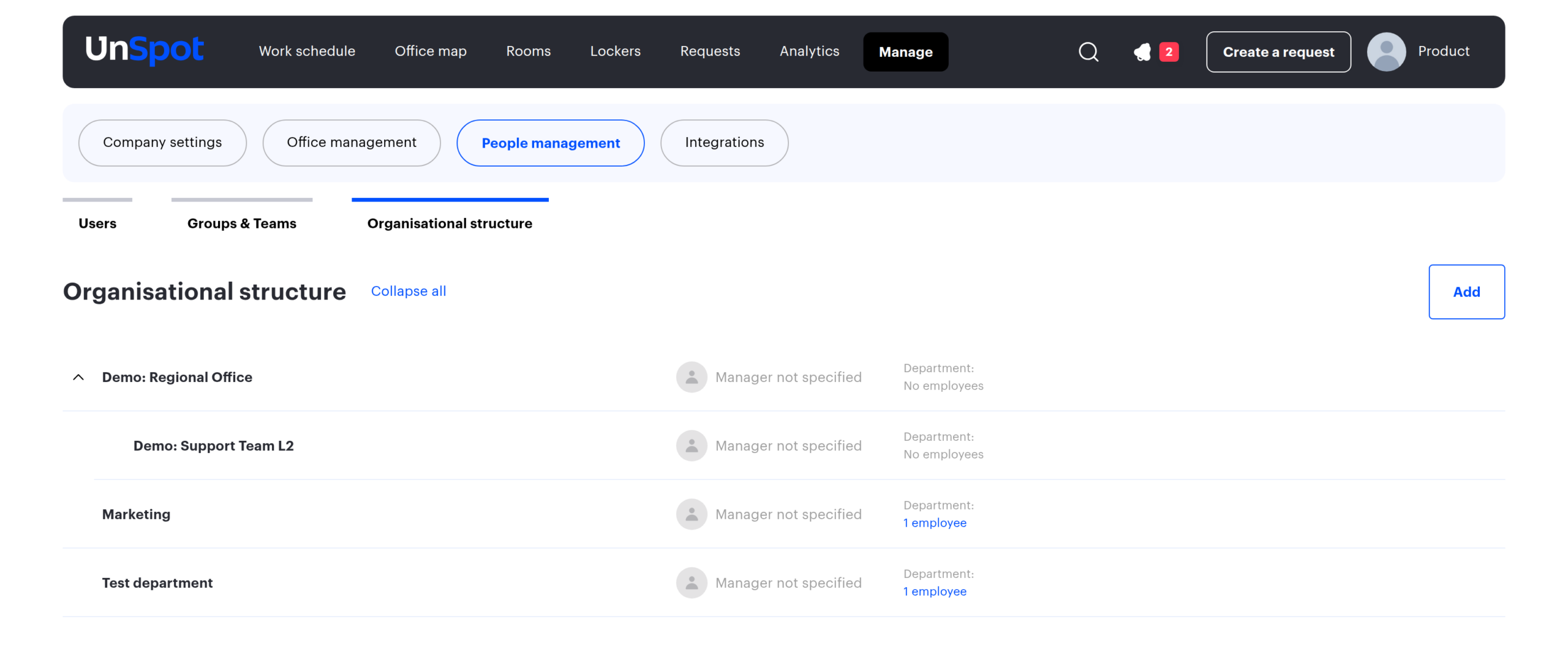
Three counters in the tree answer this directly. Each department row shows Department, Subordinate and Total: the employees of the department itself, the employees of every nested department, and their sum. A manager’s rights cover the first counter only. If a department shows “Department: 6 employees” and “Subordinate: 52 employees”, its manager manages six people, not fifty-eight.
Take a tree. Suppose “People Division” contains “Learning and Development”, which contains “Remote Learning Team”. The manager of the Division manages only the employees whose profile names the Division itself: they will not see the schedules of the two lower teams, cannot book a desk for them and will not find them in reports.
The rule is the same across the product: bookings, schedules and statuses, schedule templates, service requests, the employee profile, the visitor log and reports all use the same circle of subordinates. The one section that behaves differently is office analytics — see below.
To let a manager run the whole branch, add the people from nested departments by hand — as a list, as a team or through the Manager field in their profiles. Instructions: Subordinates and teams in the employee profile and The direct manager in the employee profile.
Where the organisational structure lives
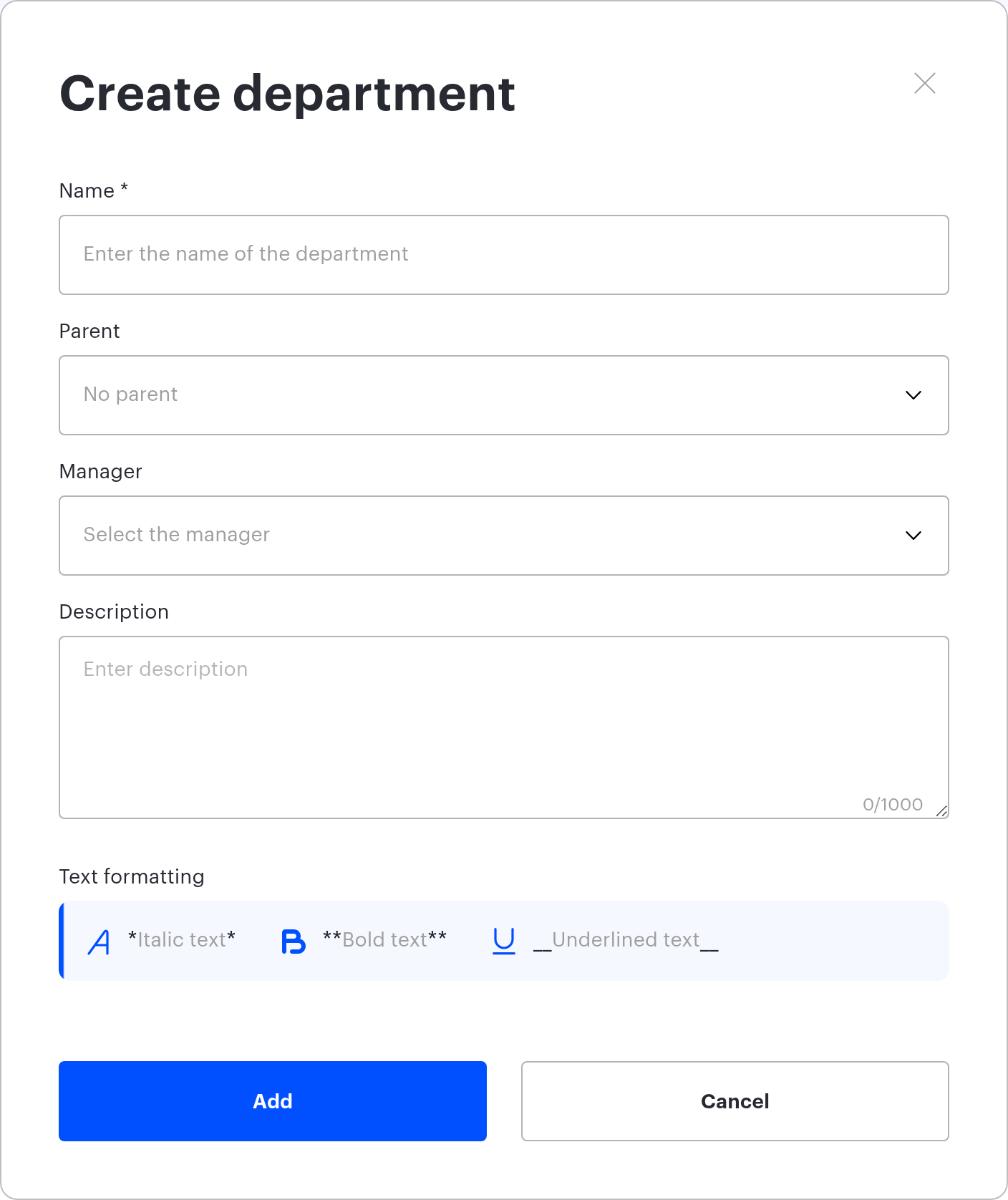
The department tree lives in Manage → People management → Organisational structure. The Add button opens the Create department form with the fields Name, Parent, Manager and Description. Departments nest to any depth.
An employee belongs to exactly one department, set in their profile or delivered by synchronisation. The roster can also be edited from the organisational structure screen: Add employee for one person, CSV upload for many, and a removal action to take people out of the department.
Filling a department from a list of addresses. The CSV upload on that screen only needs a column with email addresses: the system finds employees who already exist and moves them into this department from their previous one. The file does not create new employees — every unknown row returns an error, and the upload ends with a summary of how many rows were skipped.
The tree can also be built by the user import. In the CSV import of users the Department column takes a path through the tree with slashes, not a name: “People Division/Learning and Development”. Missing nodes are created top-down. If any node of the path is synchronised with a directory, the department is not changed at all — silently.
Who can be a department manager
Do not confuse this with the Manager field in the employee profile: that is a different mechanic, covered in The direct manager in the employee profile.
| Item | How it works |
|---|---|
| Managers per department | No more than one |
| Departments per manager | Any number — rights add up across all of them |
| Departments per employee | Exactly one |
| Who can be a manager | Any active employee, including one from another department or one who already manages two others — the system does not check |
| Who cannot | A deactivated employee, an archived one, and an employee with the Reception role |
| Where it comes from | The organisational structure screen or synchronisation (Active Directory, SCIM) |
Synchronisation can set the department manager too: Active Directory takes them from the department object attribute, SCIM from the organisational unit field. Matching is done by email address, and the case of the address has to match the one stored in UnSpot. If there is no matching employee, the field stays empty — silently, with no error.
Why a manager sees the whole branch in analytics
On the By office analytics tab a manager really does see figures for the entire branch, nested departments included: the By employees filter is prefilled with your departments and everything nested in them. This grants no rights — analytics shows depersonalised statistics, not profiles, bookings and schedules.
In numbers: a division has 6 employees of its own and 52 in nested departments. On the By office tab its manager sees statistics for all 58, in reports — rows for the six, and can manage the bookings of those six only. Full breakdown: Subordination in analytics and reports.
How to set it up
- Open Manage → People management → Organisational structure.
- Build the tree: create departments and nest them.
- Open a department and pick an employee in the Manager field.
- Make sure employees have the right department in their profiles: that field alone defines the circle.
- Check the result: sign in as the manager and open My → Work schedule → Colleagues. If the tree says “Department: 6 employees”, the department block must contain exactly six people — employees of nested departments do not appear there.
Rights take effect as soon as you save; there is no separate activation step.
What breaks subordination through the organisational structure
- An empty or wrong department in the profile. If the field is blank or names another department, the person is not a subordinate of this department’s manager — even if they sit in the same room.
- Deactivating an employee. A deactivated employee loses their department and stops being the manager of their departments. This does not restore itself: after reactivation the fields have to be set again. Manual lists, teams and the Manager field survive deactivation.
- Archiving a profile. Here every link is broken: the department, the Manager field for them and for their subordinates, the Subordinates lists in both directions, teams and access groups. Restoring from the archive does not bring them back.
- Expecting rights to cascade down. They do not exist one level below your own department.
Moving a node in the tree does not affect managers’ rights: the circle is defined by the field in the employee profile, not by the position of the department. What does change is access to places (that one follows the branch downwards) and the coverage of the analytics filter.
| Message | What it means |
|---|---|
| Deletion is unavailable because the department contains sub-departments and/or employees | A department is deleted only when empty: move the people and the nested departments first |
| A synchronised department cannot be deleted | The node came from a directory — delete it in the source |
| Editing a synchronised department is restricted | Its name, parent and manager are maintained by the directory |
| The employee list cannot be updated because the department is synchronised from an external source | The roster of a synchronised department changes only in the source |
| A department with this name already exists | Names are unique within one parent — they form the path used by the import and the exchange |
Do not confuse this with desk access by department
Desks and parking places have an Owner field that also holds a department. That is a different topic, and inheritance there works differently: access is granted to employees of the owning department and of every department nested inside it.
| What is inherited | Direction along the tree |
|---|---|
| Access to places (the Owner field) | Downwards: the place is visible to the departments nested inside |
| Rights over employees (department manager) | Nowhere: your own department only |
An easy way to remember it: places travel along the branch, people do not. Details: Desk access through the organisational structure.
Frequently asked questions
Can a department have two managers?
No, the field stores one employee. If two people must manage the same staff, give the second one those employees through the Subordinates block or through a team — the mechanics add up.
What happens if a department has no manager?
Nothing breaks: employees of that department simply do not become anyone’s subordinates through this mechanic. The tree shows “Manager not specified”.
Is a manager part of their own circle of subordinates?
No. Reports about subordinates will not include you, although some screens — the picker for the person a booking is made for, for example — do show you: there the product adds you to the subordinates separately.
Why does Work schedule show only some employees of a department?
Every block of My → Work schedule → Colleagues shows up to 100 people, with no warning when the list is truncated. A second consequence: the summary status row above a block is calculated only for groups smaller than 100 and shows a status only when it is the same for everyone in the block.
What happens if an employee changes department?
They immediately leave the previous manager’s circle and join the new one. Existing bookings and schedules are kept — only the rights to manage them change.
Related articles
- Employee subordination: overview — start here
- Subordinates and teams in the employee profile
- The direct manager in the employee profile
- What a manager can do: bookings, schedules, requests
- Subordination in analytics and reports
- Desk access through the organisational structure — about places, not people
