
What a manager can do: bookings, schedules, requests
This is a reference of a manager’s rights: what they can do with the bookings, schedules, requests and profiles of their subordinates, and where the limits are. The set of rights is the same however the circle was assembled — through the organisational structure, a team, the Subordinates list or the Manager field. Separate sections cover the screens where only part of the circle counts, and what the subordinate sees.
Contents
How the system decides whether someone is your subordinate
Where subordination is counted only partially
Schedules, statuses and the attendance rate
What the interface shows when rights are missing
What subordination does not grant
Does a manager see private bookings of subordinates?
Can a manager book a place for someone who is not their subordinate?
Can a manager be prevented from changing subordinates’ schedules?
Why does an employee see requests from the whole company?
Why does the same action work for one manager and not for another?
How the system decides whether someone is your subordinate
On every check the system assembles the circle from four sources and combines them on an “at least one matches” basis. No source overrides the others.
| Source | Where it is configured |
|---|---|
| The Subordinates list in your profile | Manage → People management → Users |
| Teams given to you | The same screen, the Teams block |
| The Manager field in the employee profile | The subordinate’s profile |
| You are the manager of their department | Manage → People management → Organisational structure |
The “All users” option stands apart: it does not add a source but switches the check off — every employee counts as a subordinate.
You are not in your own circle. That is why reports about subordinates do not include you, while the “book on behalf of” picker does: there the product adds you to the subordinates separately.
Where subordination is counted only partially
A few places use a narrower circle. It looks like this: a department manager cancels a subordinate’s booking — fine; tries to stop the same booking — refused, although it is the same person.
| Where | Which circle applies there |
|---|---|
| The Stop button on a meeting room booking | Only the Subordinates list and the “All users” option, plus the Office manager or Super Administrator role. The organisational structure, teams and the Manager field do not count here |
| The My team block in Work schedule | The Subordinates list and the Manager field. Teams and departments appear as separate blocks |
| Booking desks for a group, the My team option | The same narrow circle: the Subordinates list and the Manager field |
If a scenario does not work, the most reliable fix is to add the people to the Subordinates block as an explicit list — it counts in every one of these places. For the Stop button that is not enough: the role comes first.
Bookings
| What you can do | Details |
|---|---|
| Book a place for a colleague | Desks and parking. If the booking policy allows booking for others, any employee can do it and no rights are needed; if it forbids it, only for your own subordinates |
| Cancel someone else’s booking | Desks, parking, meeting rooms — only within your circle |
| Change a meeting room booking | For bookings whose organiser is your subordinate |
| Stop a meeting room booking | Requires the Office manager or Super Administrator role plus the Subordinates list |
| Move an employee to another place | Desks and parking |
| See meeting room booking details | Including private bookings of subordinates |
| Book desks for a whole group | A team and a department require you to be their manager; there is no group booking for parking or meeting rooms |
| Book a locker cell for an employee | Impossible through any mechanic: a cell is taken and released only by the employee themselves or by the Super Administrator |
The rule is asymmetric: with a permissive policy you can book a place for a colleague without any rights, but cancelling that same booking requires them to be your subordinate.
Booking for a subordinate replaces their previous booking. If the person already has a place for that day, no conflict is shown: the old booking is dropped and a new one is created. Only those entitled to delete that person’s bookings can do this; everyone else gets “You do not have permission to reassign user …”.
Group actions take the whole group. Booking places and setting a status for a team or a department cover every member, not the intersection with your circle; the only check is that the team was given to you and the department is yours. The limit is 30 people: above it you get “To change the status of a group, there should be no more than 30 people in it” — even when you were booking rather than setting a status. A department of 45 has to be handled in two passes.
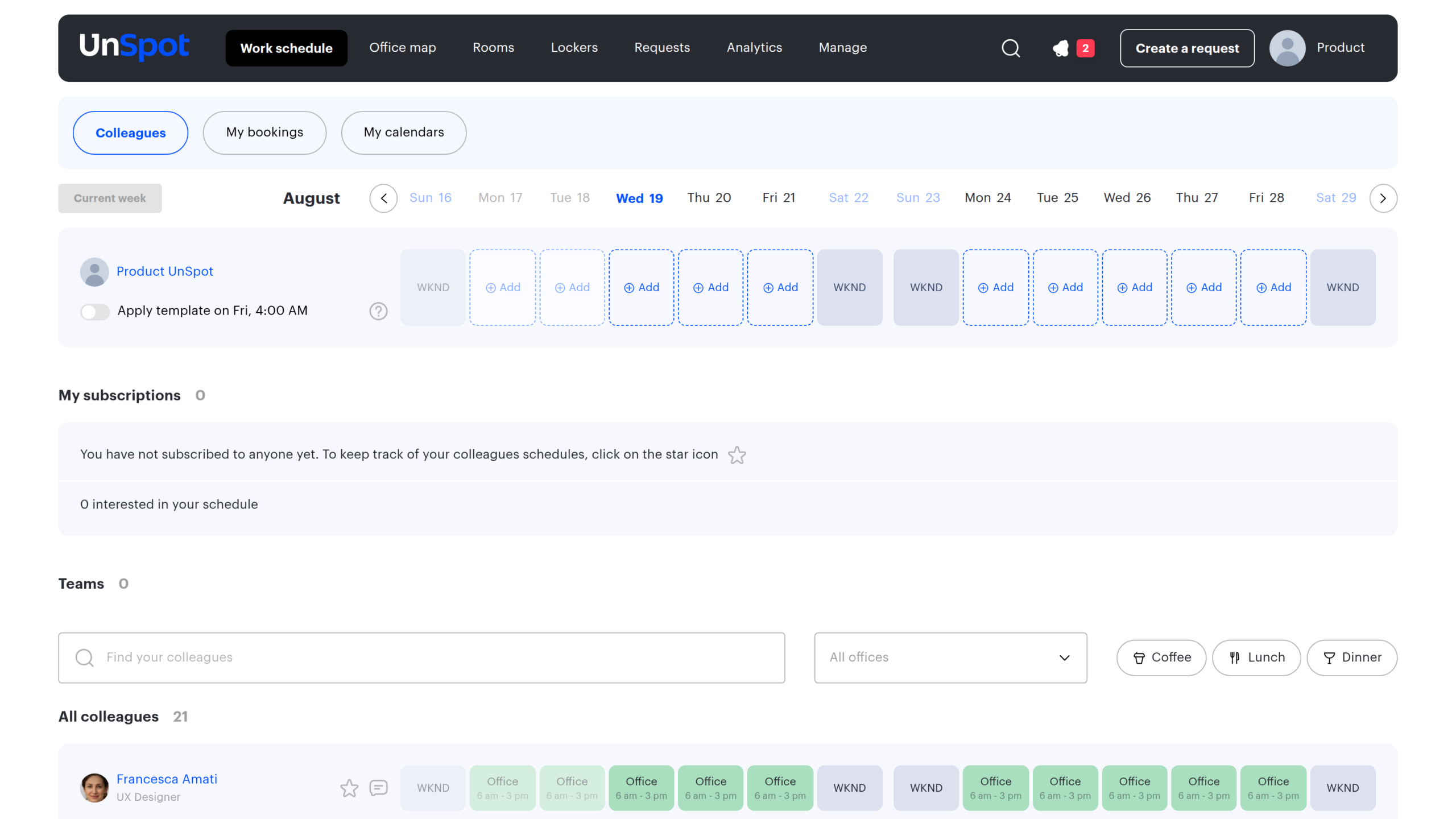
Schedules, statuses and the attendance rate
| What you can do | Details |
|---|---|
| See subordinates’ schedules | My → Work schedule → Colleagues: the My team block, one block per team given to you and one per department you manage |
| Set or reset a status for an employee | Remote work or an absence, for example |
| Set a status for a whole team or department | A bulk action, up to 30 people at a time |
| Create and change a subordinate’s schedule template | Including resetting the template |
| Switch a template on or off, lock it | A locked template cannot be changed by the employee |
| See subordinates’ attendance | A summary by team or department |
A status displaces a booking. When you set a status for an employee on a date — by hand or in bulk — their desk bookings for that day are removed: a booking already in progress is stopped, a future one is deleted, and the employee is notified of the cancellation. The interface shows no warning beforehand.
Every block shows no more than 100 people, with no warning when the list is truncated. The summary status row above a block is calculated only for groups smaller than 100 and shows a status only when it is the same for everyone.
One subtlety: a status set for a whole department also applies to you; set for a team, it does not. And a manager can change a status where the employee no longer can — an employee with a booking already in progress is refused, a manager is not.
The employee profile
A manager does not edit the whole profile of a subordinate. Exactly four fields are available:
- the start of the working day
- the end of the working day
- the assigned office
- the office attendance rate
So a manager can set an attendance rate and assign an office, but cannot change the person’s department or role. Everything else is changed by the Super Administrator or the Users Administrator, and the role itself only by the Super Administrator. A manager can additionally see subordinates’ favourite places in private spaces, hidden from everyone else.
Service requests and visitors
| What you can do | Details |
|---|---|
| See requests | Your own — created by you or assigned to you — and those whose executor is your subordinate |
| Change a request status | Accept, complete, reject. The author of a request can only reject it |
| Register a guest visit for a subordinate | You and your subordinates are available in the host field |
| See the pass request log | Limited to your circle |
The circle here is applied to the executor of the request: a request your subordinate raised as a customer, but someone else performs, will not appear in your list. The Completed and Rejected statuses are final — nobody can change them; a request cannot be moved back to New by hand either, that status is set only by the system.
An employee with the “All users” option sees the whole company request list. The phrase “an administrator sees every request” is wrong: it is the subordination setting that decides, not the role.
What the subordinate sees
Subordination changes not only what you can do but also what reaches the employee.
- A booking made for them. When you book a place for someone, they get a notification that a place has been booked for them, and a cancellation notice when it is removed. Their own bookings are not notified. They can switch these messages off themselves in their profile, in the notification settings.
- A schedule template edit. The employee receives an email saying that their schedule template was changed by their manager, with the name and position of the person who did it.
- Locking a template. No email is sent: the employee sees a note that the template is fixed by the manager and is refused when trying to change it.
- Managers get no notifications. No email and no push notification is addressed to anyone because they are a manager — all of them go the other way, to the subordinate.
What the interface shows when rights are missing
All the messages below mean the same thing: the person you are acting for is not in your circle. The name in the message is the employee’s, not yours.
| What you were doing | Message |
|---|---|
| Booking a desk or a parking place for an employee | You do not have rights to make a booking on behalf of … |
| Changing a booking | You do not have rights to edit the booking of … |
| Cancelling a booking | You do not have rights to delete the booking of … |
| Changing a status or a schedule template | You do not have rights to change status of … |
| Booking a place the employee already occupies | You do not have permission to reassign user … |
| Setting a status for a team or department you do not manage | You do not have rights to edit the group |
| Working with a group of more than 30 people | To change the status of a group, there should be no more than 30 people in it |
| Registering a guest visit for someone else’s employee | The user is neither the current user nor a managed user |
| Changing the status of a closed request | Cannot change final status |
Reports and analytics
Reports use the same circle, and the “All users” option removes the limit. Reports on bookings, schedules and attendance are open to every employee and show their subordinates and themselves. A separate group — the administrator action histories — is opened by role and does not apply the circle at all. Report-by-report breakdown: Subordination in analytics and reports.
What subordination does not grant
- Access to places. Rights over a person and access to desks are separate mechanics: a manager gets no access to their subordinates’ places, and subordination opens no places to anyone.
- Administrator rights. Company, office and integration settings stay with the corresponding roles.
- Full profile editing. Only the four fields listed above.
- Locker management. Cells are entirely outside the mechanic.
- Rights over guests. A guest has no employee profile; booking for a guest is allowed by a separate toggle in the profile, and a meeting room cannot be booked for a guest at all.
- Rights over the next level down. No mechanic walks up the reporting chain.
Frequently asked questions
Does a manager see private bookings of subordinates?
Yes, and it follows from an office setting. The Booking rules dialog has a Private bookings toggle with the hint “Booking organizer info will be hidden from other users. Managers will still see their team’s bookings.” While it is off, organisers are visible to everyone. When it is on, the organiser is hidden from regular employees but stays visible to you across your whole circle. One exception: a meeting room booking that came from an external calendar and has no organiser in UnSpot is not opened to anyone.
Can a manager book a place for someone who is not their subordinate?
Yes, if the booking policy allows booking for others. Cancelling that booking, however, will not work.
Can a manager be prevented from changing subordinates’ schedules?
There is no separate setting: the rights come as one set. The only thing you can limit is the composition of the circle.
Why does an employee see requests from the whole company?
Most likely their Subordinates block is set to “All users”. The role has nothing to do with it.
Why does the same action work for one manager and not for another?
Check which mechanic assembles the circle and read the section on partial support: some operations look only at the Subordinates list, and the Stop button also requires a role.
Related articles
- Employee subordination: overview — start here
- Subordination through the organisational structure
- Subordinates and teams in the employee profile
- The direct manager in the employee profile
- Subordination in analytics and reports
- Desk access rights: overview — access to places, not to people
- Teams in the schedule and subordinates’ schedules
- Work schedule template
