
“For employee” requests: setup
A service of the “For employee” type covers tasks that are not tied to a particular place: ordering stationery, calling a courier, asking IT for help. An employee submits such a request from the UnSpot header, without choosing a desk or a meeting room. This is the simplest of the three service types: it has no request object and no service mode — only a name, a description and a provider.
When this type fits
When you create a service, UnSpot asks you to pick a “Service type” — it decides where the employee submits the request from and what they fill in. The hint under the chips describes this type as: “General office tasks not related to a specific object or room. For example: granting/revoking access, workplace questions, stationery, general everyday requests.”
| Service type | Where the request is submitted from | What the request carries |
|---|---|---|
| “For employee” | The “Create a request” button in the UnSpot header | Only the service, a description and attachments |
| “In the office” | An object card on the map, or a QR code stuck on the object itself | Additionally the object: desk, parking space, meeting room, office or point of interest |
| “In meeting room” | The card of a meeting-room booking | Additionally the booking; no attachments, an “Execution deadline” instead |
Choose “For employee” when the request has nothing to do with a particular object on the map. If the task always concerns a specific desk or meeting room, the other two types suit better — a request of those types arrives with the place already filled in.
Creating the service
What you need: the Super Administrator or Offices Administrator role; the “My requests” module enabled (Manage → Company settings → the “Available functionality” block); an employee to assign as the provider.
- Open Manage → Office management → the “Services” tab and click “Add service”.
- In the “Service type” block choose “For employee”.
- In the “Where to process requests” block keep “Inside UnSpot” if your own employees will handle the requests in UnSpot. The “In external ticket system” option is covered in a separate article.
- Fill in “Service” and, if useful, “Service description”.
- Fill in “Provider” — for processing inside UnSpot this field is required.
- Save the service. It appears in the table with “For employee” in the “Service type” column.
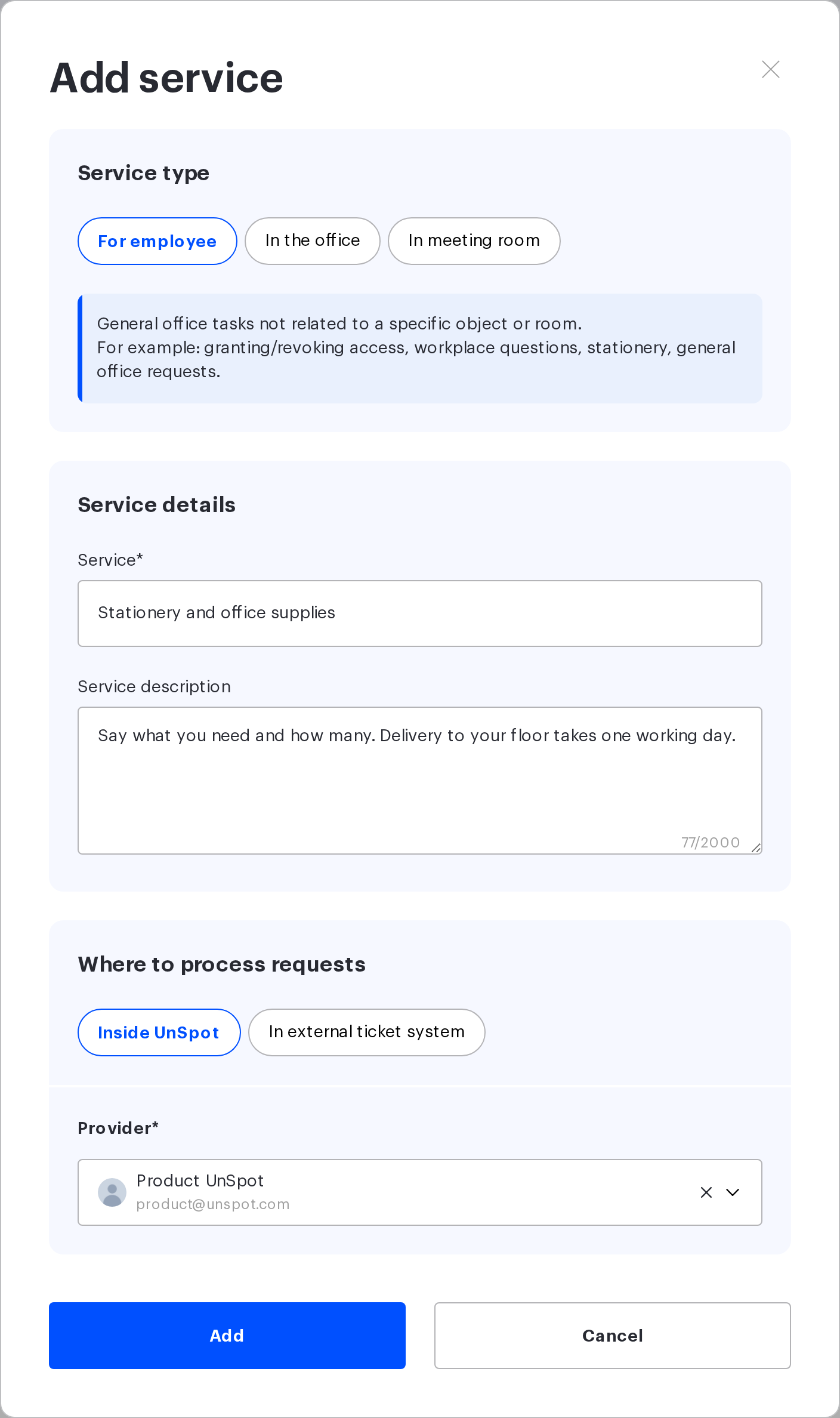
“Service type” and “Where to process requests” are set once and cannot be edited afterwards. In the edit form both chip groups are read-only — only the name, the description and the provider can be changed. To switch the type or the processing method you have to delete the service and create it again, and deletion is blocked while the service has requests in progress. Decide before the first save.
This type has no “Service mode” block — private and public modes exist only for “In the office” services. A “For employee” request is always submitted by an employee who is signed in.
Service fields
| Field | Required | Limits and what it controls |
|---|---|---|
| “Service” | Yes | From 2 to 255 characters. This is what the employee picks in the request form, so write something that makes sense without context. The name is unique: the check ignores case, and a duplicate returns the error “A service with this title already exists” |
| “Service description” | No | Up to 2000 characters. Shown to the employee under the selected service — put here what helps them fill the request in correctly: what to mention in the text, what the service does not cover, how long fulfilment usually takes |
| “Provider” | Yes, for processing inside UnSpot | Exactly one active employee. They receive the email about a new request and process it |
Who sees “Submit an employee request”
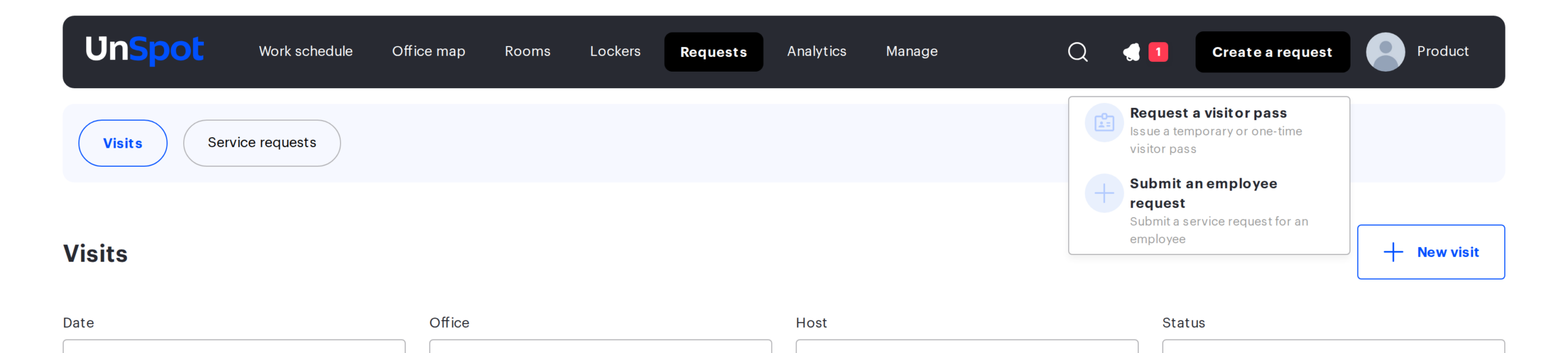
Requests of this type are submitted from the UnSpot header — with the “Create a request” button, and on mobile and in the header dropdown with the same item in the “Requests” section. This entry point is not always there.
| Condition | What must be true |
|---|---|
| The module is on | “My requests” in the “Available functionality” block |
| A matching service exists | At least one service of the “For employee” type with its status switched on |
| The service can be processed | That service has a provider assigned, or processing in an external ticket system selected |
The conditions are checked together: a service with no provider and no external processing does not add the item to the list, even though it exists and is active.
The “Create a request” button can be in place while an employee request still cannot be created. The button is not shown by this module alone — the visitor pass module brings it up as well. UnSpot looks at how many scenarios are available to the employee:
- both are available — the button opens a list of two cards, “Request a visitor pass” and “Submit an employee request”;
- one is available — the button opens its form straight away, with no intermediate list;
- neither is available — there is no button at all.
So “the button is there, but it opens the visitor pass form” is expected behaviour rather than a fault: it means the conditions in the table above are not met. Check those, not the presence of the button.
The provider
- There is exactly one provider. You cannot assign several employees to one service; the only way to split the load between people is to create separate services.
- Any active employee can be a provider — no special role is needed. The picker offers everyone who is not blocked and not deleted.
- The provider can be changed at any time — this is one of the few fields that stay editable after the service is created. The change affects new requests only: in requests that already exist the provider is changed separately, inside the request itself, and only the Super Administrator role can do that.
- This variant has no observers. The “Request progress observers” field appears only when requests are processed in an external ticket system.
What happens if the provider is blocked or deleted. UnSpot removes them from the service, and the service is left without a provider: the status toggle in the table becomes inactive and no new requests can be submitted for it. All unfinished requests of that provider go back to the “New” status, the provider field in them is cleared, and a system entry is added to the status history: “The service provider for this request is inactive. Please contact the administrator to assign a new provider or create a new request.” To bring the service back, assign a new provider.
Switching off and deleting a service
The services table has a status toggle — the gentle way to stop accepting requests.
| Action | What happens | When to use it |
|---|---|---|
| Switch the status toggle off | The service is no longer offered in the request form. Requests that already exist stay and are processed as usual | The service is paused: the provider is on holiday, the contractor is being replaced |
| Delete the service | The service disappears from the list and from the request form. It cannot be restored through the interface | The service is not needed at all any more |
Deletion is confirmed with the question “Delete this service?”. If the service has requests in the “New” or “Accepted” status, UnSpot will not delete it and shows the “Can’t be deleted” dialog. It offers two ways out: deactivate the service so that no new requests are created for it, or close the current ones first — accept and complete them, or cancel them. Requests in final statuses do not block deletion.
Things to keep in mind
| Detail | How to work with it |
|---|---|
| The service type and the processing method cannot be changed after saving | Decide before the first save; to switch, delete the service and create it again |
| The row order in the services table is not defined, and the screen has no sorting or filters | With many services, navigate by name rather than by position in the list |
| The employee sees the service name in the request form, and the description only after selecting the service | Put the important part into the name: employees use the list far more often than the description |
| Turning the “My requests” module off removes the “Services” tab entirely | Services of the other two types disappear from setup with it — the module is shared by all three |
| An employee can cancel their own request, but cannot accept or complete it | This is normal: cancelling is available to the author, processing to the provider |
Related articles
- Service requests: overview — which service types exist and which to choose
- “In the office” requests: setup and QR codes — setting up “In the office” requests and QR codes
- “In meeting room” requests: setup — setting up “In meeting room” requests
- Processing requests in an external ticket system — processing requests in an external ticket system
- Processing service requests — how requests are processed inside UnSpot
- Service request for an employee — how an employee submits such a request
