
Workspace access through the organisational structure
Desks and parking spaces have an “Owner” field — a department from the company organisational structure. This is a way to hand resources to employees that is separate from Access Groups: the list of people who get access is not maintained by hand, it follows the organisational structure. This method has a hierarchy rule that does not work the way most people expect. This article explains the mechanics and shows when it beats groups.
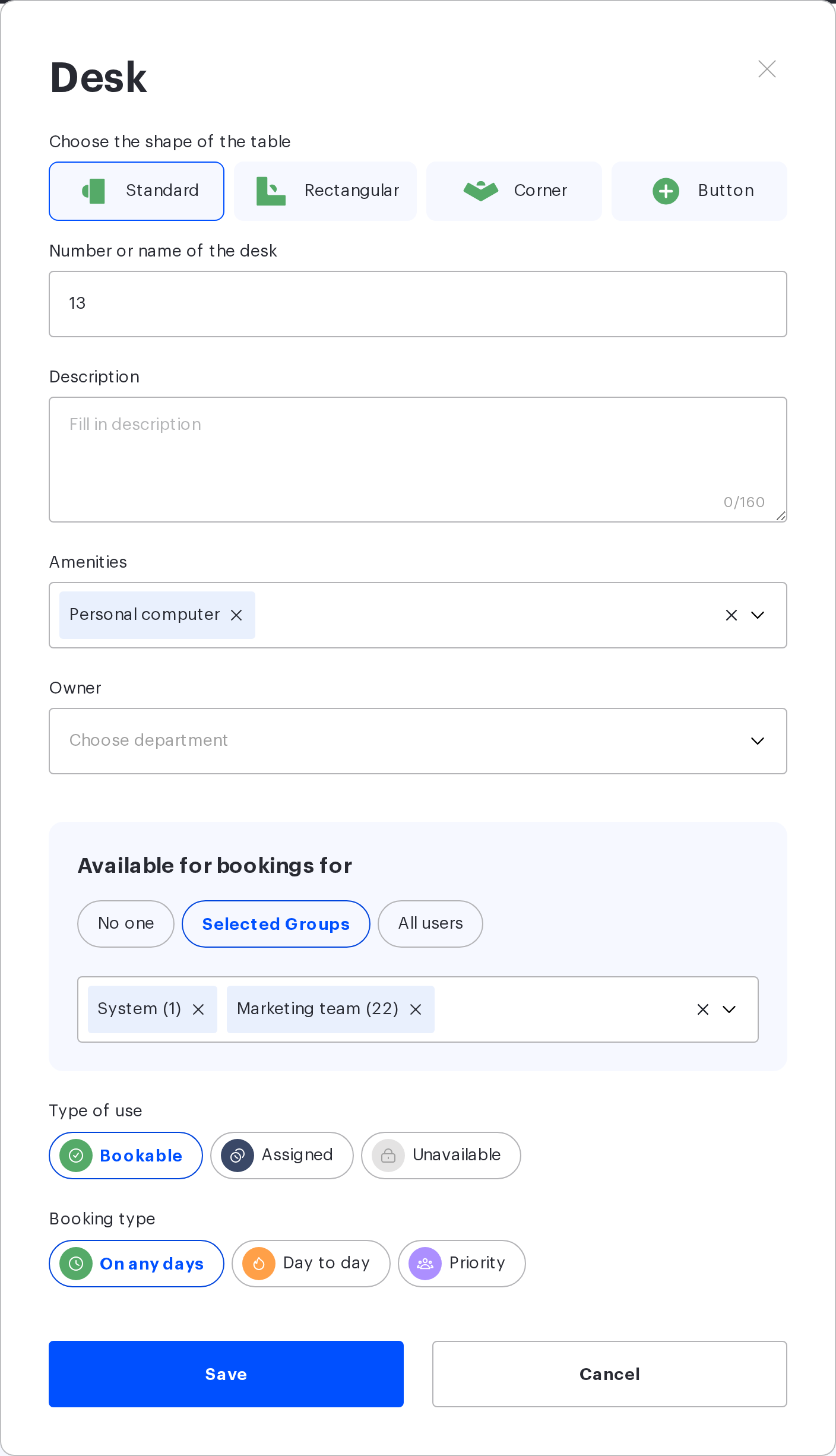
The “Owner” field in the resource card
Open “Manage → Office management → Workspaces”, click “Change map” on the floor you need and double-click the resource. The card has an “Owner” field with the placeholder “Choose department”, where you pick a department from the organisational structure tree.
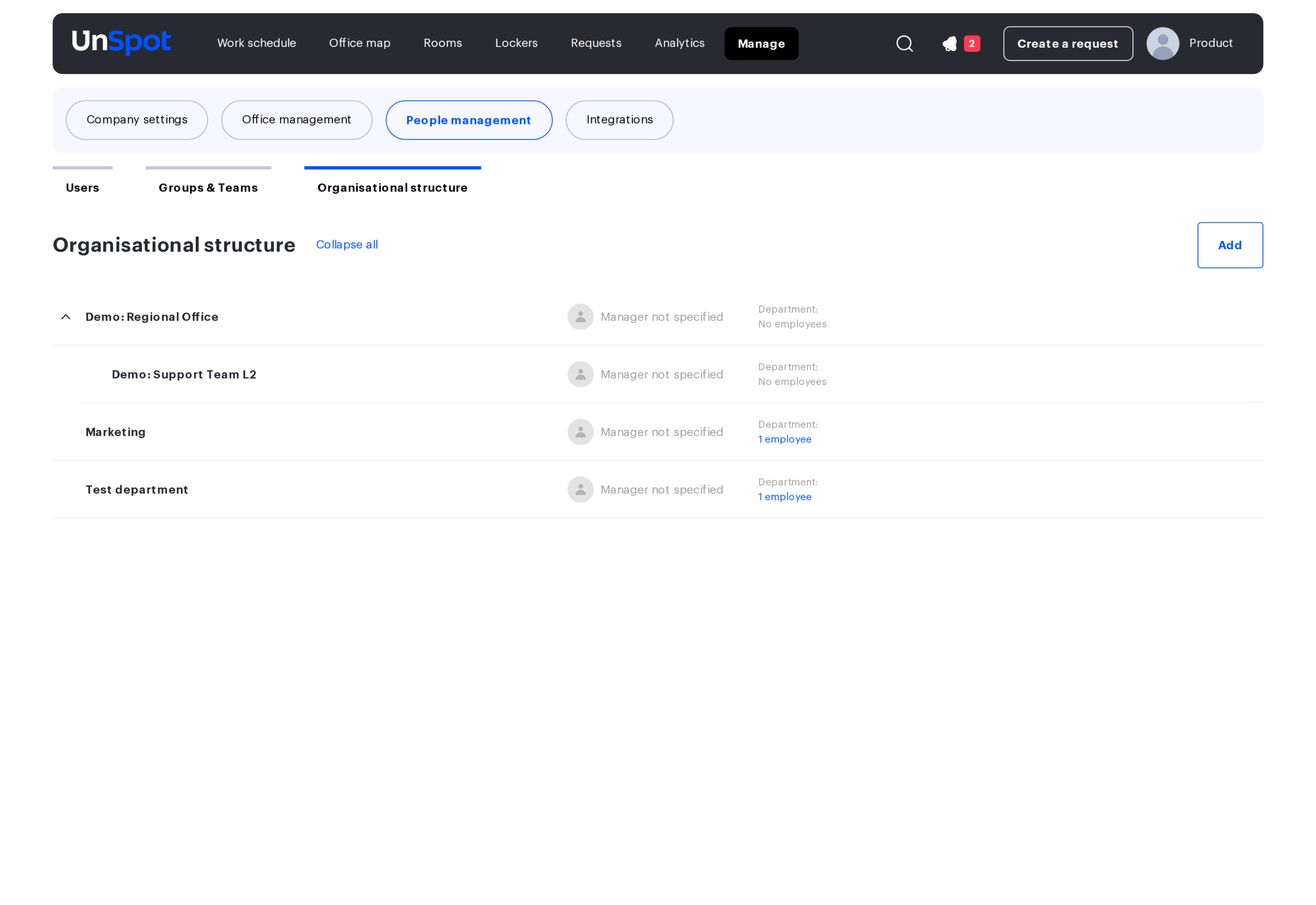
The department tree itself is maintained in “Manage → People management → Organisational structure”: departments nest inside each other, and each one may have a head and a list of employees.
As soon as a resource has an owner, employees get access to it — even if the resource has no Access Group at all and “No one” is selected in the “Available for bookings for” block. The owner does not replace groups, it is added to them: the resource is available at the same time to the group members and to the employees of the owner department.
The hierarchy rule: access travels down the tree
Access to a resource goes not only to the employees of the owner department, but also to the employees of every department nested inside it. Access is not passed upwards: the departments standing above the owner do not see the resource through this source.
The same rule from the employee’s side: an employee has access to the resources of their own department and of every department above it — the parent departments, all the way up to the root of the organisational structure. The deeper a person stands in the tree, the more resources are open to them.
- If you set a small team as the owner, access goes only to its employees and to the employees of the teams nested inside it. The departments above it get no access.
- If you set a large division as the owner, access goes to the employees of that division and of every unit and team nested inside it — the whole branch downwards. The circle is wider than it looks.
This may look counter-intuitive, but the logic is this: a resource that belongs to a department stays available to the department itself and to everything nested inside it, rather than being handed up to the services above.
The rule changed in the update of 24 August 2026. Before that, inheritance worked the other way round: a resource of the owner department was visible to the employees of that department and of every department above it, while the nested teams got no access. If that is the behaviour you remember, the article is not wrong — the direction of inheritance really has been reversed.
A worked example on a department tree
Take this tree: “People Division” with a “Learning and Development Unit” nested inside it.
| Owner of the resource | Who gets access | Who does not |
|---|---|---|
| Learning and Development Unit | Only the employees of the Unit itself and of the teams nested inside it | Employees of the Division and of its other units |
| People Division | Employees of the Division and of every unit nested inside it, the Learning and Development Unit included | Employees of departments outside the Division |
| Not set | Nobody through this source — only groups and assignment work | — |
Hence a practical rule: set as the owner the department the resources actually belong to, not “a department higher up, just to be safe”. Picking a node higher in the tree does not narrow access, it widens it down the whole branch: the higher the node, the wider the circle of employees.
Where the owner does not work
| Object | The “Owner” field |
|---|---|
| Desk | yes |
| Parking space | yes |
| Meeting room | no |
| Locker and locker cell | no |
| Office, building, floor, zone | no |
For meeting rooms and lockers the only way to restrict who books them is Access Groups.
Three more limits:
- An employee has one department. If it is not filled in, this source of access simply does not work for them — there is no error, the employee just gets whatever groups and assignments give them.
- When an employee is disabled, their department is cleared. If the account is enabled again, the department has to be set again — and access comes back with it.
- When a department is deleted, the “Owner” field is cleared. A department with employees or nested departments cannot be deleted, but the system does not warn about resources: on the resources of a deleted department the field simply becomes empty, and access through this source disappears.
Owner or Access Group: which to choose
| Situation | Better choice | Why |
|---|---|---|
| Department resources, and the department membership changes | Owner | The list of employees is not maintained separately: move a person into the department and access appears on its own |
| The circle of employees does not match the organisational structure | Access Group | A group takes people from different departments |
| Access is needed both for a department and for a project team | Both at once | The sources add up, there will be no conflict |
| The organisational structure is not filled in in UnSpot | Access Group | Without departments on employees the owner gives nothing |
| Access is needed by the departments above, not by the nested ones | Access Group | The hierarchy rule works downwards, not upwards |
What else the “Owner” field gives
- The owner department is shown in the resource card on the map — it is clear whose resource it is.
- Bookings in reports are filtered by it: you can look at the occupancy of the resources of a specific department.
- It appears as a separate column in the resource settings report.
- The “Places” tab of the department card lists the desks and parking spaces owned by the department.
The owner does not affect booking priority or booking confirmation — those are separate mechanisms.
Frequently asked questions
Do I need to select an Access Group if an owner is set?
No. The owner is enough: the employees of the department will get the resource even with the “No one” option in the group block.
Is a resource available to a group and to the owner department at the same time?
Yes. This is a union, not an override: one source that fires is enough.
A department was renamed or moved — what happens to access?
Renaming on its own breaks nothing: the “Owner” field points to the department itself, not to its name. After a move, access is recalculated according to the new position of the department: the set of departments above it changes, and so does the set of resources its employees can see. Moving a node also updates all of its nested departments.
Related articles
- Workspace access rights: overview — the entry point to this section
- How workspace access rights work
- Configuring resource access rights: all settings — the settings reference
- Access Groups: rules and configuration options
- Assigned seats, priority and the booking horizon
- Subordination through the organisational structure — rights over employees, not over places
