
Seating drafts: create, duplicate and delete
A draft is a working copy of the workspace map. This article covers the three ways to create one, the requirements a draft name has to meet, the per-workspace limit and what deletion does — to a draft and to the published version.
Three ways to create a draft
All three are available on the Drafts page — it opens from the Change map button in the workspace list or from the office map. There is no “creation method” selector: the method is defined by the button you press.

| Method | Where you start it | When it fits |
|---|---|---|
| Empty draft | The Create draft button | You are planning the seating from scratch: a new floor, a new building, a full redesign |
| Copy of the published map | Duplicate on the published version | You are editing the existing seating: moving a department, adding desks, changing assignments |
| Copy of another draft | Duplicate on a draft | You need several options from one starting point, to compare them |
An empty draft
Created with no floor plan and no objects. You upload the map background inside the editor, in the Seating mode — png or jpg up to 5 MB — and then place desks, parking spaces and the rest. Until the floor plan is uploaded, Save and Publish in the editor stay disabled.
A copy of the published map
The draft receives the floor plan and every object exactly as published: desks, parking spaces, pods, meeting rooms, lockers, nested workspaces and points of interest together with their settings.
A copy of another draft
The contents of the source draft are copied, not the published map. This is a convenient way to branch: prepare a base option, make two copies of it and take each one to its own scenario.
The default name of a copy is “<name> #N”, where N is one above the highest existing number — both drafts and the published map are taken into account.
Name requirements
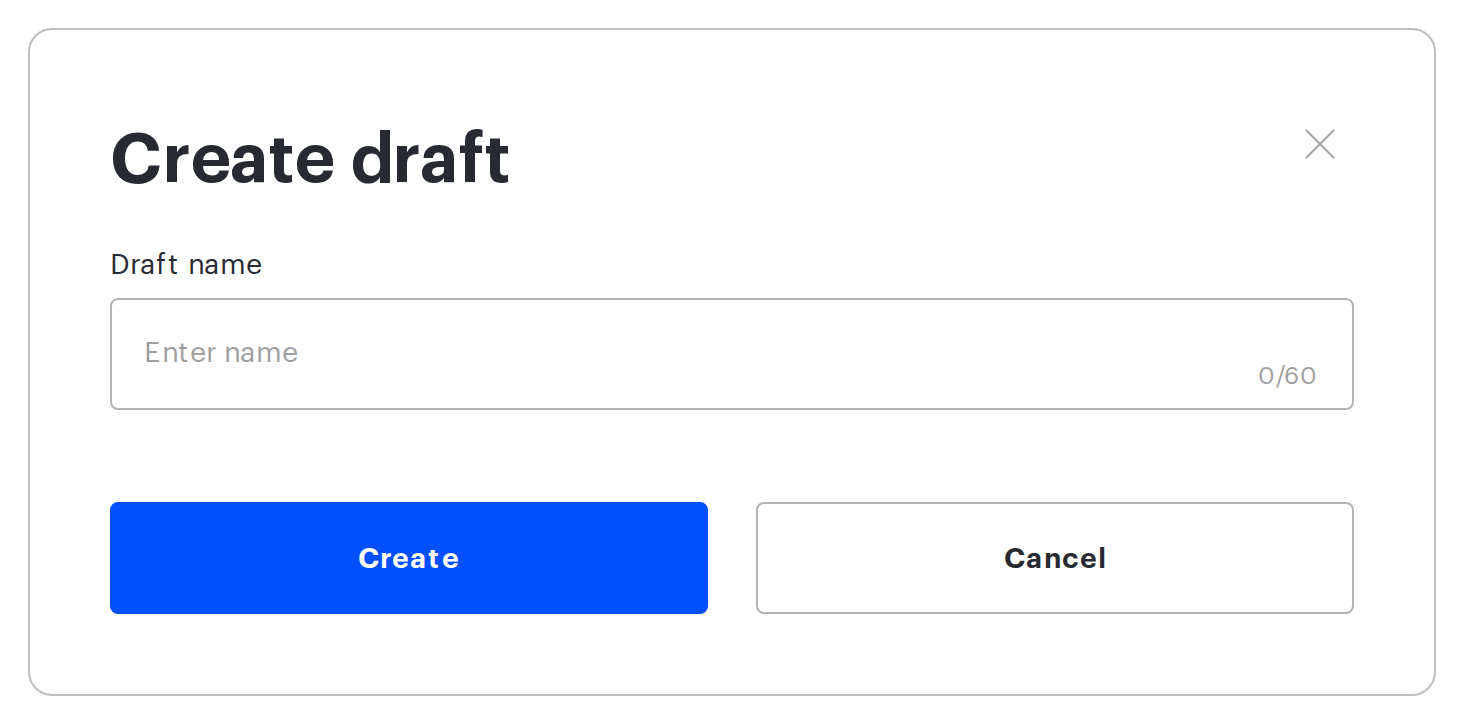
- the name is mandatory — a draft cannot be created without one;
- length from 1 to 60 characters;
- the name is unique within the workspace; case is ignored, so “Relocation” and “relocation” count as the same name.
If the name is taken, the product reports an error and the draft is not created — pick another name.
Draft limit
A single workspace can hold no more than 10 drafts. Once the limit is reached, creating a new draft and duplicating are both rejected with the generic message “Couldn’t create draft. Please try again later.” — it does not name the reason, so when a draft is refused, check the number of drafts in the list first. To free up room, delete the drafts you no longer need — layout options that have already been applied, for example.
Renaming
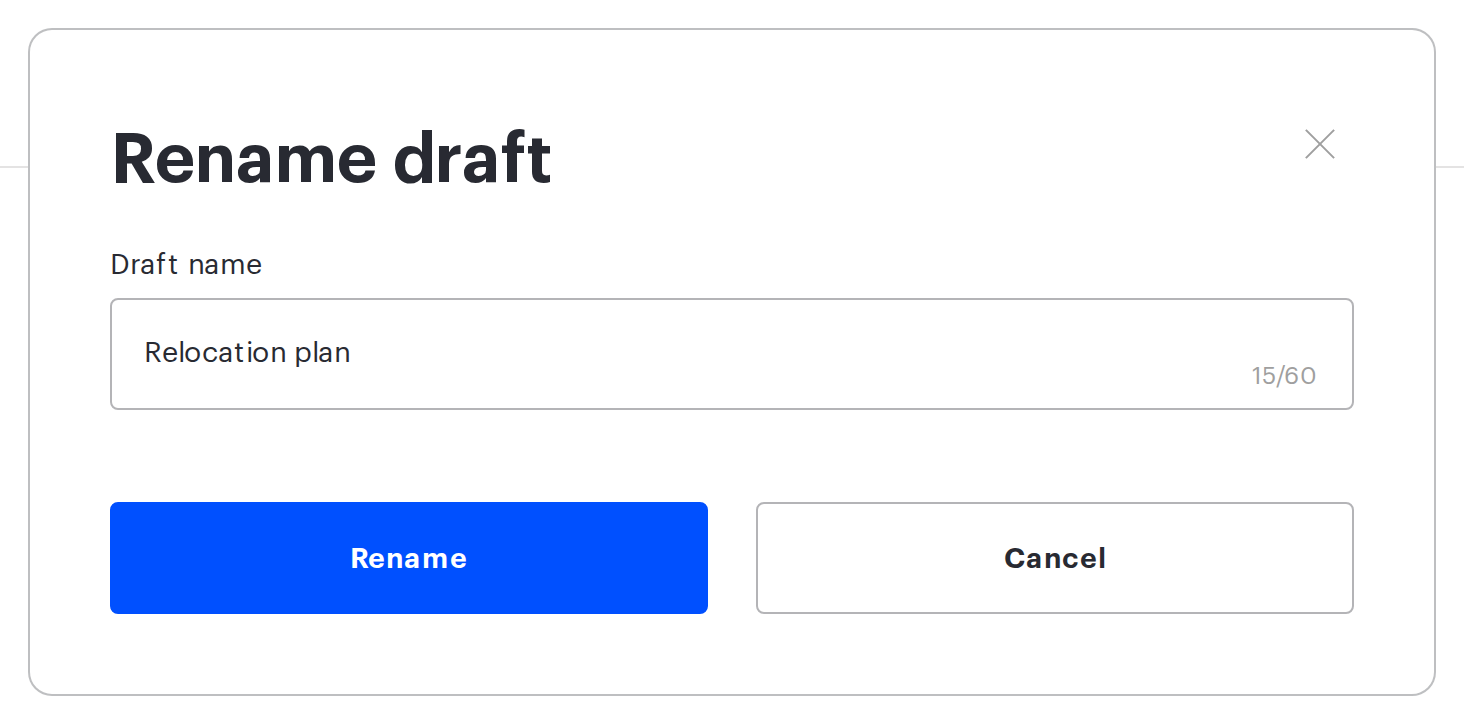
A draft name is changed on the Drafts page, with the edit icon next to the name. The new name has to meet the same requirements as at creation. Renaming does nothing to the contents of the draft.
Deleting a draft
Deletion starts with the Delete action on a draft and is confirmed in a separate dialog. Once confirmed, the following are deleted:
- the draft record itself with every object placed in it;
- the copy of the floor plan the draft was keeping;
- the copies of the photos of desks, parking spaces and points of interest the draft was keeping.
Deletion cannot be undone, and it does not touch the published map. A draft is also deleted automatically in two cases: when the workspace itself is deleted — then all its drafts go — and after a successful publication — then only the published draft is deleted, the others stay.
Deleting the published version
The Delete action in the Published version block is not the same as deleting a draft: it deletes the workspace map together with all the places on it, and the workspace becomes unavailable to employees; the drafts are kept. What exactly is deleted, and how to hide a workspace temporarily instead, is covered in “The floor plan: upload, replace and delete the map”.
What happens to the floor plan
When a draft is created, the floor plan is always copied into the draft’s own storage rather than referenced from the source file. That has two practical consequences:
- if the map is replaced or deleted in the published version, the draft keeps the background it was created with;
- the background inside a draft can be replaced without affecting the published map — until publishing, that change concerns no one.
Related articles
- Seating drafts: overview — how map work is organised and what the Drafts page shows;
- Map editor: placing objects — what you can do inside a draft;
- Publishing a seating draft — how to move a draft into the working map;
- Printing the office map — printing a layout option before it goes live.
- Office map editor: an overview of the actions — all the actions with the map.
