
On-premise Exchange: how calendar synchronisation works
This article describes how the synchronisation between UnSpot bookings and calendars on your own Microsoft Exchange server works — what travels to the calendar and back, how changes arrive, what that requires from the network, and how the two connection methods differ: under a service account with access to the calendar, and through impersonation. For the Microsoft 365 cloud the mechanics are different — see Microsoft 365 cloud: how calendar synchronisation works.
The big picture
UnSpot reaches the Exchange server over EWS (Exchange Web Services) under a service account. The synchronisation is two-way:
- From UnSpot to the calendar. A meeting room booking creates a meeting in the calendar of its resource mailbox. Editing and deleting the booking reach the calendar immediately.
- From the calendar to UnSpot. A meeting created in Outlook directly in the room calendar becomes a booking in UnSpot. The Exchange server itself notifies UnSpot about changes, through a subscription UnSpot sets up when the calendar is connected.
The exchange runs on changes rather than full exports: UnSpot asks the server only for what has changed since the previous sync — up to a thousand changes per request, repeating the request until the server has handed everything over. If the server reports that the sync state is stale, UnSpot reads the calendar again from scratch.
Synchronisation has horizons — the window of recurring series and the window in which bookings whose calendar event has disappeared are cleaned up. They are the same for every provider and are collected in the Synchronisation horizons table of How calendar synchronisation works.
Server and network requirements
| Requirement | Details |
|---|---|
| Exchange version | 2010, 2010 SP1, 2010 SP2, 2013, 2013 SP1, 2016. The version is picked in the connection form. Exchange 2019 is not in the list |
| Access from UnSpot to the server | outgoing EWS requests to the server address you enter in the form. The address is entered without a scheme |
| Access from the server to UnSpot | mandatory: change notifications are initiated by Exchange itself and sent to the UnSpot address. If the server cannot reach UnSpot, incoming synchronisation will not work — bookings will still reach the calendar, but calendar events will not reach UnSpot |
| Authentication | domain authentication (NTLM) by default; a switch turns on Basic. The label depends on the option: in the connection window it is Use Basic Authentication (Basic Auth), in the meeting room window it is Use basic authorisation |
| Certificate | validated by default. A switch disables chain-of-trust validation — only for self-signed certificates; the host name in the certificate is always checked, so a certificate issued for a different name will not save the connection. The label depends on the option: in the connection window it is Do not validate SSL certificate, in the meeting room window it is Do not verify SSL |
| Timeouts | UnSpot waits up to 15 seconds for the connection and up to 60 seconds for the response |
What travels from a booking to an event
| UnSpot booking field | Where it lands in the event | Caveats |
|---|---|---|
| Start and end | event time | — |
| Booking title | event subject | — |
| Meeting link and comment | event body | as plain text, without formatting |
| Attendees | optional attendees only | Exchange sends them meeting invitations |
| Private booking flag | event sensitivity | a regular booking becomes Normal, a private one becomes Private |
| Recurrence | event recurrence pattern | carried over on creation |
When a booking is edited, less reaches the calendar than on creation. The time, subject and sensitivity are updated; the all-day flag is also forcibly cleared on the event. The following are not sent:
- a changed attendee list — a guest added or removed in UnSpot will not appear or disappear in the Exchange calendar;
- a changed recurrence pattern;
- a changed body.
If the attendee list matters, it is more reliable to delete the booking and create it again — the event in the calendar is then created from scratch and receives the current list.
What arrives from an event into a booking
| Event field | What it becomes in UnSpot | Caveats |
|---|---|---|
| Subject | booking title | an empty subject makes the booking Engaged |
| Start and end | booking time | — |
| Required and optional attendees | booking attendees | merged into one list, the split is not preserved |
| Organiser | booking organiser | — |
| Sensitivity | private booking flag | anything other than Normal makes the booking private. If the event carries no sensitivity, the privacy setting of the meeting room itself is used |
| Recurrence pattern | recurring booking | the series is processed, not a single occurrence; bookings are created for a limited stretch — roughly a month back and a year ahead — and the chain is extended automatically |
| Meeting cancellation | the booking is deleted | — |
What does not travel
- The meeting location — the meeting room is determined by the calendar the event landed in.
- The all-day flag: an all-day event becomes a booking with a specific time.
- Categories and the free/busy status (Busy, Tentative and the rest).
- Attachments and body formatting.
How changes arrive from the calendar
When a calendar is connected, UnSpot sets up a push subscription on the server for created, updated and deleted events. From then on the initiative is on the Exchange side: the server calls UnSpot whenever something in the calendar has changed and, on top of that, sends status calls roughly once an hour even when nothing has changed. Every such call moves the UnSpot-side “subscription is alive” marker an hour forward — that marker is how the background job notices that the calls have stopped.
Two practical consequences follow:
- If the network between Exchange and UnSpot is closed, incoming synchronisation does not work at all — and it looks like silence rather than an error: bookings reach the calendar, calendar events do not arrive.
- If the calls from the server were interrupted for a long time (a server restart, network maintenance, a firewall rule change), the subscription stops working. What happens next depends on the connection option: for On-premise Microsoft a background job in UnSpot sets the subscription up again, while for Microsoft Exchange (impersonation) nobody does, and the calendar has to be disconnected and connected again. In both cases a manual re-sync picks up the missed meetings once, but does not recreate the subscription.
The two connection methods and how they differ
Everything above is identical for both on-premise Exchange options: the fields, the directions, the update limitations, the subscription mechanics. The difference is who the permissions are granted to and whose name UnSpot uses when it reaches the room calendar.
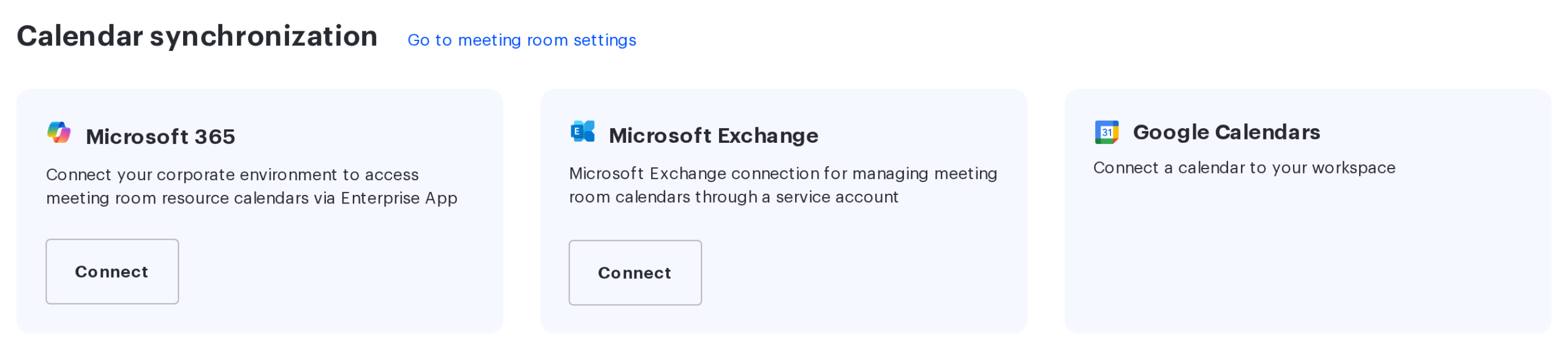
An impersonation connection is created from a card in the Calendar synchronization section:
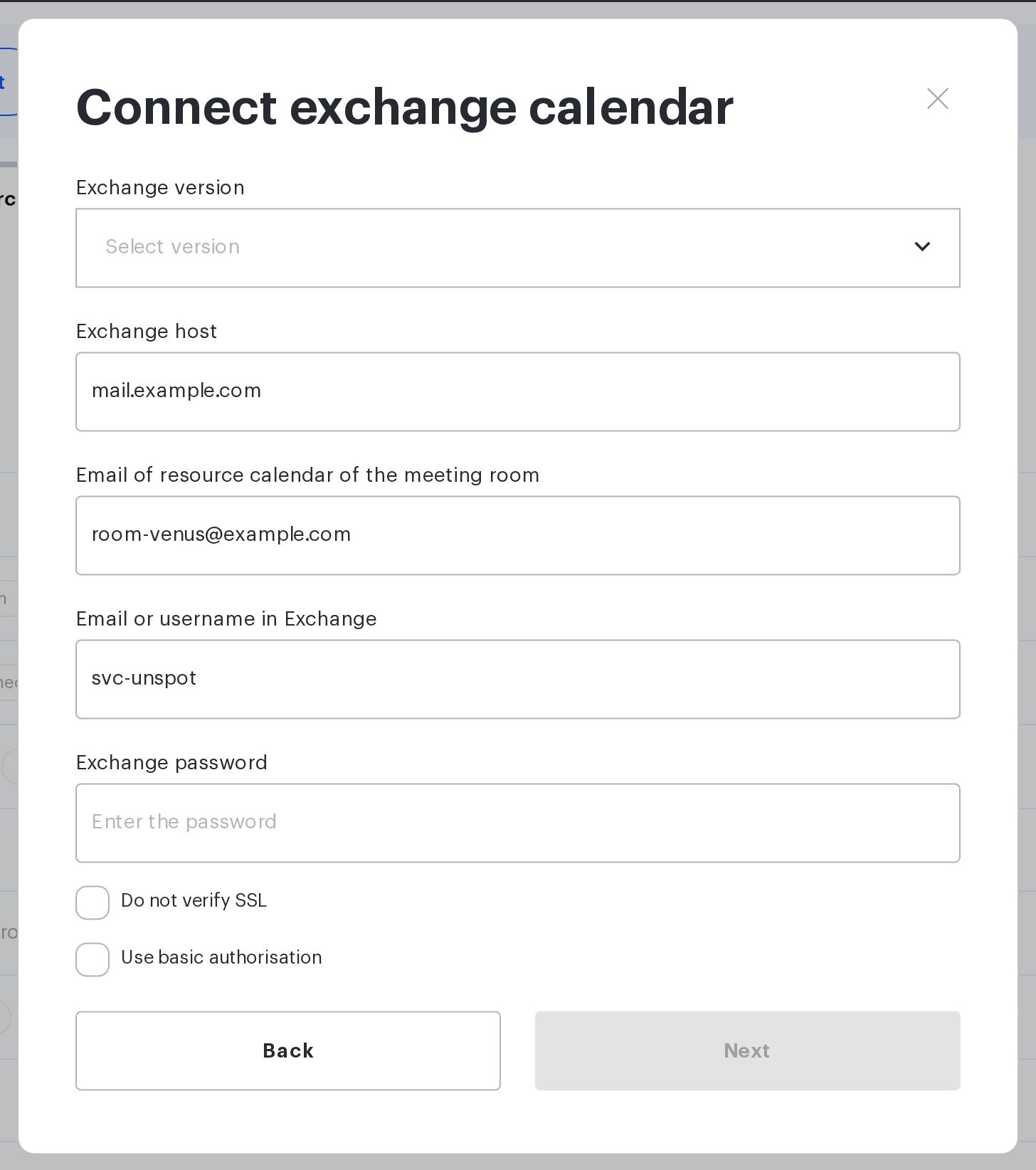
A connection under a service account with access to the calendar is filled in right in the meeting room window — with its own parameters for every room:
| Property | On-premise Microsoft (service account) | Microsoft Exchange (impersonation) |
|---|---|---|
| Where it is configured | room calendar window | Manage → Integrations → Synchronisations |
| What is entered | server address, version, resource calendar email, username and password — for every meeting room | server address, username, password, email, name and version — once |
| Permissions on the Exchange side | the account is granted access to every meeting room calendar | the account is granted the ApplicationImpersonation role once |
| Whose name the calls are made under | the service account | the meeting room resource mailbox |
| How the room calendar is specified | the resource email is entered in the form, then the calendar is picked from the list of that mailbox’s calendars | the resource email is typed in manually; there is no list to pick from — in this option UnSpot does not ask the server for calendars at all |
| Write access checked when connecting | not checked | checked: a test event is created and immediately deleted |
| One connection for many meeting rooms | no | yes |
| Employee personal calendars | supported | not supported |
| Account password change | breaks every calendar connected under it; reconnecting one of them is enough, the credentials are shared | breaks the whole connection; fixed in one place, with the Edit button on the card |
An extra limitation of the impersonation option: the server plus username and server plus email pairs have to be unique — two connections with the same server and the same account cannot be created.
With the impersonation option, connecting a calendar to a meeting room creates a probe meeting titled [UNSPOT] Permission probe in that calendar — dated roughly a month ahead and five minutes long. That is the regular write-access check, and the meeting is deleted right away.
How events are deleted
Deleting a booking in UnSpot affects events differently depending on who created them:
- The event was created by UnSpot — it is deleted from the server for good and cancellations are sent to the attendees.
- The event was created directly in the calendar and UnSpot only picked it up as a booking — UnSpot does not delete the meeting but declines the invitation on behalf of the room resource mailbox. The organiser receives a decline, and the meeting itself stays in their calendar.
Worth knowing separately: disconnecting a calendar from a meeting room does not remove the subscription on the Exchange server. The server keeps sending notifications for a while, and UnSpot answers them with a request to stop. No action from the administrator is required.
Overlaps and conflicts
- The calendar is busy at that time. The booking is deleted, the organiser gets a cancellation notice and a re-sync of the calendar starts — whatever is already in the calendar wins.
- The event could not be created in the calendar. The booking is deleted and the organiser gets a cancellation notice.
- An event in the past. A booking is not created from a past event if it overlaps other bookings.
- A finished booking is never updated. But if the meeting is cancelled in the calendar, the booking is deleted even if it has already passed. A booking that is currently running is updated like any other.
Manual re-sync and signs of breakage
The Start Sync button in the room calendar window reads the calendar again and brings the bookings in line with it; it does not recreate the notification subscription. After a run the button is blocked for an hour — the time of the next possible run is shown next to it. The re-sync is performed by the Super Administrator: the button is visible to the Offices Administrator as well, but for them clicking it does nothing: the re-sync does not start, and the window shows no error message.
UnSpot does not mark an on-premise Exchange connection as broken. The Calendar is not available mark next to the meeting room, the Connection error mark on the connection card and the Reconnect button instead of Start Sync do not appear. In the cloud these signs work; here there are none.
A loss of access therefore looks like silence: bookings still reach the calendar, while calendar events stop arriving. The typical causes on an on-premise server are a changed service account password, a revoked impersonation role, an expired certificate and closed access to EWS. If you suspect any of them, reconnect manually instead of waiting for a mark in the interface — there will not be one.
Related articles
- Microsoft calendar synchronisation: choosing an option
- Microsoft 365 cloud: how calendar synchronisation works
- Prepare Exchange calendar to work with UnSpot
- Connect a meeting room calendar to on-premise Exchange
- Exchange service account with impersonation rights
- Connect Microsoft Exchange via impersonation
- How calendar synchronisation works
