
Parking spaces on the map
Parking spaces live on the same map as desks: they are added in the editor, configured through a card and booked the same way. This article covers the full cycle of working with a parking space on the map and what makes it different from a desk.
How to add a parking space
- open the editor: “Manage → Office management → Workspaces” → Change map → on the Drafts page choose the published version or a draft;
- switch to the Seating mode;
- pick Parking space in the object panel on the left;
- place the object on the plan — the name is filled in automatically: “Parking 1”, “Parking 2” and so on;
- save the changes.
Like a desk, a parking space is created right in the editor — nothing has to be registered in advance.
The parking space card
| Field | What it sets |
|---|---|
| Number or name | the name of the space, 1 to 60 characters; must be unique, the check ignores letter case |
| Description | free text up to 160 characters, visible to the employee when booking |
| Owner | the department the space belongs to |
| Type of use | Bookable · Assigned · Unavailable |
| Booking type | for a bookable space — “On any days” or “Priority” (Access Groups by weekday); for an assigned one — “By weekday” or “Priority” (several employees) |
| Available for bookings for | No one · Selected Groups · All users |
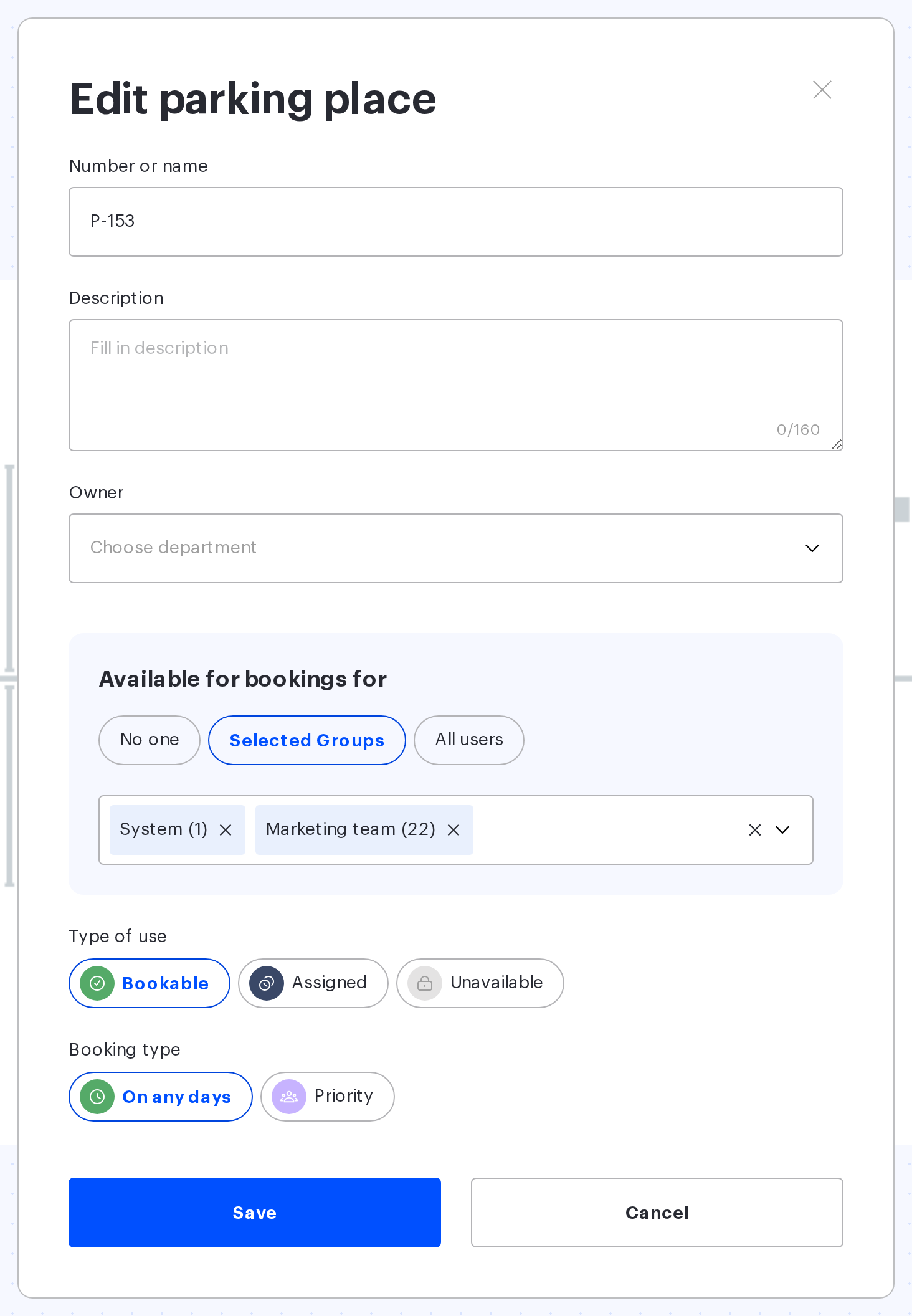
Type of use and assignment
A parking space has the same three types of use as a desk — Bookable, Assigned, Unavailable — but a shorter set of subtypes: a bookable space has “On any days” and “Priority”, an assigned one “By weekday” and “Priority”. “Priority” means different things under the two types: for a bookable space, Access Groups get priority on the selected weekdays; for an assigned one, specific employees do; in neither case is the space blocked for everyone else. “By weekday” creates bookings automatically on the specified days; if the assigned employee releases the space, employees with access can book it.
What each type means is covered in “Desk types”. How to assign a space to an employee, what the “Assign a place?” window offers and when notifications are sent is covered in “Assigning a desk to an employee”: for a parking space the window and the reseating options are the same.
How a parking space differs from a desk
- no shape — a desk has four (Standard, Rectangular, Corner, Button), a parking space has one;
- no amenities — there is no monitor or docking station field for parking;
- no “Day to day” booking type — a bookable space has only “On any days” and “Priority”;
- no “For period” assignment — only “Priority” and “By weekday” are available.
Photo of the space
A picture of the parking space helps the employee find it in an underground car park. The card opened from the map editor has no photo field — the picture is uploaded in the parking space card outside the editor. File requirements: png, jpg or jpeg, up to 5 MB.
Bulk editing
Select several parking spaces with a frame — the bulk edit action appears above the selection, and the form is titled “{parkingsCount} parking spaces selected”. At once you can set the name, description, department, access groups and type of use. One selection must hold parking spaces only: they cannot be mixed with desks. Details are in “Map editor: configuring placed objects”.
Deleting
Select the space and press Delete or Backspace. The confirmation asks “Are you sure you want to remove this Parking?”, and for several — “Are you sure you want to remove selected Parking?”. Unlike a meeting room, a parking space is really removed rather than hidden: to get it back you have to create it again. On the published map, all future bookings of the space go with it and a booking in progress at that moment is stopped; inside a draft this happens when the draft is published. Employees receive emails about the cancelled bookings only if you choose “Yes, notify” at “Publish changes”.
Captcha when booking parking
The Captcha check when booking parking is switched on not in the card of the space but in the office settings, in the booking rules section.
What is different inside a draft
- changes are invisible to employees and do not affect bookings until you publish;
- the “For period” assignment is unavailable for parking in any case — both in a draft and on the published map;
- employees, groups and departments deleted from the product while the draft was waiting are cleared from the card the next time it is opened.
Related articles
- Desks on the map — desks on the same plan;
- Assigning a desk to an employee — the “Assign a place?” window and notifications, the same for parking;
- Map editor: placing objects — placing objects and hotkeys;
- Map editor: configuring placed objects — bulk editing;
- Resource access rights — who can book the space;
- Meeting rooms on the map — rooms on the same plan.
- Office map editor: an overview of the actions — all the actions with the map.
