
Assigned seats, priority and the booking horizon
Assigning a resource solves two different tasks: giving an employee a permanent seat, and giving somebody priority on a resource that the others may also take. On top of that, assigned resources have their own visibility limit of 28 days, and the whole office has its own — the booking horizon. This article explains how these mechanisms add up and why a resource is sometimes “not visible on the date I need”. The step-by-step assignment procedure is in Assigning a desk to an employee.
Type of use and booking type
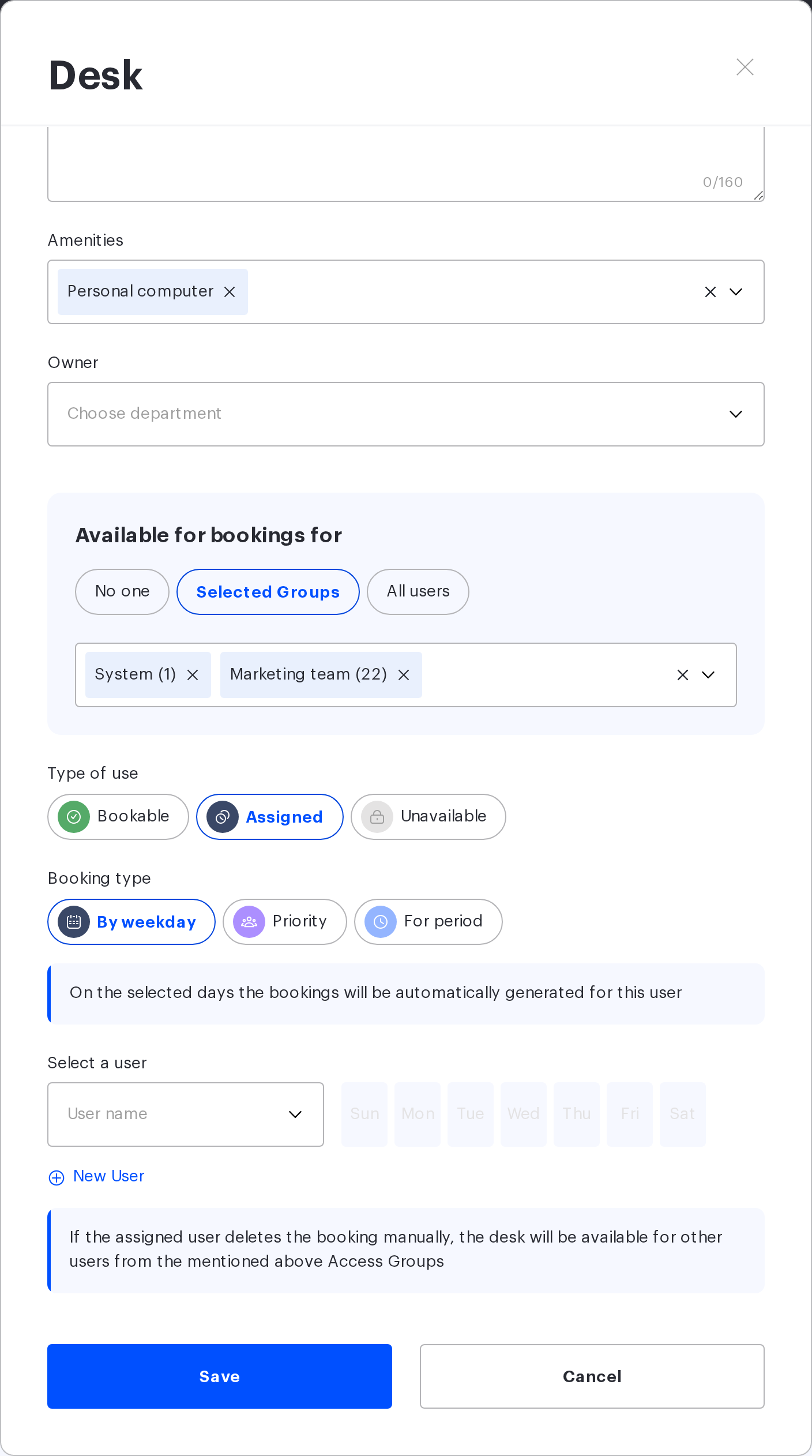
The resource card holds two linked settings. First you pick the “Type of use” — “Bookable”, “Assigned” or “Unavailable”. Then the “Booking type” block shows the options, different for each type of use.
| Type of use | Booking type options |
|---|---|
| Bookable | “On any days”, “Day to day”, “Priority” (for a group) |
| Assigned | “By weekday”, “Priority” (for several employees), “For period” |
| Unavailable | none — the resource is not booked at all |
The options are mutually exclusive: a resource cannot be assigned by weekday and for a period at the same time — the card will return an error on save.
Assignment by weekday
The resource is assigned to one or several employees (“Add user”) — each gets their own weekdays, and one day can belong to one person only. On the assigned days a booking is created automatically, 28 days ahead in a sliding window. The assigned employee gets access to their resource on their days even if the resource has no Access Group and no owner.
A day is skipped and no booking is created if:
- the employee has the “Work remotely” or “Not working” status on that date;
- the schedule template takes the employee away from the office of the resource on that weekday: another office is set, or a status is set while the office of the resource is not;
- the day is a non-working day in the company production calendar;
- the employee already has a booking for that day;
- the employee deleted the automatic booking for that day themselves.
On a day freed this way the resource becomes an ordinary free one: it can be booked by any employee who has access to it — through a group or through the owner department. The assigned employee does not lose the resource either: if they deleted their booking and changed their mind, they can book it again as long as nobody else has taken it.
An important detail: an automatic booking deleted by hand is not created again. The system assumes the employee deliberately released the resource for that day.
Assignment for a period
The resource is assigned to an employee for a date range no longer than three months. Unlike assignment by weekday, the bookings are created for the whole period at once rather than in a sliding window.
A side effect worth knowing about in advance: when saving such an assignment, the interface offers a choice of what to do with the existing bookings. “Delete existing bookings” removes other employees’ future bookings on that resource inside the period, as well as the assigned employee’s bookings on other resources on the same days; the keep option preserves them.
Parking spaces have no “For period” option.
The two different “Priority” options
An option named “Priority” exists for both bookable and assigned resources — and it means different things in each. This is the most common confusion in the configuration.
| Where | Who gets the priority | How it works |
|---|---|---|
| Bookable → Priority | An Access Group, by weekday | On the selected days the resource is booked by the members of the chosen group; the other employees with access — on the current day only |
| Assigned → Priority | Several specific employees | They book the resource on any day within the office horizon; the others with access — on the current day only |
What both options have in common: no automatic bookings are created, and the resource stays free until a priority employee takes it. If they do not, the resource opens up to the others on the day of use. This setting is handy where a resource is “generally somebody’s” but should not sit idle.
Days spent on an assigned resource do not consume the weekly booking-days limit from the company policies.
The 28-day limit on assigned resources
Resources assigned by weekday have a separate limit: 28 calendar days. It only concerns people the resource is not assigned to.
- Within 28 days somebody else’s assigned resource looks like a regular one: if the assigned employee is absent that day, the resource can be taken.
- Beyond 28 days the resource is shown as assigned and unavailable on the assigned weekdays — even if no automatic booking exists for that date yet; on the days nobody is assigned to, the regular horizon applies.
- The limit does not apply to the assigned employee themselves.
- The Super Administrator and the Office manager can create a booking beyond the limit, but on the map somebody else’s assigned resource beyond 28 days is shown as unavailable to them as well.
The 28 days are counted by the calendar, while the office horizon is counted in working days. On the map the nearer of the two limits applies to somebody else’s assigned resource: with an office horizon longer than 28 days the resource closes after 28 days, with a shorter one — earlier, at the office horizon.
The “Priority” and “For period” options have no such limit — the regular office horizon works there.
The office booking horizon
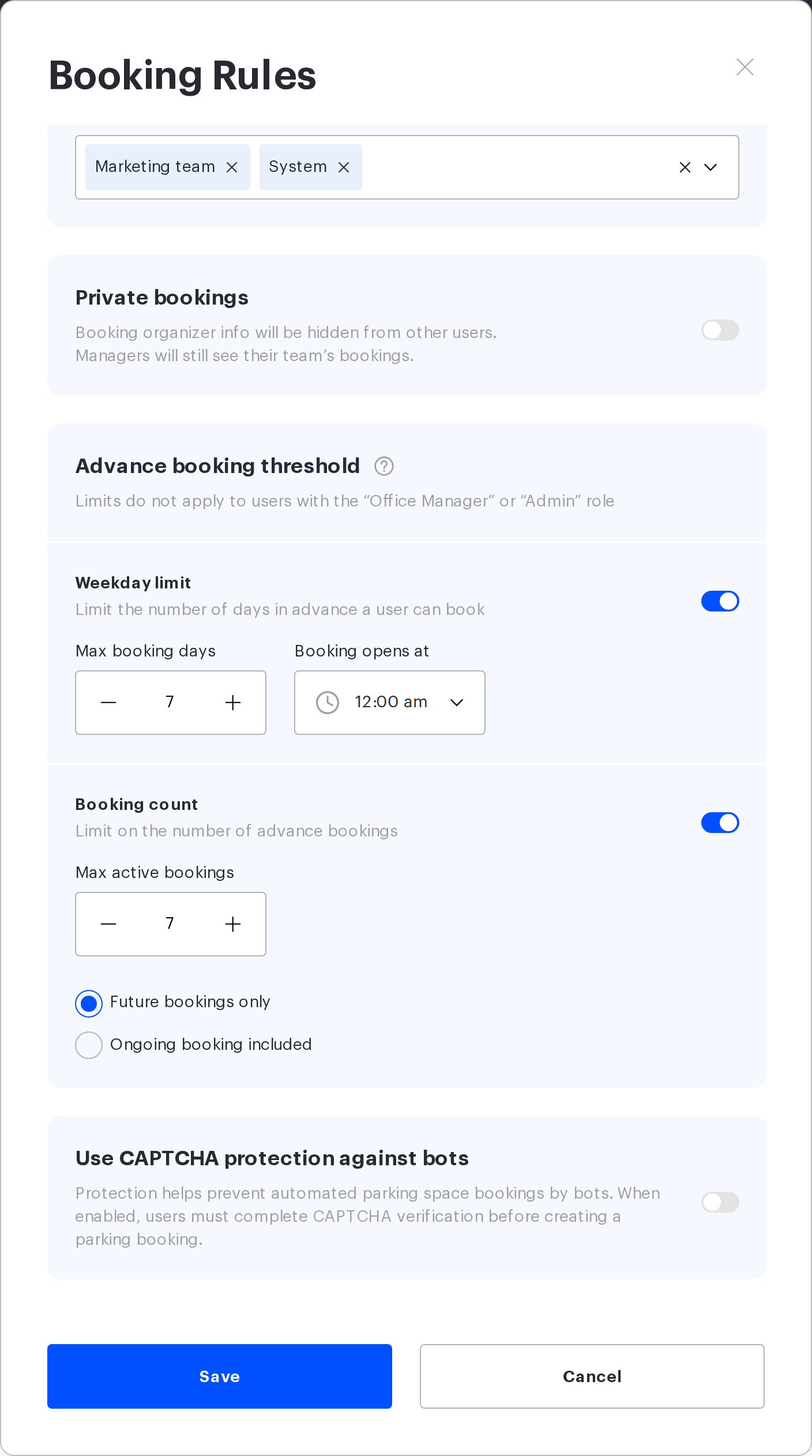
The horizon is a limit on advance bookings, configured in the office card: “Booking Rules” → “Advance booking threshold”.
| Setting | What it does |
|---|---|
| Weekday limit | How far ahead bookings are allowed. Only working days count: weekends and holidays push the limit further out |
| Booking opens at | The time of day when the next day of the horizon opens |
| Booking count | How many advance bookings an employee holds at once in this office |
| Ongoing bookings | Whether a booking that has already started counts towards the limit: “Future bookings only” or “Ongoing booking included” |
For an employee the horizon looks like this: dates beyond its limit are blocked in the calendar, no resources are shown for them, and an attempt to create a booking through quick booking returns a message about the limit being exceeded: “Booking limit exceeded. It is possible to book a desk in … no more than N working days in advance”.
The “Booking count” limit does not count the automatic bookings of assignments and the employee’s bookings on their own assigned resource.
Who the horizon does not concern. The limit does not apply to the Super Administrator and the Office manager — the setting hint says so too. An important nuance: the Offices Administrator, the Users Administrator and the Integrations Administrator are subject to the horizon and the limits. That is why the horizon behaviour has to be checked on the account of a regular employee: on a Super Administrator account no limits are visible at all.
The horizon is not applied to guest bookings, and when booking for a colleague the limit is counted against the employee the booking is made for. The horizon does not extend to meeting rooms and lockers.
How parking spaces differ
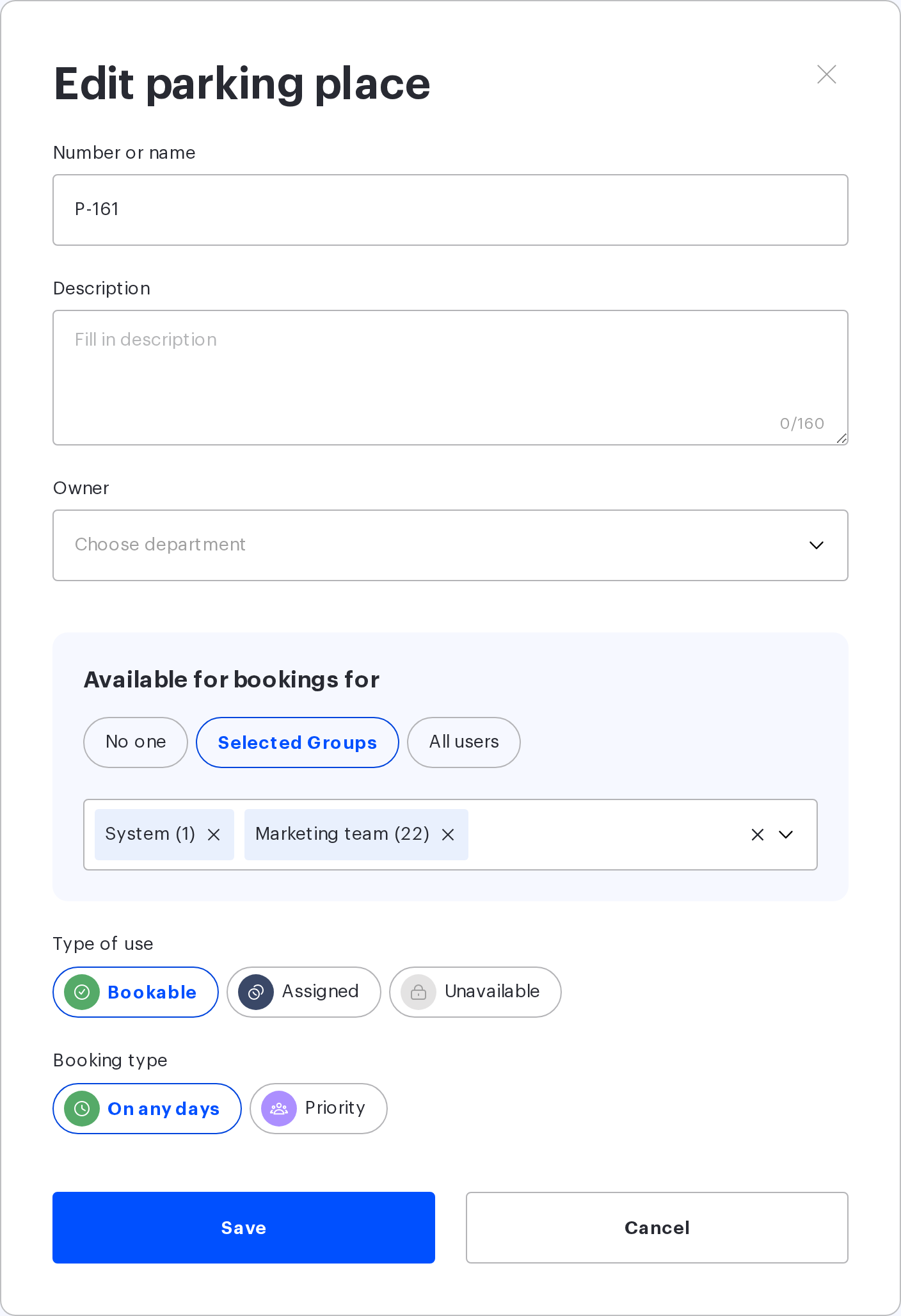
- Parking has no “For period” assignment — only by weekday and “Priority”.
- An automatic booking for an assigned parking space is only created if the employee has a car added.
- The absence status and the schedule template do not affect the creation of automatic parking bookings: the booking is created even if the employee works remotely that day.
- The advance booking limit for parking is also counted per car number, not only per employee.
Diagnostics: why a resource is not visible
| Symptom | Likely cause | What to check |
|---|---|---|
| The resource is not visible at all, on any date | There is no source of access | The groups of the resource, the “Owner” field, the assignment |
| The resource is visible but unavailable on a distant date | The office horizon or the 28-day limit | The office “Booking rules”; whether the resource is assigned to somebody |
| The resource is only available today | Booking type “Day to day” or “Priority” | The resource card, the “Booking type” block |
| The resource was available and disappeared | The type of use or the list of priority employees was changed | The resource card; such edits delete future bookings |
| The employee is in the group but sees no resources | The group is linked to the floor but not to the resources | The group links on the resources themselves |
| It all works for the administrator but not for the employee | Some limits do not apply to the Super Administrator and the Office manager | Check on the account of a regular employee |
Related articles
- Workspace access rights: overview — the entry point to this section
- How workspace access rights work
- Configuring resource access rights: all settings — the settings reference
- Access Groups: rules and configuration options
- Workspace access through the organisational structure
- Booking policies
