
Booking control: settings reference
This is a reference for every booking control setting: what each toggle and field does, what it affects and when to switch it on. For the mechanics behind it see How booking control works; for settings of an individual space or meeting room see Check-in settings for a space and a meeting room.
Where the settings live
Company-wide settings: Manage → Company settings → Check-in policies. The menu item is called Check-in policies; the window opened by Edit settings is titled Booking confirmation.
| Role | What is available |
|---|---|
| Super Administrator | Everything: company-wide settings, local settings of a space and of a meeting room |
| Offices Administrator | The same, as far as settings go. This role cannot confirm somebody else’s booking: confirmation is available to the booking organiser, a Super Administrator and a display |
| Office manager | Local settings of a space only. The company page and meeting room settings are not available: the link to company settings is inactive and the “Download QR Codes” and “Set up PACS connection” links are hidden |
| Member | No access to the settings |
What is on the page
The page consists of two independent blocks, each with its own “Edit settings” button:
- Meeting room booking control — rules for all meeting rooms of the company;
- Desk and parking space booking control — rules for desks and parking spaces, as one set covering both resource types.
⚠️ The second block configures desks and parking together: there is no separate set of settings for parking. If the rules have to differ, desks and parking spaces are split across different spaces — see Desk and parking check-in: one shared setting.
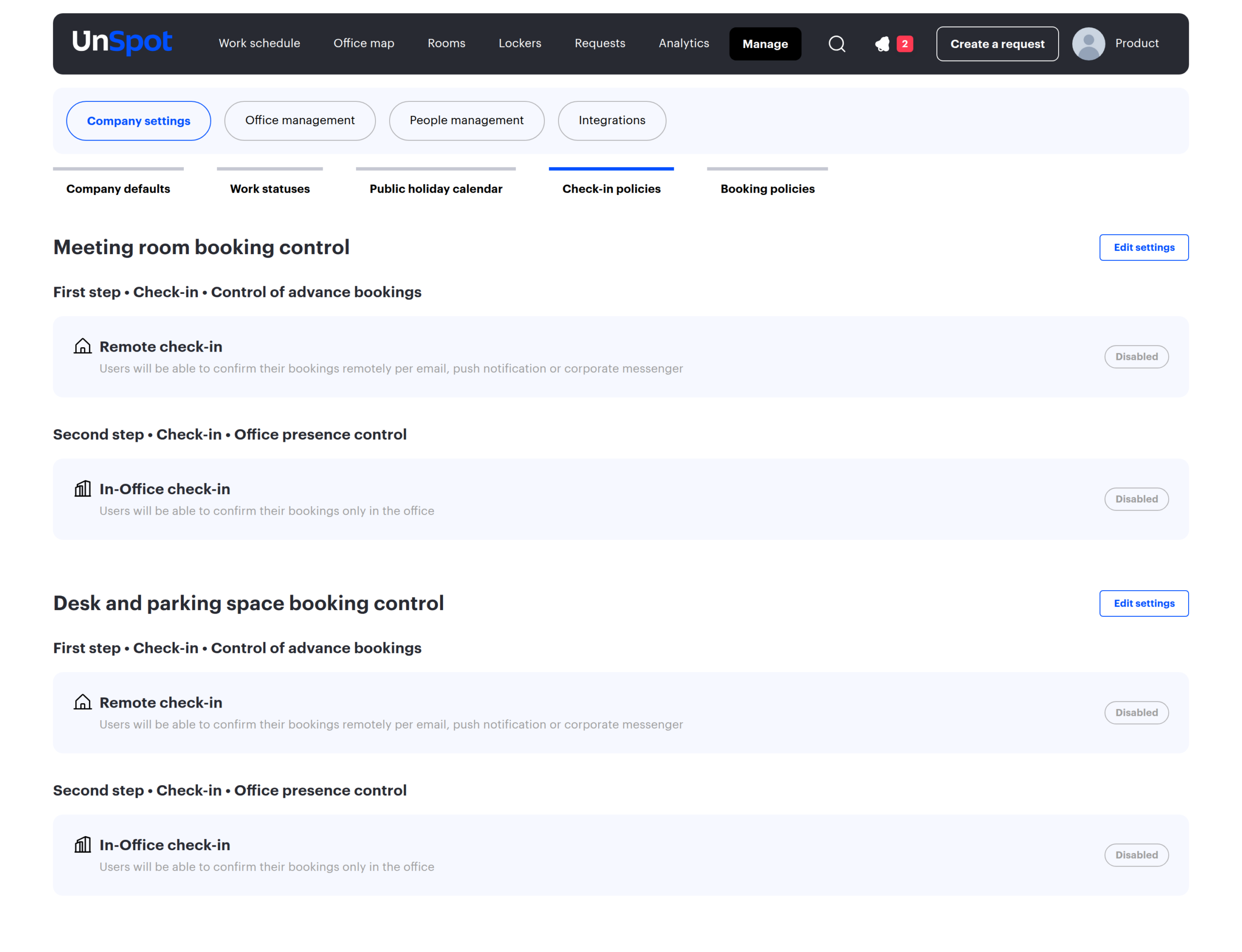
Each block shows the current state of both stages — Enabled or Disabled — and, if at least one stage is on, an Exception list block below them. “Edit settings” opens the Booking confirmation window; every field described below lives in it.
All settings at a glance
| Setting | What it does | What it affects | When to use it |
|---|---|---|---|
| Remote check-in toggle | Switches on the first step — advance confirmation | The employee gets a confirmation request and can answer from anywhere | When the main problem is “just in case” bookings nobody cancels |
| Types of work & parking places (first step) | Chooses which places require confirmation: Bookable, Assigned or both | The set of bookings covered by the first step | Include Assigned places if you want to see the real occupancy of assigned resources |
| Start of check-in (first step) | When the advance confirmation window opens | When the confirmation request is sent | 24 hours for offices in high demand; 2–4 hours if bookings are usually made on the day of the visit |
| Finish of check-in (first step) | When the window closes: after it an unconfirmed booking is cancelled | How early a resource is released | The earlier, the better the chance somebody else takes the resource |
| In-Office check-in toggle | Switches on the second step — presence control | A booking is cancelled if the employee did not confirm presence in the office | When the problem is not “forgot to cancel” but “booked and never showed up” |
| Types of work & parking places (second step) | Same as for the first step, but for presence control | The set of bookings covered by the second step | Usually matches the first step |
| Start of check-in (second step) | From which moment the system starts waiting for the employee | When presence can be confirmed | 10–30 minutes before the start, so the employee can confirm on arrival |
| Finish of check-in (second step) | By which moment the employee has to be in the office | How late a booking still counts as used | 30–60 minutes after the start — a compromise between discipline and being late |
| Check-in method | How presence is proven: network, QR, button, PACS | What the employee has to do in the office | All five methods are covered in a separate article |
| Users excluded from booking control | An exception group whose bookings are confirmed automatically | Control does not apply to the selected group | Managers, assistants, employees who travel between sites |
First step: advance confirmation
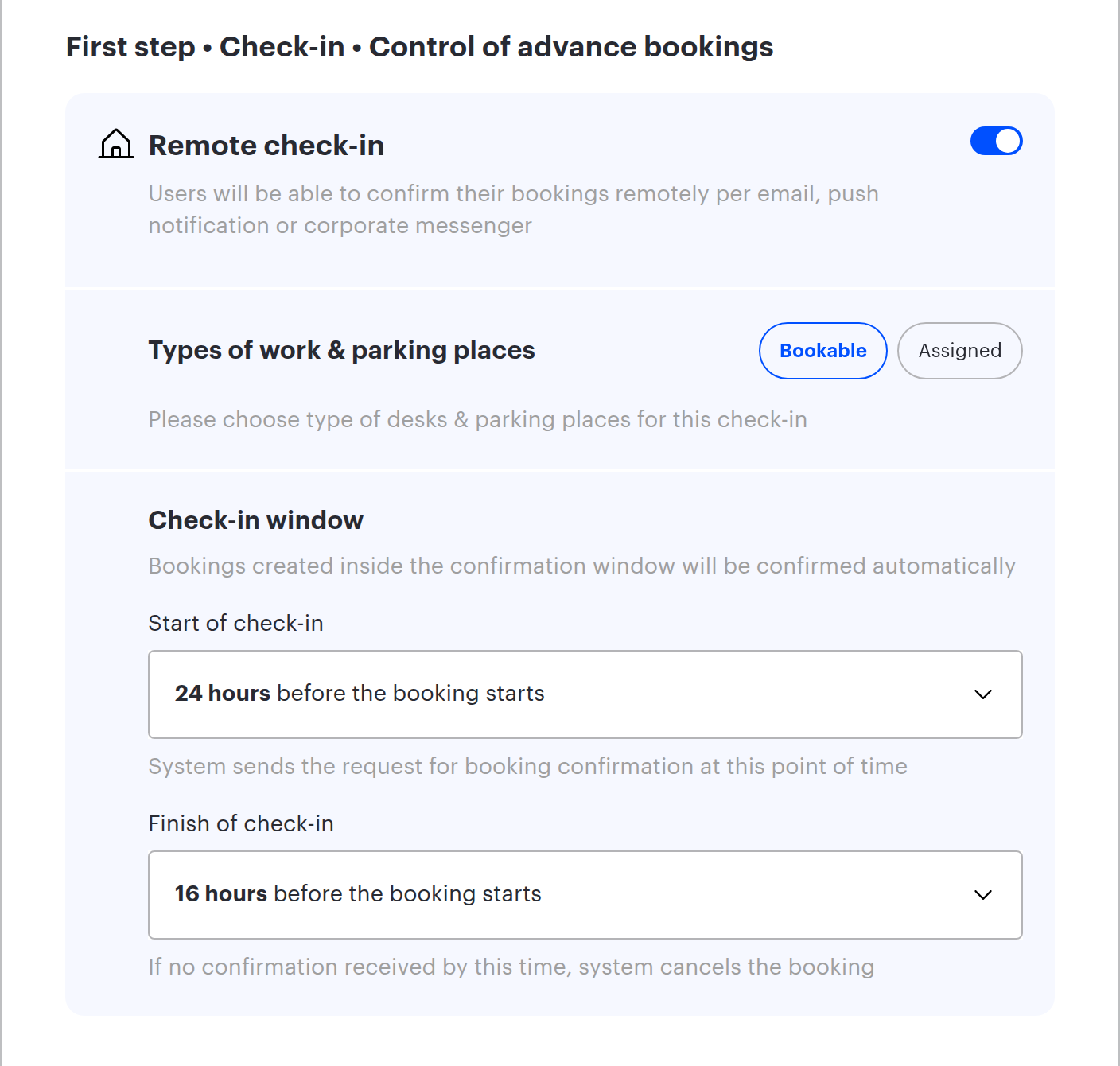
The Remote check-in toggle
The main switch of the stage. While it is off, the rest of the stage fields are inactive. The description explains both the purpose and the method: “Users will be able to confirm their bookings remotely per email, push notification or corporate messenger”.
The key word is remotely: this stage does not require the employee to be in the office. It only answers the question “is this booking still needed?”.
Types of work & parking places: Bookable and Assigned
Two chip buttons matching the type of use set in the resource card:
- Bookable — resources employees take themselves;
- Assigned — resources assigned to an employee, a group or for a period. Bookings on them are generated automatically, and without control an assigned resource counts as occupied even when its owner is away.
At least one type must be selected: the interface will not let you clear the last one. When the stage is switched on, Bookable is selected automatically.
Check-in window
Two dropdowns. The hint under the block states an important rule: “Bookings created inside the confirmation window will be confirmed automatically”.
| Field | What it sets | Available values |
|---|---|---|
| Start of check-in | When the window opens | “At the time of starting the booking”, then 10, 20, 30, 40, 50 minutes and 1 to 24 hours before the start |
| Finish of check-in | When the window closes | From 23 hours down to 1 hour before the start, “at the time of starting the booking”, then 10–60 minutes, 1.5, 2, 3 and 4 hours after the start |
The defaults for desks and parking spaces are 24 hours for the opening and 16 hours before the start for the closing. Both points sit before the booking itself: the purpose of the first step is to learn about a cancellation in advance, not at the moment of the visit.
Second step: office presence control
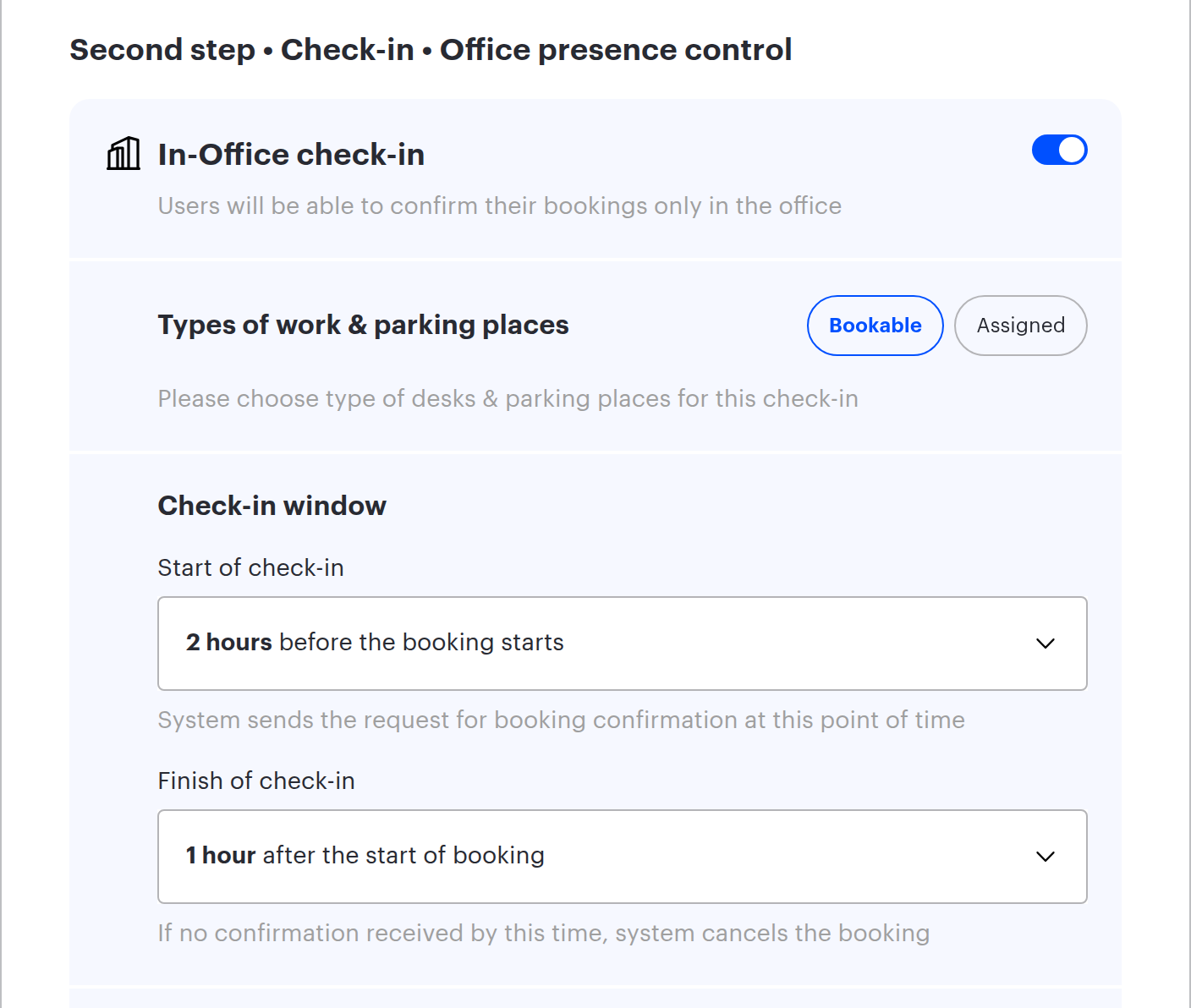
The In-Office check-in toggle
Switches on presence control. The description is short and precise: “Users will be able to confirm their bookings only in the office”. An ordinary button helps at this stage in one case only — when Remote confirmation is among the enabled check-in methods.
Types of work & parking places
Works exactly as on the first step and is configured independently: you can, for example, control arrival for bookable resources only and leave assigned ones alone.
Check-in window
The same two dropdowns with a different meaning: this is the period during which the system waits for the employee in the office. The defaults are 2 hours before the start for the opening and 1 hour after the start for the closing.
⚠️ The second step must begin after the first one has finished. Otherwise the form shows an error and will not save. This is a system constraint, not a recommendation.
Check-in method
A mandatory block: with the second step enabled at least one method must be selected — QR code, Remote confirmation or PACS. Otherwise the error “Please choose the check-in method” appears. All five methods, including Automatic Check-in via Mobile Device and Switch off notifications, are covered in Check-in methods.
Exception list
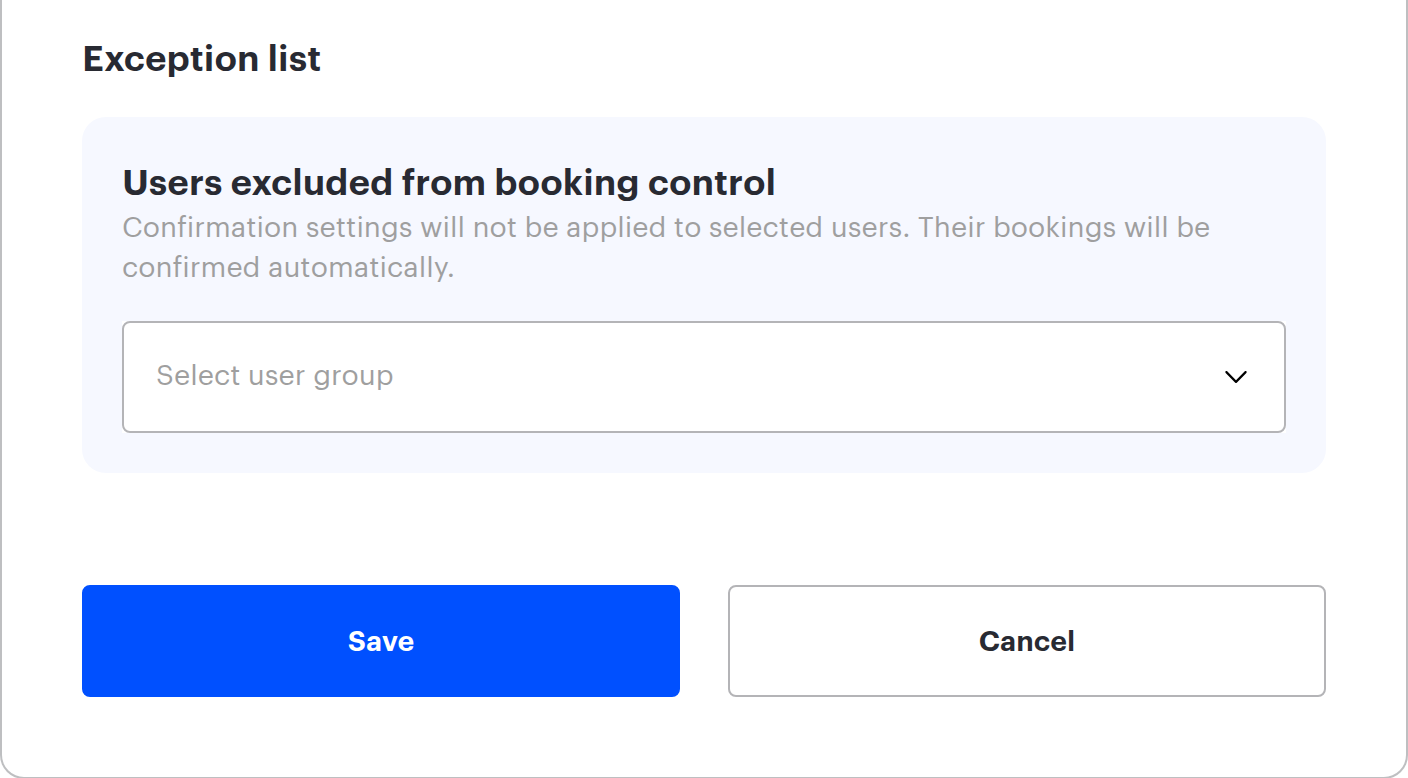
The block appears once at least one stage is enabled. The field Users excluded from booking control takes one user group — a group, not a list of individual employees.
What happens to its members:
- their bookings count as confirmed automatically, for both stages;
- the system never cancels those bookings by check-in;
- they receive no confirmation requests.
Points to keep in mind:
- only one group can be selected, so it is convenient to collect the excluded employees into a dedicated group;
- service groups and the all-users group cannot be selected;
- the field is inactive while both stages are off;
- each block has its own exception list: meeting rooms and desks use different fields;
- if the selected group is deleted, the field is cleared automatically.
Allowed values and form errors
| Message | When it appears | What to do |
|---|---|---|
| “Finish of check-in window should be later than start” | The window is set the other way round: the closing is earlier than the opening | Check the pair of values inside one stage |
| “Finish of check-in window of 1st step may not be later than start of 2nd step” | The stage windows overlap | Move the first step closing earlier or the second step opening later |
| “Start of check-in window of 2nd step may not be earlier than finish of 1st step” | The same constraint shown from the second stage | The same |
| “Please choose the check-in method” | The second step is on but no method is selected | Enable QR code, Remote confirmation or PACS |
| “Entering the SSID or IP address value is mandatory” | Automatic check-in via mobile device is on but the network lists are empty | Add at least one IP address or SSID |
Field limits: no more than three IP addresses and three SSIDs; an IP address may be up to 39 characters long, an SSID up to 32. The Save button stays inactive while nothing has changed in the form or an error is present.
What depends on what
| If… | Then… |
|---|---|
| A stage is off | All of its fields are inactive: place types, the check-in window and the methods |
| A stage is on but no place type is selected | The Bookable type is switched on automatically |
| Both stages are off | The exception group field is inactive, and the Exception list block is not shown on the settings page |
| The PACS method is off | The “Switch off notifications” toggle is hidden |
| Automatic check-in via mobile device is off | The IP and SSID lists are hidden |
| A time interval is not set | The stage does not actually work, even with its toggle on |
How to choose the values
Pick the settings for a specific problem rather than switching everything on. Ready-made sets for the typical goals — freeing up desks early, accurate attendance analytics, strict presence control and full control with both steps — are collected in Booking control scenarios: four ready-made setups.
Two special cases are solved by structure rather than values: scarce parking — by splitting desks and parking, rules that differ per office — by local settings.
