
Exchange service account with impersonation rights
For a single UnSpot connection to serve the calendars of every meeting room on your Exchange server, you need a service account with impersonation rights: it reaches each room calendar on behalf of that room, so permissions do not have to be granted on every calendar separately. This article covers the preparation on the Exchange side; setting the connection up is described separately.
What you need
- Exchange administrator rights: creating a mailbox and running a command in the Exchange Management Shell.
- A supported server version: Exchange 2010, 2010 SP1, 2010 SP2, 2013, 2013 SP1, 2016. Exchange 2019 is not in the UnSpot version list.
- The ability to configure the network in both directions — from UnSpot to the server and from the server to UnSpot (details in step 4).
- Permissions in UnSpot for the second stage: the connection is created by a Super Administrator.
Step 1. Check the meeting room resource calendars
Every meeting room needs a resource mailbox with an email address — that address is what you enter when you connect the calendar to the meeting room in UnSpot. This option has no room list: UnSpot does not ask the server for one, so the resource addresses have to be known in advance. Write them down now — it saves time at the second stage.
Step 2. Create the service account
The account is created with the standard Exchange tooling. In the ECP panel open Recipients → Mailboxes, press + User mailbox and create a user — for example, app_impersonation.
What to keep in mind while creating it:
- A password that does not expire, or a routine for replacing it. On the day the password changes, the synchronisation stops until the new value is entered into the connection.
- The account must not require a password change at first sign-in — UnSpot cannot sign in interactively.
- Multi-factor authentication must be off for it: the calls go over EWS and there is nobody to confirm a second factor.
- A dedicated account for the integration alone — it is then clear whose access to revoke, and whose actions show up in the Exchange logs.
Step 3. Grant the impersonation role
On the Exchange server, start the Exchange Management Shell and run the command, substituting the name of the account you created:
New-ManagementRoleAssignment `
  -Name "UnSpotAppImpersonation" `
  -Role "ApplicationImpersonation" `
-User "app_impersonation"The ApplicationImpersonation role allows the account to make EWS requests on behalf of other mailboxes. That is exactly what removes the need to grant permissions on every meeting room calendar separately.
Applying the role can take several minutes. If UnSpot reports insufficient permissions right after the command has been run, wait and try again.
Limiting the role scope
Granted without limits, the role lets the account reach any mailbox on the server. If that is unacceptable, limit it with a scope that only covers the meeting room resource mailboxes:
# remove the previous assignment (if the role was granted without a scope)
Remove-ManagementRoleAssignment `
  -Identity "UnSpotAppImpersonation" `
  -Confirm:$false

# a scope limited to room resource mailboxes
New-ManagementScope `
  -Name "UnSpotResourceMailboxes" `
  -RecipientRestrictionFilter {RecipientTypeDetails -eq "RoomMailbox" -or PrimarySmtpAddress -eq "app_impersonation@example.com"}

# assign the role with the scope
New-ManagementRoleAssignment `
  -Name "UnSpotAppImpersonation" `
  -Role ApplicationImpersonation `
  -User "app_impersonation" `
-CustomRecipientWriteScope "UnSpotResourceMailboxes"The mailbox of the service account itself must be inside the scope — that is what the second half of the filter above does. When the connection is saved, UnSpot makes an EWS call to the calendar of the very account whose address you put in the Email field, and it makes that call through impersonation. If the scope is limited to resource mailboxes only, the connection is not saved at all: UnSpot shows Insufficient permissions for service account or application.
If some meeting room mailbox is left out of the scope, the connection is saved, but connecting that particular room calendar fails with an insufficient permissions error.
Step 4. Check EWS availability and the network
The synchronisation needs both sides of the connection, and the second one is often forgotten.
| Direction | What is needed | What happens if it is missing |
|---|---|---|
| UnSpot → Exchange | access to EWS on the server you enter in the connection form. The address is entered without a scheme | the connection will not be saved at all: UnSpot shows External calendar provider error — the same string as in the error table below |
| Exchange → UnSpot | the server must be able to reach UnSpot on its own: it is the server that sends the calendar change notifications. The address the server posts to is set in the UnSpot configuration — ask your UnSpot administrator for it, or support in the cloud | the connection will be saved and bookings will reach the calendar, but calendar events will not reach UnSpot. There will be no error — just silence in one direction |
Also check the following:
- The authentication method. By default UnSpot uses domain authentication (NTLM). If only basic authentication is left on EWS, turn on the Use Basic Authentication (Basic Auth) switch in the connection form.
- The certificate. If the server certificate is self-signed, turn on Do not validate SSL certificate in the form. The connection still uses HTTPS, but the server identity is not verified — issuing a certificate that UnSpot trusts is the better option where possible.
- Response speed. UnSpot waits up to 15 seconds for the connection and up to 60 seconds for the response. An overloaded server or a slow link produces connection errors that look like a permissions problem.
What you should have before the setup in UnSpot
| What | Where to get it |
|---|---|
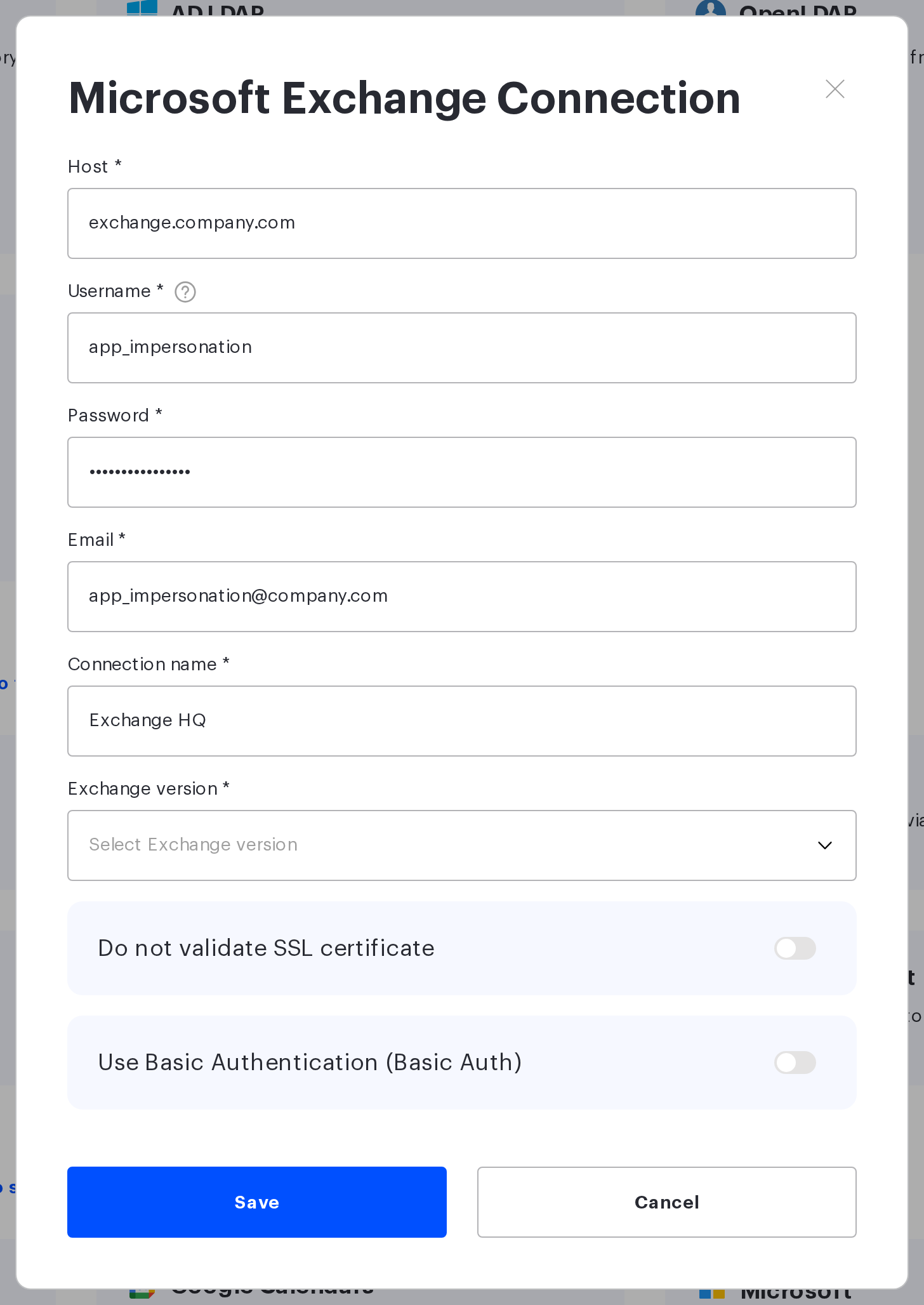
| The Exchange server address without a scheme | from the server administrator |
| The service account username | step 2. It may be the same as its email address |
| The service account password | step 2 |
| The service account email address | step 2 |
| The Exchange version | from the server administrator |
| The meeting room resource calendar addresses | step 1 — they are needed when each room’s calendar is connected |
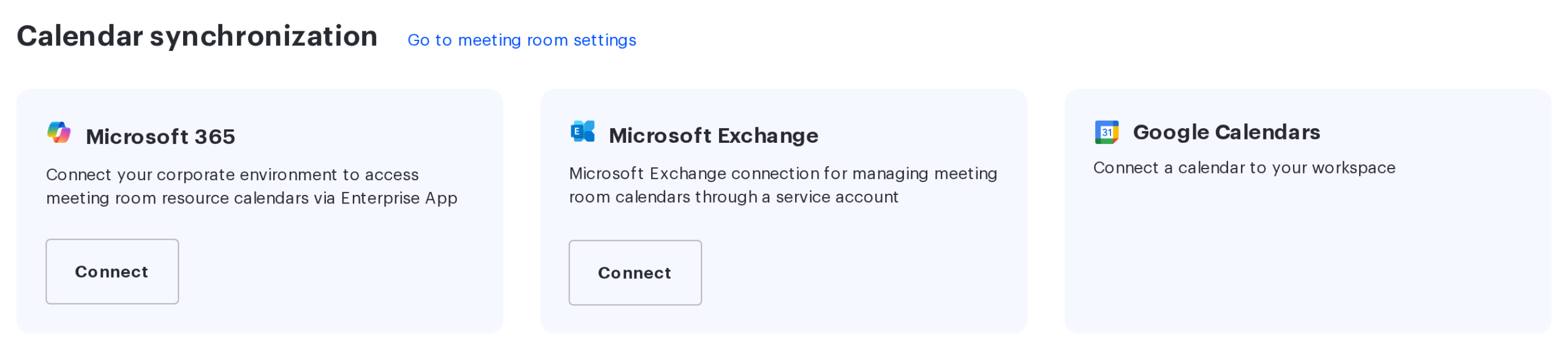
Next, open Manage → Integrations → Synchronisations and press Connect on the Microsoft Exchange card in the Calendar synchronization section:
All of these values are entered in the Microsoft Exchange Connection window that opens:
Common errors
| What UnSpot shows | What to check on the server |
|---|---|
| Invalid credentials. | the service account username and password; whether it requires a password change; whether the server accepts the selected authentication method — try the Basic Auth switch |
| Insufficient permissions for service account or application. | whether the ApplicationImpersonation role was granted; whether enough time has passed for it to apply; whether the role scope cuts the meeting room mailbox off |
| Enter a valid host. The field must contain a domain name only. | the address was entered with a scheme or a path — leave only the domain name or the IP address; the check runs in the form, before any call to the server |
| External calendar provider error. | the general answer to everything that is neither credentials nor permissions: the server is unreachable, EWS is closed, the certificate was rejected, the server returned an error. Check that the server is reachable from where UnSpot runs, and for a self-signed certificate turn on Do not validate SSL certificate |
| A connection with this server and username already exists | such a connection has already been created — use it; the server plus username and server plus email pairs have to be unique |
| Bookings reach the calendar but calendar events do not arrive | access from the Exchange server to UnSpot (step 4). Until it is configured, events have to be pulled in by hand — with the Start Sync button in the room calendar window, no more than once an hour |
