
Assigning a desk to an employee
An assignment reserves a desk for a specific employee, for several employees or for a group. Everything below — the “Assign a place?” window, notifications, the booking horizon — works the same way for parking spaces. This article covers how to assign and unassign a desk, what happens to the bookings that already exist, and how the system maintains the assignment afterwards.
What an assignment does
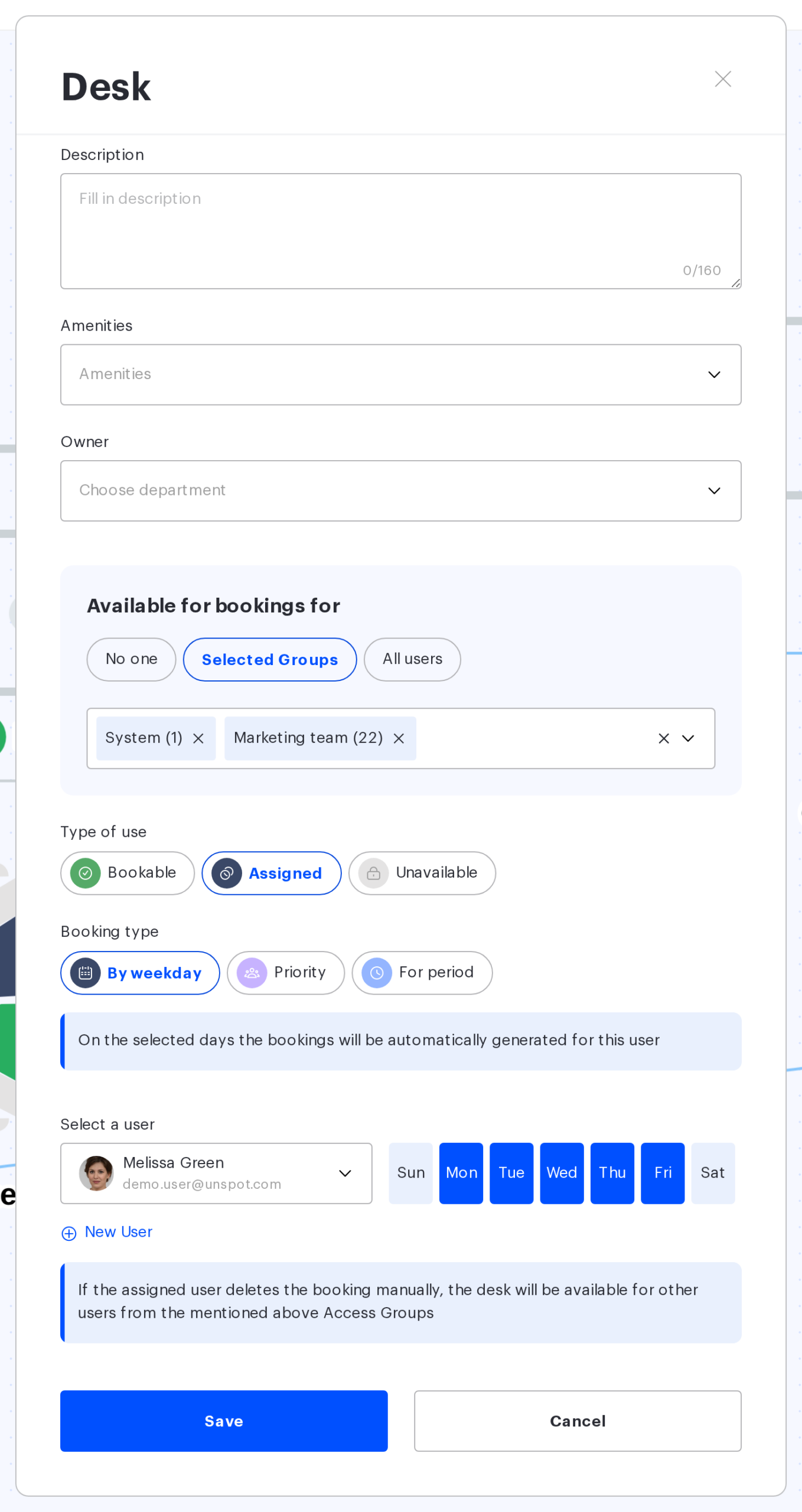
An assignment is a subtype of the “Assigned” type of use. The subtype is chosen in the same desk card:
| Subtype | Who it is assigned to | How the desk is taken |
|---|---|---|
| By weekday | one employee | the system creates the bookings itself on the selected weekdays |
| Priority | several employees | the desk stays bookable, but the selected employees have priority |
| For period | one employee, with a start and an end date | bookings are created for the whole period; three months at most |
A bookable desk has a “Priority” button too, but there it means something else: Access Groups, not employees, get priority on the selected weekdays. That is not an assignment — the “Assign a place?” window does not open for it. All subtypes are covered in “Desk types”.
What each type of use means is covered in “Desk types”.
How to assign a desk
- open the map editor: “Manage → Office management → Workspaces” → “Change map” → on the Drafts page open the published version or a draft;
- switch to the Settings mode — objects are fixed there, so a desk cannot be moved by accident;
- open the desk card with a double click (the pencil button above the selected desk and cmd/ctrl + E do the same);
- in “Type of use” choose “Assigned”, then the subtype;
- choose the employee — one or several for “Priority”; for a weekday assignment tick the days;
- press “Save” in the card, then “Save” (in a draft) or “Publish changes” (on the published map).
The “Assign a place?” window: two ways to reseat
The “Assign a place?” window opens before the card is saved for any new or changed assignment — by weekday, for a period or when the list of “Priority” employees changes — whether or not the desk has bookings. It offers two options; the card is not saved until one of them is selected.
| Option | What happens | Button |
|---|---|---|
| Strict assign | The future bookings of other users for this desk are deleted, and the bookings of the assigned user for other desks are moved here — the employee is fully reseated to this desk | “Delete existing bookings” |
| Soft assign | The future bookings of other users for this desk are kept, and the bookings of the assigned user for other desks stay as they are. On the remaining days the system creates a booking automatically if the desk is free and the employee has no other booking | “Save existing bookings” |
For “Priority” the options are named “Delete bookings” and “Keep bookings”, with shorter explanations: the first cancels the bookings for this desk, the second keeps the ones already made, and on free days the priority employees book the desk first. The buttons are the same: “Delete existing bookings” and “Save existing bookings”.
Notifying employees
The desk card does not ask this question: “Notification to users” appears once — when you click “Publish changes” on the published map — and covers all assignment changes made since the last save. “Yes, notify” emails the employees whose desk settings changed; “No” saves silently. Publishing a draft never asks this question and never sends emails — see “Publishing a seating draft”.
How assigned desks work
- for the “By weekday” and “For period” assignments the system creates the bookings itself and keeps a 28-day horizon, extending it daily;
- an employee is assigned “By weekday” to only one place of each kind per day: if you assign them to another desk on the same days, those days are removed from the previous desk automatically — without a warning — and if no days are left, that assignment is removed altogether. Desks and parking spaces are counted separately; the rule applies on the published map and inside a draft alike;
- if the assigned employee releases the desk — marks “remote” or “not working” in the schedule, or deletes the booking — employees with access can book it on those days; the assignment itself is kept;
- with the “Priority” assignment the desk stays bookable: the selected employees get priority, but the desk is not blocked for everyone else;
- if booking confirmation (check-in) is on, it applies to assigned desks when the “Assigned” place type is ticked in its settings — see “Booking control: settings reference”.
Limits
| Limit | What it means |
|---|---|
| Three months for “For period” | A longer period is refused: “The assignment period cannot exceed three months” |
| “For period” is not available inside a draft | The button is hidden in a draft, and a subtype already set is reset to “By weekday”. A period assignment is configured on the published map, after publishing |
| One employee — one place per day | The editor itself removes the overlapping days from the previous place (see above). Inside a draft only the assignments of the same draft are taken into account; if a conflict still reaches the server, the answer is “User is already assigned to another object on the same day in this draft” |
| One assignment type at a time | Subtypes cannot be mixed in one card: “Only one assignment type can be used at a time” |
How to unassign a desk
- open the desk card and switch “Type of use” to “Bookable” — or remove the employee from the assignment;
- if the desk has bookings, the system again offers the choice of what to do with them and asks about notifications;
- switching a desk to “Unavailable” opens the “Change place status” window with the same choice: “Release the place” removes the bookings of users, “Keep bookings” leaves them;
- save the changes on the map.
Related articles
- Desk types — what each type of use and subtype means;
- Desks on the map — every field of the desk card;
- Map editor: configuring placed objects — the mode where desk parameters are edited;
- Assigned seats, priority and the booking horizon — how assignments look from the access-rights side;
- Office map editor: an overview of the actions — every action with the map.
